Microsoft Launcher
- 1.74M
- 4.7
- Installs
- 50.00M
- Price
- Free

Screenshots
Analysis by Reviewed APKs
Microsoft Launcher replaces the standard Android home screen with a more customizable layout and a feed for useful everyday information. I see it suiting people who like to adjust their phone’s appearance and keep things such as calendar details and to-do lists close at hand. After spending time with its options, my take is that it’s a flexible home-screen alternative, though its extra features are most useful if you want to make the launcher part of your routine.
A calmer start to the day
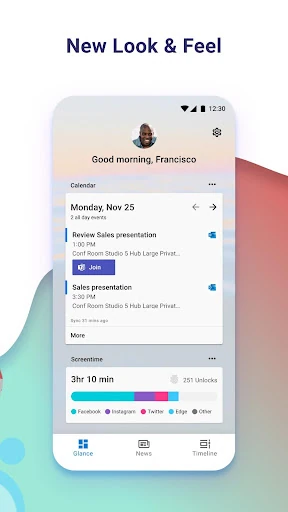
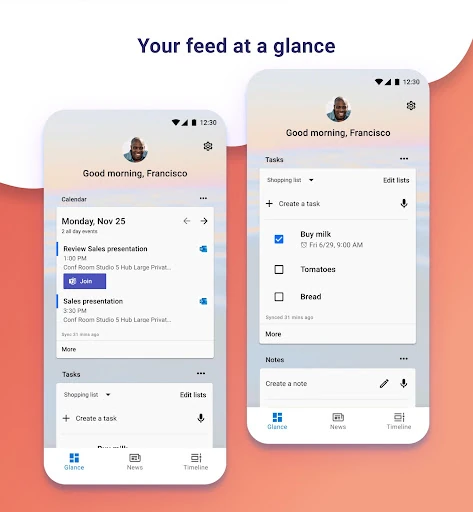
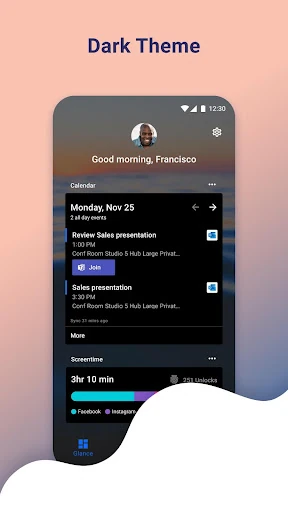
When I first opened Microsoft Launcher, I treated it as a practical morning shortcut rather than a dramatic makeover. I could bring over my existing home-screen layout or start fresh, then put the apps I reach for most in familiar spots. The personalized feed can bring calendar information and to-do lists together, so I had a place to glance at what was coming up before opening individual apps.
That setup makes sense for a weekday routine: check the phone, see the day’s calendar details, and get to a frequently used app without digging through several screens. Sticky Notes are another option for quick reminders, while the launcher’s gestures offer alternate ways to move around the home screen. The value is less about a single must-have feature and more about arranging common phone tasks around the way I already use my device.
A home screen, not a PC clone
The obvious alternative is to keep the phone’s existing launcher. That is the simplest choice if its layout already works for you, and Microsoft Launcher is optional: it can replace the default home screen or let you switch between launchers. Its appeal is for people who want more control over the Android home screen, including icon appearance, wallpapers, a dark theme, and a feed with selected information.
It is still an Android phone launcher, not a way to reproduce a Windows PC desktop on a phone. You also continue to get new apps from Google Play rather than from the launcher itself. I would not choose it expecting a complete productivity suite or a solution for every task. It organizes and personalizes the home-screen experience, while its feed and notes provide convenient access to some information and functions.
Make the layout work for you
A useful first habit is to keep the main screen focused. I would start with the apps I open every day, then decide whether the feed’s calendar or to-do information deserves a place in my regular glance. The launcher supports custom icon packs and adaptive icons, so someone who cares about a consistent look can refine the appearance after settling on a layout that is easy to use.
It also helps to treat customization as an occasional adjustment, not a project that has to be finished on day one. Try the dark theme in low light, choose a personal photo or the daily Bing wallpaper, and explore gestures only if they suit your muscle memory. If you change phones or want to try another home-screen setup, Backup and Restore can save a configuration locally or to the cloud.
More From Our News Desk

Zoom Meetings, Google Meet, or Teams: Which Is Easiest to Join?

How I Build a Free Streaming Lineup With Tubi

Why Crunchyroll Is the Default Anime App for So Many Fans

YouTube TV: A Practical Guide to Cutting Cable

Rummikub and the Small Comfort of Phone Games

TeamViewer Remote Control or AnyDesk for Helping Family?
Who may enjoy the switch
I’d recommend Microsoft Launcher to Android users who enjoy arranging their home screen and want everyday information, such as calendar details and to-do lists, within a personalized feed. It is also a reasonable fit for someone who wants to change icons or wallpapers, use a dark theme, or keep Sticky Notes accessible while on the go. The option to import an existing layout makes trying it feel less like starting over.
It may not be worth changing launchers if you are already happy with your phone’s default setup and rarely adjust its appearance. People expecting their Android screen to become a copy of a PC desktop should look elsewhere; that is not what this app does. Some launcher functions depend on optional permissions, so anyone who declines them can still use the app, but may find that particular features are restricted.
Microsoft Launcher is a free personalization app from Microsoft Corporation for Android. On Google Play, it has over 50 million installs and a 4.7-star rating from about 1.7 million ratings. The content rating is Everyone. The app requires Android 7.0 or later, and the current version is 6.260701.0.1180290.
The app was released on October 28, 2015, and its most recent update was October 11, 2026. It is free to download, with no in-app purchases or ads. Microsoft Launcher can replace the default launcher or be used alongside other device launchers. New apps still need to be downloaded from Google Play.
A home screen shaped around your routine
An easy first step
My first impression was that Microsoft Launcher is best approached as a home-screen choice, not as an all-at-once overhaul. During setup, the option to import my current layout stood out because it offers a familiar starting point. Starting fresh is there too, for anyone who would rather arrange favorite apps from scratch. Either way, the decision is reversible: the description says users can switch back to their previous home screen.
Once it is in place, the familiar job of a launcher remains central: organize the phone and make frequently used apps easy to reach. The customization comes on top of that basic purpose. I would take a little time to choose a layout and see how it feels through an ordinary day before changing every visual detail. That keeps the setup useful instead of turning the first session into a long series of tweaks.
Useful in small moments
The day-to-day experience is about reducing small bits of friction. A feed that can show calendar information and to-do lists gives me a quick place to check what is ahead, while Sticky Notes offer another way to keep a reminder close. These are simple conveniences rather than a replacement for the apps or services I already use. Their usefulness depends on whether I like seeing that information as part of my home-screen experience.
Gestures add another layer for people who prefer swipes, pinches, or double taps to navigate the launcher surface. I would try them gradually, because a gesture is only helpful when I remember it and it feels natural. Microsoft Launcher’s role is to make the home screen more personal and organized; its daily value comes from choosing the few parts I actually reach for, rather than enabling everything at once.
Style with practical options
The visual choices are broad enough to make the phone feel more like my own without requiring a complicated redesign. I can use custom icon packs and adaptive icons for a more consistent app grid, choose one of my photos as wallpaper, or opt for a fresh image from Bing each day. These options address appearance directly, while leaving the core purpose of getting to apps and information unchanged.
The dark theme is another practical touch, especially when using the phone in a dim room. It is compatible with Android’s dark mode settings, which makes it a natural option for users who already prefer darker interfaces. I appreciate that the launcher offers this alongside the more decorative choices. There is no need to pursue a particular aesthetic: a simple wallpaper and a familiar layout can be enough.
Keep and move a setup
A straightforward routine might be to check the feed in the morning, use Sticky Notes for a quick reminder, and leave the main screen arranged around a few daily apps. In the evening, the dark theme may be more comfortable, while gestures can provide another way to move through the launcher. None of that requires treating the app as a full task manager; it is a home-screen arrangement that can put selected information within easier reach.
Backup and Restore is useful when a layout becomes something I would rather not rebuild. The app can store backups locally or in the cloud, and the feature is also intended for moving between phones or trying different home-screen setups. That gives customization a bit more staying power. I would make a backup after settling on a layout I like, particularly before switching devices or experimenting with another arrangement.
Permissions and expectations
Some of the optional permissions map to specific functions. Calendar access supports calendar information in the feed, location is used for the Weather widget, and microphone access supports speech-to-text for launcher features such as Bing Search, Bing Chat, To Do, and Sticky Notes. Other listed permissions relate to contacts, calling, notifications, photos and video, or camera-based note and search functions. The app can still be used without consenting, though some functions may be limited.
That permission list is worth considering before enabling features, especially if you only want a simple replacement home screen. The launcher does not include a way to download new apps; those still come from Google Play. It also does not mirror a PC home screen. My main practical reservation is that people who want a minimal, untouched phone experience may find its customization and feed unnecessary, even though those options are the reason others may prefer it.
Microsoft Launcher is a capable option for Android users who want to shape their home screen and put selected everyday information nearby. I like the choice between importing a familiar setup and starting over, plus the mix of appearance controls, feed information, notes, gestures, and backup options. Its strengths are practical and personal rather than revolutionary.
I’d try it if customizing the phone sounds enjoyable or if a home-screen feed would make calendar and to-do details easier to check. If your current launcher already feels right, there is little pressure to switch. Microsoft Launcher works best when its optional features match habits you already have.
Microsoft Launcher Frequently Asked Questions
What is Microsoft Launcher used for?
Microsoft Launcher is an Android home-screen app for organizing and personalizing a phone. It supports customizable icons, wallpapers, a dark theme, gestures, and a personalized feed that can show calendar information and to-do lists. Sticky Notes are also available. It can replace the default launcher or be used alongside the device’s other launcher.
Which devices support Microsoft Launcher?
Microsoft Launcher is for Android devices and requires Android 7.0 or later. It is intended to provide a home-screen experience on an Android phone, not to replicate a PC desktop. The current Android requirement is worth checking in Google Play before installing, since app requirements can change over time.
Does Microsoft Launcher cost anything?
Microsoft Launcher is free on Google Play, and the app has no in-app purchases or ads according to its store information. New apps are not supplied through the launcher; users still download those from Google Play. Check the store for the latest details, since prices and availability can vary by region or change.
Can I use Microsoft Launcher without permissions?
Yes. The app description says you can use Microsoft Launcher without consenting to its optional permissions, although some functions may be restricted. Permissions support particular features, such as calendar information in the feed or location for the Weather widget. Review the permission prompts and current store information to see what applies to your device.
Who is Microsoft Launcher best suited to?
It is a good fit for Android users who want to personalize their home screen, organize favorite apps, or keep selected information close by. It may be less appealing if you already like your default launcher or want a phone to copy a PC desktop. The app can be tried alongside other launchers, and you can switch back.
Pros
- Lets users import an existing home-screen layout or start fresh.
- Offers icon, wallpaper, dark-theme, and gesture customization.
- Feed can bring calendar details and to-do lists together.
- Backup and Restore supports local or cloud-stored setups.
Cons
- Some functions may be restricted if optional permissions are declined.
- It does not reproduce a PC home screen on Android.
- Customization may feel unnecessary if the default launcher already suits you.
- Category
- Personalization
- Version
- 6.260701.0.1180290