Google Drive
- 10.85M
- 4.3
- Installs
- 10.00B
- Price
- Free

Screenshots
Analysis by Reviewed APKs
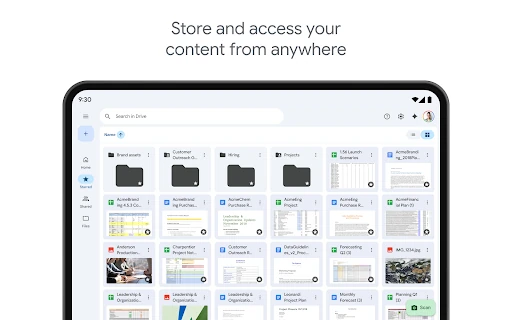
Google Drive is a cloud storage and file-sharing app for keeping documents, photos, scans, and other files accessible across devices. It suits people who already use Google services, as well as anyone who wants a straightforward place to organize and share files. After spending time with its everyday tools, my take is that Drive is most useful as a dependable filing cabinet that can also handle quick searches and collaboration.
A place for everyday files
When I first opened Drive, I thought about the small messes it can help tidy up: a document sent in an email, a paper receipt I might need later, and a folder of files I want to share with someone. I can upload files, scan a paper document with the device camera, and keep the results together. That makes Drive useful not just for big projects, but also for the loose ends that collect during an ordinary week.
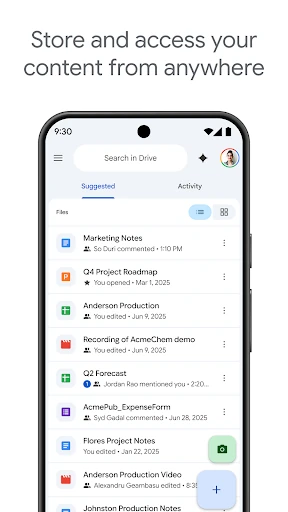
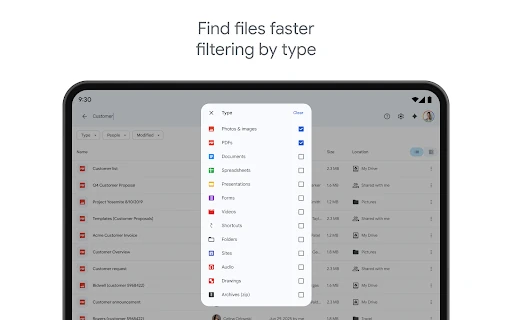
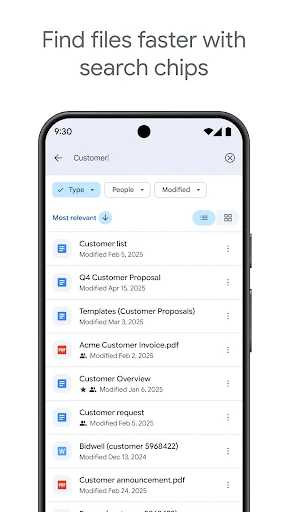
A typical routine might start with scanning a paper document, then searching for it by name or by words in its contents when it is needed again. Drive can show recent and important files, and filters help narrow results by file type or last-modified date. If I need to send a file to someone, I can share it and set permissions. The value is less about any single feature than having these basic steps in one place.
Storage, not a full workspace
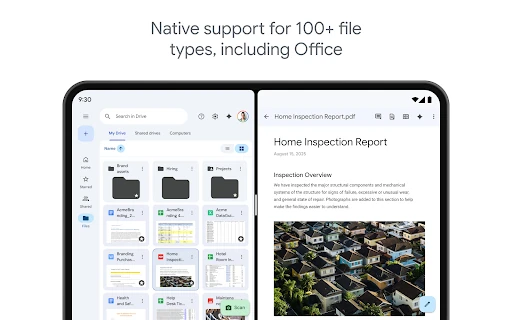
Compared with keeping everything on one phone or passing files back and forth through email, Drive gives me a central place to store, find, and share them. It can work with more than 100 file types, including PDFs, Office files, and videos. That breadth makes it a practical companion to other tools rather than a reason to abandon every app I already use for writing, editing, or communicating.
Drive is not simply a local file browser, and it is not a promise that every file will be available without preparation. Offline viewing is supported, but I would still make sure important items are accessible before heading somewhere without a connection. It also is not the whole Google Workspace experience: some team, administration, AI, and electronic-signature tools are for Workspace subscribers. For straightforward personal storage, those extras may not matter.
A few habits that help
I get more from Drive when I give files clear names as I add them. That simple habit makes searching by name more useful later, especially when several documents relate to the same errand or project. I also try to put related items together in folders rather than treating the recent-files view as a permanent filing system. Recent and important files are handy shortcuts, but they are not a substitute for organization.
Before a trip or a day when connectivity may be unreliable, I check which files I expect to need and make use of offline viewing. For a scan, I aim the camera carefully and check the resulting file before filing it away. When sharing, I take a moment to review permissions instead of assuming every recipient should have the same access. These small checks make Drive feel more orderly and reduce avoidable follow-up.
Reads About Google Drive
More From Our News Desk

Zoom Meetings, Google Meet, or Teams: Which Is Easiest to Join?

How I Build a Free Streaming Lineup With Tubi

Why Crunchyroll Is the Default Anime App for So Many Fans

YouTube TV: A Practical Guide to Cutting Cable

Rummikub and the Small Comfort of Phone Games

TeamViewer Remote Control or AnyDesk for Helping Family?
Who will get the most from it
I would recommend Google Drive to people who regularly move between devices, need to keep documents in one place, or share files with family, classmates, and coworkers. It is particularly convenient if Gmail, Google Photos, or other Google services are already part of your routine, since the account’s storage is shared across those services. The combination of search, scanning, file sharing, and offline viewing covers a lot of common everyday needs without requiring a complicated workflow.
It may be less appealing to someone who wants files stored only on a device, or who does not want to manage storage shared with other Google services. People looking for specialist editing tools may also prefer a dedicated app for that work; Drive’s strength is access and organization across a broad range of file types. Teams that need advanced controls or shared-drive features should also bear in mind that some capabilities are tied to Google Workspace subscriptions.
Google Drive is a productivity app from Google LLC. On Google Play, it has more than 10 billion installs and a 4.3-star rating from around 10.9 million ratings. It is free to download and is rated Everyone. The app contains no ads, though it offers in-app purchases.
The app version varies with device. Google Drive was released on April 27, 2011, and its listed last update is October 27, 2026. Google accounts include 15 GB of storage shared across Drive, Gmail, and Google Photos. Additional storage is available through Google One; the in-app purchase range shown is $0.99 to $1,024.00 per item.
How Drive Fits Into My Day
A familiar first impression
Drive’s basic purpose is easy to understand from the start: it is a place to store files and get back to them later. I like that its everyday tools cover both digital documents and paper. Scanning with the device camera gives a paper item a route into the same filing system, instead of leaving me to remember where I put the original.
The most useful setup is a little personal organization, not a lengthy configuration exercise. I decide how I want to group files and use names I will recognize when searching later. Drive can handle many types of files, so I do not need to think of it as a home only for text documents. It can hold PDFs, Office files, videos, and more.
Finding things again
Day to day, finding a file is as important as storing it. Searching by name is the obvious starting point, but searching by content can help when I remember a phrase from a document and not its title. Filters for file type and last-modified date offer another way to narrow the field. Those options are especially helpful when a folder has grown beyond the point where I can remember every file in it.
The recent and important-file views give me quick paths back to things I am actively using. I treat them as conveniences rather than as my only organization method. A file I used last week may no longer be near the top when I need it, while a clear name or a sensible folder is more dependable over time. This balance between quick access and deliberate filing suits a mix of ongoing and occasional tasks.
Sharing with control
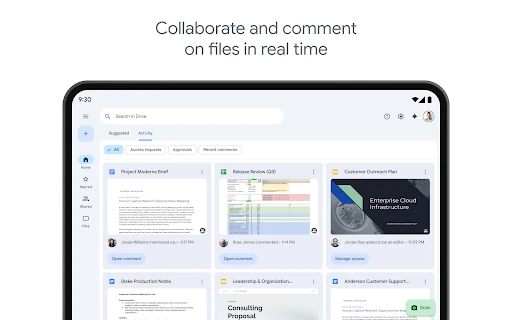
Sharing is one of Drive’s most practical features. I can share a file or folder and set permissions, which is more useful than sending an attachment every time a document changes. It gives people a way to access the item I intend to share, while permission settings let me choose how access is handled. For a group task, that can keep everyone working from the same file rather than scattering copies through messages.
Drive also supports notifications about important activity on files. That can help me notice when something I care about has changed or when there is relevant activity, without relying entirely on remembering to check. For tablet users, the app includes a side-by-side view and drag-and-drop functionality. These are specific conveniences for working with content on a larger screen, rather than features everyone will need on a phone.
A routine for busy days
A useful routine for me is to capture first and organize soon after. If I receive a document or scan a paper one, I give it a recognizable name and place it with related files. Later, if I need it while out, I can use search or the recent-files view rather than scrolling through unrelated items. When I know I will be offline, I check that the files I expect to use are available for offline viewing.
Sharing gets its own quick check before I send anything: I confirm the intended file or folder and review its permissions. This is a small pause, but it helps avoid the common mistake of giving access to the wrong item or the wrong audience. For recurring projects, keeping related files in a shared folder can also be tidier than sending a fresh attachment each time. The best workflow is the one that stays simple enough to maintain.
Storage and scope limits
The main practical limit to keep in mind is storage. Google accounts get 15 GB shared across Drive, Gmail, and Google Photos, so the space is not reserved for Drive alone. People who keep large collections across those services may need more room. Google One offers additional storage as an in-app purchase, and plan availability and prices can vary by region.
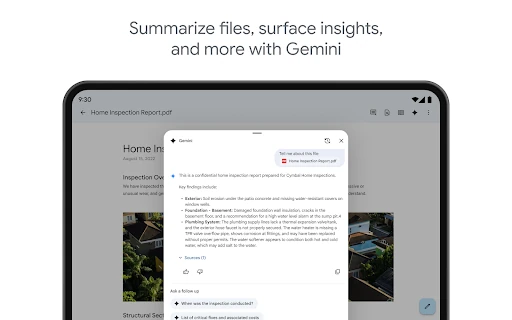
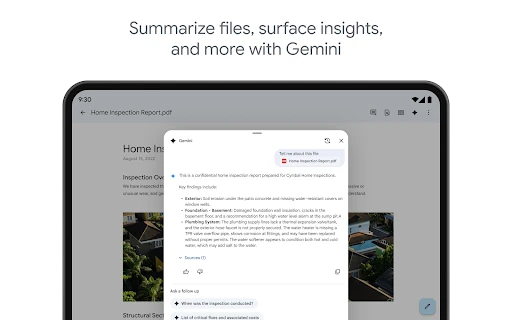
There is also a distinction between Drive’s everyday tools and the extra features available to Google Workspace subscribers. Workspace adds options such as AI-assisted summaries and quick facts, administrator controls, sharing with organizational groups, shared drives, and electronic signatures. Those additions can matter in a work setting, but they are not necessary for basic personal storage. I would choose Drive for its broad file access and sharing, not assume every advanced team feature is part of the standard experience.
Google Drive earns its place on my phone by making common file tasks feel connected: scan something, store it, find it later, and share it when needed. Search and offline viewing add real utility, while the broad file support keeps it from feeling limited to one kind of document. Its biggest everyday consideration is that storage is shared with other Google services.
I recommend Drive to anyone who wants a flexible, searchable home for files and is comfortable using a Google account. It is a solid fit for personal documents, shared projects, and quick access on the go. If you need specialized editing or advanced team management, consider those needs separately; Drive’s core strength is keeping files organized and available.
Google Drive Frequently Asked Questions
What is Google Drive used for?
Google Drive is used to store, organize, access, and share files. It supports more than 100 file types, including PDFs, Office files, and videos. You can scan paper documents with your device camera, search by file name or content, filter results, view files offline, and receive notifications about important file activity.
Which devices and platforms support Google Drive?
Google Drive is available as an Android app, with tablet features such as side-by-side viewing and drag-and-drop functionality. Its description also refers to access across devices. For current compatibility details on a particular Android device, check the Google Play store page, since device support can vary.
What Android version does Google Drive require?
The Android version requirement can vary by device and app release. Check Google Drive’s Google Play store page on the device you plan to use for the current compatibility information. The app version itself also varies with device.
Does Google Drive cost money or include purchases?
Google Drive is free to download and contains no ads, but it offers in-app purchases. Google accounts include 15 GB shared across Drive, Gmail, and Google Photos, and additional storage can be purchased through Google One. Plans and prices can vary by region, so check the store for current purchase details.
Is Google Drive suitable for personal and work files?
It can suit both personal file storage and shared work, with sharing permissions, search, and offline viewing available for everyday use. Some advanced features, including administrator controls, shared drives, and electronic signatures, are for Google Workspace subscribers. Whether it fits your needs depends on how much storage and team functionality you require.
Pros
- Search by file name or content makes older documents easier to retrieve.
- Camera scanning brings paper documents into the same storage system.
- Sharing permissions and offline viewing support practical on-the-go workflows.
- Works with a broad range of files, including PDFs and Office documents.
Cons
- The 15 GB account allowance is shared with Gmail and Google Photos.
- Some advanced team and administration features require a Workspace subscription.
- It is a storage and sharing hub, not a replacement for specialist editing apps.
- Category
- Productivity