Microsoft Excel: Spreadsheets
- 9.79M
- 4.8
- Installs
- 1.00B
- Price
- Free

Screenshots
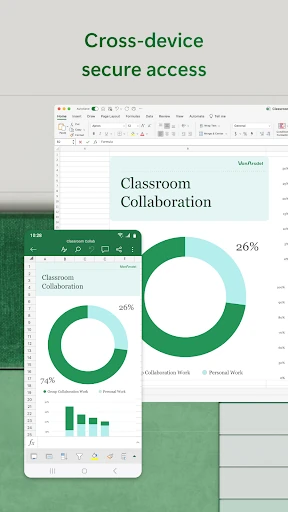
Analysis by Reviewed APKs
Microsoft Excel: Spreadsheets is a mobile spreadsheet app for building and editing tables, budgets, charts, and work documents. It suits people who already use spreadsheets or need to make quick changes away from a computer. My overall take is that it brings a familiar, capable toolkit to a phone, though the small screen makes careful editing less comfortable than working at a desk.
A Budget on the Go
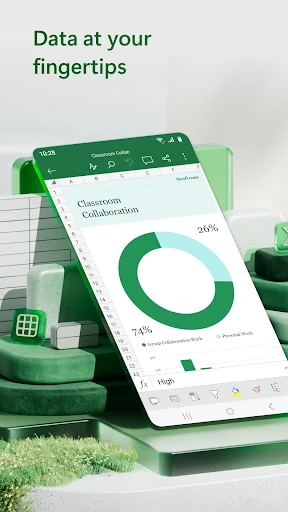
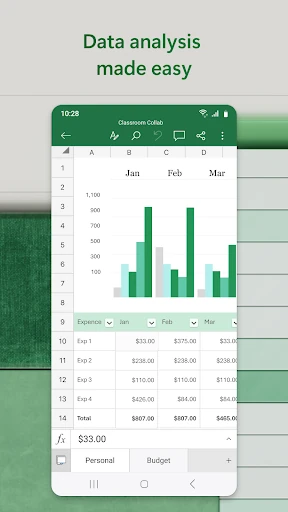
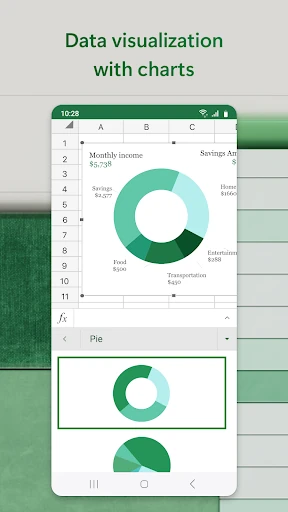
Imagine checking household spending while waiting for a train. In Excel, I can open a budget template, enter a few expenses, and keep categories and totals together in one sheet. If I want a clearer overview, I can use a chart to present the figures visually. That makes the app useful for quick updates to an existing plan, rather than saving every spreadsheet task for the next time I sit at a computer.
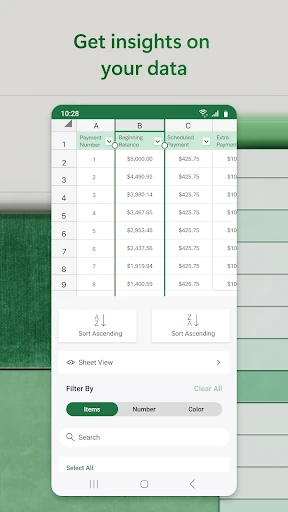
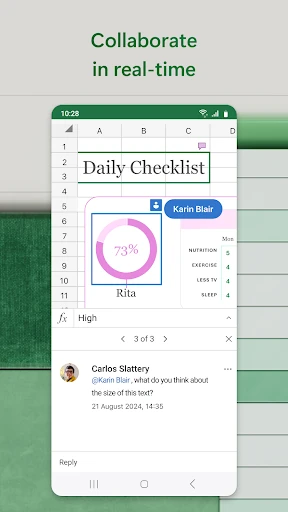
The same approach works for a shared project list or a simple work tracker. I can sort or filter columns to focus on the rows I need, then edit the workbook and share it so someone else can view, comment, or make changes. On a phone, I would keep the task fairly focused: adding a value or checking a chart is easier to manage than rebuilding a complicated spreadsheet between other errands.
More Than a Quick Viewer
Excel is not just a place to open a spreadsheet and glance at its contents. It includes tools for editing data, working with formulas, formatting worksheets, and making charts, along with templates for budgets and project plans. That wider set of jobs is what separates it from a basic file viewer. When I need to make a small change and share the updated workbook, having those steps in one app is practical.
It is also not a replacement for every kind of productivity app. If my task is a long document, a presentation, or a message thread, a spreadsheet is the wrong tool. And while charts and analysis features are available, a phone is not the ideal workspace for intricate data work. I see Excel on mobile as a useful companion for spreadsheet tasks, not a reason to do every serious editing session on a small screen.
Small Habits That Help
I get more out of a mobile spreadsheet when I start with a clear purpose. For routine spending, that might mean using a budget template and adding expenses as they happen instead of trying to reconstruct a whole month later. For a project, it could mean updating a few rows during the day and using a filter to find the items that need attention. Small, regular edits suit a phone better than a major overhaul.
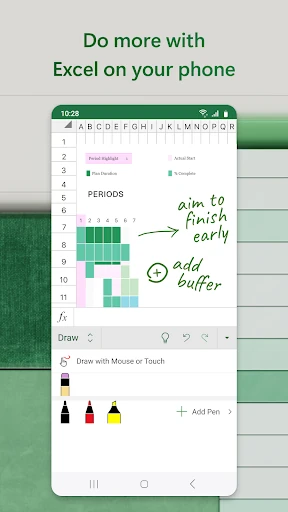
It also helps to think about how I want to share the result before I finish. Excel can invite people to edit, view, or comment, and it can attach a workbook link or copy worksheet content into an email. If figures need explaining, a chart can make them easier to scan. On touch devices, drawing tools can support annotations or equations, giving me another way to mark up a worksheet.
More From Our News Desk

Zoom Meetings, Google Meet, or Teams: Which Is Easiest to Join?

How I Build a Free Streaming Lineup With Tubi

Why Crunchyroll Is the Default Anime App for So Many Fans

YouTube TV: A Practical Guide to Cutting Cable

Rummikub and the Small Comfort of Phone Games

TeamViewer Remote Control or AnyDesk for Helping Family?
Who Excel Fits Best
I would recommend Microsoft Excel: Spreadsheets to people who already keep budgets, work plans, or other information in tables and want to review or update them from an Android device. It is especially handy when a workbook already exists and the mobile task is a quick correction, a new expense, a sort, or a chart check. Familiarity with spreadsheet conventions also makes it easier to get started.
It may suit less well if you rarely work with tabular information, or if most of your editing involves large, intricate sheets that benefit from a full-sized screen. The app also requires a free Microsoft account to create or edit documents on devices with screens smaller than 10.1 inches. People expecting every Microsoft 365 capability without a subscription should check which features meet their needs before relying on them.
Microsoft Corporation develops Microsoft Excel: Spreadsheets, a productivity app on Google Play. It has over a billion installs and a 4.8-star rating from around 9.8 million ratings. The app is free to download, contains in-app purchases, and has no ads. In-app product prices range from $1.00 to $199.99 per item.
Google Play gives the app an Everyone content rating. Its version varies with the device, and the listed release date is January 6, 2015. The listed last update is October 25, 2026. The description calls for at least 1 GB of RAM and says a free Microsoft account is needed to create or edit documents on devices with screens smaller than 10.1 inches.
A Familiar Spreadsheet on a Smaller Screen
Getting Started
When I first open a spreadsheet app, what matters most is whether I can get from a file to a useful edit without fuss. Excel’s focus is immediately clear: it is built around spreadsheets, calculations, charts, and templates for tasks such as budgets and project plans. That gives newcomers a few practical starting points, while people who already use worksheets can get straight to their data.
The account requirement is worth factoring in before a quick editing session. On devices with a screen smaller than 10.1 inches, creating or editing documents requires signing in with a free Microsoft account. The app description also specifies 1 GB of RAM or above. Those are concrete setup details to keep in mind if I am installing Excel on an older or smaller device.
Everyday Spreadsheet Work
The core experience is about keeping spreadsheet tasks moving when I am away from a computer. I can edit a file, work with its data, and use familiar formulas and calculation tools. Sorting and filtering columns help narrow what I am looking at, which is useful when a worksheet has enough rows that scrolling through everything becomes tedious.
Mobile editing has a natural sweet spot: a few changes, a check of the figures, or a quick review of a chart. I would be more deliberate about extensive formatting or complex worksheet changes, where a larger screen can make it easier to see context. Excel offers a substantial set of spreadsheet tools, but the size of the device still shapes how comfortable any of them feel.
Charts, Templates, and Sharing
The ready-made templates give common jobs a head start. The description specifically points to budgets, project plans, accounting, and financial analysis, along with tools for tracking expenses and planning spending. Templates can be a sensible way to organize a routine task without building every sheet from a blank page, especially when I only need a straightforward structure.
Chart creation and editing are another useful part of the package. I can insert or annotate charts, and the app includes pivot charts and spreadsheet visualization tools. Sharing adds a collaborative angle: I can invite others to view, edit, or comment on a workbook. On touch-capable devices, the draw tab supports annotations, worksheet highlighting, and writing equations.
A Practical Weekly Check-In
For a low-friction routine, I would use Excel to keep a simple spending sheet current during the week, then review it when I have a few quiet minutes. Adding entries as they occur is more manageable than gathering scattered notes later. A budget template can give the information a consistent shape, and a chart may help me spot how the categories compare at a glance.
For a shared project, the same routine can be a quick status pass: open the workbook, filter the list, update a relevant row, and share the result with the right people. Comments or editing invitations can keep the file useful to a group. The point is not to turn every spare moment into spreadsheet time, but to make small updates possible when they are convenient.
Limits to Keep in Mind
The biggest practical limitation is the phone form factor. A worksheet with many columns or detailed formatting can be harder to navigate on a small display, and prolonged editing may feel cramped. Excel includes rich formatting and analysis tools, but having those options does not make a phone as comfortable as a larger workspace for every job.
Some capabilities are tied to Microsoft 365. The description says a qualifying subscription unlocks the full Microsoft 365 experience across phone, tablet, PC, and Mac. It also explains that subscriptions bought through the app renew automatically unless auto-renewal is disabled beforehand. I would check the current store details and subscription terms before purchasing, and make sure the features I need are included.
Microsoft Excel: Spreadsheets makes a strong case as a mobile companion for budgets, project lists, charts, and quick workbook edits. Its templates, familiar calculations, and sharing tools cover a lot of everyday spreadsheet needs. The trade-off is familiar too: larger or more involved work is often easier to handle on a bigger screen.
I recommend it to people who already rely on spreadsheets and want a capable Android option when they are away from their desk. If you only need occasional table viewing, or expect to do intensive editing on a phone, its broader toolkit may matter less. For regular spreadsheet users, though, it is a practical app to keep close.
Microsoft Excel Frequently Asked Questions
What is Microsoft Excel: Spreadsheets used for?
Microsoft Excel: Spreadsheets is used to create and edit spreadsheets, perform calculations, and work with charts and data. It also offers templates for budgets and project plans, expense tracking tools, and options to share workbooks for viewing, editing, or comments.
What devices can I use Microsoft Excel: Spreadsheets on?
The app reviewed here is the Android version available through Google Play. The description also refers to a Microsoft 365 experience across phones, tablets, PCs, and Macs. Availability and features can vary by device, so check the store details for the device you plan to use.
What Android version does Microsoft Excel: Spreadsheets require?
The app description specifies at least 1 GB of RAM, but an Android version requirement is not provided in the app details used for this review. Requirements can vary by device and change over time, so check the Google Play page for current compatibility information.
Is Microsoft Excel: Spreadsheets free, and does it have in-app purchases?
The app is free to download and contains in-app purchases; the listed product prices range from $1.00 to $199.99 per item. A qualifying Microsoft 365 subscription is needed for the full Microsoft 365 experience. Subscription options and terms can vary, so check Google Play before buying.
Is Microsoft Excel: Spreadsheets suitable for editing on a phone?
It can suit quick edits, calculations, budget updates, chart checks, and sharing a workbook from an Android device. The description requires a free Microsoft account to create or edit documents on devices with screens smaller than 10.1 inches. Complex editing may be more comfortable on a larger screen.
Pros
- Useful templates cover budgets, project plans, expense tracking, and other spreadsheet tasks.
- Tools for formulas, charts, sorting, and filtering support practical mobile edits.
- Workbook sharing lets others view, edit, or comment.
- Free to download, with no ads.
Cons
- Detailed spreadsheet editing can feel cramped on a phone screen.
- A free Microsoft account is required to create or edit on smaller-screen devices.
- A qualifying Microsoft 365 subscription unlocks the full experience.
- Category
- Productivity