Samsung One UI Home
- 347.49K
- 3.6
- Installs
- 1.00B
- Price
- Free

Screenshots
Analysis by Reviewed APKs
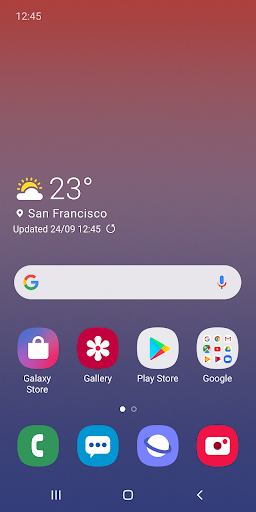
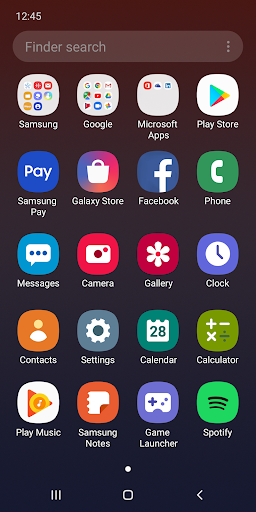
Samsung One UI Home is the launcher that organizes the Home screen and Apps screen on Galaxy devices. It suits people who want a familiar place to open apps, arrange icons, and use widgets without replacing Samsung’s built-in interface. After looking through its everyday tools, my take is that it is a practical, restrained part of using a Galaxy phone, with a few useful safeguards and gestures rather than a long list of extras.
A calmer start to the day
When I first opened One UI Home, I thought about the small task it handles all day: getting from an unlocked phone to the app I need. A tidy Home screen with arranged icons gives everyday choices a predictable place. If I am checking a message, opening a widget, or finding an app in the Apps screen, the launcher is the starting point rather than another destination I have to remember.
That can make a difference during a rushed morning. I can put the apps I reach for most on the Home screen, keep less-used ones in the Apps screen, and avoid hunting through a scattered set of pages. The app’s layout is designed for Galaxy devices, so it feels like part of the phone’s normal routine. It is not a dramatic change; its value is in making the first few taps feel orderly.
A launcher, not a makeover kit
The obvious comparison is with other ways to organize a phone’s home screen, including leaving the existing layout alone or choosing a different launcher. One UI Home is the built-in Samsung option described here: it provides Home and Apps screens, icon arrangement, widgets, and some navigation and layout controls. That focused role makes sense if I want to keep using the Galaxy experience instead of starting over with a separate interface.
I would not treat it as a general-purpose customization suite or a tool for changing every part of a phone. The supplied details concentrate on the home layout, gestures, and quick access to app or widget settings. They do not describe notification controls, dark mode, or theme and icon-pack features, so those are not reasons I would choose it. Its appeal is a straightforward launcher that fits its intended devices.
Keep the layout intentional
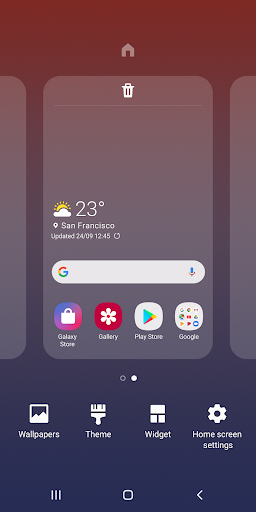
A useful habit is to arrange the Home screen once I know which apps and widgets I actually use, rather than trying to make every page perfect on day one. On supported software, I can lock the layout after arranging icons. That is particularly handy if I sometimes move things accidentally while tidying the screen or handling the phone in a hurry.
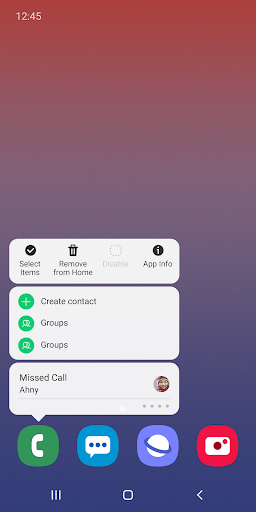
I also like the idea of using a long press as a shortcut when I need information about an app or want to reach a widget’s settings. Instead of navigating through several menus, I can touch and hold the relevant icon or widget. These small habits suit a launcher: place frequent choices where they are easy to reach, protect the arrangement if needed, and use direct actions when a setting comes up.
More From Our News Desk

Zoom Meetings, Google Meet, or Teams: Which Is Easiest to Join?

How I Build a Free Streaming Lineup With Tubi

Why Crunchyroll Is the Default Anime App for So Many Fans

YouTube TV: A Practical Guide to Cutting Cable

Rummikub and the Small Comfort of Phone Games

TeamViewer Remote Control or AnyDesk for Helping Family?
Who may appreciate it
I would recommend One UI Home to Galaxy owners who want their phone’s main screens to stay familiar and organized. It is a natural fit for someone who prefers to arrange app icons and widgets, uses both Home and Apps screens, or wants to prevent accidental changes to a settled layout. The full-screen gesture option may also interest people who would rather hide the navigation buttons and use more of the screen.
It may be less compelling for someone who wants a launcher with a broad set of explicitly documented visual controls or a very different phone interface. The available features are focused, and some depend on the device or operating system version. If you are using a non-Galaxy device, this is not presented as a general launcher for every Android phone. I would also keep expectations modest: it helps organize access, not manage the contents of the apps themselves.
Samsung Electronics Co., Ltd. is the developer. On Google Play, Samsung One UI Home has over a billion installs and a 3.6-star rating from around 347,000 ratings. It is listed as free, with no in-app purchases and no ads. Its content rating is Everyone. Those figures give a sense of its broad reach, while the rating suggests that individual experiences are not uniformly positive.
The Google Play version is shown as varying with device, and the listing gives no single minimum Android version. The described full-screen gestures, layout lock, and long-press shortcuts require Android 9.0 Pie or later; available features can differ by device or operating system. The app was released on June 14, 2012, and its last update is dated September 4, 2019.
Small choices shape the home screen
A familiar first impression
One UI Home is not an app I would open for a separate activity and then close. It is the layer behind the Home and Apps screens, so its quality shows up in repeated little moments: finding an icon, deciding where a widget belongs, or returning to the same starting point. Its stated design aim is a simple screen layout with neatly arranged icons that fits Galaxy devices.
The practical setup is mostly about making that starting point work for me. I can arrange app icons and use widgets, then decide how I want to move between screens. I would begin with a few familiar apps and avoid filling every available space immediately. That makes it easier to notice whether the layout is helping, rather than turning setup into a project of endless rearranging.
The everyday experience
Most of the time, a launcher should get out of the way. One UI Home’s Home and Apps screens provide two familiar places to organize and locate apps, while widgets can bring information or controls into the screen layout. I can keep frequently used icons close and leave the rest in the Apps screen, which gives the Home screen a clear job instead of making it a storage area for everything.
The experience is shaped by the phone and software version as well as the launcher. That matters when deciding whether a particular control will be available: the app’s own description says features may differ by device or operating system. I would see that as a reason to keep a routine flexible, not as a reason to expect every Galaxy phone to behave identically.
Useful small shortcuts
The most distinctive tools in the supplied feature details are practical rather than flashy. On Android 9.0 Pie or later, full-screen gestures can hide the navigation buttons at the bottom of the Home screen and let me switch between apps with gestures. It is a straightforward way to use more of the screen, particularly if I already prefer gesture navigation.
I also appreciate the option to lock the Home screen layout after arranging icons. The description says this can prevent pages from being added and icons from being moved or removed by accident. Touching and holding an app icon or widget can also take me directly to App info or Widget settings, avoiding a longer route through menus. These features address ordinary friction rather than trying to reinvent the launcher.
A simple weekly reset
A routine I would use is a quick Home screen check every week or two. I would move any app I have started using often to a convenient spot, remove clutter from the arrangement, and make sure the widgets I rely on still have a sensible place. Once the layout feels settled, locking it can help keep accidental touches from undoing that work.
If I want to adjust a widget or inspect an app, the long-press action gives me a direct route to the relevant settings. I would treat this as a small maintenance habit, not something that needs constant attention. A launcher is most helpful when the arrangement becomes second nature, so the goal is to make a few deliberate choices and then get on with using the phone.
Limits to keep in mind
One UI Home’s focused role is also its main limitation. The described tools cover screen layout, gestures, and direct access to certain app or widget settings. They do not establish a wide range of other customization options, so I would not install or choose it expecting features beyond what is described. People who want a substantially different interface may be looking for something with a different scope.
Compatibility is another practical consideration. The full-screen gesture, layout-lock, and long-press features described as new require Android 9.0 Pie or later, and available features can vary by device or OS version. The listed version itself varies with device, rather than having one universal version number. I would check the Google Play information for the particular device before relying on a specific feature.
Samsung One UI Home does its best work quietly: it gives Galaxy owners a familiar place to arrange apps and widgets, with a few thoughtful shortcuts for navigation and avoiding accidental changes. I like that the documented features address small, real annoyances instead of promising a complete phone makeover.
I would recommend it to Galaxy users who want a straightforward built-in home screen and value a layout they can keep organized. If you are looking for extensive customization or use a different kind of device, this focused Samsung launcher may not be the right match.
Samsung One UI Home Frequently Asked Questions
What is Samsung One UI Home used for?
Samsung One UI Home organizes the Home screen and Apps screen on Galaxy devices. It lets users arrange app icons and widgets, and the described features include full-screen gestures, locking the Home screen layout, and reaching App info or Widget settings by touching and holding an icon or widget. Some of those features depend on the Android version and device.
Does Samsung One UI Home work on every phone?
The app is described as fitting Galaxy devices, and its Google Play version varies with device. The supplied information does not give one universal minimum Android version. Full-screen gestures, layout locking, and the long-press shortcuts require Android 9.0 Pie or later, while other feature availability can differ by device or operating system. Check the store for your device.
What Android version does Samsung One UI Home require?
There is no single minimum Android version given for the app as a whole. The listed full-screen gestures, Home screen layout lock, and long-press shortcuts require Android 9.0 Pie or a later version. Features may vary by device and OS, so it is worth checking the Google Play information for the Galaxy device you use.
Does Samsung One UI Home cost money?
Samsung One UI Home is listed as free on Google Play, with no in-app purchases and no ads. Store details can change over time, so check the current Google Play information if you want to confirm the terms for your device before installing or updating.
Is Samsung One UI Home right for me?
It is a good fit if you use a Galaxy device and want a straightforward way to arrange your Home screen, apps, and widgets. The layout lock and gesture option may be useful if those match your habits. It may not suit someone seeking extensive customization or a different interface, and features can vary by device.
Pros
- Keeps Home and Apps screens organized around the Galaxy experience.
- Layout locking can help prevent accidental icon moves or removals.
- Long-press shortcuts provide direct access to App info and widget settings.
- Full-screen gestures can hide navigation buttons on supported software.
Cons
- Several described features require Android 9.0 Pie or later.
- Available features can differ between devices and operating system versions.
- Its documented focus is narrower than a broad customization suite.
- Category
- Personalization