Google Calendar
- 4.93M
- 4.6
- Installs
- 10.00B
- Price
- Free

Screenshots
Analysis by Reviewed APKs
Google Calendar is a scheduling app for keeping events and to-dos in one place across Android phones, tablets, Wear OS devices, and computers. It suits people juggling personal plans, family commitments, and work meetings, especially if they already use Google tools. After spending time with its mix of calendar views, shared calendars, and tasks, I find it practical and flexible, though its breadth can feel like more than a simple datebook needs.
A Week in One View
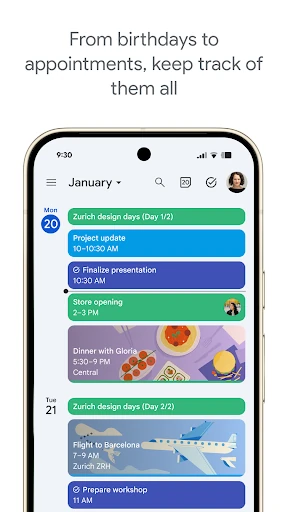
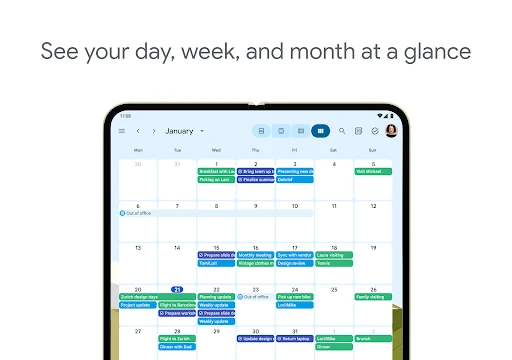
When I first opened Google Calendar, I pictured the kind of ordinary week that gets messy fast: a work meeting, a family dinner, a dentist appointment, and a couple of loose tasks I do not want to forget. The month view gives me the broad shape of things, while the week and day views make it easier to focus on what is coming next. Switching between them takes the calendar from overview to practical daily plan.
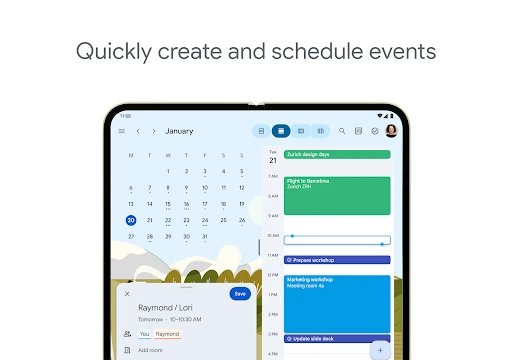
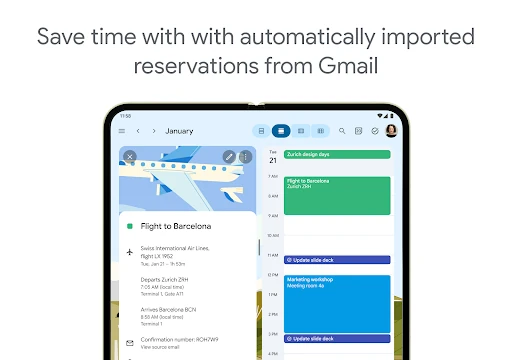
I like that events and tasks can sit together rather than forcing me to keep a separate list open for every small commitment. If a reservation arrives in Gmail, Calendar can add event details automatically, which saves some manual entry. I can also create an event directly when plans come up. The result is useful for a busy day that mixes fixed appointments with to-dos, without asking me to turn every task into a meeting.
Calendar, Not a Life Coach
Compared with a paper planner or a basic datebook, Google Calendar is more useful when plans need to move between devices or involve other people. I can use the same Google account on an Android device and computer, bring other calendars such as Exchange into view, and share calendars with family, friends, or colleagues. Those options make it a sensible coordination tool, not just a place to note my own appointments.
That breadth does not make it a full project-management system or a replacement for every task app. Its focus is the schedule: events, calendar views, and tasks alongside those events. For a complex project with work that does not belong on a calendar, I would use a more specialized tool as well. If all I wanted were a tiny offline date grid, Calendar’s Google-centered features might feel like extra machinery.
Small Planning Habits
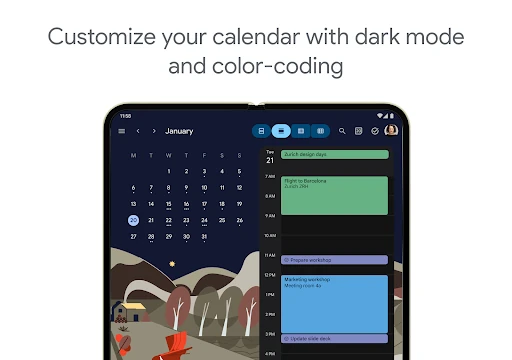
A few small habits help me get more from Calendar without turning planning into another chore. I can color-code events so different parts of the week are easier to scan, then switch views depending on whether I am planning ahead or checking what is next. Keeping tasks alongside appointments also helps me spot when a day is already crowded before I add another commitment.
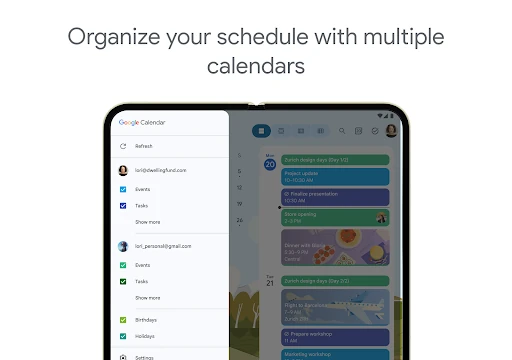
Shared calendars are useful when the goal is coordination rather than simply keeping a private record. I can let family or colleagues view, add, or modify events, depending on what the group needs. For recurring work planning, layering calendars or checking teammates’ availability can help with meeting coordination. I would still keep the calendar tidy: a clear set of events is easier to use than one overloaded with every passing thought.
More From Our News Desk

Zoom Meetings, Google Meet, or Teams: Which Is Easiest to Join?

How I Build a Free Streaming Lineup With Tubi

Why Crunchyroll Is the Default Anime App for So Many Fans

YouTube TV: A Practical Guide to Cutting Cable

Rummikub and the Small Comfort of Phone Games

TeamViewer Remote Control or AnyDesk for Helping Family?
Who Will Get the Most From It
I would recommend Google Calendar to anyone who wants appointments and everyday to-dos together, or who regularly plans with family, friends, or coworkers. It is especially convenient for people already using Gmail or Google Workspace, since events can connect with Gmail reservations and work meetings can include Google Meet. The ability to use it across Android devices, Wear OS, and a computer makes it a natural fit for people who move between screens during the day.
It may be less appealing if you want a very minimal calendar with no ties to a broader Google account, or if your main need is managing complicated projects rather than scheduling. The app offers several views, multiple calendars, tasks, and collaboration options, so it can take a little thought to settle on a simple routine. People who only need a date reference may find that a lighter tool suits them just as well.
Google Calendar is a free productivity app from Google LLC. On Google Play, it has over 10 billion installs and a 4.6-star rating from about 4.9 million ratings. The app is rated Everyone. It is available for Android phones and tablets, as well as Wear OS devices, and the same Google account can connect its calendar to a computer.
The app is free to download, with no in-app purchases or ads reported in the provided store details. Its listed version varies with device. Google Calendar was released on October 17, 2012, and its listed last update is November 2, 2026. The minimum Android version is not specified in the available details, so check Google Play for requirements that apply to a particular device.
A Practical Planner for Changing Weeks
A Familiar Starting Point
My first impression is that Google Calendar puts the useful basics within easy reach: a schedule, several ways to view it, and a path to create events and tasks. The choice between month, week, and day views matters more than it sounds. A month is good for spotting a busy stretch; a day view is better when I need to work through the next few hours.
The app is designed for Android phones and tablets, and it also works on Wear OS devices. I can move from an Android device to a computer when I am signed into the same Google account, so I do not have to treat a phone as the only place to plan. That continuity is particularly handy when I want to review a week on a larger screen.
The Everyday Calendar
Day to day, Calendar works best when I treat it as a reliable home for time-specific plans. Creating events gives me a place to keep the shape of the day visible, and the view switcher lets me zoom out or in as the situation calls for. I appreciate not having to commit to one perspective: the same week can be reviewed as a month, week, or day.
Tasks add a useful second layer. I can manage to-dos alongside events, then open task lists in a full-screen view when I want to focus on them. That is a practical distinction: appointments occupy time, while tasks still need attention but may not have a fixed slot. Keeping both in Calendar makes it easier to see the difference without losing sight of either.
Connections That Matter
One feature that stands out is the way Gmail reservations can become calendar events. Flights, hotels, concerts, and restaurant reservations are among the kinds of details Calendar can add automatically. I like this because travel and social plans often arrive in messages long before the day itself; having them appear in the schedule cuts down on copying details by hand.
Calendar also supports multiple calendars and can show Google Calendar events alongside other calendars on a device, including Exchange. For groups, shared calendars let other people view, add, or modify events. These are meaningful options when a household or team needs a common picture, rather than decorative extras that only matter in a demo.
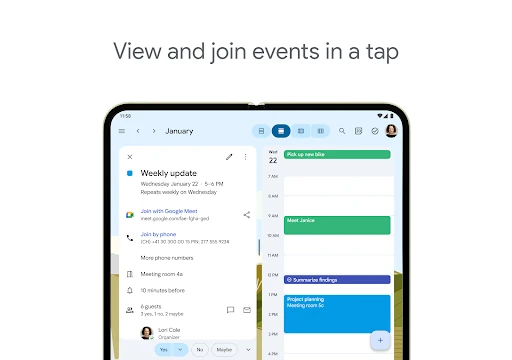
For work, Google Workspace features include adding a Google Meet call to an event, checking teammates’ availability, and layering calendars into one view. Calendar can also attach meeting notes and other documents to an event. Some options are aimed at teams and professional use, so an individual user may not need every work-focused feature.
A Simple Weekly Routine
A routine I find workable is to check the month view when planning ahead, then use the week view to balance appointments and tasks. If a particular day looks crowded, I can switch to that day and get a more focused picture. Color-coding events can make categories easier to pick out at a glance, while light or dark mode lets me choose a preferred appearance.
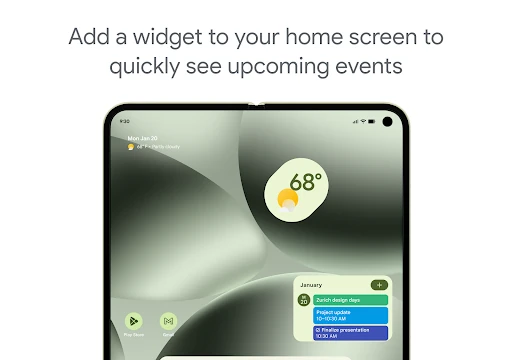
For a shared household or project, I would use a shared calendar for commitments other people need to see, rather than sending separate updates each time plans change. At work, checking availability or layering calendars can help find a meeting time. Wear OS support, including tiles and complications, offers another way to keep track of events or tasks while on the go.
Keep Its Scope in Mind
The main limitation is also a matter of scope. Google Calendar is built around scheduling, and its tasks are presented alongside events; it is not described as a full project-management workspace. If my to-do list grows into a detailed project with many dependencies, I would not expect a calendar alone to handle that. It is better at showing when things happen than managing every part of a large piece of work.
The number of options can also make a simple setup feel more involved than a paper calendar. Multiple calendars, sharing, task lists, and Workspace tools are useful when they match a real need, but there is no reason to use them all. I would start with a few core events and one task list, then add sharing or other calendars only when they make the week clearer.
Google Calendar earns its place through practical flexibility: it combines events and tasks, offers useful views, and handles shared planning well. I particularly like the way Gmail reservations and work calendars can connect with the schedule. It is not a project manager, and its broader feature set may be unnecessary for someone who only wants a bare-bones datebook.
I recommend it to people who plan across devices or coordinate with others, especially those already using Google services. If that describes your week, the combination of calendar views, tasks, and sharing is genuinely useful. If your needs are simpler, you can still use the basics, but a lighter calendar may feel less busy.
Google Calendar Frequently Asked Questions
What is Google Calendar used for?
Google Calendar is used to organize events and plan a day or week. It offers month, week, and day views, and lets you manage tasks alongside events. It can also add certain reservations from Gmail, show other calendars such as Exchange, and support shared calendars for coordinating with other people.
Which devices can I use Google Calendar on?
Google Calendar is available for Android phones and tablets, and Wear OS devices. The app description also says you can move between an Android device and a computer when signed into the same Google account. For device-specific availability, check the Google Play store details and the relevant device requirements.
What Android version does Google Calendar require?
The minimum Android version can vary by device and is not included in the available app details. Check Google Calendar’s Google Play store page for the requirement that applies to your phone or tablet. The app is described for Android phones and tablets, with separate support for Wear OS devices.
Does Google Calendar cost money?
Google Calendar is free to download. The provided Google Play details show no in-app purchases and no ads. It is part of Google Workspace, which includes features for teams, but the app’s listed download price is zero. Check the store page for current details before installing.
Is Google Calendar a good fit for me?
It is a good fit if you want to keep appointments and tasks together, share plans, or move between Android devices and a computer. It may be more than you need if you want only a very simple datebook, and it is not presented as a full project-management tool. Its features suit both personal scheduling and team coordination.
Pros
- Switch between month, week, and day views to suit the planning task.
- Keep tasks alongside events and open task lists in full-screen view.
- Share calendars and coordinate with family, friends, or colleagues.
- Gmail reservations can be added automatically as calendar events.
Cons
- Its broad set of options may feel excessive for a basic datebook.
- Tasks sit alongside events, but the app is not a full project-management system.
- Some Workspace features are aimed more at teams than individual users.
- Category
- Productivity