Quick Settings
- 15.48K
- 4.2
- Installs
- 1.00M
- Price
- Free
Screenshots
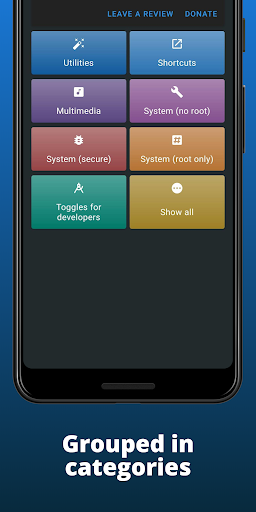
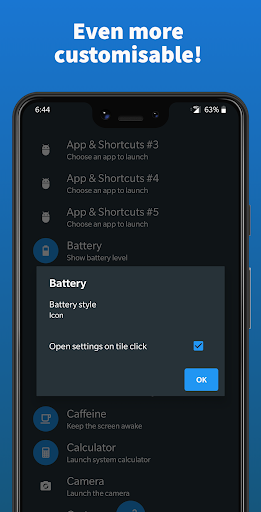
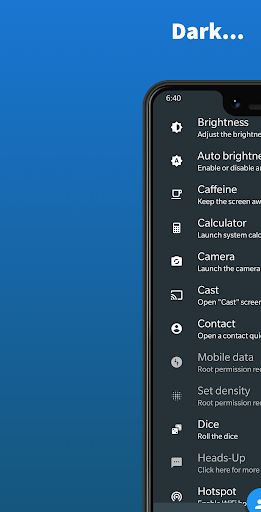
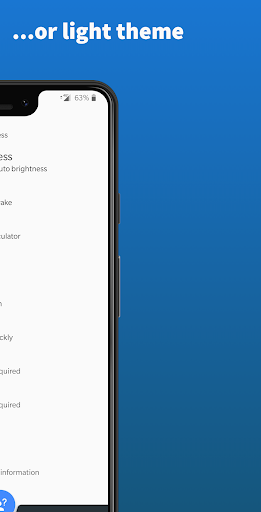
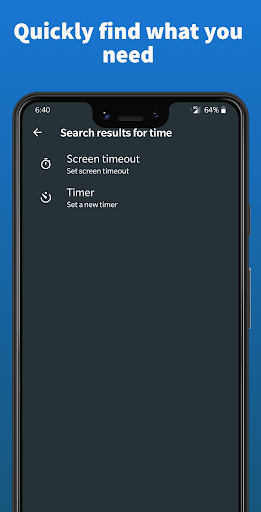
Analysis by Reviewed APKs
Quick Settings is a personalization app for adding extra tools and shortcuts to Android’s Quick Settings panel. I’d consider it if I often reach for the same utilities and want them closer at hand, rather than buried in separate apps or settings screens. After looking through its range of tiles, my take is that it offers useful flexibility, provided your device supports the features you want to add.
A quicker everyday check-in
Picture a familiar moment: I’m about to head out, want to check the weather, and need to adjust the screen brightness before stepping outside. Quick Settings offers tiles for weather and brightness, among many others, so the idea is to bring useful actions into Android’s Quick Settings panel. Instead of opening a separate app for every small job, I can reach for the panel I already use for device controls.
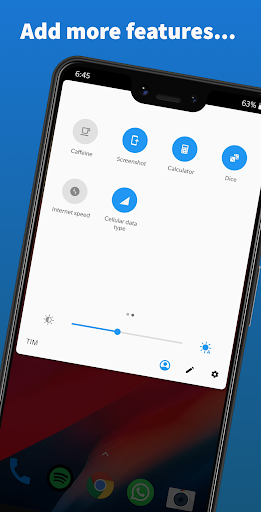
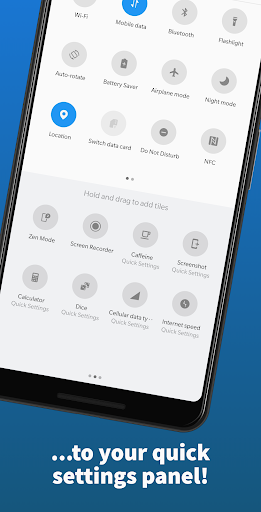
The app offers more than 53 kinds of tiles, including a timer, calculator, camera, battery information, volume controls, and shortcuts to apps. That range makes it possible to shape the panel around the things I actually do. I might add a timer for cooking and a calculator for quick checks, then keep the rest out of the way. The payoff is modest but practical: fewer detours for small tasks.
A layer, not a replacement
Android already has a Quick Settings panel, and many phones include the basic controls people use most. Quick Settings is better understood as a way to extend that panel with additional tiles, rather than as a replacement for Android’s settings or a new home screen. Its appeal is strongest when the built-in choices feel too limited and I want quick access to particular utilities or shortcuts.
I wouldn’t choose it as a general automation suite, a full weather service, or a substitute for dedicated apps. Its listed weather tile is one option in a larger toolbox, not a reason to expect a detailed forecast experience. Compatibility also matters: the developer says it does not work on Chinese ROMs, and MIUI requires version 10 or later. The available tiles can depend on what a device supports.
Build a useful panel
I’d start by thinking about the actions I repeat, not by adding every tile that sounds interesting. A short list—perhaps brightness, a timer, a preferred app shortcut, and a screen lock—makes the panel easier to scan. Quick Settings includes several tiles in these categories, along with options such as music controls, alarm, storage, and screen timeout. Picking a few that fit my routine is more useful than treating the full catalogue as a checklist.
The developer offers a practical setup tip for tiles that are troublesome to apply: add all the Quick Settings tiles first, then remove the ones I don’t want. I’d use that as a troubleshooting step rather than repeatedly tapping a tile that hasn’t appeared. It’s also worth checking compatibility before building a workflow around a particular option, especially on a customized Android version where manufacturer support may affect which tiles can be added.
More From Our News Desk

Zoom Meetings, Google Meet, or Teams: Which Is Easiest to Join?

How I Build a Free Streaming Lineup With Tubi

Why Crunchyroll Is the Default Anime App for So Many Fans

YouTube TV: A Practical Guide to Cutting Cable

Rummikub and the Small Comfort of Phone Games

TeamViewer Remote Control or AnyDesk for Helping Family?
Who may get the most from it
I’d recommend Quick Settings to Android users who enjoy tailoring their phone and can name a few small actions they’d like to reach faster. It has a broad selection, from app shortcuts and a calculator to volume, rotation, and battery-related controls. Someone who regularly adjusts the same settings or uses a handful of utilities may appreciate having those choices gathered in the familiar Quick Settings panel.
It may be less appealing if the phone’s built-in panel already covers everything I need, or if I prefer not to spend time arranging extra tiles. Device compatibility is another reason to pause: the developer warns that Chinese ROMs are unsupported and says MIUI needs version 10 or later. Some features also involve sensitive permissions when enabled, so I’d review each permission prompt and only turn on a function I actually want.
Quick Settings is an Android personalization app from Simone Sestito. Google Play shows over one million installs and a 4.2-star rating from about 15,500 ratings. It is free to install, with in-app purchases priced from $0.99 to $5.49 per item, and it contains ads. The content rating is Everyone.
The current version shown is 12.0.3-17888438. The app was released on December 5, 2016, and was last updated on September 1, 2025. The Android version requirement can depend on the current release and device, so I’d check Google Play’s compatibility details before installing.
Making Android’s Quick Panel More Personal
First, check compatibility
When I first considered Quick Settings, the most important setup question wasn’t which tile looked clever; it was whether the phone’s software would support the tiles I wanted. The developer specifically warns that the app does not work on Chinese ROMs because the manufacturer has not included the needed TileService API. MIUI users need at least MIUI 10, according to the app’s description.
That caveat is worth keeping in mind before investing time in a carefully arranged panel. The app’s own suggestion for tiles that fail to apply is to add every Quick Settings tile first, then remove the ones I don’t want. I’d approach setup in small steps: try a few useful options, confirm they appear as expected, and only then expand the collection.
Useful in small moments
The day-to-day case for this app is made up of brief interactions. I might want to start a timer without hunting through my apps, adjust volume, or open a frequently used app through a shortcut tile. Quick Settings includes options for all of those kinds of actions. The convenience comes from placing a chosen task in the panel, not from adding a new destination that needs its own routine.
I’d keep the panel focused on actions I reach for repeatedly. A tile I use once a month can make the list harder to scan every day, while a regular brightness adjustment or timer can earn its space quickly. There’s no need to make the panel a catalogue of everything the app can do. A smaller selection is likely to feel more personal and easier to use.
A broad tile selection
The breadth is the feature that stands out most. The app describes more than 53 Quick Settings options, spanning practical utilities such as a calculator, camera, alarm, timer, and storage, as well as controls for brightness, rotation, volume, and screen timeout. There are also tiles for app shortcuts, contacts, search, and music playback. It’s a mixed toolbox, so different people can build quite different panels.
Some options go beyond everyday convenience. The list includes NFC, VPN, hotspot, mobile data, ADB, and advanced reboot, alongside features such as reading mode, immersive mode, and a night screen filter. Their usefulness depends on the phone and the person using it. I’d treat the list as a set of possible shortcuts, not assume that every tile will behave the same way on every device.
A simple weekly routine
A practical way I’d use Quick Settings is to set aside a few minutes after installing it and decide what I repeatedly open or adjust. For a busy week, I could choose a timer, a calculator, and a shortcut to an app I use often. If I notice that one tile is rarely useful, I can remove it and try a different option from the app’s catalogue.
I’d also revisit the panel after using it in real situations rather than trying to design the perfect layout in one sitting. Cooking, getting ready to leave, and settling in for the evening can reveal different needs. Maybe brightness is worth keeping, while an occasional utility is not. The app’s range supports that kind of gradual selection, though compatibility still determines which tiles are available on a given phone.
Permissions and device limits
A couple of tiles involve more setup than a basic shortcut. The description says enabling many Quick Settings options without root requires a PC and an ADB command. That makes those tiles less convenient for someone who wants a fully phone-only setup. I’d check the requirements for the specific feature I care about rather than assume every option is ready to use as soon as the app is installed.
The app also uses Device Administrator and Accessibility permissions for its screen-lock feature, according to the developer. The description says these permissions are used only when the user explicitly enables and requests screen locking. I’d read the permission prompts carefully and decide whether that particular tile is useful to me. More broadly, the unsupported ROM warning means a large feature list does not guarantee universal compatibility.
Quick Settings is a flexible way to add selected utilities and shortcuts to Android’s existing Quick Settings panel. I like the variety, especially for people who know which small tasks they want to make easier. The main trade-offs are device compatibility, some setup requirements, and the effort of keeping a large selection manageable.
I’d recommend giving it a try if you enjoy customizing Android and have a few repeat actions in mind. If you only need the standard controls already on your phone, there may be little to gain. Check compatibility and permission prompts as you set it up, then keep only the tiles that genuinely save you a step.
Quick Settings Frequently Asked Questions
What is Quick Settings used for?
Quick Settings adds extra tiles to Android’s Quick Settings panel. Its options include shortcuts and utilities such as a calculator, timer, camera, app shortcuts, brightness, and volume controls. The available selection can help users reach chosen actions more directly, though which tiles work can depend on the device and its software.
Which devices can run Quick Settings?
Quick Settings is an Android app. The developer says it does not work on Chinese ROMs because they lack the required TileService API, and MIUI needs version 10 or later. Check Google Play’s compatibility information for your particular device and Android version, since requirements and compatibility details may vary.
What Android version does Quick Settings require?
The Android requirement can vary with the app version and device, so check the current Google Play page for compatibility before installing. The developer also notes that ROM support affects whether tiles can be applied: Chinese ROMs are described as unsupported, while MIUI requires version 10 or later.
Does Quick Settings cost money?
Quick Settings is free to install and contains ads. It also offers in-app purchases, with items shown from $0.99 to $5.49 each. Prices and available purchase options can change, so check Google Play for current details before deciding whether to buy anything.
Is Quick Settings suitable for casual Android users?
It can suit casual users who want a few extra shortcuts or utilities in Android’s Quick Settings panel, as well as people who enjoy customization. It may be less useful if the built-in controls already meet your needs. Some device configurations limit compatibility, and certain features require additional setup or permissions.
Pros
- A broad selection of more than 53 tiles covers shortcuts, utilities, and device controls.
- Useful options include timers, calculators, app shortcuts, brightness, and volume.
- The app is free to install and offers a flexible way to personalize Android’s panel.
- Tiles can be selected around everyday routines rather than used as a fixed bundle.
Cons
- Compatibility is limited on Chinese ROMs, and MIUI requires version 10 or later.
- Some features require a PC and an ADB command to enable without root.
- Ads and optional in-app purchases are part of the free app.
- Category
- Personalization
- Version
- 12.0.3-17888438