YouTube Kids
- 3.44M
- 4.2
- Installs
- 500.00M
- Price
- Free

Screenshots
Analysis by Reviewed APKs
YouTube Kids gives children a separate place to explore videos, while giving parents tools to shape what appears and set a viewing timer. I see it suiting families who want a child-focused video app rather than handing over the main YouTube experience. Its age-based modes and hand-picked-content option offer useful flexibility, though parental setup matters: the app’s filters are a starting point, not a substitute for a parent’s judgment.
A calmer video break
Picture a rainy afternoon when a child asks to watch something while dinner is being made. With YouTube Kids, a parent can set up a profile and choose a content approach before handing over the device. The child can then browse videos in an interface made for young viewers, while the parent has options for shaping what is available. It is a more deliberate starting point than opening a broad video service and hoping its recommendations fit.
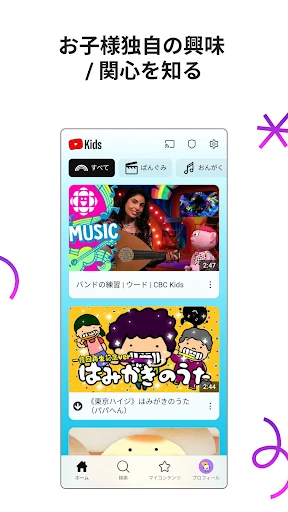
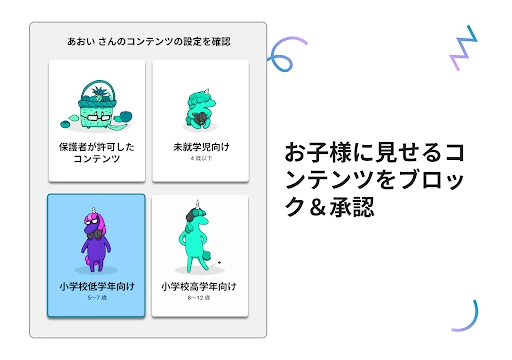
When I think about using it in a real household, the useful part is the combination of exploration and boundaries. A younger child might spend a short stretch with songs or videos in Preschool mode; an older one might be ready for gaming or music in Older mode. If a family wants tighter control, Approved Content Only lets a parent hand-pick videos, channels, and collections. The choice depends on the child and the parent’s comfort level.
A narrower video choice
The obvious comparison is the main YouTube app: both are places to watch videos, but YouTube Kids is designed around children and gives parents content modes, profile personalization, blocking, reporting, and a timer. That makes it a more focused option for a family viewing routine. It does not replace a parent’s role in deciding what is suitable, and its family-friendly filtering should not be treated as a perfect screening system.
It is also not an educational curriculum or a general-purpose device-control tool. The content can include learning videos, cartoons, songs, crafts, and, for older children, popular music and gaming videos, but the core activity is still watching. Parents who want to select everything can use Approved Content Only; those comfortable with broader discovery can choose a mode that matches their child’s stage and adjust their approach as interests change.
Small habits that help
A little setup can make each viewing session feel more intentional. I would start by choosing a mode that fits the child, then take a moment to personalize the profile’s content filters. For a child who does best with a short, familiar selection, hand-picking approved videos, channels, and collections is a straightforward way to narrow the choices. Families can revisit those decisions as a child grows or develops new interests.
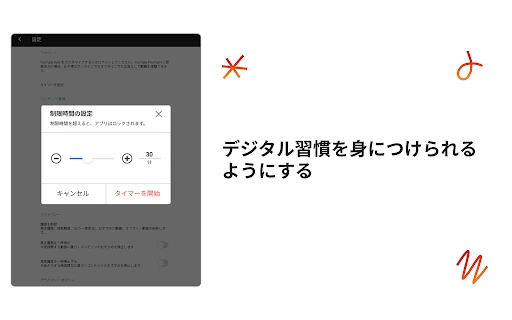
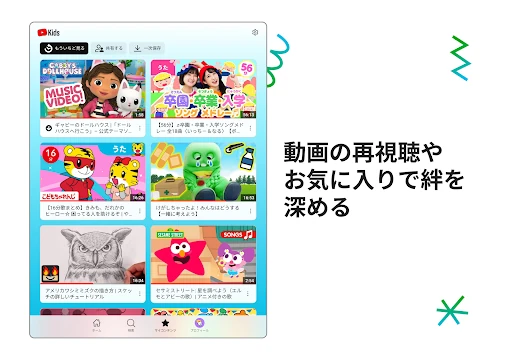
The Watch it Again tab can help a parent and child return to videos they have enjoyed or that were shared with them. The timer is useful when a viewing break needs a clear endpoint: it freezes the app when time is up. If something seems unsuitable, a parent can block a video or channel and flag it for review. These tools work best as part of an adult-guided routine.
More From Our News Desk

Zoom Meetings, Google Meet, or Teams: Which Is Easiest to Join?

How I Build a Free Streaming Lineup With Tubi

Why Crunchyroll Is the Default Anime App for So Many Fans

YouTube TV: A Practical Guide to Cutting Cable

Rummikub and the Small Comfort of Phone Games

TeamViewer Remote Control or AnyDesk for Helping Family?
A fit for family viewing
I would recommend YouTube Kids to parents and caregivers who want children to browse video content in a dedicated app and who are willing to do the initial setup. The range of modes makes it possible to choose between broader age-oriented discovery and a hand-selected collection. A timer, blocking options, and a Watch it Again tab add practical ways to guide ordinary viewing without making every session a fresh search.
It may be less appealing to families who prefer not to have video content or commercial creator content in a child’s viewing environment. The app says children may see commercial content from YouTube creators that is not paid advertising, and it contains ads according to its store information. Parents who want every item pre-approved should consider Approved Content Only and remain involved; the automated family-friendly approach cannot make personal decisions on a family’s behalf.
YouTube Kids is developed by Google LLC and is listed in the Entertainment category on Google Play. The app has over 500 million installs and a 4.2-star rating from around 3.4 million ratings. It is free to download, contains ads, and has no in-app purchases. Its content rating is Everyone, which describes the store rating rather than determining what any particular family will find appropriate.
The app’s version varies with the device. The store information gives a release date of February 23, 2015, and a last update date of November 2, 2026. Families can check Google Play for current device compatibility and version details. Parental setup is needed for the best experience, and the app describes different privacy notices depending on whether a child uses it signed in with a Google Account.
How YouTube Kids Fits Into a Routine
Starting with the setup
My first impression is that YouTube Kids asks the adult to make a few important choices before it becomes a child’s browsing space. Parental setup is part of the intended experience, not an optional extra to skip past casually. A parent can personalize an individual profile with content filters and choose among modes that reflect a child’s interests and readiness.
The modes give setup a practical shape. Preschool focuses on younger children, Younger opens up interests such as songs, cartoons, and DIY crafts, and Older includes popular music and gaming videos. Approved Content Only takes a different route by limiting viewing to videos, channels, and collections selected by the parent. I like that these are distinct approaches rather than one setting presented as right for every family.
Everyday browsing
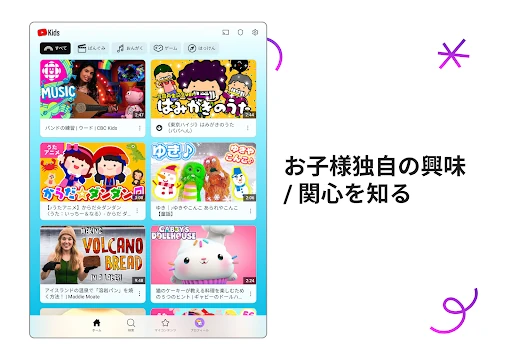
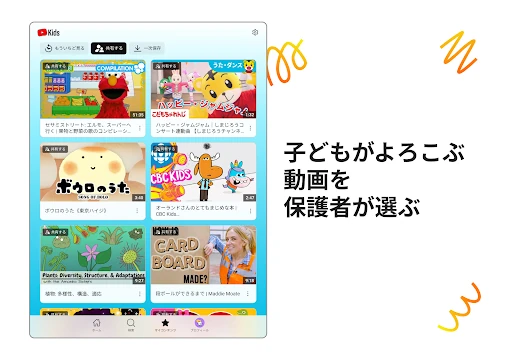
Once the adult has made those choices, the child’s basic activity is exploring videos they enjoy. That could mean putting on a song, finding a cartoon, or looking for a craft video during a quiet moment at home. The app is built around video discovery, so it makes most sense when a family wants a dedicated place for that activity rather than a broader set of phone features.
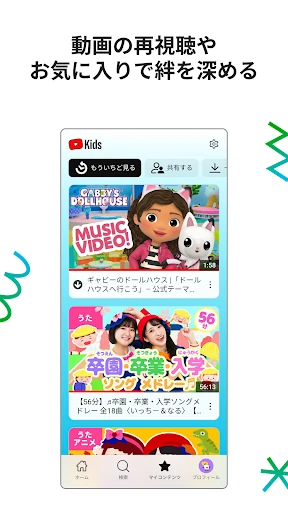
The Watch it Again tab is a useful detail for repeat viewing. Instead of treating every visit as a brand-new hunt, a child and parent can find favorites and content the parent has shared. In my imagined weekday rhythm, that could make a short after-school break easier to start. It also gives a parent a natural moment to talk with a child about what they have been watching.
Tools for parents
The standout feature is how the app combines different levels of parent involvement. A family can choose a mode and personalize filters, or go further and hand-pick all the videos, channels, and collections the child can see. That range is more useful than a single broad age switch because families differ in how much freedom they want to give a child during browsing.
There are also direct responses to content that does not suit a family. A parent can block a video or channel, and can flag content for the team to review. These controls are helpful, but they should be understood as tools for guiding an experience, not as a promise that every item will match every family’s preferences. The app itself acknowledges that families have different standards.
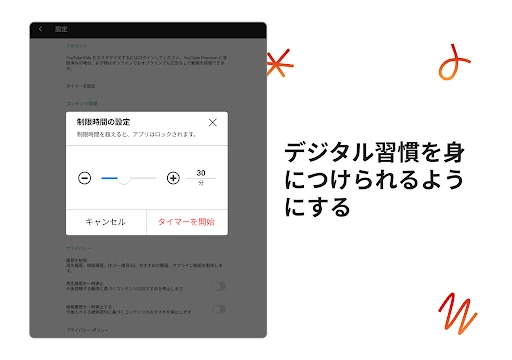
The timer adds a simple boundary to the viewing session. When the time is up, it freezes the app, giving the child a clear signal to pause. I find that more concrete than relying on a parent to keep track of the clock while handling other tasks. It still works best when the adult sets expectations before the video starts.
A repeatable routine
One sensible routine would be to choose a profile and viewing mode in advance, then decide when the app is appropriate for the day. A parent could set the timer before a short break, let the child browse within the selected content approach, and return together afterward to discuss a favorite. That keeps the app in a defined place in the day rather than letting video browsing become an open-ended default.
If a child repeatedly enjoys a particular video or a parent shares something specific, Watch it Again can make it easier to revisit. For families using Approved Content Only, the adult can add or adjust the hand-picked selection as interests shift. If an unsuitable item appears, blocking it and flagging it are available next steps. The routine is simple, but it depends on an adult staying engaged with the choices.
Limits to keep in mind
The biggest limitation is that a child-focused app still needs active parental judgment. YouTube Kids says its blocking process aims to keep videos family-friendly, but also recognizes that preferences differ and provides a way to flag content. Parents should choose settings with that reality in mind, especially if they want a narrowly controlled experience. Approved Content Only is the more hands-on option described in the app.
Another consideration is that free access does not mean every viewing experience is free of commercial material. The store information says the app contains ads, and its description notes that children may encounter commercial content from creators that is not paid advertising. That may matter to families setting expectations around video time. It is worth deciding in advance how the app fits alongside other screen-time rules.
Finally, the app’s focus is video, not a complete plan for a child’s online activity. Its profiles, content choices, timer, blocking, and reporting tools can help shape viewing, but a parent still needs to choose the approach and revisit it as a child grows. Families looking for a fully adult-managed collection may find the hand-picked mode a better match than open-ended discovery.
YouTube Kids is a practical option for families who want children to explore videos in a dedicated app, with meaningful choices about content modes and viewing limits. I especially like that parents can opt for hand-picked content rather than relying only on broader filtering. The trade-off is that setup and ongoing adult involvement remain part of using it well.
I’d recommend giving it a try if video is already part of your family routine and you want tools to guide that time. Choose a mode thoughtfully, consider the timer, and stay involved with what your child watches. Families who want a completely pre-screened experience should use the approved-content approach and decide whether ads and creator commercial content fit their preferences.
YouTube Kids Frequently Asked Questions
What is YouTube Kids used for?
YouTube Kids is a video app made for children to explore content such as songs, cartoons, crafts, learning videos, and, in Older mode, popular music and gaming videos. Parents can personalize profiles, choose age-oriented modes or hand-pick approved content, use a timer, block videos or channels, and flag content for review.
Which devices can run YouTube Kids?
YouTube Kids is available as an Android app through Google Play. Device compatibility and the version offered can vary, so check the Google Play page for the requirements that apply to a particular device. The app’s listed version varies with device.
What Android version does YouTube Kids require?
The Android version requirement can vary with the device and current app availability. Check the Google Play page on the device you plan to use for the latest compatibility details. The listed app version also varies with device, so a single version number does not describe every installation.
Does YouTube Kids cost money?
YouTube Kids is free to download and its store information says it has no in-app purchases. It does contain ads, and the app notes that children may see commercial content from creators that is not paid advertising. Families should check Google Play for current details and decide whether that viewing environment suits them.
Is YouTube Kids suitable for every child?
It is designed for children, but suitability depends on a child’s age, interests, and family preferences. Parents can choose Preschool, Younger, Older, or Approved Content Only, personalize filters, set a timer, and block or flag content. The app’s filtering is not a replacement for adult judgment, so parental setup and involvement matter.
Pros
- Offers several viewing modes, including an option for parent-approved videos, channels, and collections.
- A built-in timer freezes the app when the chosen viewing time is up.
- Watch it Again makes it easier to revisit favorites and content shared by a parent.
- Parents can block videos or channels and flag content for review.
Cons
- Parental setup and continued involvement are important to shape a child’s viewing experience.
- The app contains ads and may show commercial creator content that is not paid advertising.
- Its family-friendly filtering may not match every household’s preferences.
- Category
- Entertainment