Windows App
- 36.59K
- 4.3
- Installs
- 10.00M
- Price
- Free
Screenshots
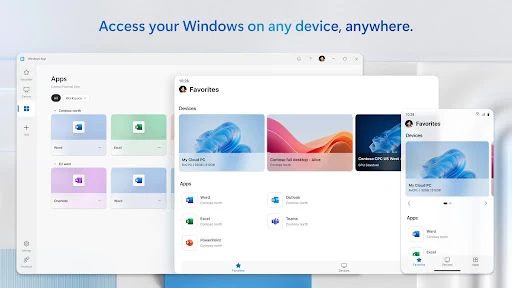
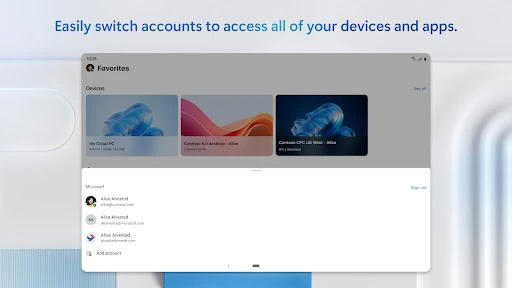
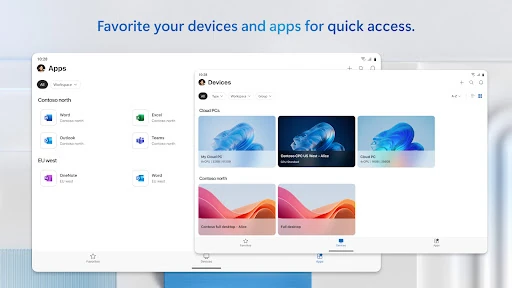
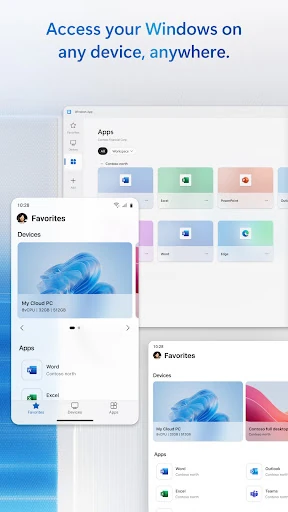
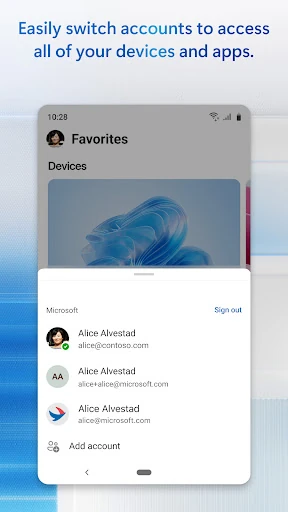
Analysis by Reviewed APKs
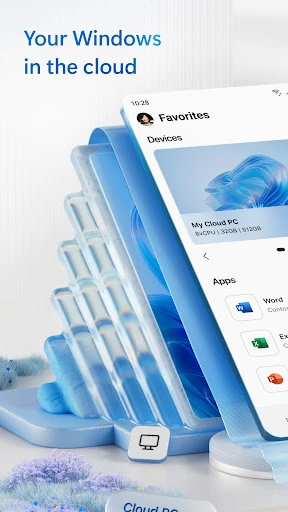
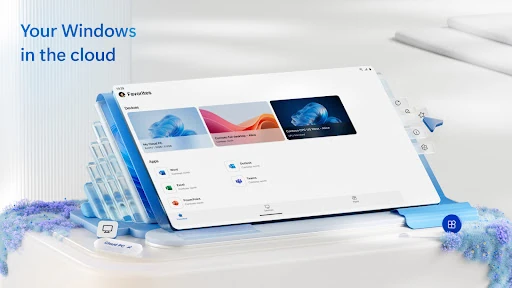
Windows App is for connecting an Android device to remote Windows PCs and virtual desktop experiences, including Windows 365 and Azure Virtual Desktop. I’d consider it when a phone or tablet needs to reach a work or personal Windows environment, rather than as a replacement for ordinary mobile apps. Its appeal is practical: it brings several kinds of remote Windows access under one app, provided you already have somewhere to connect.
A Windows session on the go
Imagine finishing a workday away from your desk and realizing a file or task is still on your Windows PC. Windows App is built for that sort of moment: it connects an Android device to a remote PC or supported virtual Windows experience. I like the idea of having that option on a phone or tablet, especially when carrying a laptop would be inconvenient.
The app also makes sense in a more planned routine. I could picture opening it on a tablet during a commute or settling in with a Chromebook to reach a remote work environment. The important distinction is that the app connects to a Windows experience elsewhere; it is not itself a Windows computer or a way to install desktop Windows on Android.
A different kind of mobile app
Most mobile productivity apps are designed to do their work locally, with interfaces built specifically for a small screen. Windows App has a different job: it provides a connection to remote Windows resources, including Azure Virtual Desktop, Windows 365, Microsoft Dev Box, Remote Desktop Services, and remote PCs. That makes it relevant when the work or environment already lives in one of those places.
I would not choose it as a general-purpose office suite, a file manager, or a substitute for a laptop in every situation. Its usefulness depends on having a remote Windows experience to connect to and wanting to reach it from Android. If all I need is a quick note or a mobile-friendly task app, a native Android app is likely the more direct fit.
Make access part of a routine
A useful way to approach Windows App is to think about the remote environment before the moment you need it. For example, I’d decide whether my regular use is a remote PC, a virtual desktop, or another supported Windows experience, then keep the app in mind for occasions when a phone, tablet, or Chromebook is more convenient than a computer.
It may also help to match the device to the job. A tablet or Chromebook can be a more comfortable choice for a longer session than a phone, while a phone may be handy for a brief check. Those are practical expectations rather than promises about a particular session: the app’s role is the connection, and the remote Windows experience remains the place where the work happens.
More From Our News Desk

Zoom Meetings, Google Meet, or Teams: Which Is Easiest to Join?

How I Build a Free Streaming Lineup With Tubi

Why Crunchyroll Is the Default Anime App for So Many Fans

YouTube TV: A Practical Guide to Cutting Cable

Rummikub and the Small Comfort of Phone Games

TeamViewer Remote Control or AnyDesk for Helping Family?
Who will find it useful
I’d recommend Windows App to people who already use a remote Windows PC or one of Microsoft’s supported virtual environments and want to reach it from an Android device. It should be especially relevant to workers or developers who have a reason to access a Windows setup when away from a traditional computer. Its support for phones, tablets, compatible Chromebooks, and VR headsets gives it room to fit different device preferences.
It may not suit someone looking for a standalone productivity app or a replacement for desktop hardware. The app’s purpose is specific, and a remote connection is only useful if there is a Windows experience available to connect to. If your work is entirely handled by Android apps, there may be little reason to add it to your routine.
Windows App is published by Microsoft Corporation and is listed in the Business category on Google Play. It is free to download, with no in-app purchases or ads reported in the supplied store details. The content rating is Everyone. Google Play shows a 4.3-star rating from about 36,600 ratings and more than 10 million installs.
The supplied app version is 11.0.26071.13915. The recorded release date is March 18, 2020, and the last update date is September 19, 2026. The description says Windows App runs on supported Android devices with Android 11 or later, including phones, tablets, VR headsets, and Chromebooks that support Play Store apps.
A closer look at remote access
Getting started on Android
My first impression is that Windows App is best understood by its purpose, not by the broad label of a productivity app. It is a connection point for remote Windows experiences. That makes the setup question less about what I want to create inside the app and more about which remote PC or supported virtual environment I need to reach.
The device requirement is worth checking early. The description specifies Android 11 and above, and names phones, tablets, compatible Chromebooks, and VR headsets among the supported device types. I would check that my Android device meets the requirement and supports apps from Google Play before planning to use it.
It is also helpful to set expectations before opening the app. Windows App does not create the remote Windows environment; it connects to one. If I already rely on a remote PC or virtual desktop, that distinction is simple. If I do not, the app may not have an immediate job in my day.
The everyday connection
In day-to-day use, the central benefit is being able to reach remote Windows experiences from an Android device. I can see the appeal when I am away from my usual computer but still need access to a Windows-based work environment. Rather than treating the phone as a full desktop replacement, I would treat it as another way to connect when circumstances call for it.
The experience will naturally feel different depending on the device. A phone is easy to have nearby, while a tablet or Chromebook may be more comfortable for spending time with a remote environment. Windows App supports these device categories when they meet the stated requirements, but the basic job remains consistent: connecting Android to remote Windows resources.
That focus keeps the app’s role clear. It is not described as a local Windows emulator or a collection of unrelated business tools. For me, that makes it easier to judge whether it belongs on a device: if remote Windows access is part of my routine, it has a purpose; if not, it is unlikely to become a daily essential.
Several Windows destinations
The range of supported destinations is one of the app’s more useful details. Windows App can connect to Azure Virtual Desktop, Windows 365, Microsoft Dev Box, Remote Desktop Services, and remote PCs. That gives it relevance across more than one kind of remote Windows setup, rather than limiting its description to a single destination.
I find that breadth practical because people may encounter remote Windows in different ways. One person might use a remote PC, while another works through a virtual desktop or a development environment. The app’s job is to connect to these experiences, so its value is less about adding new Windows tools and more about making existing remote resources reachable from Android.
The app is also described as securely connecting to remote Windows experiences. That is a useful part of its purpose, though I would keep the description in proportion: the supplied details do not turn it into a general security product. Its focus remains remote access to Windows environments.
A practical access habit
For a realistic routine, I would keep Windows App available on the Android device I am most likely to carry, then use it when I need a supported remote Windows environment and my computer is not nearby. That might mean reaching a remote PC while away from a desk or using a tablet when I want a larger mobile screen.
I would also choose the device according to how long I expect to use the remote environment. A quick need may make a phone convenient; a longer session may feel better suited to a tablet or Chromebook. That is a simple planning habit, not a claim that every task will be comfortable on every screen.
The main thing is to have a clear reason for connecting. Windows App is more useful when it supports an existing work or access routine than when installed just in case. Knowing which remote Windows experience I rely on makes it easier to decide whether the app belongs in my regular mobile toolkit.
Limits to keep in mind
The biggest limitation is also the app’s defining boundary: it connects to remote Windows experiences rather than serving as a standalone Windows workspace. Without a remote PC or supported virtual environment to reach, the app has little to do. That makes it a specialized tool, not an all-purpose productivity download for every Android user.
Device support has a stated threshold of Android 11 or later, and Chromebooks need to support Play Store apps. That narrows the audience to compatible devices. Even for people who meet those requirements, the best fit depends on whether their existing remote setup is among the experiences Windows App supports.
I would also avoid assuming that remote access will feel identical to sitting at a Windows computer. The description establishes the connection and supported destinations, but does not promise that every task or device will be equally comfortable. For work that depends on a familiar Windows environment, it can be a useful option; for everything else, a native mobile app may be simpler.
Windows App has a focused purpose, and that is its strength. It gives Android users a route to remote PCs and several Microsoft virtual Windows experiences, with support spanning phones, tablets, compatible Chromebooks, and VR headsets. It is not a universal business app, but it can be a practical companion when remote Windows access is already part of the plan.
I’d recommend it to anyone who needs to reach a supported Windows environment from an Android device and understands that the app is the connection, not the destination itself. If you have no remote PC or virtual desktop to use, you can probably skip it. For the right routine, though, it fills a specific gap neatly.
Windows App Frequently Asked Questions
What is Windows App used for?
Windows App connects Android devices to remote Windows experiences. These include Azure Virtual Desktop, Windows 365, Microsoft Dev Box, Remote Desktop Services, and remote PCs. It is intended for reaching a Windows environment that exists elsewhere, rather than installing Windows on the Android device or replacing ordinary mobile productivity apps.
Which devices can run Windows App?
The app is described for supported Android devices running Android 11 or later. That includes smartphones, tablets, VR headsets, and Chromebooks that support apps from Google Play. Device compatibility can vary, so it is worth checking the Google Play store information for your particular device before relying on it.
Does Windows App cost anything?
Windows App is free to download on Google Play. The supplied store details show no in-app purchases and no ads. Access to a remote Windows experience is the app’s purpose, but the details here do not establish the cost of any separate service or environment, so check the relevant store or service information for terms that may vary.
Does Windows App work on Android 10?
The app description says supported Android devices need Android 11 or later, so Android 10 is below the stated requirement. Compatibility can depend on the device and current app information; check the Google Play store details for the latest requirements before installing.
Who should use Windows App?
It is best suited to people who already have a remote PC or supported virtual Windows experience and want to connect from Android. It may not be useful if you only need local mobile apps or do not have a Windows environment to reach. The store details can help clarify compatibility for a specific device.
Pros
- Connects to remote PCs and several Microsoft virtual Windows experiences.
- Supports Android phones, tablets, compatible Chromebooks, and VR headsets.
- Free to download, with no in-app purchases or ads reported.
- Useful for reaching a Windows environment away from a computer.
Cons
- Requires a remote Windows experience to connect to.
- The stated Android requirement is version 11 or later.
- A specialized access tool rather than a general-purpose productivity app.
- Category
- Business
- Version
- 11.0.26071.13915