AnyDesk Remote Desktop
- 133.62K
- 2.8
- Installs
- 100.00M
- Price
- Free

Screenshots
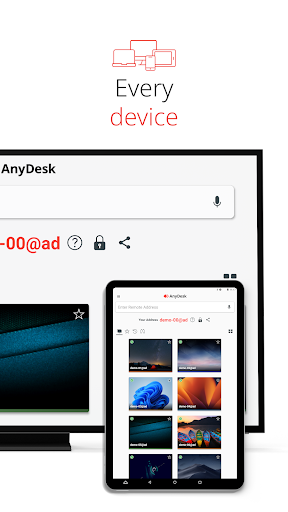
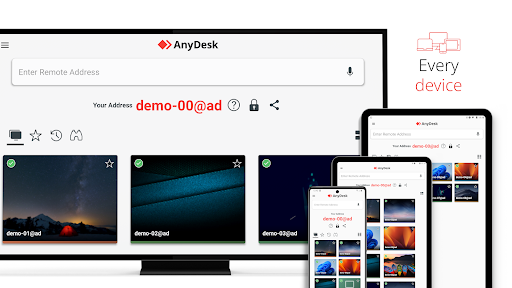
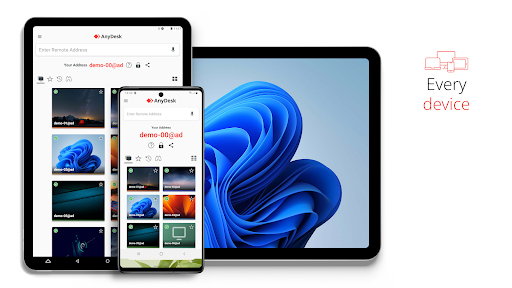
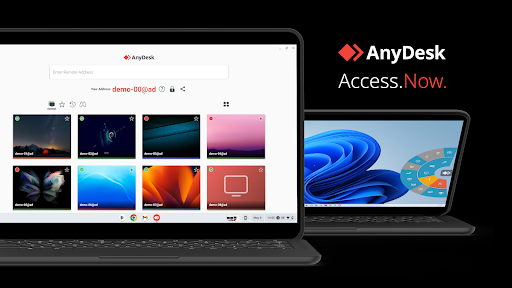
Analysis by Reviewed APKs
AnyDesk Remote Desktop lets me connect to and control another device, which makes it useful for remote support, working away from the office, or helping someone with a computer problem. Its simple connection process is the main appeal: install it on both devices, enter the remote device’s ID, and approve the request. I see it as a practical access tool, though its low Google Play rating is worth weighing.
A Quick Remote Help Session
Picture a family member calling because they cannot find a file or get a program working. Instead of trying to describe every click over the phone, I can ask them to launch AnyDesk, read me the ID shown on their device, and accept my connection request. Once connected, I can see and control the remote device. That straightforward sequence is the app’s central job, and it suits occasional support as well as planned remote work.
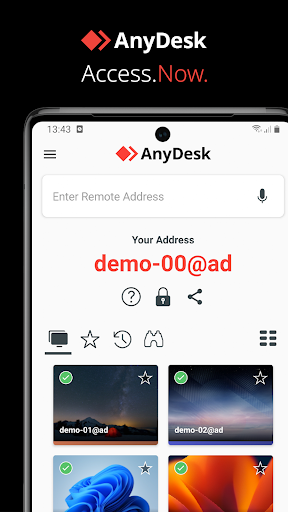
I like that the basic setup is easy to explain to someone who is not especially comfortable with technology. Both people install and open AnyDesk; the person connecting enters the displayed ID, and the person at the other end confirms access. That approval step makes the handoff clear rather than mysterious. It does mean the other person needs to be available to accept the request, so this flow is best for cooperative support rather than unattended access.
A Tool, Not a Chat App
AnyDesk belongs in the remote desktop category, not alongside messaging apps or ordinary video calls. A call can help me explain what to do, but it does not give me control of the other device. AnyDesk is more direct when the task involves navigating menus, checking a setting, or helping someone use a computer from a distance. It is also presented for professional IT support, remote work, and study, so it can serve more than one kind of user.
I would not treat it as a general-purpose way to communicate or as a substitute for being physically present when hands-on work is needed. Its purpose is to connect devices, with tools such as file transfer and remote printing among the features described. Commercial use has different terms from personal use, so someone considering it for a workplace should check those terms. For occasional personal help, the app’s stated free personal-use option is a more relevant starting point.
Make Connections Less Fussy
A small habit that makes remote help smoother is to have both people open AnyDesk before beginning the explanation. I can then ask for the ID when it is visible, enter it on my side, and wait for the access request to be accepted. That avoids a long conversation about what to install halfway through a problem. It also gives both people a clear moment to confirm that the intended connection is being made.
For work that involves moving documents, I would keep file transfer in mind rather than assuming a remote session is only about controlling the screen. Remote printing, Wake-On-LAN, and VPN connections are also described, though which option makes sense depends on the task and devices involved. I would start with the simple connection flow, then use only the extra function that actually helps. That keeps a support session focused instead of turning setup into the main event.
Reads About AnyDesk Remote Desktop
More From Our News Desk

Zoom Meetings, Google Meet, or Teams: Which Is Easiest to Join?

How I Build a Free Streaming Lineup With Tubi

Why Crunchyroll Is the Default Anime App for So Many Fans

YouTube TV: A Practical Guide to Cutting Cable

Rummikub and the Small Comfort of Phone Games

Gmail, Yahoo Mail and Outlook: A Calmer Phone Inbox
Who Will Find It Useful
I would recommend AnyDesk to people who regularly help others with device problems, IT support workers, and users who need to reach a remote device for work or study. It can also make sense for a household where one person is the go-to troubleshooter. The approval-based connection steps are easy to describe, and the extra functions give experienced users more options than simple screen viewing alone.
It may be less appealing if you only need to talk someone through a task once in a while and can manage over a call. Remote control is more than that kind of conversation requires, and both devices need the app and an accepted connection. I would also pause before choosing it for commercial use, since the description distinguishes business use from free personal use. Its Google Play score is 2.8, so I would read recent user feedback before relying on it.
AnyDesk Remote Desktop is made by AnyDesk Software GmbH and is listed in Google Play in the Business category. The app has over 100 million installs and a 2.8-star rating from about 134,000 ratings. Those figures point to a widely used product with mixed user feedback, so I would look beyond the install count when deciding whether it fits a particular support routine.
The app is free to download, has no in-app purchases, and contains no ads. The developer describes it as free for personal use and directs commercial users to separate ordering information. Its content rating is Everyone. The listed version is 9.0.2; it was released on February 7, 2017, and the recorded last update is September 18, 2026.
What Remote Support Feels Like
Getting Started
My first impression of AnyDesk is that it is built around a specific task rather than a broad dashboard of unrelated tools. The quick-start process is easy to follow: install and launch it on both devices, enter the ID displayed on the remote device, and have that device approve the request. For someone offering help, those steps are simple enough to explain while staying on a call.
The connection depends on both sides doing their part. That is a useful expectation to set before a support session: the other person needs to open the app and confirm access. Once that is understood, the setup is not difficult to describe. I would make sure the person receiving help knows to expect the request, especially if they are already distracted by the problem they called about.
The Everyday Connection
Day to day, the value is being able to interact with a remote device instead of guessing what the other person sees. If someone is stuck in a program, I can use the connection to help navigate rather than relying only on a verbal description. This is particularly handy when the steps are hard to explain clearly. The app is presented for both private users and IT professionals, so the same basic idea can scale from home assistance to support work.
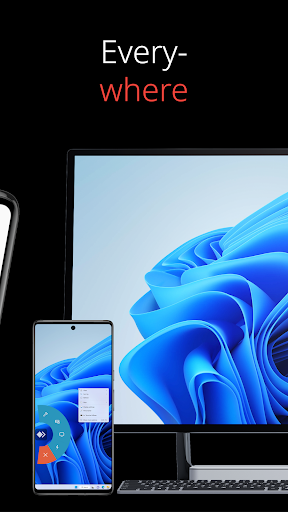
AnyDesk is described as supporting connections across operating systems and devices. That broad positioning is useful when the person needing help does not use the same kind of device I do, although the exact setup depends on the devices involved. I would keep the session focused on the job at hand: connect, solve the issue, and use the remote access only as long as needed.
More Than Screen Control
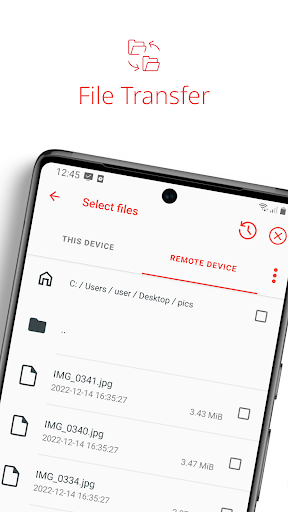
File transfer is one of the more practical additions because some support tasks involve getting a document from one device to another, not just clicking through a screen. Remote printing is another example of a feature that can matter in a work setting. Wake-On-LAN and VPN connections are also included in the described feature set, giving people with more specific needs options beyond a straightforward remote session.
The VPN feature is described as creating a private network between the local and remote clients. The description says it does not provide access to the remote client’s local network, or the other way around. It mentions uses such as SSH access to the remote device and playing a LAN multiplayer game over the internet. I would see this as a specialized option, not a feature every casual user needs to explore.
A Simple Help Routine
For a planned support session, I would begin by asking the other person to install and open AnyDesk before the call gets underway. Next, they can share the ID displayed on their device, I can enter it, and they can approve the request. Keeping those steps in order makes the process easier to follow and avoids mixing connection setup with troubleshooting instructions.
After connecting, I would tackle one problem at a time. If the task is mainly about finding a setting, remote control is the point; if it involves sending a file or printing remotely, the app lists those functions too. Before ending, I would make sure the original question has been answered and that both people know the session is over. A predictable routine helps keep remote assistance comfortable for less experienced users.
Keep Its Limits in View
Remote access is powerful, so the approval step matters. The quick-start flow calls for confirmation on the remote device; the person receiving help should understand what they are approving. That makes AnyDesk a better fit for deliberate support sessions than for situations where nobody is available to respond. I would explain the connection before asking someone to accept it, rather than treating the request as an incidental pop-up.
The app’s Google Play rating is 2.8 stars, despite its large install count. That does not explain why individual users rated it as they did, but it is a practical reason to check current feedback and test the connection in the conditions that matter to you. Commercial users should also review the separate business terms, since free personal use is not the same as a promise that every work scenario is free.
AnyDesk is a focused remote access app with a simple connection process and useful extras such as file transfer, remote printing, Wake-On-LAN, and VPN connections. I can see its appeal for support sessions where explaining every click would take longer than helping directly. Its broad device positioning also makes it relevant to mixed-device households and teams.
I would try it if remote support is a regular part of my work or home routine, while checking the Google Play feedback and business terms before depending on it. For a one-off question, a regular call may be enough. AnyDesk is worth considering when direct access is genuinely useful, not just because remote control is available.
AnyDesk Remote Desktop Frequently Asked Questions
What is AnyDesk Remote Desktop used for?
AnyDesk connects a local device to a remote one so a user can control it, including for IT support, remote work, or study. The described features also include file transfer, remote printing, Wake-On-LAN, and VPN connections. The basic setup uses an ID shown on the remote device, followed by approval of the access request there.
Which devices can use AnyDesk Remote Desktop?
AnyDesk is described as supporting connections across operating systems and devices. The Android app is available through Google Play, and the developer describes versions for other platforms as well. The exact setup depends on the devices being connected, so check the relevant store or official information for compatibility with your particular devices.
What Android version does AnyDesk require?
The Google Play facts provided do not specify a minimum Android version. Requirements can vary with the app and device, so check the current AnyDesk store listing on the Android device you plan to use before installing. The listed app version is 9.0.2.
Is AnyDesk Remote Desktop free?
The app is free to download, with no in-app purchases and no ads. AnyDesk describes personal use as free, while commercial use has separate terms and ordering information. If you plan to use it for work, check the current commercial terms in the store or through AnyDesk before choosing a plan.
Is AnyDesk suitable for helping family or coworkers?
It can suit people who want to help someone with a remote device, provided both sides have the app and the remote device can approve the request. It may be more than needed for a simple conversation where verbal instructions are enough. For workplace use, review the commercial terms; for personal support, the stated free personal-use option may fit.
Pros
- A clear ID-and-approval flow makes remote support easy to explain.
- Includes file transfer, remote printing, Wake-On-LAN, and VPN features.
- Free for personal use, with no ads or in-app purchases.
- Designed to connect across operating systems and devices.
Cons
- The 2.8-star Google Play rating suggests a mixed user experience.
- The remote device must approve a connection request in the quick-start flow.
- Commercial use has separate terms from personal use.
- Category
- Business
- Version
- 9.0.2