Intune Company Portal
- 188.90K
- 2.6
- Installs
- 50.00M
- Price
- Free

Screenshots
Analysis by Reviewed APKs
Intune Company Portal is a work-access app for employees whose organizations use Microsoft Intune. It gives people a place to enroll a device, find company apps, and manage enrolled devices, with some account and support tasks alongside those basics. I see it as a practical workplace utility rather than an app for general productivity: useful when your IT team has configured it, but not something you can set up independently.
Getting ready for work
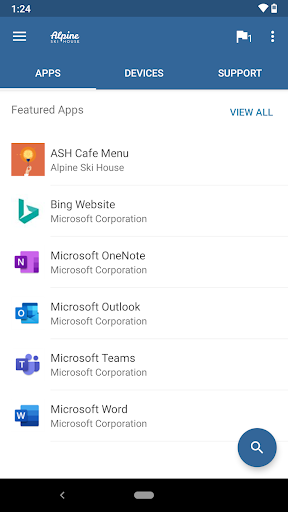
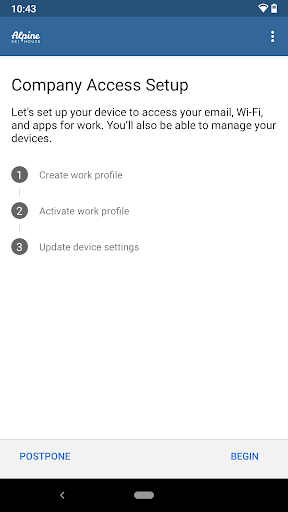
Imagine starting a new job and needing a company app on your phone before the morning’s first meeting. With Intune Company Portal, the intended route is to sign in with your work account, enroll the device, and browse the apps your organization makes available. I’d expect the useful part to be having those work resources gathered in one place, instead of guessing which apps to install or where to find them.
The important catch appears before the app can do much: your organization needs an Intune subscription, and an IT administrator has to set up your account. When I think about the first-use experience, that makes it less like downloading a normal app and more like picking up a workplace access pass. If enrollment is ready, the portal can help with the next steps; if it isn’t, your IT team is the right starting point.
A workplace tool, not a suite
The obvious alternatives are asking IT to provide an app directly or using a company’s existing process for finding work resources. Company Portal has a narrower, more organized role: it can show company apps, help enroll devices, and provide a place to view enrolled devices and IT contact information. That makes it most relevant in organizations that already use Intune, rather than a universal app directory for anyone with a work email.
I wouldn’t treat it as a general office suite, a personal app store, or a replacement for contacting your help desk. Its job is to connect a managed work account and device with resources the organization has arranged. The app also includes actions such as changing a work account password and unenrolling or remotely wiping a device, so it is worth understanding your company’s process before using device-management options.
Small habits that help
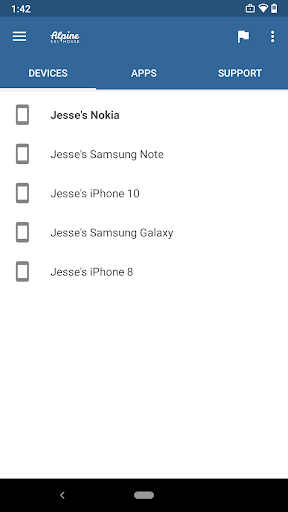
A useful habit is to open the portal when you need a company app, rather than searching around or relying on an old installation. Browsing the organization’s available apps can make it easier to find the intended work tools. I’d also check the enrolled-device area when I need to see which devices are associated with my work account, especially if I have more than one device in use.
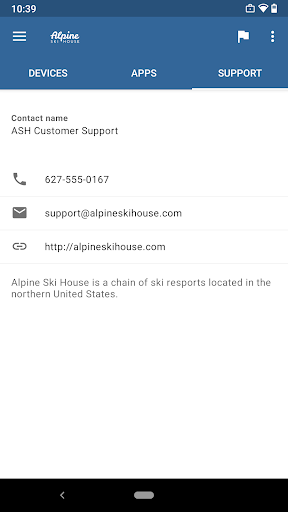
Keep your IT department’s contact details handy, and use them when enrollment stalls or a work resource does not appear. The portal can show IT contact information, but it cannot replace your organization’s setup or answer every question about its policies. I’d be especially deliberate before unenrolling or choosing a remote wipe action: those are significant device-management steps, not routine cleanup buttons.
More From Our News Desk

Zoom Meetings, Google Meet, or Teams: Which Is Easiest to Join?

How I Build a Free Streaming Lineup With Tubi

Why Crunchyroll Is the Default Anime App for So Many Fans

YouTube TV: A Practical Guide to Cutting Cable

Rummikub and the Small Comfort of Phone Games

TeamViewer Remote Control or AnyDesk for Helping Family?
Who will find it useful
I’d recommend Intune Company Portal to employees or other organization members who have been told to use Microsoft Intune for work access. It makes the most sense when an administrator has already prepared the account and the person needs to enroll a device, browse company apps, or check their enrolled devices. In that situation, a dedicated portal can be a handy companion to the organization’s setup instructions.
It may frustrate someone expecting to install it and immediately access company files, or someone whose employer does not use Intune. The app depends on organizational support, and some functionality may not be available in every country. If your company’s instructions are unclear, I would check with its IT team first; this is a managed-work utility, not a self-service answer to every account or device problem.
Microsoft Corporation develops Intune Company Portal, which is listed in the Business category on Google Play. It is free to download, with no in-app purchases and no ads. Google Play shows over 50 million installs and a 2.6-star rating from about 189,000 ratings. The content rating is Everyone.
The supplied app details give version 5.0.7136.0, an original release date of November 11, 2013, and a last update date of November 3, 2026. A minimum Android version is not provided in the details available for this review, so check Google Play on your device for current compatibility information.
A closer look at the work portal
A work-focused first impression
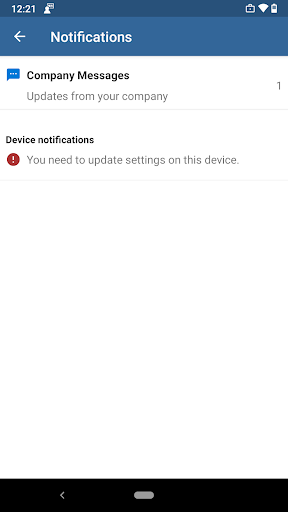
When I first opened the idea of Company Portal, what stood out was how clearly its usefulness depends on an employer’s setup. This isn’t a consumer app where browsing around reveals a complete service. The organization needs an Intune subscription, and an administrator needs to prepare the account before the user can enroll. That context shapes the whole experience, from the first sign-in to what resources become available.
That dependency is not necessarily a flaw; it is simply the product’s operating model. For someone following workplace instructions, it gives a defined place to begin. For someone who downloaded it without knowing whether their company uses Intune, the first steps may feel like a dead end. I’d treat the IT team’s enrollment guidance as part of getting started, rather than expecting the app to explain an organization’s setup on its own.
The everyday job
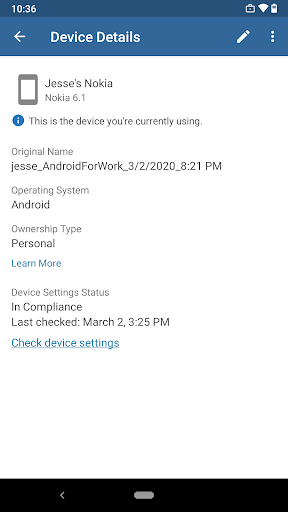
Day to day, the central task is access: enroll a device and reach the corporate resources made available through the organization. The portal also lets users browse and install company apps. I can see that being convenient when a team needs a particular work app, or when a new employee is setting up a phone and wants to use the organization’s intended route.
The app’s practical value will depend on what the employer has configured and what the user needs. It is not a standalone library of business software, and installing it alone does not guarantee access to a company resource. Once the account is prepared, though, having the company-app browsing and device-management functions in one work-focused place can be simpler than keeping track of separate instructions.
Useful account and device tools
Several features extend beyond app access. Users can view and manage their enrolled devices, see IT department contact information, and change a work account password. Those are useful self-service options for everyday housekeeping, particularly when someone needs to check which devices are associated with their work setup or find the right support contact.
The portal also includes options to unenroll a device or remotely wipe it. I’d put those in a different category from browsing apps: they can affect the device or its work enrollment, so it is sensible to understand what an action does and follow company guidance. Their presence makes the app more than a catalog, but it also means users should approach device controls thoughtfully.
A routine for new devices
For a new work setup, I’d start by confirming with IT that the account is ready and that the organization expects the device to enroll through Company Portal. Then I’d use the work account to enroll, browse the available company apps, and install the ones needed for the job. That sequence keeps the portal’s main purpose clear and reduces the chance of confusing it with a personal app store.
After the initial setup, I’d return to the portal when I need to check enrolled devices, find IT contact information, or change the work account password. If I were preparing to stop using a device, I’d check the organization’s instructions before unenrolling it. The app’s own guidance says a device must be unenrolled before Company Portal can be uninstalled, so removal is not simply the same as deleting an ordinary app.
Limits to keep in mind
The biggest limitation is that Company Portal cannot create an Intune setup for an organization that has not made one. Access requires the employer’s subscription and administrator preparation, and users need a work account to enroll. That means a person can have the app installed and still need help from IT before it becomes useful. Some functionality is also unavailable in certain countries.
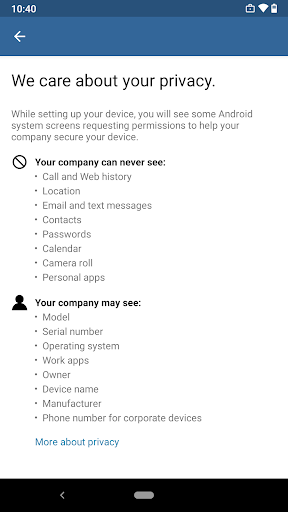
The app’s device actions deserve care, especially unenrollment and remote wipe. I would not use either without understanding the effect and following workplace instructions. Questions about use and the company’s privacy policy should go to the IT administrator, as the app’s own guidance directs. That may feel less convenient than in-app answers, but the administrator is the relevant source for organization-specific rules.
Intune Company Portal is a focused, practical bridge between a managed work account, a device, and company-provided resources. Its app browsing, device overview, and account tools can be useful once an organization has configured Intune. The experience is less compelling if you arrive without workplace instructions, because the portal depends on an administrator and a work account.
I’d recommend it to people whose employer specifically uses Intune and has asked them to enroll a device. If you are unsure whether it applies to your workplace, ask IT before spending time setting it up. For the right organization, it can make routine work access and device tasks easier to find; outside that context, it has little reason to be on your phone.
Intune Company Portal Frequently Asked Questions
What is Intune Company Portal used for?
Intune Company Portal helps people enroll a device to access organizational resources, browse and install company apps, and view or manage enrolled devices. It can also show IT contact information and support changing a work account password. Your organization must use Microsoft Intune and prepare your account before you can use it for work access.
Which devices can use Intune Company Portal?
This review covers the Android app, available through Google Play. The minimum Android version may vary with the current release and device, so check the Google Play store listing for compatibility with your phone. The app’s work features also depend on your organization’s Intune setup and administrator instructions.
What Android version does Intune Company Portal require?
The minimum Android requirement can vary and is worth checking on the Google Play store listing for the version available to your device. The app details used for this review do not give a minimum version. Even on a compatible phone, you will need a work account and an organization that has configured Microsoft Intune.
Does Intune Company Portal cost money?
The Android app is free to download, and the supplied Google Play details show no in-app purchases or ads. Access to work resources is a separate matter: your organization must already subscribe to Microsoft Intune and set up your account. Check the store listing for current app details.
Is Intune Company Portal right for personal use?
It is mainly suited to people who need work access through an organization using Microsoft Intune. You need a work account and administrator setup to enroll, so it is unlikely to be useful as a general personal app manager. If you are unsure whether your employer uses it, ask your IT department.
Pros
- Brings company app browsing and device enrollment into one work-focused portal.
- Includes enrolled-device management and IT department contact information.
- Offers work-account password changes and device unenrollment options.
- Free to download, with no ads or in-app purchases.
Cons
- Requires an organization’s Intune subscription and administrator setup.
- Not useful as a general app store or personal device manager.
- Some functionality is unavailable in certain countries.
- Category
- Business
- Version
- 5.0.7136.0