TeamViewer Remote Control
- 1.07M
- 4.4
- Installs
- 100.00M
- Price
- Free

Screenshots
Analysis by Reviewed APKs
TeamViewer Remote Control turns an Android phone, tablet, or Chromebook into a way to reach and help other devices. It suits people who need to check a computer while away from a desk, transfer a file, or offer remote support. I like that it brings several practical tasks into one app, though remote control is naturally more comfortable on a larger screen than on a phone.
A Quick Check From Away
When I imagine using TeamViewer Remote Control on an ordinary day, it is less about doing a full day’s work on a phone and more about handling a small interruption. A colleague might need help finding a setting on a computer, or I might want to check a file while away from home. The app connects from an Android device to a computer or supported mobile device, so the task does not have to wait until I am back at a desk.
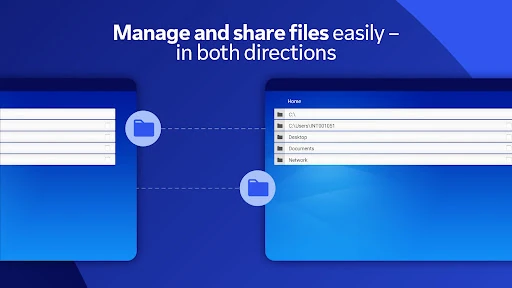
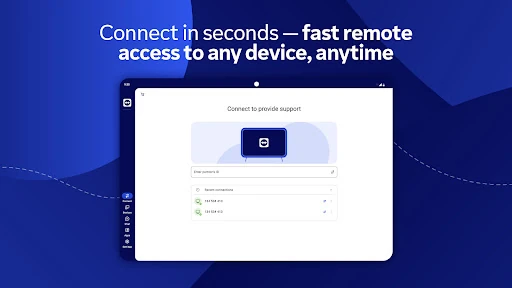
The connection process depends on the other device being ready, but the basic flow is straightforward: install TeamViewer QuickSupport on the device you want to reach, open both apps, and enter its ID or session code. Once connected, I can use touch controls to navigate, chat during the session, or transfer files in either direction. It is a useful combination for a short support session, where seeing the screen and exchanging a file can save a round of explanations.
Remote Access, Not Remote Work Magic
The obvious alternative to remote access is simply waiting until you are beside the computer, or asking someone nearby to describe what they see. TeamViewer is more useful when that delay is inconvenient: it can provide access to Windows, macOS, and Linux computers, and it also supports remote control of Android devices. For occasional help, screen sharing, or an unattended device, those options make it more flexible than a one-purpose file-sharing tool.
That flexibility does not make a phone a comfortable replacement for a desktop setup. Small controls and a compact display can make detailed work awkward, even with touch gestures and multi-monitor support available. I would not choose it as a general productivity suite or as a substitute for being at a computer all day. Its job is connecting devices and helping with tasks at a distance, not making every task feel native on a handset.
Make Sessions Easier
A little preparation makes a remote session less fussy. I would ask the person at the other end to have QuickSupport open and the ID or session code ready before starting. That avoids spending the first few minutes searching for connection details. If I expect to move a document, I would also decide which device should receive it; transfers work in both directions, so it helps to be clear about the intended destination.
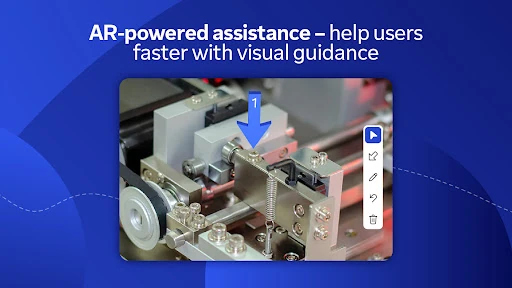
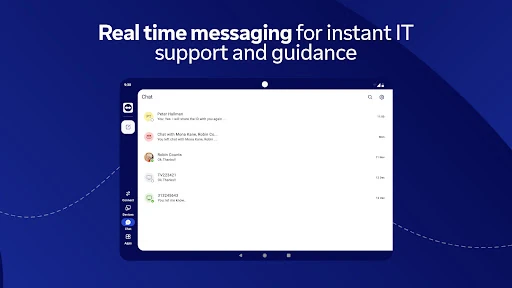
During a session, chat is handy for brief questions or instructions without having to switch to another messaging app. For visual guidance, Assist AR can place 3D markers in the other person’s environment, which may be easier than describing a small object or location in a room. Camera permission is used for scanning QR codes, and microphone permission can be used to transmit audio or record sessions. Both are optional, so I would enable them only when the task calls for them.
Reads About TeamViewer Remote Control
More From Our News Desk

Zoom Meetings, Google Meet, or Teams: Which Is Easiest to Join?

How I Build a Free Streaming Lineup With Tubi

Why Crunchyroll Is the Default Anime App for So Many Fans

YouTube TV: A Practical Guide to Cutting Cable

Rummikub and the Small Comfort of Phone Games

Gmail, Yahoo Mail and Outlook: A Calmer Phone Inbox
Who Will Find It Useful
I would recommend TeamViewer Remote Control to people who regularly support family, coworkers, or devices from another location. It also makes sense for someone who occasionally needs to reach a computer while traveling, check an unattended machine, or move a file between devices. The combination of remote control, chat, and two-way file transfer means a single session can cover more than simply looking at another screen.
It may be less appealing if you rarely need remote access, or if most of your work involves precise, extended computer use. A phone is convenient to carry, but a desktop interface is still a desktop interface, and detailed navigation can feel cramped. People who only want to share files may find the remote-control approach more involved than they need. The app is best for practical, occasional connections rather than replacing a full workstation.
TeamViewer Remote Control is a free Android app from TeamViewer in the Business category. Google Play shows over 100 million installs and a 4.4-star rating from about 1.1 million ratings. It is rated Everyone and contains no ads. The supplied app version is 15.82.276. The Android version requirement is worth checking on Google Play because it can vary by release.
The app is free to download, with in-app purchases listed at $0.99 to $610.80 per item. That is a broad range, so I would check the Google Play details for the current subscription or purchase options before committing. The supplied release date is June 14, 2011, and the supplied last-updated date is October 26, 2026.
How Remote Sessions Fit Real Life
Getting Connected
My first impression is that this is a practical tool with a clear purpose: use a portable device to connect to another one. It is available for Android phones, tablets, and Chromebooks, and the app’s instructions point to TeamViewer QuickSupport on the device being accessed. That separation is worth understanding at the start. The remote-control app is for reaching other devices; QuickSupport is the companion used on the device that will receive support.
The initial connection uses an ID or session code from QuickSupport. That gives the process a concrete handoff instead of requiring a long explanation about how to find the other device. I would keep the code ready before beginning a call or support session. Optional camera access can help scan QR codes, while microphone access relates to audio transmission or recording; the app can be used without either permission.
The Everyday Connection
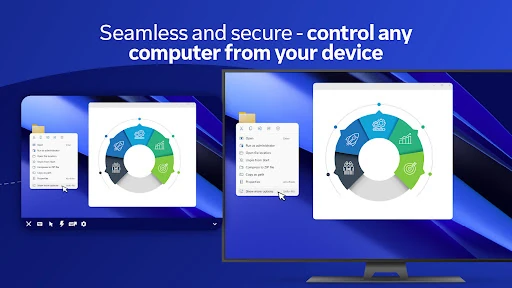
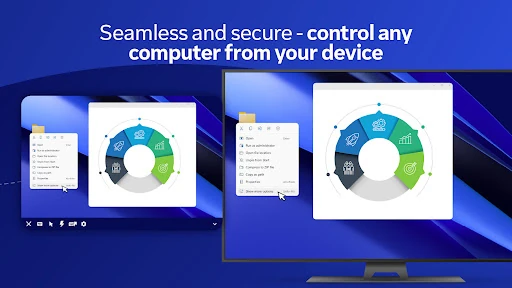
The central experience is viewing and controlling a remote screen from the Android device. Touch gestures and controls are intended to make navigation possible on a phone or tablet, while screen sharing lets the user see what is happening. This is a useful arrangement for a quick settings change or a guided troubleshooting step. It also gives a supporter a way to demonstrate an action rather than relying only on spoken directions.
Some sessions are more than visual checks. TeamViewer supports real-time chat, sound and video transmission, and file transfer in both directions. Those tools can keep a short exchange together: ask a question, show the screen, and send the relevant file without leaving the session. In practice, the value depends on the job. A brief check can work well on a phone; prolonged, detailed control is likely to feel better on a larger display.
Tools Beyond Screen Control
The range of supported devices is one of the app’s more notable strengths. It can connect to Windows, macOS, and Linux computers, and can remotely control Android phones and tablets, including devices such as kiosks and rugged equipment. The description also mentions unattended devices such as servers or virtual machines. That makes the app relevant to both personal help and some work-related support routines.
Other features add useful flexibility rather than changing the app’s basic purpose. Multi-monitor support can help when the remote computer has more than one display, while sound and video transmission can carry information that a still view cannot. Assist AR offers live visual support with 3D markers placed in the user’s environment. I would see that as a specialized aid for explaining where to look, not a feature every routine connection needs.
A Practical Support Routine
For a simple support routine, I would first make sure the other person has opened QuickSupport and can share the ID or session code. I would connect from TeamViewer Remote Control, then ask what they are trying to do before taking control. That small step keeps the session focused and makes it easier to decide whether screen viewing, chat, or a file transfer is the right next move.
If the problem is visual, I would use the shared screen to guide the person through the relevant area. If a document needs to move, I would use the two-way transfer rather than switching to a separate method. Chat can carry short instructions, while Assist AR may help when the issue involves something in the person’s surroundings. At the end, I would make sure the task is complete and disconnect rather than leaving an unnecessary session open.
Keep the Limits in View
The biggest practical limitation is the shape of the interface. Remote desktops were designed for larger screens and more precise input, so a phone can feel cramped when navigating menus or working across multiple monitors. Touch controls help, but they cannot make every desktop task comfortable. I would treat mobile access as a way to handle a specific need, not as an automatic replacement for sitting down at the computer.
A connection also requires coordination with the device being accessed, including the companion QuickSupport app and its ID or session code. That is simple enough when both sides know what to expect, but less convenient if the other person is unfamiliar with the process. Features such as audio, camera scanning, and AR are useful for particular situations; they are not necessary for every session, and optional permissions can be left off when they are not needed.
TeamViewer Remote Control is a capable option for reaching computers and mobile devices from an Android phone, tablet, or Chromebook. I value the practical mix of screen control, chat, and file transfer, plus more specialized tools such as multi-monitor support and Assist AR. The experience makes the most sense when a session has a clear, limited purpose.
I would recommend it to people who provide remote help or need occasional access to another device while away. I would be more cautious about choosing it for long stretches of detailed desktop work on a phone. If remote support is part of your routine, the app has a useful toolkit; if not, its range may be more than you need.
TeamViewer Remote Control Frequently Asked Questions
What is TeamViewer Remote Control used for?
TeamViewer Remote Control lets an Android device connect to and control supported computers and Android devices. It can be used for remote support, screen sharing, accessing unattended devices, and transferring files in either direction. Real-time chat and sound or video transmission can also support a session. The device being accessed uses TeamViewer QuickSupport to provide an ID or session code for the connection.
Which devices and platforms work with TeamViewer Remote Control?
The app is available for Android phones, tablets, and Chromebooks. Its description says it can connect to Windows, macOS, and Linux computers, as well as Android mobile devices and tablets. It also describes TeamViewer as working across Android, iOS, Windows, macOS, Linux, and more. The exact experience depends on the devices involved, so check the store details for current compatibility.
What Android version does TeamViewer Remote Control require?
The Android version requirement can vary with app releases and device compatibility. Check the TeamViewer Remote Control page on Google Play for the requirement that applies to your device before installing or updating. The app is intended for Android phones, tablets, and Chromebooks, but the store page is the place to verify a particular device’s compatibility.
Is TeamViewer Remote Control free, and does it have purchases?
The app is free to download and contains in-app purchases. Google Play lists purchase prices from $0.99 to $610.80 per item, so the available options and their current prices are worth checking in the store. The description says subscriptions purchased through the app are charged to the Google Play account and automatically renew unless auto-renewal is turned off.
Is TeamViewer Remote Control a good fit for casual users?
It can suit casual users who sometimes help someone with a device, need to reach a computer from elsewhere, or want to transfer a file during a remote session. People who do not need remote access may have little reason to use its broader toolkit. For detailed work, controlling a desktop through a phone can feel cramped, so the app is better suited to focused tasks than replacing a workstation.
Pros
- Connects to Windows, macOS, Linux, and Android devices from an Android device.
- Combines remote control, chat, and two-way file transfer in one session.
- Includes multi-monitor support and Assist AR for more specialized support tasks.
- Optional camera and microphone permissions can be left off when not needed.
Cons
- Detailed desktop navigation can feel cramped on a phone screen.
- The device being accessed needs QuickSupport and an ID or session code.
- In-app purchase prices cover a wide range, so options deserve a careful look.
- Category
- Business
- Version
- 15.82.276