Samsung Smart Switch Mobile
- 538.38K
- 3.9
- Installs
- 1.00B
- Price
- Free
Screenshots
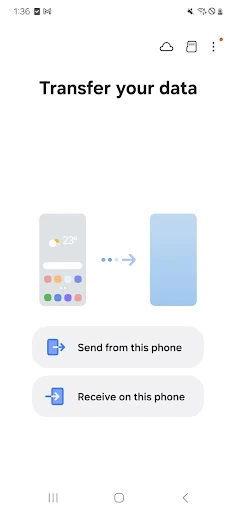
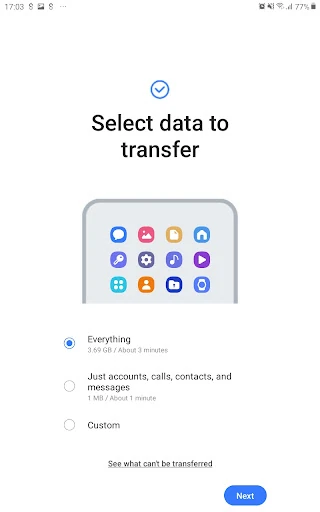
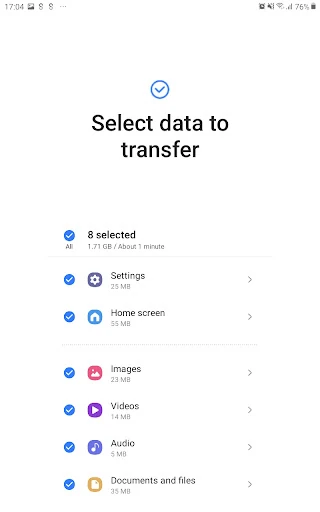
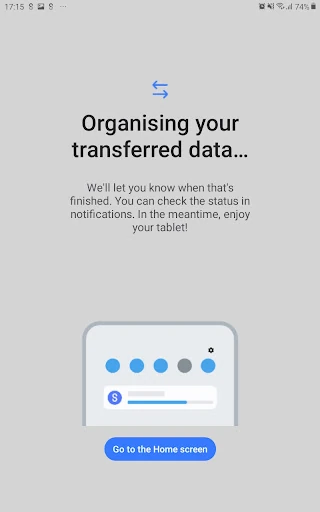
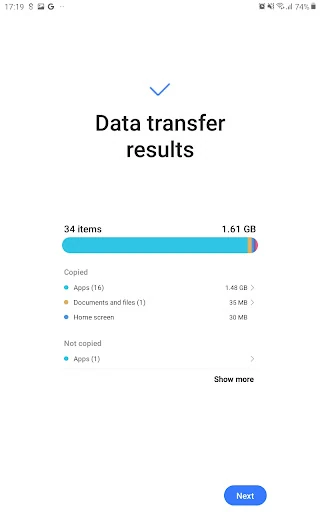
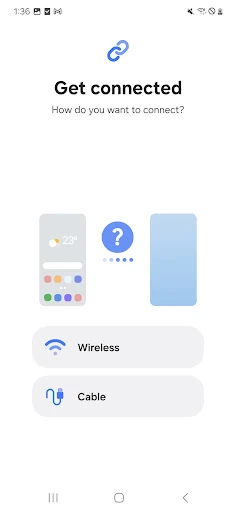
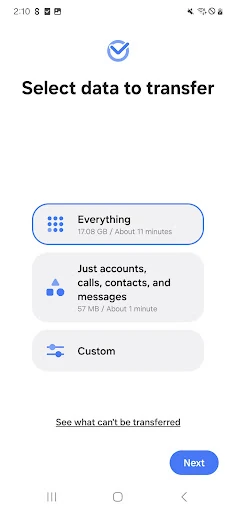
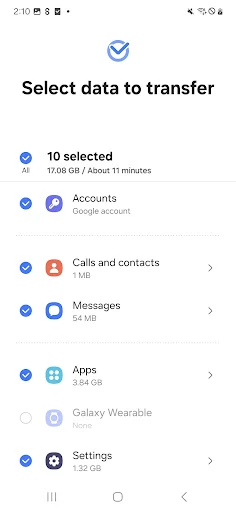
Analysis by Reviewed APKs
Samsung Smart Switch Mobile is a phone-to-phone transfer tool for people moving their contacts, photos, messages, and other information to a new Galaxy device. I’d reach for it during a device upgrade, when the tedious job is getting familiar essentials onto the replacement phone. Its appeal is practical rather than flashy: it brings several kinds of data together, though what transfers depends on the devices and connection method.
Moving Into a New Galaxy
When I picture using Smart Switch, it’s during the slightly chaotic first evening with a new Galaxy: the old phone is still on the table, the new one is waiting to be set up, and I want my contacts, calendar, photos, and messages in the right place before the next morning. Smart Switch is built for that handoff. It can move a range of personal data between devices, rather than making me rebuild everything one item at a time.
The source phone can be Android or iOS, with different routes available for iPhone transfers. Depending on the route and the data involved, the move can include contacts, messages, photos, music, videos, call logs, memos, alarms, Wi-Fi details, wallpapers, and documents. I like that this frames the job as a planned migration, not just a photo-copying utility. Both devices need at least 500 MB of free internal storage for a transfer.
A Transfer Tool, Not a Backup Plan
Compared with sending individual files, reinstalling apps by hand, or relying on separate services for contacts and photos, Smart Switch gives a Galaxy-bound move a broader scope. It can also help identify favorite apps or suggest similar ones on Google Play. That makes it useful when the goal is to settle into a new Samsung phone with less scattered setup work, especially if the old device is still available.
I wouldn’t treat it as a general-purpose backup service or a way to clone every phone exactly. Some content has conditions: music and videos must be DRM-free, and music from iCloud is not supported. App data and home-screen layouts are limited to Galaxy devices, with additional Galaxy software requirements. Smart Switch is most relevant when the destination is a Galaxy phone or tablet, not when simply organizing files on the current device.
Make the Move Less Fussy
A little preparation makes a device transfer easier to manage. I’d charge both phones, check that each has the required free space, and decide which connection route fits the source device before starting. For an iPhone, the options include a wired transfer, importing from iCloud, or moving data through iTunes with Smart Switch software for PC or Mac. Each route has its own requirements, so choosing one early helps avoid mid-transfer guesswork.
I’d also think about what I actually want on the new phone instead of assuming every category matters. A transfer can include everyday essentials such as contacts and calendar entries, as well as call logs, alarms, and documents. On a busy upgrade day, that short mental checklist is useful: it helps me notice whether the data I rely on is part of the move, while keeping expectations realistic about content compatibility and device-specific limits.
More From Our News Desk

Zoom Meetings, Google Meet, or Teams: Which Is Easiest to Join?

How I Build a Free Streaming Lineup With Tubi

Why Crunchyroll Is the Default Anime App for So Many Fans

YouTube TV: A Practical Guide to Cutting Cable

Rummikub and the Small Comfort of Phone Games

TeamViewer Remote Control or AnyDesk for Helping Family?
Who Should Give It a Try
I’d recommend Smart Switch to someone moving to a Galaxy phone who wants a guided way to bring over familiar personal data. It suits people who would rather handle contacts, messages, photos, and other supported categories in one migration than piece them together through several separate methods. Android owners and iPhone owners both have transfer routes, although the available options and prerequisites differ.
It may be less useful if you are staying on your current phone, moving to a non-Galaxy destination, or expecting every app and protected media file to transfer intact. People with older devices should check the relevant software requirements and compatibility before planning around a particular route. The app is focused on migration; it is not presented as a replacement for a broad ongoing backup routine or a file-management system.
Samsung Smart Switch Mobile is developed by Samsung Electronics Co., Ltd. On Google Play, it has over 1 billion installs and a 3.9-star rating from about 538,000 ratings. The app is free, with no in-app purchases and no ads. Its content rating is Everyone, which fits a utility designed to move personal data between phones.
The supplied app version is 3.7.73.4. It was released on April 17, 2013, and its recorded last update is September 3, 2026. The Android minimum version field is not included in the available app facts, so I’ve left that detail out here; transfer requirements depend on the source device and route.
A Closer Look at the Transfer
Getting Started
My first impression is that Smart Switch has one clear job: help move information to a new Galaxy device. That focus is useful when the transfer itself is the main event. The app can be opened directly, and if it can’t be downloaded, the supplied instructions say to open Smart Switch through the device’s Settings menu. That gives Galaxy owners another way to reach the tool during setup.
Before beginning, I’d check which phone is sending data and which transfer route applies. Android owners need Android 6.0 or higher for the described transfer option. iPhone owners have separate requirements for wired transfer, iCloud import, and the PC or Mac route. Since those options are not interchangeable, a quick check beforehand is more useful than discovering a cable or account requirement halfway through.
The Everyday Transfer
The day-to-day experience is less about repeated use and more about one important session: moving the contents that make a new phone feel familiar. Contacts and calendar details help with daily plans, while messages, photos, and call logs bring along personal history. Smart Switch also supports items such as memos, alarms, Wi-Fi information, wallpapers, and documents, giving the migration more reach than a basic photo transfer.
I’d still approach the process as a category-by-category move rather than a perfect copy of the old phone. Supported data depends on compatibility and transfer method, and the app’s description calls out specific exclusions. Music and video must be DRM-free, for example, and iCloud music is not supported. Knowing those boundaries helps me focus on the data the tool is designed to carry.
More Than Contacts
The breadth of supported categories is the feature that stands out most. Smart Switch can move familiar phone information alongside items that are easy to overlook during setup, such as alarms, call logs, memos, and Wi-Fi details. For someone who has relied on the same phone for years, those small carryovers can matter as much as the obvious photos and address book.
There are also Galaxy-specific extras. App data and home layouts are supported for Galaxy devices, and the description says those can be sent after upgrading a Galaxy device to M OS, with Galaxy S6 or higher specified. The app can also help users find favorite apps or suggest similar ones on Google Play. These features make it more tailored to a Samsung migration than a generic file-transfer tool.
A Calm Upgrade Routine
For a smoother upgrade, I’d start by keeping both devices nearby and checking their available internal storage; each needs at least 500 MB free. Then I’d choose the transfer route based on the old phone, gather any required cable or account details, and make a short list of the categories I care about most. That preparation keeps the session focused on the move instead of turning it into a hunt for missing prerequisites.
If I were moving from an iPhone, I’d first decide between a wired transfer, iCloud import, and the PC or Mac option. Wired transfer requires a compatible iOS version, the device cable, and a USB connector; iCloud import requires an Apple ID. The PC or Mac route uses Smart Switch software with iTunes. Checking those route-specific details before setting aside time makes the transfer easier to plan.
Limits to Keep in Mind
Compatibility is the main caveat. Smart Switch may not be installable or usable on some devices, and transfer possibilities vary with the devices involved. The source phone’s operating system also matters: the described Android option requires Android 6.0 or higher, while iOS methods have their own version thresholds. I’d check the relevant route rather than assume every older phone can participate in the same way.
Wireless transfers can also be affected by connection trouble. The app’s guidance includes troubleshooting steps for certain non-Samsung devices that repeatedly disconnect, though the mentioned Wi-Fi settings may not exist on every device or software version. This is practical context, not a reason to expect a problem; it simply means that a wired or alternate route may be worth considering if a wireless connection proves unreliable.
Finally, some content does not carry over in the same way as ordinary files. DRM-protected music and video are outside the supported transfer description, iCloud music is excluded, and app data and home layouts are restricted to Galaxy devices. I’d use Smart Switch for the supported migration job, then review the new phone afterward for anything that needs a separate solution.
Samsung Smart Switch Mobile is a focused, useful companion for the move to a Galaxy phone. Its broad set of supported data categories can spare me from rebuilding familiar details one by one, and the iPhone transfer routes make it relevant beyond Android-to-Android upgrades. Its value is clearest when I plan around the method and content limits rather than expecting a complete device clone.
I’d recommend it to Galaxy-bound users who want a more organized phone migration and are willing to check compatibility and transfer requirements first. If you are looking for ongoing backup, unrestricted media copying, or a tool for a non-Galaxy destination, it is not the right fit. For a planned upgrade, though, it covers a practical and often tedious job.
Samsung Smart Switch Mobile Frequently Asked Questions
What is Samsung Smart Switch Mobile used for?
Samsung Smart Switch Mobile helps move supported data from an Android or iOS device to a new Galaxy device. Transfers can include contacts, calendar entries, messages, photos, call logs, documents, and other listed categories. The exact items depend on the device and method, and some content, such as DRM-protected media, is excluded.
Which phones and platforms work with Samsung Smart Switch Mobile?
The app supports transfers from Android and iOS devices to Galaxy phones or tablets. Android transfers require Android 6.0 or higher in the supplied description. iPhone users can use a wired route, iCloud import, or a PC or Mac method, each with its own requirements. Device compatibility can vary, so check the store details and route requirements.
What Android version does Samsung Smart Switch Mobile require?
The described Android transfer option requires Android 6.0 or higher. The source device and transfer method can affect compatibility, and the iOS options have separate requirements. Both devices also need at least 500 MB of free internal storage for a transfer. Check the Google Play information and your device details before starting.
Does Samsung Smart Switch Mobile cost money?
Samsung Smart Switch Mobile is free on Google Play, and the supplied app facts say it has no in-app purchases and no ads. Some transfer methods have their own equipment or account requirements, such as a compatible cable or an Apple ID. Store details can change, so it is worth checking Google Play for current information.
Is Samsung Smart Switch Mobile right for every phone upgrade?
It is best suited to people moving supported data to a Galaxy phone or tablet. It may not fit a move to a non-Galaxy device or anyone expecting every app, layout, or protected media item to transfer. Compatibility varies by device, and app data and home layouts have Galaxy-specific limits, so check the available options for your phones.
Pros
- Moves a wide range of personal data to a new Galaxy device.
- Offers several transfer routes for iPhone owners.
- Includes useful details such as alarms, call logs, and Wi-Fi information.
- Free to use, with no ads or in-app purchases.
Cons
- Transfer options and compatibility depend on the devices and method.
- DRM-protected music and videos are not supported.
- App data and home layouts have Galaxy-specific limitations.
- Category
- Tools
- Version
- 3.7.73.4