Google Family Link
- 5.47M
- 4.6
- Installs
- 100.00M
- Price
- Free

Screenshots
Analysis by Reviewed APKs
Google Family Link gives parents a place to manage parts of a child’s Google account and device use, from screen-time schedules to app approvals and location. I see it as a practical set of controls for families who want clearer boundaries without hovering over every tap. It covers several everyday tasks in one app, though the available tools depend on the child’s device and supervised account.
A calmer evening routine
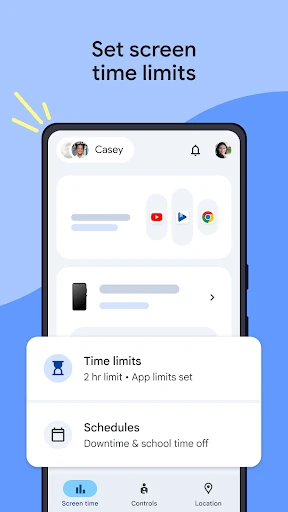
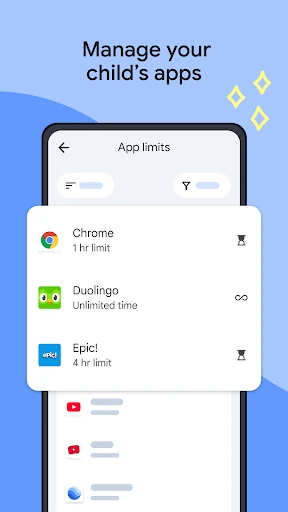
When I picture using Family Link on a regular weekday, the useful moment is the handoff from homework to downtime. I can set a daily screen-time limit and schedule downtime, then use app-specific limits for the games or video apps that tend to stretch longer than planned. Educational apps or other regular choices can be set for unlimited time. That makes the controls more flexible than one blunt timer for everything.
The evening routine can also include a quick check of how the device was used, rather than relying entirely on a child’s estimate. If a new app comes up, parents can require approval for Google Play downloads. I’d use that as a conversation starter and a simple household rule, not as a substitute for talking about what is appropriate. Family Link helps put boundaries in place; the family still decides what those boundaries should be.
More than a screen timer
Compared with setting a timer directly on one device, Family Link brings several parental controls together: app management, screen schedules, some Google service settings, and location viewing. That wider scope is the point. It can be handy when a parent wants to check a child’s device use and adjust a limit from the parent app instead of handling each setting separately on the child’s device.
It is not a general-purpose internet filter that can inspect and judge every page or piece of content. Its controls apply to supervised Google accounts and Google services, and the available features vary by device. I’d also avoid treating it as a way to know a child’s location at every moment: the child’s device needs to be powered on, recently active, and connected to the internet.
Small habits that help
I’d get the most from Family Link by setting a few rules deliberately, then reviewing them as a family. A daily limit, a downtime schedule, and individual limits for the apps that need them are more useful than changing settings in response to every small disagreement. The option to allow unlimited time for educational or regularly used apps can also help avoid making a broad screen limit feel unnecessarily rigid.
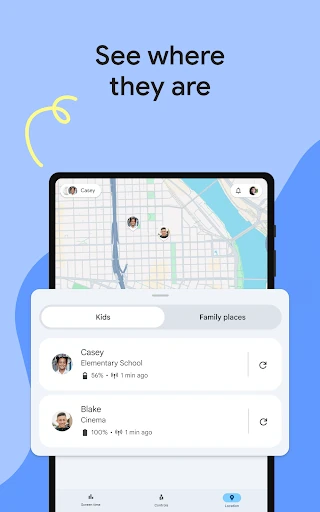
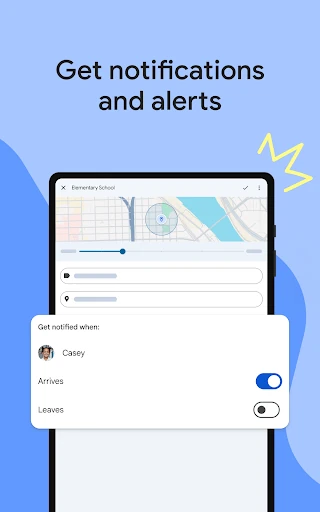
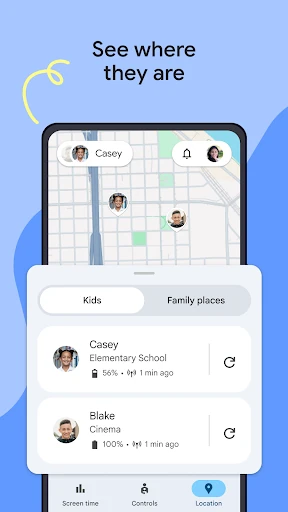
Location tools make more sense as part of a practical routine than as something to refresh constantly. A parent can look at the map when checking where a child is, use the option to ring a device, or check its remaining battery. Arrival and departure notifications for a location can be useful, too. I’d keep expectations clear: these tools depend on the child carrying a working, connected device.
Reads About Google Family Link
More From Our News Desk

Zoom Meetings, Google Meet, or Teams: Which Is Easiest to Join?

How I Build a Free Streaming Lineup With Tubi

Why Crunchyroll Is the Default Anime App for So Many Fans

YouTube TV: A Practical Guide to Cutting Cable

Rummikub and the Small Comfort of Phone Games

TeamViewer Remote Control or AnyDesk for Helping Family?
Who may find it useful
I’d recommend Family Link to parents and caregivers who want a shared place to set screen-time rules, manage app access, and adjust some settings for a child’s supervised Google account. It suits families that prefer a mix of limits and flexibility, such as different rules for particular apps rather than one blanket restriction. The location and device alerts may also be useful when children are out and carrying their devices.
It may be less suitable for a family looking for a complete view of everything a child sees online, or controls that work identically on every device. Family Link itself says its tools vary by device, and some pre-installed apps may not be disableable. I’d also think twice if the household expects location to update regardless of connectivity. This is a set of parental tools, not a promise that the internet or every device activity can be fully controlled.
Google Family Link is made by Google LLC and is listed in the Tools category on Google Play. It is free to download, with no in-app purchases and no ads. The app has an Everyone content rating. Its Google Play version is 2.106.0.2026w43.1002235678, and it was released on March 15, 2017.
On Google Play, Family Link has over 100 million installs and a 4.6-star rating from about 5.5 million ratings. The recorded last update is October 26, 2026. The available app information does not give a minimum Android version, so check Google Play for the requirement on your device.
How Family Link Fits Family Life
Getting started
My first impression is that Family Link is designed around a parent’s ongoing decisions, not a one-time lock-down. The main tasks described for it are concrete: choose screen limits, manage apps, adjust settings for Google services, and check a child’s device location. That gives a new user a clear idea of what the app is for before getting into the details of a family’s rules.
The important setup consideration is the account and device relationship. Parental controls are available for supervised Google accounts, and the tools can differ depending on the child’s device. I’d check that the devices in the household are compatible and talk through the supervision with the child before relying on a particular control. Starting with a small number of clear rules should also make it easier to see which settings are genuinely useful.
The daily controls
The everyday appeal is being able to combine an overall daily screen-time limit with schedules for school time and downtime. App-specific time limits add another layer, while the option for unlimited time on selected educational or regular-use apps can prevent the whole device from feeling equally restricted. Parents can also block apps, giving the setup more nuance than simply allowing or stopping all screen use.
I’d expect the controls to be most useful when they reflect a routine that already makes sense to the family. A downtime schedule can mark a predictable part of the day, while an individual app limit can address one specific source of friction. Since Family Link lets parents see how a child spends time on the device, those choices can be revisited with more context than a guess about which app is taking up the evening.
Beyond time limits
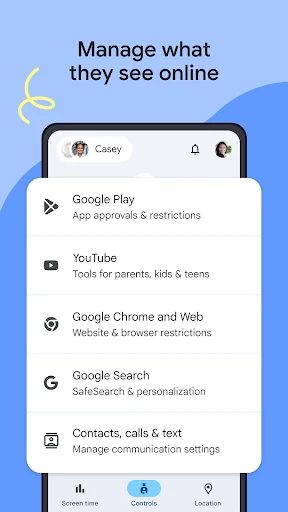
Family Link also covers settings for Google services, including Chrome, Play, YouTube, and Search. Parents can manage content filters, block inappropriate sites, require approval for new apps, and manage app and website permissions. This is a useful extension of screen-time controls because the family can consider both how long a device is used and some of the ways it is used.
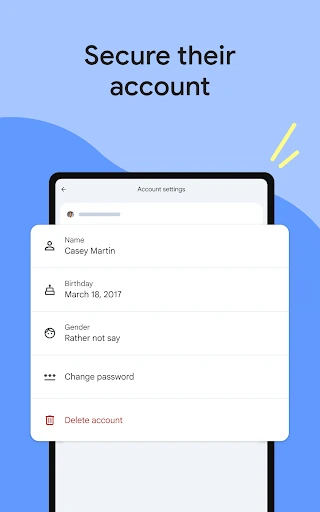
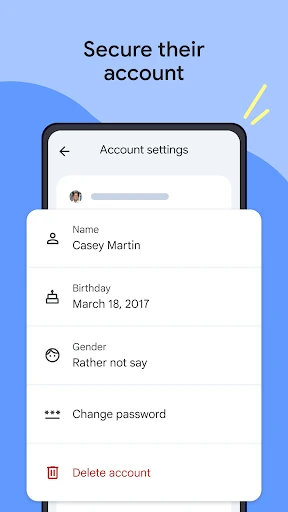
There are account tools as well. A parent can help change or reset a child’s password, edit personal information, or delete the account when appropriate. The description notes that children over the applicable age can manage their own account. That means the account controls belong in a broader family conversation about responsibility and age, rather than being treated as an identical arrangement for every child.
A practical check-in
A simple weekly check-in is one way I’d use the app without turning it into a constant monitor. I’d look at device use, discuss whether the current daily limit still fits, and adjust a particular app’s time if the household routine has changed. If a child needs more flexibility for a regular or educational app, the unlimited-time option gives a parent a way to make that distinction.
For a trip or a busy afternoon, location features can serve a different purpose. Family Link can show a child’s device on a map, provide arrival or departure alerts for a location, ring the device, and show its remaining battery life. Those are practical details when a child is carrying the device, but the location view depends on the device being on, recently active, and connected through mobile data or Wi-Fi.
Limits to remember
Family Link’s controls do not make the internet safe or determine everything a child encounters online. Google describes the app as a way for parents to make choices about device time and online experience, not as a system that can assess all internet content. I’d treat its filters and settings as useful layers in a broader approach, alongside age-appropriate conversations and regular attention to the child’s apps.
App approval has boundaries worth understanding. Google Play approvals do not cover app updates, apps already approved, or apps shared through Family Library in the same way as new downloads. Purchase approvals apply to purchases through Google Play’s billing system, not alternate billing systems. Parents are encouraged to review installed apps and permissions, and some pre-installed apps may not be disableable.
Compatibility and connectivity matter, too. The available tools depend on the child’s device, and location requires a powered-on, recently active device with an internet connection. I’d check the current Google Play information for the device requirement and confirm that the controls needed by the family are available before building a routine around them.
Google Family Link is a useful collection of parental controls for families already managing a child’s supervised Google account. Screen schedules, app limits, content settings, and location tools cover several common needs without making the app a substitute for family judgment. Its flexibility is a strength, as long as parents understand that device support and individual controls can vary.
I’d try it if you want practical ways to set boundaries and review device use together. I would not choose it expecting a complete filter for the internet or uninterrupted location tracking. Start with a few rules, check how they work in your household, and use the app as support for a conversation rather than the whole conversation.
Google Family Link Frequently Asked Questions
What is Google Family Link used for?
Google Family Link helps parents manage aspects of a child’s supervised Google account and device use. Its tools include screen-time limits and schedules, app controls, settings for certain Google services, and a map showing a child’s device location when the requirements are met. It can also provide location alerts, ring a device, and show its remaining battery.
Which devices can use Google Family Link?
Google Family Link is an Android app available through Google Play. The tools for a child depend on the child’s device, and parental controls require a supervised Google account. Check the Google Play information and device compatibility details before setting it up, since availability can vary by device and the app’s store information may change.
What Android version does Google Family Link require?
The minimum Android version can vary as app and device requirements change. Check Google Play for the current requirement for your device. Family Link’s controls also depend on the child’s device, so it is worth checking compatibility for both the parent’s setup and the child’s supervised device before relying on a particular feature.
Does Google Family Link cost money?
Google Family Link is free on Google Play. The app has no in-app purchases and contains no ads according to its store facts. Store details can change, so check Google Play for current information before installing. The app’s controls are for supervised Google accounts, and the available features can differ depending on the child’s device.
Is Google Family Link right for every family?
It may suit families who want to set screen-time routines, manage apps, adjust some Google service settings, and use location tools for a child carrying a device. It may not suit people expecting complete control over all online content or location that works without an internet connection. Family Link offers tools for family decisions, not a replacement for them.
Pros
- Combines daily screen limits, downtime schedules, and individual app limits.
- Allows parents to manage some Google service settings and app approvals.
- Includes location, device ringing, battery, and location alert features.
- Free to download, with no ads or in-app purchases.
Cons
- Available controls vary depending on the child’s device.
- Location needs a powered-on, recently active device with internet access.
- Does not determine all online content or make the internet safe.
- Category
- Tools
- Version
- 2.106.0.2026w43.1002235678