Google Authenticator
- 688.56K
- 3.9
- Installs
- 100.00M
- Price
- Free

Screenshots
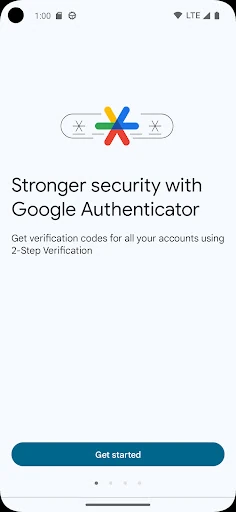
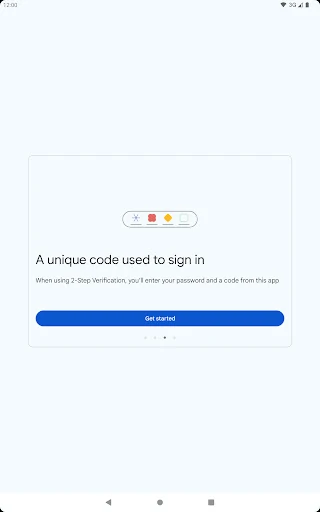
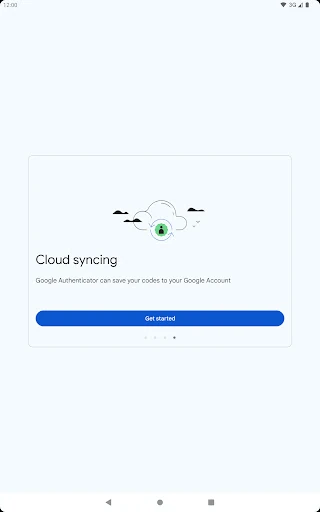


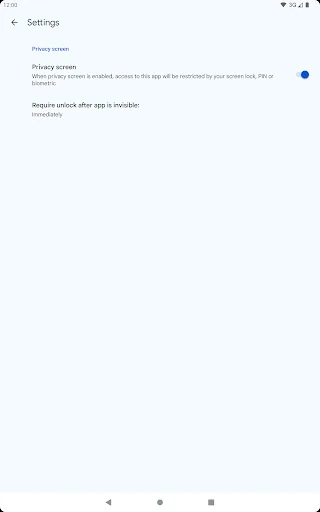
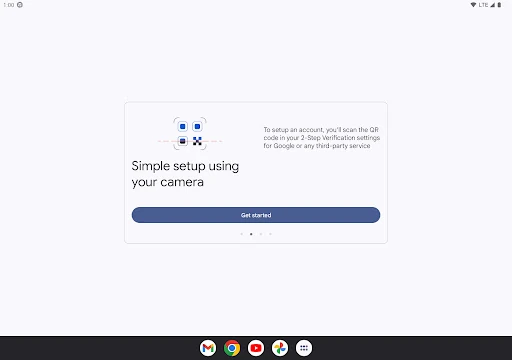
Analysis by Reviewed APKs
Google Authenticator gives compatible online accounts a second sign-in step: after entering a password, you use a code generated on your phone. I find it most useful for people who already enable two-step verification and want one place to handle codes for several accounts. Its offline code generation is practical, and account syncing can help with device changes, though it remains a focused security tool rather than an all-purpose account manager.
A Code When You Need One
When I sign in to an account that uses two-step verification, the extra step is straightforward: after my password, I open Google Authenticator and use the code for that account. The app's job is narrow, which is useful when I just need to complete a sign-in without digging through a longer security workflow. It generates codes on the phone, so they can still be available when I don't have a network or mobile connection.
The first time I set up an account, the service needs to support this kind of verification. Google Authenticator can add an account by scanning its QR code, a quick route that also helps avoid setup mistakes. Once accounts are in the app, it supports multiple entries, so I can keep codes for more than one sign-in in the same place instead of jumping between separate authenticator apps.
A Focused Alternative
Compared with relying only on a password, this app adds a second verification step at sign-in. Compared with keeping separate code-generation apps for different accounts, its multiple-account support offers a more consolidated approach. I also like that code generation does not depend on a network connection. Those are practical advantages for a tool I may need at an inconvenient moment, such as while logging in away from home.
Google Authenticator is not a password manager, and it does not replace the account's own sign-in process. Its role is to generate verification codes for accounts set up to use them. That distinction matters: it won't help with an account that hasn't enabled two-step verification, and it isn't a general solution for organizing passwords or managing every part of online security. I see it as one specific piece of a broader sign-in routine.
Small Habits That Help
I would set up each account by following that service's two-step verification instructions and scanning its QR code in Authenticator. Taking a moment to check that the account has been added correctly is a useful habit before relying on it at the next sign-in. The app supports both time-based and counter-based code generation, so the right setup depends on the account's verification method rather than a preference to change casually.
A device change is easier to plan for when I think about access ahead of time. Google Authenticator can sync codes to a Google Account and across devices, and it can also transfer accounts between devices using a QR code. Those options are worth considering as part of a regular setup check. I would also keep in mind that Google accounts need two-step verification enabled to use Authenticator with Google.
More From Our News Desk

Zoom Meetings, Google Meet, or Teams: Which Is Easiest to Join?

How I Build a Free Streaming Lineup With Tubi

Why Crunchyroll Is the Default Anime App for So Many Fans

YouTube TV: A Practical Guide to Cutting Cable

Rummikub and the Small Comfort of Phone Games

TeamViewer Remote Control or AnyDesk for Helping Family?
Who may find it useful
I would recommend Google Authenticator to people who already use two-step verification, especially anyone with several compatible accounts who wants their codes together. It suits a simple routine: enter a password, open the authenticator when asked, and use the code it generates. Offline code generation is another helpful fit for travel or other moments when a connection is unavailable, though the account still needs to support this verification method.
It may not suit someone looking for a password manager, a broad account-security dashboard, or a way to avoid setting up two-step verification with each service. This is a specialized utility, and its value depends on having accounts that use codes. People who are changing phones should pay attention to the available sync or QR transfer options rather than assuming that codes will move automatically in every situation.
Google Authenticator is developed by Google LLC and is listed in the Tools category. On Google Play it has over 100 million installs and a 3.9-star rating from about 689,000 ratings. It is free to install, with no in-app purchases or ads. Its content rating is Everyone, making the store's age label straightforward for a general-purpose utility.
The app was released on March 21, 2012, and its current version varies with the device. The listed last update is October 19, 2026. A minimum Android version is not specified in the supplied app facts, so device compatibility is best checked on Google Play. These store details give a useful snapshot, while version availability can differ across devices.
A Practical Home for Sign-In Codes
Getting Started
My first impression is that Google Authenticator has a clearly bounded purpose: it supplies the extra code required by accounts that use two-step verification. The setup begins outside the app, with two-step verification enabled for the account. From there, scanning a QR code is the supported way to add an account automatically. I like that the process is tied to the account's own security setup rather than pretending the app can switch it on everywhere.
The QR approach keeps setup from becoming a long manual transcription task, and Google describes it as a way to help ensure codes are configured correctly. I would take care to follow the instructions shown by the service I'm securing. One important detail is that using Authenticator with a Google Account requires two-step verification to be enabled on that Google Account.
The Daily Sign-In
In everyday use, the app matters most at the moment a sign-in asks for another verification step. I open Authenticator, find the relevant account, and use its generated code. With support for multiple accounts, I can keep codes for several sign-ins in one app. That makes the tool useful as a small part of a routine, rather than something I need to visit constantly throughout the day.
A connection is not required for the app to generate verification codes. I find that especially practical when a login comes up while I'm away from reliable service. The account still needs to be set up for this method, of course, but the code-generation step itself can work without network or mobile connectivity. That makes Authenticator less dependent on where I happen to be signing in.
Useful Setup Options
The clearest standout is the combination of QR setup and support for multiple accounts. Instead of treating each account as a separate app, Authenticator can hold codes for several accounts in one place. The app also supports time-based and counter-based code generation. That range matters because different accounts can use different code methods, and the right choice is determined by the account's setup.
I also value the options for moving access between devices. Codes can sync to a Google Account and across devices, and accounts can be transferred to another device with a QR code. These are meaningful features for anyone replacing or adding a phone. They address a common practical concern with authenticator tools: making sure a device change doesn't leave you without a way to complete a sign-in.
A Sensible Routine
A useful routine starts when I enable two-step verification on an account, not when I'm already stuck at a sign-in screen. I would add the account through its QR code setup, then make sure the code is available in Authenticator before relying on it. When I have several accounts, keeping them together gives me one place to check when a service asks for the second step.
Before replacing a phone, I would consider whether syncing to a Google Account or transferring accounts with a QR code fits my move. The app supports both approaches, giving users a way to plan rather than treat a new device as an afterthought. For Google accounts, the two-step verification requirement is worth remembering during setup. Small checks like these can make the code app more dependable in ordinary use.
Keep Its Role in View
The main limitation is also part of the app's design: Authenticator generates codes, but it doesn't manage passwords or enable two-step verification for every service on its own. Each account must support and be configured for the relevant verification method. If I expect one app to handle all security tasks, this will feel narrow. If I want a dedicated place for sign-in codes, that focus is easier to appreciate.
Device changes still deserve attention, even with syncing and QR transfer available. Those options can help, but I would make a deliberate plan for access rather than assume every account will behave identically. The app supports multiple code-generation types, too, so the account's instructions matter. These aren't reasons to avoid it; they're reminders that an authenticator is one part of a sign-in arrangement.
Google Authenticator does one useful job without turning it into a bigger promise: it generates verification codes for accounts that use two-step sign-in. I appreciate the offline code generation, multiple-account support, and the options for syncing or transferring codes when devices change. Its focused nature is a strength for users who want a straightforward companion at login.
I recommend it to people who already use, or plan to use, compatible two-step verification and want a dedicated code app. It is less suitable for anyone seeking password storage or a complete security manager. Before a phone change, I would review the available account sync or transfer approach and make sure the relevant accounts are set up.
Google Authenticator Frequently Asked Questions
What is Google Authenticator used for?
Google Authenticator generates codes used as a second verification step when signing in to compatible online accounts. You set up two-step verification with the account, then add it to the app, including by scanning a QR code. It supports multiple accounts and can generate codes without a network or mobile connection.
Which devices can run Google Authenticator?
The supplied app information is for Android and describes Google Play availability. The minimum Android version is not specified in the app facts, and compatibility can vary by device. Check Google Authenticator's Google Play store page for current device requirements before installing.
Does Google Authenticator cost anything?
Google Authenticator is free to install on Google Play. The supplied facts say it has no in-app purchases and contains no ads. Store details can change over time, so the Google Play page is the place to check for current information.
Can I use Google Authenticator with a Google Account?
Yes. The app's description says you need to enable two-step verification on your Google Account to use Google Authenticator with Google. It can also sync codes to a Google Account and across devices. Follow the account setup instructions and check Google Play for current app details.
Who is Google Authenticator best suited for?
It is a good fit for people who use compatible two-step verification and want codes for multiple accounts in one app. Offline code generation is useful when a connection isn't available. It may not suit someone looking for a password manager or a broader security tool, since its purpose is code generation.
Pros
- Generates verification codes without a network or mobile connection.
- Supports multiple accounts, time-based codes, and counter-based codes.
- Offers Google Account syncing and QR-based account transfer between devices.
- Free to install, with no in-app purchases or ads.
Cons
- Only helps with accounts configured to use compatible two-step verification.
- Does not serve as a password manager or broader account-security dashboard.
- Changing devices still calls for planning how to sync or transfer accounts.
- Category
- Tools