WiFi Analyzer
- 306.28K
- 4.6
- Installs
- 10.00M
- Price
- Free
Screenshots
Analysis by Reviewed APKs
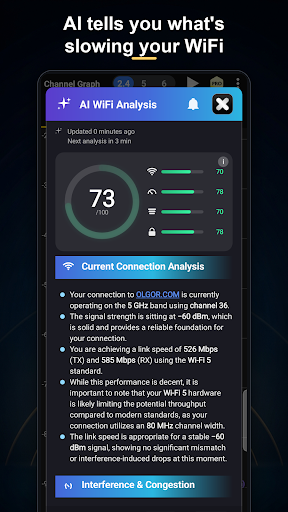
WiFi Analyzer is an Android tool for checking wireless signal strength, nearby networks, channel crowding, and devices connected to your own network. I’d recommend it to anyone trying to understand why WiFi feels weak in one room or whether a channel change might help. Its mix of live signal readings and network-device details is practical, though the app is best treated as a diagnostic companion rather than a fix-all for internet problems.
A WiFi Check at Home
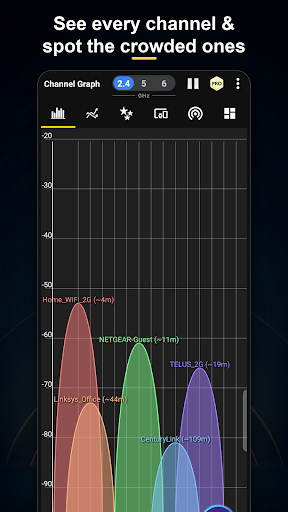
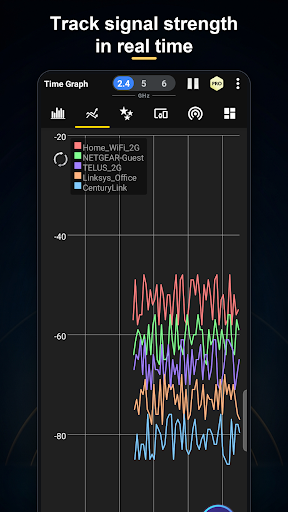
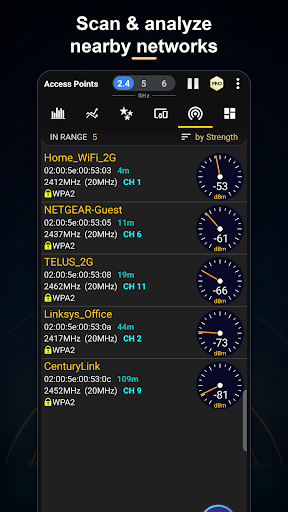
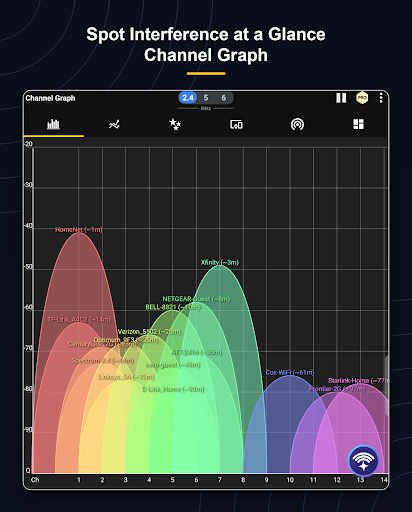
When I first opened WiFi Analyzer, I pictured using it during the familiar evening slowdown: a video buffers in the living room, while the router sits down the hall. The signal meter and live graph give me a way to compare reception in those two spots instead of guessing. I can also look at nearby access points and see whether overlapping channels might be contributing to a crowded wireless environment.
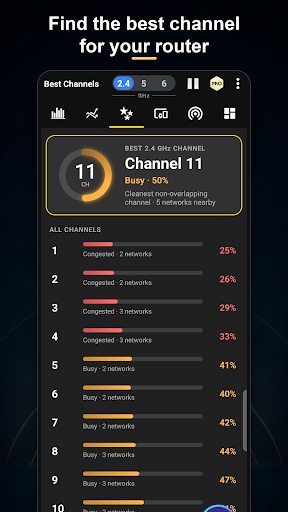
From there, the channel analysis offers a recommended channel for my network, giving me a concrete next step to investigate in the router’s settings. The app can also estimate the distance to the router, which is useful as a rough placement clue. I’d check the graph in a few locations, then compare what it shows with how the connection behaves during ordinary use.
A Diagnostic, Not a Router
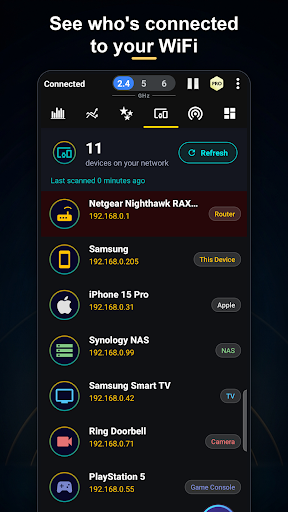
Compared with simply checking the WiFi icon or running a speed test, WiFi Analyzer gives more context about signal, channels, and nearby access points. It can also scan the devices connected to a network and show details such as IP address, vendor, device type, and hostname where available. That makes it useful when I want to understand the local wireless setup, not just whether a webpage loads quickly.
The distinction matters: an analyzer can point toward interference or weak reception, but it is not a replacement for a router’s controls or a broadband provider’s service. A suggested channel is something to consider changing in the router settings, not a switch the app can make for me. I wouldn’t use it to diagnose every cause of slow internet, especially issues beyond the home WiFi network.
Make Readings More Useful
I’d get more from the app by checking the same places at similar times, particularly if a room’s connection seems inconsistent. Signal history and the live graph can help distinguish a persistently weak spot from a brief dip. Looking at channel overlap alongside signal strength also gives a fuller picture than relying on one reading taken while walking past the router.
For a tidy routine, I’d note where I stood, check the relevant band, and compare the graph before and after any router adjustment. The app’s home-screen widgets can keep signal, channel, and speed information visible, while a separate widget shows who is on WiFi. I’d use device alerts as prompts to review unfamiliar connections, then make any network changes through the router itself.
More From Our News Desk

Zoom Meetings, Google Meet, or Teams: Which Is Easiest to Join?

How I Build a Free Streaming Lineup With Tubi

Why Crunchyroll Is the Default Anime App for So Many Fans

YouTube TV: A Practical Guide to Cutting Cable

Rummikub and the Small Comfort of Phone Games

TeamViewer Remote Control or AnyDesk for Helping Family?
Who Will Find It Useful
I’d recommend WiFi Analyzer to people who like a little detail when troubleshooting home connectivity. It suits a household where one room has unreliable reception, someone is comparing router placement, or the owner wants a clearer view of nearby networks and channel overlap. The connected-device scanner may also help users recognize phones, televisions, printers, and other familiar equipment on their own network.
It may be less appealing if you only want a simple on/off WiFi indicator or expect an app to repair the router automatically. The readings are most useful when you’re willing to interpret them and, where appropriate, adjust your router settings yourself. People who prefer not to look at network details may find the channel graphs and device information more than they need for everyday browsing.
WiFi Analyzer is a free Android app from olgor.com in the Tools category. Google Play shows over 10 million installs and a 4.6-star rating from around 306,000 ratings. The app is rated Everyone. Its stated release date is June 29, 2018, and the current version provided is 9.4.
The app contains ads and offers in-app purchases. Google Play gives the in-app purchase range as $0.99 to $14.99 per item. The supplied Android-version requirement is not available, so check the app’s Google Play page for device compatibility before installing. The recorded last update date is August 12, 2026.
Reading the Signals Around Home
A Clear First Impression
The app’s purpose is easy to grasp: it turns an Android device into a set of tools for inspecting WiFi. I’d start by looking at the current signal and available network information, then move to channel analysis if I suspect interference. The live graph makes signal changes feel more tangible than a single label, especially when I’m comparing a desk with a room farther from the router.
Setup is best approached as a practical check of your own network. The description focuses on analyzing that network, examining nearby access points, and seeing connected devices. I’d begin with the basic signal view and explore the additional analysis when I have a specific question, rather than trying to interpret every reading at once.
Everyday Signal Checks
For day-to-day use, the signal-strength meter and live graph are the most immediately understandable tools. I can move between spots and watch how reception changes, then use signal history to put a reading in context. That is handy when a video call tends to falter from one corner of the home or a connected device seems to work better in another location.
The app also analyzes the 2.4GHz, 5GHz, and 6GHz bands and displays nearby access points. Those views can help explain why the wireless environment looks busy, though the right interpretation depends on the setup. I’d treat the results as useful observations rather than a promise that a particular adjustment will improve every device’s connection.
Tools Beyond Signal
Channel recommendations are one of the more actionable parts of the app. WiFi Analyzer checks channels and can identify overlap from nearby access points, then suggests a channel for the network. That gives me a focused thing to investigate if several networks appear to be sharing crowded airspace. The actual router change remains a separate step in the router’s own settings.
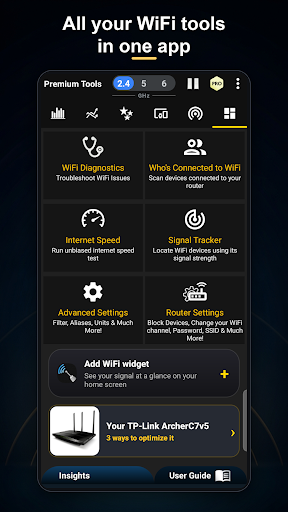
The network scanner adds another angle by listing connected devices and identifying many by name. Where available, device details include an IP address, vendor, type, and hostname. The description also includes alerts for new or unknown devices, an unknown-device finder, and an open-port or security check on your own network. I’d use these as visibility tools, not as a substitute for careful router management.
A Simple Home Routine
If I were tracking a troublesome room, I’d check the signal there and near the router, then repeat the same comparison later. I’d look at the live graph and history before deciding whether the problem seems tied to location or changes over time. After reviewing the channel analysis, I could consider a router setting adjustment and repeat the checks to see what changed.
Widgets can make this routine less fussy. The app offers home-screen widgets for signal, channel, and speed, along with one for seeing who is on WiFi. I’d keep only the information I actually check in view. That way, a quick glance can answer a practical question without turning every ordinary connection hiccup into a full troubleshooting session.
Keep the Scope in Mind
A WiFi analyzer can show conditions around a wireless network, but those readings do not explain every source of a slow connection. Weak reception and channel overlap are relevant clues; a problem with the internet service or a router itself may need attention elsewhere. The app’s suggestions are therefore most helpful when paired with an understanding of what the router can change.
Device identification also has limits built into the wording: many devices can be recognized, and some details appear where available. An unfamiliar name is a reason to investigate your own network, not proof on its own that a device is unwelcome. I’d review the router’s connected-device information before taking action, and use the app’s security-related checks within the boundaries of my own network.
WiFi Analyzer brings together signal readings, channel analysis, network scanning, and useful widgets in one Android tool. I like that it can turn a vague complaint about weak WiFi into specific things to inspect, from room-to-room signal changes to nearby channel overlap.
I’d recommend it to curious home users who are comfortable reviewing readings and making any router changes themselves. If you want an automatic repair or a complete diagnosis of your internet service, this is not that kind of app. For practical visibility into your own WiFi, it offers a useful set of checks.
WiFi Analyzer Frequently Asked Questions
What is WiFi Analyzer used for?
WiFi Analyzer helps you inspect your own WiFi network. It can show signal strength and history, analyze channels and nearby access points, recommend a channel, estimate router distance, and list connected devices. It also offers widgets and checks related to unknown devices and open ports on your own network.
Which phones and platforms support WiFi Analyzer?
WiFi Analyzer is an Android app. The supplied information does not give a minimum Android version, so check its Google Play page to see whether it is compatible with your device. Its features are described for analyzing WiFi and connected devices on your own network.
Does WiFi Analyzer cost money?
WiFi Analyzer is free to download on Google Play, and it contains ads. It also offers in-app purchases, with the stated range running from $0.99 to $14.99 per item. Check the store page for current purchase details, since available items and prices may vary.
Can WiFi Analyzer change my router settings?
The app analyzes channels and recommends a channel, but router adjustments are made in the router’s own settings. It can help you investigate signal changes, nearby access points, and connected devices. The app is a diagnostic companion, not a replacement for the router’s controls.
Is WiFi Analyzer a good fit for beginners?
It can suit beginners who want to understand weak reception or see which devices are connected, especially if they are comfortable taking readings one step at a time. Some channel and network details may take a little interpretation. If you want automatic troubleshooting, a simpler connection checker may be a better fit.
Pros
- Combines signal graphs, channel analysis, and connected-device scanning in one app.
- Checks the 2.4GHz, 5GHz, and 6GHz bands and shows nearby access points.
- Widgets provide quick views of signal, channel, speed, and connected devices.
- Device details can include IP address, vendor, type, and hostname.
Cons
- Channel recommendations still require any router adjustment to be made separately.
- Some network and device readings may take interpretation to use well.
- The app contains ads and offers paid in-app purchases.
- Category
- Tools
- Version
- 9.4











