Virtual Desktop
- 98
- 4.5
- Installs
- 1.00K
- Price
- $24.99
Screenshots
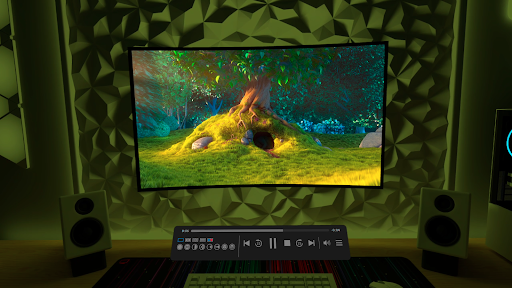
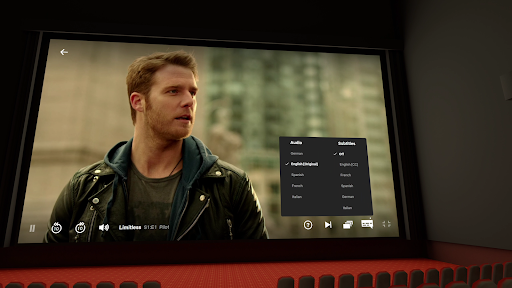
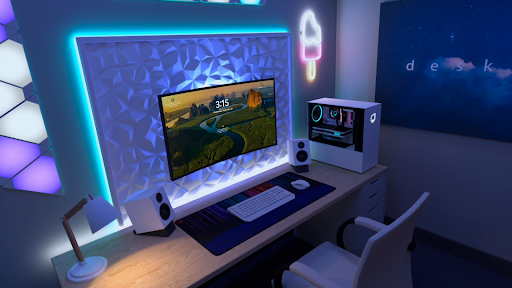
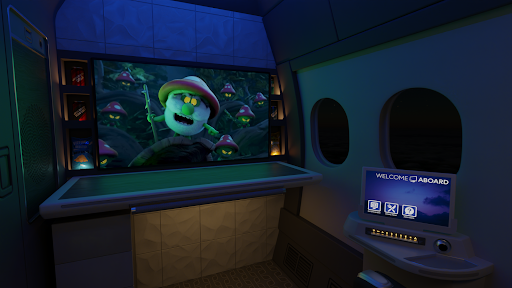
Analysis by Reviewed APKs
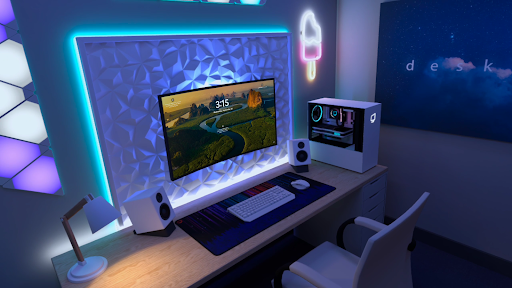
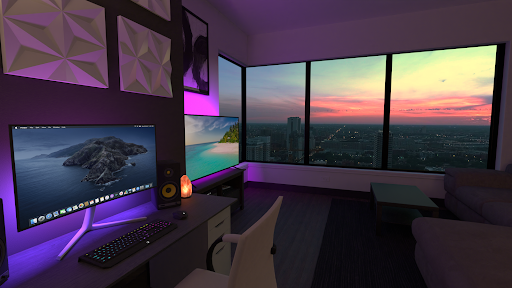
Virtual Desktop connects wirelessly to a computer so you can view its screen in a virtual environment, watch videos, browse the web, play games, or stream PCVR games. It suits people who want to use a computer from a larger virtual screen rather than stay at a desk. I like the range of uses, but the experience depends on having a suitable computer and a well-prepared network.
A Screen Away From Your Desk
Picture settling in for a movie without moving your computer or copying a video to another device. Virtual Desktop lets you connect to your computer wirelessly and watch its content on a giant virtual screen. Its Videos tab can stream or download regular, 180-degree, and 360-degree videos directly from the computer, which makes it useful for a relaxed evening as well as for browsing or games.
The setup has an important catch: the computer should be connected to a 5 or 6 GHz router with a Gigabit Ethernet cable. That makes this less of a plug-in-anywhere convenience app and more of a way to bring a properly connected computer into a virtual viewing space. I would check the room and network arrangement before planning to use it for a long session.
A Different Kind of Remote Access
The obvious comparison is remote-desktop software, but Virtual Desktop is aimed at viewing and using a computer through a virtual screen, including for entertainment and PCVR streaming. It can also display multiple physical or virtual monitors and supports Bluetooth mice, keyboards, and gamepads. Those details make it more than a simple video player, while its focus remains on connecting to a computer rather than replacing one.
I would not choose it as a general-purpose mobile office suite or as a way to avoid owning a computer. PCVR game streaming specifically needs a VR-ready PC running Windows 10 or 11, and the app's computer connection has network requirements too. If all I wanted were a local movie player or a standard desktop monitor, those simpler options would be a better fit.
Make the Connection Routine
A little preparation can make the app easier to fit into ordinary use. I would keep the computer wired to the router and make sure the router is in the supported 5 or 6 GHz range before starting. For game sessions, having a Bluetooth gamepad ready is a practical choice; for browsing or desktop tasks, a Bluetooth keyboard or mouse may be more comfortable than relying on a controller.
It also helps to think about what the session is for before connecting. A video night, a quick web-browsing session, and a PCVR game each put different demands on the computer and controls. For remote connections over the internet, the description says to enable UPnP on the router. That is a setup detail worth checking in advance rather than discovering when you are away from home.
More From Our News Desk

Zoom Meetings, Google Meet, or Teams: Which Is Easiest to Join?

How I Build a Free Streaming Lineup With Tubi

Why Crunchyroll Is the Default Anime App for So Many Fans

YouTube TV: A Practical Guide to Cutting Cable

Rummikub and the Small Comfort of Phone Games

TeamViewer Remote Control or AnyDesk for Helping Family?
Who Will Get the Most From It
I would recommend Virtual Desktop to someone who already has a compatible computer and wants to view its screen in a virtual environment. The mix of browsing, video viewing, games, multi-monitor support, and PCVR streaming gives it several practical roles. It is particularly appealing if you want to use a computer from a more relaxed viewing position and are willing to prepare the network and controls.
It may not suit someone looking for a standalone entertainment app, a way to stream from a computer without network setup, or an inexpensive experiment. At $24.99, it is a paid app, and its value depends on having the right computer and router arrangement. People who want PCVR streaming also need a VR-ready Windows PC, so that use case has a higher equipment bar than ordinary browsing.
Virtual Desktop is a Tools app from Virtual Desktop, Inc. On Google Play it has over 1,000 installs and a 4.5-star rating from 98 ratings. It costs $24.99, with no in-app purchases and no ads. Its content rating is Everyone, and the current version is 1.34.25.0.
The app was released on October 2, 2025, and its last update is dated October 22, 2026. The provided Android version requirement is absent, so check the Google Play listing for the requirement that applies to your device. The same is sensible for confirming current compatibility before buying, especially if you plan to use it for PCVR.
Making a Computer Feel Within Reach
Getting Connected
My first impression is that this app is best understood as a bridge to a computer, not as a destination with its own library of content. The main appeal is being able to bring computer activities into a giant virtual screen: videos, web browsing, games, or PCVR. That range is useful, but it also means the experience starts with the computer and network rather than with the app alone.
Before settling in, I would check that the computer and router meet the stated setup needs. The computer should use Gigabit Ethernet to a 5 or 6 GHz router. Virtual Desktop supports most PCs and laptops running Windows 10 or 11, and Macs running macOS Catalina or later. PCVR streaming has a narrower requirement: a VR-ready Windows 10 or 11 PC.
Everyday Use
For day-to-day use, the flexibility is the main draw. One session might be for web browsing, another for a game, and another for watching a video stored on the computer. The app supports Bluetooth mice, keyboards, and gamepads, so the choice of control can match the task instead of forcing every activity into one input style.
That flexibility does not remove the need for a dependable connection. Since the computer streams to the app wirelessly, the recommended wired computer-to-router connection is part of the experience, not an optional nicety. I would treat network preparation as part of getting ready for a session, particularly when the goal is playing a game or watching a long video.
More Than One Screen
Multi-monitor support is one of the features that stands out. Virtual Desktop can work with physical and/or virtual monitors, which gives people who rely on more than one screen another way to arrange their computer workspace. I would see that as a practical extension of the core idea, rather than assume it turns the app into a full productivity system by itself.
The video support is another useful detail. The Videos tab can stream or download regular, 180-degree, and 360-degree videos from the computer, and the app supports 3D Side-by-Side and Over-Under content on screen. A microphone passthrough option is included as well. These features broaden what the app can do without changing its central role as a computer connection.
A Simple Session Plan
For a movie session, I would start by checking that the computer is on and connected to the router by Gigabit Ethernet, then connect and use the Videos tab to stream or download the file. For a video in a supported format, the 180- or 360-degree options make this more tailored than simply opening a standard computer window and hoping for the best.
For browsing or desktop use, I would have a Bluetooth keyboard or mouse nearby. For games, a Bluetooth gamepad may be the more natural choice, while PCVR requires the capable Windows PC described by the developer. Splitting these into separate routines helps set realistic expectations: the app supports several activities, but each still relies on the computer and the right peripherals.
Keep the Requirements in View
The biggest limitation is the setup dependency. A computer that is not connected to a suitable router in the recommended way may not provide the experience you want. The app supports most Windows 10 or 11 PCs and laptops and Macs on Catalina or later, but PCVR streaming is limited to a VR-ready Windows 10 or 11 PC. That distinction matters if gaming is the main reason for buying.
Remote connections over the internet are supported, with UPnP on the router called out as a requirement to enable. That may take extra preparation compared with using the app at home. It is also a paid app, so I would make sure the computer, network, and intended use line up before spending $24.99. The Google Play listing is the place to check current device requirements.
Virtual Desktop has a clear job: connect a computer wirelessly and make its screen available in a virtual environment. Support for videos, multiple monitors, Bluetooth controls, and PCVR streaming gives it meaningful range. Its strengths are most compelling when the computer and network are already suited to the task.
I would recommend it to computer owners who want that larger virtual-screen experience and are comfortable preparing their setup. I would pass if I wanted a standalone app or had no compatible computer and router arrangement. The price makes a quick compatibility check worthwhile, but for the right setup, the mix of viewing and computer access is appealing.
Virtual Desktop Frequently Asked Questions
What is Virtual Desktop used for?
Virtual Desktop connects wirelessly to a computer so you can browse the web, watch videos, play games, or stream PCVR games on a giant virtual screen. It also supports multiple physical or virtual monitors and Bluetooth mice, keyboards, and gamepads. The Videos tab can stream or download regular, 180-degree, and 360-degree videos from the computer.
Which devices and computers work with Virtual Desktop?
Virtual Desktop is an Android app that connects to a computer. The description supports most PCs and laptops running Windows 10 or 11, and Macs running macOS Catalina or later. PCVR streaming requires a VR-ready PC running Windows 10 or 11. Check the Google Play listing for current Android device compatibility and requirements.
What Android version does Virtual Desktop require?
The Android version requirement can vary with the app and device, so check the Google Play listing for the current requirement before installing. The computer requirements are more specific: most Windows 10 or 11 PCs and laptops and macOS Catalina or later computers are supported, while PCVR streaming needs a VR-ready Windows 10 or 11 PC.
How much does Virtual Desktop cost?
Virtual Desktop costs $24.99 on Google Play. It has no in-app purchases and contains no ads according to the supplied app facts. Store prices and availability can vary, so check Google Play for the current price before buying.
Is Virtual Desktop a good fit for casual users?
It can suit casual users who already have a compatible computer and want to watch videos, browse, or play games on a virtual screen. The computer should connect to a 5 or 6 GHz router using Gigabit Ethernet, so it is not a friction-free standalone app. Check the setup requirements if you are unsure your equipment is suitable.
Pros
- Combines computer browsing, video viewing, games, and PCVR streaming in one virtual-screen app.
- Supports multiple physical or virtual monitors and Bluetooth mice, keyboards, and gamepads.
- The Videos tab handles regular, 180-degree, and 360-degree computer videos.
Cons
- The recommended setup depends on a Gigabit Ethernet computer connection and a 5 or 6 GHz router.
- PCVR streaming requires a VR-ready PC running Windows 10 or 11.
- At $24.99, it is a significant purchase without a compatible computer setup.
- Category
- Tools
- Version
- 1.34.25.0











