Video Converter, Compressor
- 215.93K
- 4.5
- Installs
- 10.00M
- Price
- Free
Screenshots
Analysis by Reviewed APKs
Video Converter, Compressor is a practical Android tool for changing video and audio formats, reducing file sizes, trimming clips, and joining media. It suits people who regularly move files between devices or want more control over output settings than a basic editor offers. My overall take is that it covers an unusually broad set of conversion jobs, though its many options make it better for hands-on users than for anyone seeking a one-tap fix.
A quick fix for a clip
Picture a long phone video that is too large to share comfortably, or a clip saved in a format that does not work with the player you want to use. I’d open Video Converter, Compressor for that kind of cleanup: choose a conversion or compression task, select the file, and adjust the output format or size. Its support for batch processing is useful when the same problem affects several clips.
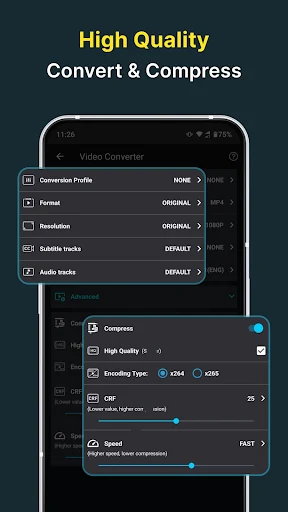
What makes the app practical is that the job does not have to stop at changing a file extension. I can also set a resolution, frame rate, or bitrate, and the app can convert video into audio formats such as MP3 or WAV. For a quick everyday task, I would keep the settings simple; when a file has a specific destination, the extra controls offer room to tune the result.
A toolbox, not an editor
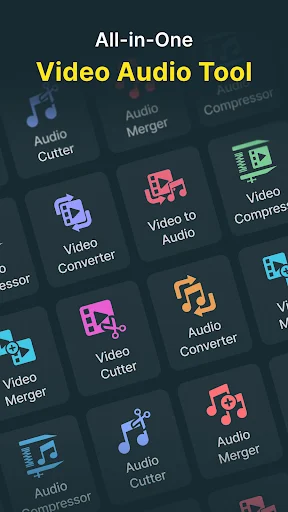
Compared with a basic phone gallery tool, this app is aimed at file preparation rather than decorating a finished video. It can convert, compress, cut, trim, and merge video, and it offers parallel tools for audio. That makes it a useful alternative to juggling separate utilities for format conversion and simple edits, especially when a batch of files needs the same kind of treatment.
I would not choose it as a full creative video editor. The described tools focus on technical changes and straightforward assembly, not effects, titles, or a polished storytelling timeline. If I want to adjust a clip’s dimensions, extract its sound, or join a few files, the scope makes sense. For elaborate editing or a highly guided experience, this is not the kind of app I’d reach for.
Small habits that help
I’d start by deciding what the output needs to do: play in a particular format, take up less space, or preserve only a chosen section. That simple decision narrows the settings worth touching. The app offers predefined and custom resolution and frame-rate choices, plus bitrate controls, so there is flexibility without requiring me to change every setting on every conversion.
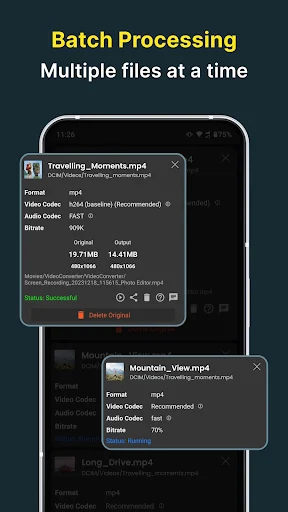
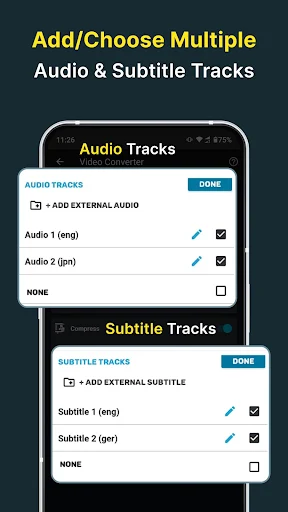
For repeated chores, batch processing can save time because multiple files can be queued, and the app says its features support batch work. I’d also make a habit of checking the selected audio and subtitle tracks when those matter to the finished file. Those options are especially useful when a video contains multiple tracks, though most casual conversions may not need that extra attention.
More From Our News Desk

Zoom Meetings, Google Meet, or Teams: Which Is Easiest to Join?

How I Build a Free Streaming Lineup With Tubi

Why Crunchyroll Is the Default Anime App for So Many Fans

YouTube TV: A Practical Guide to Cutting Cable

Rummikub and the Small Comfort of Phone Games

TeamViewer Remote Control or AnyDesk for Helping Family?
Who will get the most from it
I’d recommend Video Converter, Compressor to Android users who regularly deal with media files in different formats, need to shrink videos, or want basic trimming and merging alongside conversion. It is a particularly good fit for someone comfortable making a few choices about resolution, frame rate, or bitrate. Audio extraction and audio conversion also make it handy when the sound is more useful than the original video.
It may be less appealing if you only convert a file once in a while and want an app to make every decision automatically. The long list of formats and settings can feel like more than a casual user needs, and ads are part of the free app experience. I’d also look elsewhere for a full creative editor; this app’s strengths are practical file handling and straightforward media adjustments.
Video Converter, Compressor is developed by Inverse AI and is categorized as a Tools app on Android. Google Play shows over 10 million installs and a 4.5-star rating from about 216,000 ratings. It is free to download, contains ads, and offers in-app purchases priced from $0.99 to $49.99 per item.
The app has an Everyone content rating. Version 20.11.0 was last updated on October 28, 2026, and its release date was March 18, 2019. The minimum Android version is not included in the supplied app details, so check Google Play for the requirement that applies to your device.
A closer look at everyday conversion
First look and setup
When I first opened the feature set, what stood out was the breadth: this is not just a video-to-MP4 converter. It handles several video and audio formats, and it groups conversion with compression, cutting, and merging. That range is appealing if media chores crop up often, though it also means there are more decisions than in a single-purpose tool.
I’d approach a first conversion with one clear goal and leave the optional controls alone until I need them. For instance, a format change does not automatically require a custom frame rate or a subtitle adjustment. Keeping the first pass straightforward makes it easier to understand which settings are useful for my own files.
The daily conversion work
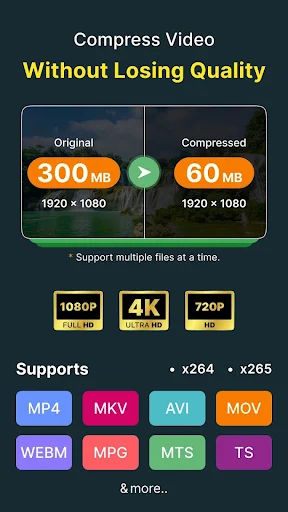
The central experience is about choosing an input and shaping an output. Video conversion supports formats including MP4, MKV, AVI, MOV, WMV, and WebM, among others. I can also change resolution, frame rate, and bitrate, which makes the tool useful when a file needs to be smaller or better suited to a particular playback situation.
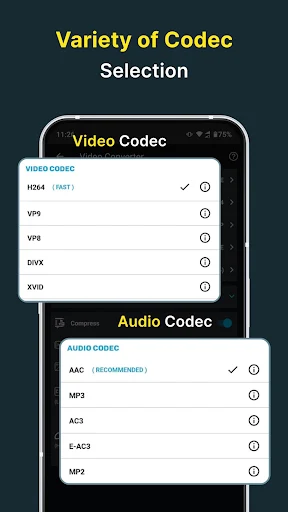
Compression has more than one approach in the description. There is a high-quality option using the X264 codec, as well as a bitrate setting for targeting a specific file size. I like having those choices because they address different priorities, but I would treat a target size as a practical goal rather than assume every source will shrink identically.
Useful extras beyond conversion
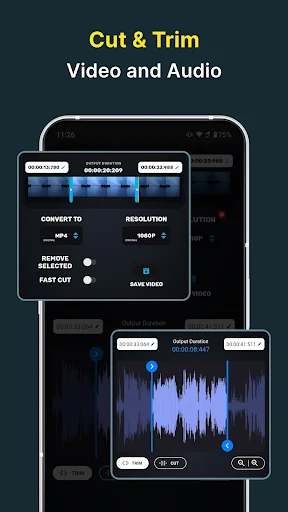
The trimming tools are more precise than a casual rough cut: the app allows start and end times to be entered down to milliseconds. Its cut option keeps the selected section, while trim can remove the selected portion. That distinction matters when I want to save a short excerpt or remove an unwanted middle section without turning to a larger editing suite.
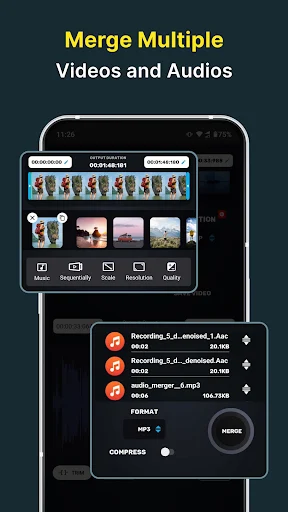
Merging is another standout utility. Multiple videos can be joined sequentially, top-to-bottom, or side-by-side, while audio files can also be merged. The app can convert a video into formats such as MP3, AAC, or WAV, and it supports audio cutting and conversion as well. These are practical additions for someone who handles both kinds of media.
A simple weekly routine
If I had a folder of clips to prepare, I’d first sort them by what needs to happen: reduce size, change format, trim, or extract audio. Then I’d queue files that share a goal and use batch processing rather than repeating the same task one file at a time. The app says batch processing is supported across its features, making that workflow a natural fit.
For a clip with multiple tracks, I’d pause before saving to choose the audio or subtitle track I want to keep, or add an external track where appropriate. The supported subtitle formats include SRT and WebVTT, and external audio can be added in formats such as MP3 or WAV. That extra check is easy to overlook when I’m moving quickly.
Keep the trade-offs in view
The breadth that makes this app useful can also make it feel technical. Custom resolution, frame-rate, bitrate, codec, and track choices are valuable when I know what I need, but they may slow down someone who expects a simple automatic export. I’d recommend beginning with the intended result, then changing only the settings that serve it.
The app contains ads, and in-app purchases are available, so the free download is not an entirely ad-free experience. Its description emphasizes media conversion and basic audio or video editing rather than a complete creative suite. I’d keep those limits in mind: it is a capable utility for file work, not a replacement for every kind of editing app.
Video Converter, Compressor earns its place as a flexible media utility: it combines format conversion, compression, track choices, trimming, merging, and batch processing in one Android app. I especially like that it offers both simple options and deeper controls, so a routine file change does not have to become a complicated editing project.
I’d recommend it to people who regularly prepare video or audio files and are willing to make a few technical choices. If you want a polished creative editor or an entirely hands-off converter, its scope may not match your needs. For practical media chores, though, the range of supported tasks is a real advantage.
Video Converter, Compressor Frequently Asked Questions
What is Video Converter, Compressor used for?
Video Converter, Compressor is used to convert and compress video and audio files, change video resolution or frame rate, and adjust bitrate. It also includes tools to cut and trim media, merge video or audio files, and convert video into audio formats. Batch processing lets users queue multiple files for supported tasks.
Which devices can run Video Converter, Compressor?
Video Converter, Compressor is an Android app distributed through Google Play. The supplied app details do not give a minimum Android version, so the requirement for a particular phone or tablet may vary. Check the Google Play page on your device to see whether your Android version is supported.
Is Video Converter, Compressor free?
The app is free to download and contains ads. It also offers in-app purchases, with listed items ranging from $0.99 to $49.99 each. The price of a particular purchase may vary, so check Google Play for the current details before buying.
What formats does Video Converter, Compressor support?
The app supports many video formats, including MP4, MKV, AVI, MOV, WMV, and WebM, along with audio formats such as MP3, AAC, WAV, OGG, and FLAC. It can also work with subtitle and audio tracks. Available options depend on the task and file, so check the app’s choices for your media.
Is Video Converter, Compressor suitable for casual users?
It can suit casual users who only need occasional conversion or trimming, but its wide range of controls may be more than they want. I’d recommend it most to people who regularly handle media files and value format, bitrate, resolution, or track options. For elaborate creative editing, a dedicated editor may fit better.
Pros
- Combines video and audio conversion, compression, trimming, and merging.
- Offers batch processing across its supported features.
- Provides detailed controls for resolution, frame rate, bitrate, and tracks.
- Can extract audio from video in several output formats.
Cons
- The many technical options may overwhelm users seeking one-tap conversion.
- The free app contains ads and offers paid in-app purchases.
- Its practical editing tools are not a full creative video suite.
- Category
- Tools
- Version
- 20.11.0











