vCastSender
- 324
- 2.8
- Installs
- 100.00K
- Price
- Free
Screenshots
Analysis by Reviewed APKs
vCastSender is a wireless presentation and collaboration app for sending content from an Android device to a ViewSonic ViewBoard Interactive Flat Panel. It suits teachers, meeting presenters, and groups that already use a compatible ViewBoard. After looking closely at how it works, I see a focused tool for sharing and interacting around a large display, not a general-purpose way to cast to TVs around the house.
A meeting-room handoff
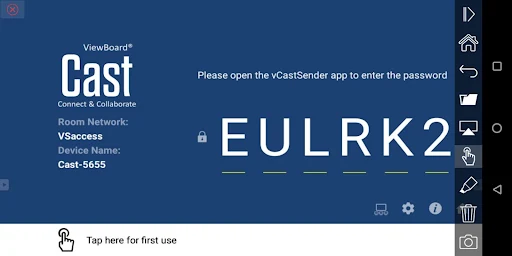
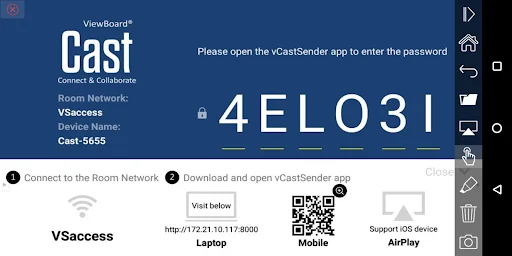
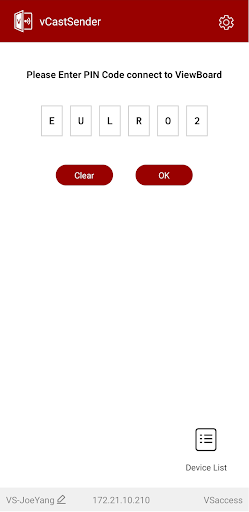
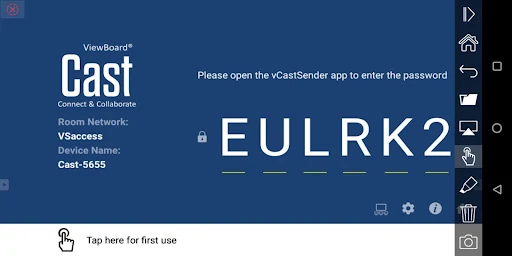
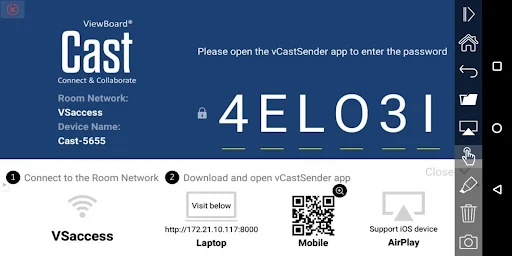
Picture arriving at a classroom with a photo, document, or short video on your phone that the group needs to see. With vCastSender, the intended route is to join the same network as the ViewBoard, open its vCastReceiver app, then connect using the panel’s PIN or a device selection. Once connected, you can put your material on the larger screen instead of passing the phone around.
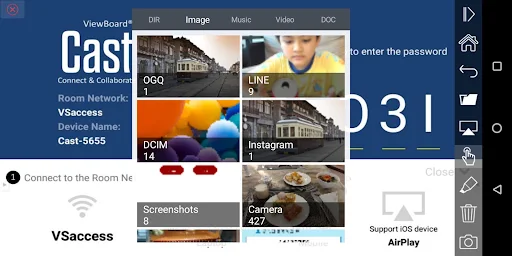
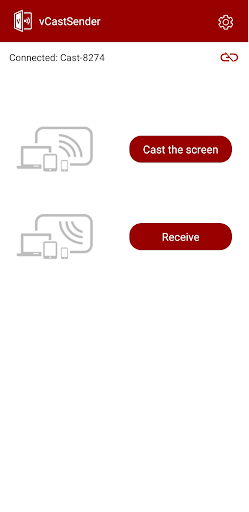
What I like about this setup is that it treats the phone as part of a presentation, rather than just a remote storage shelf. The app is described as supporting screen sharing and sharing photos, videos, music, documents, and camera content. In a discussion, that can make it easier to move from a prepared file to something you want to show on the spot.
Built for ViewBoard rooms
The key comparison is not with every wireless-casting app, but with the tools already built into a particular meeting or classroom setup. vCastSender is designed to work with ViewSonic ViewBoard Interactive Flat Panels running vCastReceiver. That makes it relevant when a school or workplace has those panels, while its usefulness depends on having a compatible receiving display available.
It is not presented as a way to send media to any smart TV, speaker, or streaming stick. Nor is it a standalone presentation editor: its job is to connect a mobile device with a ViewBoard and support wireless collaboration. If you mainly want casual living-room casting or need to prepare slides, this is a narrower tool than you probably need.
A smoother sharing routine
A little preparation should make a live handoff less awkward. I would check that the phone and panel are on the same network, have the receiver ready, and know where the panel’s PIN is shown before starting a presentation. If I planned to share a document or image, I would also make sure it is accessible on the phone, since the app needs permission to access storage files.
For a session that involves more than showing a file, it is worth getting comfortable with the annotation tools and remote-control options ahead of time. The description says Android and iOS users can use a specialized annotation toolbar, and presenters can control displayed content from a phone, tablet, or laptop. Rehearsing the connection once can help keep attention on the discussion rather than setup.
More From Our News Desk

Zoom Meetings, Google Meet, or Teams: Which Is Easiest to Join?

How I Build a Free Streaming Lineup With Tubi

Why Crunchyroll Is the Default Anime App for So Many Fans

YouTube TV: A Practical Guide to Cutting Cable

Rummikub and the Small Comfort of Phone Games

TeamViewer Remote Control or AnyDesk for Helping Family?
Who will get the most from it
I would recommend vCastSender to teachers, presenters, and teams who regularly work with ViewSonic ViewBoard panels. It covers several practical moments in one room: sharing a phone screen, showing a photo or document, streaming a recording, and adding annotations during a group discussion. If the panel is already part of your routine, a mobile connection can be handy when your material is on your phone rather than a laptop.
It is a weaker fit for someone looking for a universal home-casting app or a tool that works without a ViewBoard receiver. The connection process also involves the same network and a PIN, so it is worth allowing time to get connected before a meeting starts. The app’s Google Play rating is 2.8 out of 5 from 324 ratings, a sign to weigh the specific room setup and task rather than assume it will suit everyone.
vCastSender is developed by ViewSonic Corporation and is listed in the Tools category. Google Play shows over 100,000 installs and a 2.8-star rating from 324 ratings. The app is free to download, with no in-app purchases or ads shown in the supplied store details. Its content rating is Everyone.
The supplied app details give version v2.8.1016, a release date of July 25, 2017, and a last-updated date of October 30, 2026. The minimum Android version is not included in these details, so check the Google Play page for device requirements before installing.
How vCastSender Works in the Room
Getting connected
My first impression is that vCastSender is built around a particular room, not an abstract list of nearby screens. The setup instructions begin with a ViewBoard and its vCastReceiver app, then ask the phone and panel to share a network. From there, connection uses a PIN or the device list. That sequence makes the receiver part of the experience, so it helps to have the panel ready first.
The app also asks for access to phone storage files for normal operation. That makes sense for sharing local documents and media, but permissions are worth reading rather than tapping through automatically. Some Android permission steps depend on Android version. The instructions specifically note that some steps apply only on Android 13 and later.
Sharing through the day
In day-to-day use, the central benefit is getting content off a small screen and into a shared space. A teacher could show a photo or document to the class; a meeting participant could share a phone screen instead of handing the device to colleagues. The description also covers live recordings, videos, music, and camera content, giving the app a broader role than a single-purpose file viewer.
The experience still depends on the room’s network and receiver being ready. That is a practical constraint, not necessarily a dealbreaker: in a classroom or conference room where the panel is already in use, those pieces may be part of the normal setup. For an impromptu share in an unfamiliar space, I would leave a little time to locate the receiver and enter its PIN.
Annotation and control
The collaboration tools are what distinguish this from simply displaying a phone screen. The app description includes an annotation toolbar for Android and iOS users, along with remote control of the ViewBoard. That combination is useful when a presenter wants to mark up material or operate the display without standing beside it throughout the session.
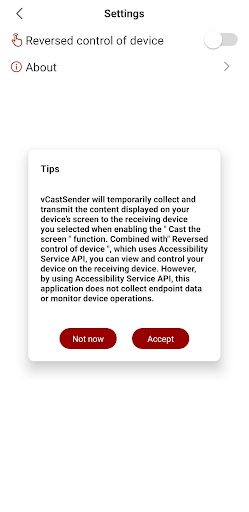
There is also a feature called Reversed Device Control. When enabled, it lets a user operate their personal device from the designated display being cast to. Turning it on requires accepting an explanatory prompt and granting the app Accessibility permission in device settings. I would treat that as an optional capability and enable it only when I wanted that interaction.
A practical session flow
For a lesson or meeting, I would start by checking the network and opening vCastReceiver on the ViewBoard. Then I would launch vCastSender, connect with the panel PIN or choose it from the device list, and bring up the item I planned to discuss. This order keeps the receiver and connection steps out of the middle of the conversation as much as possible.
If the session calls for interactive work, I would try the annotation toolbar before people arrive and decide whether remote control is useful. Reversed Device Control needs an additional permission step, so it is better suited to a planned workflow than a last-second experiment. A quick test with the actual display can reveal whether the setup is ready for the kind of sharing the session needs.
Keep the scope in mind
The clearest limitation is the hardware context: vCastSender is designed for ViewSonic ViewBoard Interactive Flat Panels, with vCastReceiver running on the panel. That focus is useful in the right room but limits its appeal elsewhere. The material does not describe it as a universal casting solution for televisions or other consumer streaming devices, so I would not install it expecting that kind of compatibility.
Permissions and connection steps also add some overhead. Storage access is needed for normal operation, and the reverse-control feature requires Accessibility access if you choose to use it. A low Play rating of 2.8 stars across 324 ratings is another reason to set expectations carefully. I would test the app with the intended panel before relying on it for an important presentation.
vCastSender makes most sense as a room-specific companion for ViewSonic ViewBoard users. Its mix of screen, media, and document sharing with annotation and remote-control options can support real classroom and meeting tasks. The network and PIN setup is manageable, but it is less appealing when there is no compatible panel waiting on the other end.
I would try it if my school or workplace already used ViewBoard panels and I often presented from a phone. For casual casting at home or broad device compatibility, I would look elsewhere. Before a high-stakes session, I would connect in advance and check that the permissions and receiver are ready.
vCastSender Frequently Asked Questions
What is vCastSender used for?
vCastSender is used to share a mobile device’s screen and content with ViewSonic ViewBoard Interactive Flat Panels running vCastReceiver. Supported content described by the app includes photos, videos, music, documents, camera content, and annotations. It is intended for wireless presentations and collaboration in settings such as classrooms and meetings.
Which devices work with vCastSender?
The app is listed for Android, and its receiving setup is a ViewSonic ViewBoard Interactive Flat Panel running vCastReceiver. The description also discusses iOS users and presenters using a phone, tablet, or laptop, but compatibility can depend on the device and setup. Check the Google Play page and the panel’s instructions for current details.
What Android version does vCastSender require?
The minimum Android version can vary by app release and device, so check the Google Play page for the current requirement before installing. The app’s instructions mention that some permission steps apply only on Android 13 and later; that note is about permissions, not a stated minimum Android version.
Does vCastSender cost money?
Google Play shows vCastSender as free to download, with no in-app purchases or ads in the supplied details. Store information can change, so it is sensible to check the current Google Play page before installing. You will also need access to a compatible ViewBoard receiver to use its intended sharing features.
Is vCastSender a good fit for me?
It may suit teachers, meeting presenters, and teams that use ViewSonic ViewBoard panels and want to share content from a mobile device. It is less suited to people seeking a general app for casting to any television or streaming device. The connection requires the same network and the panel’s PIN or device selection.
Pros
- Shares screens, documents, photos, videos, music, and camera content with a ViewBoard.
- Includes annotation and remote-control options for collaborative presentations.
- Free to download, with no in-app purchases or ads shown in the supplied details.
- Useful for presenting directly from a phone in a compatible classroom or meeting room.
Cons
- Designed around ViewSonic ViewBoard panels rather than general-purpose TV casting.
- Connection depends on the same network and access to the receiver’s PIN.
- Storage access is required, and reverse control needs Accessibility permission.
- Category
- Tools
- Version
- v2.8.1016











