USB TOOLS
- 24.44K
- 4.6
- Installs
- 1.00M
- Price
- Free

Screenshots
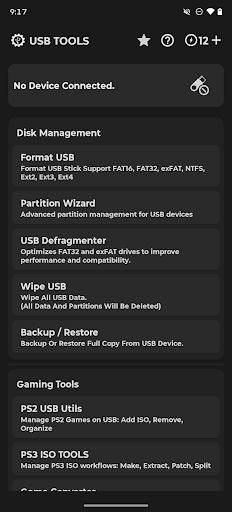
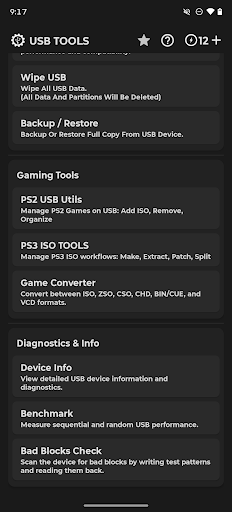
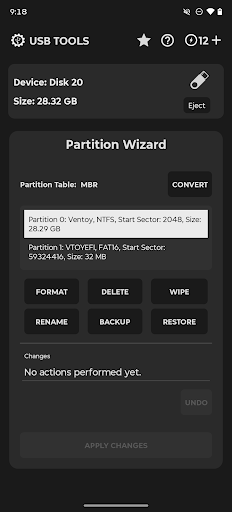
Analysis by Reviewed APKs
USB TOOLS is a phone-based toolkit for working with USB drives, SD cards, and console game files. I see it suiting people who regularly move storage between devices, troubleshoot drives, or prepare PS2 and PS3 game files. Its range is unusually broad for a utility app, though formatting and partitioning involve a token system. My overall take: useful and capable, provided you take care with destructive storage operations.
A Drive Needs Checking
Imagine finding an old USB drive before a trip and wondering whether it still works, how fast it is, or whether its capacity is genuine. USB TOOLS brings several checks together on an Android phone: a benchmark measures sequential and random read/write speeds, while a bad-block scan can test the drive and report errors or suspicious capacity. I like the idea of doing that kind of basic detective work without first finding a computer.
When I first looked through the available jobs, the practical appeal was the range of problems it addresses in one place. You can view device details such as capacity and USB descriptors, make a backup, or wipe a drive when you are ready to reuse it. For routine checks, the app also offers a defragmenter for FAT32 and exFAT partitions. Those functions make it more than a simple file browser.
More Than File Browsing
The obvious alternative for many people is plugging a drive into a PC and using the computer’s built-in storage tools. USB TOOLS is aimed at a different moment: when you have an Android phone and a compatible USB device nearby, and want to inspect or manage it there. Its OTG support covers flash drives, SD adapters, SSDs, and hubs without root. Accessing an internal SD card slot, by contrast, requires root.
This is not a general-purpose file manager or a replacement for a computer in every storage task. Its focus is drive maintenance, testing, backup, and console game-file workflows, rather than everyday browsing and organizing of all files on a phone. It also asks for care: formatting, partition changes, and wiping can alter or erase data. I would treat those tools as deliberate maintenance actions, not casual taps.
Small Habits That Help
A sensible habit is to check the device information before changing anything. Capacity, block size, partition count, and USB descriptors can help you understand what is connected. If a drive is unfamiliar, a read-only benchmark is an option before a write/read test. For a more thorough bad-block check, the app offers one- or two-pass testing, with a report covering read, write, and corruption errors.
I would also make backup and verification part of the same routine whenever the data matters. USB TOOLS can create a full backup of USB content and restore from saved backups, so it is worth thinking about a backup before a wipe or a major partition change. Keep the app in the foreground during USB operations, as its instructions advise, and avoid treating a long-running storage job as something to start and forget.
More From Our News Desk

Zoom Meetings, Google Meet, or Teams: Which Is Easiest to Join?

How I Build a Free Streaming Lineup With Tubi

Why Crunchyroll Is the Default Anime App for So Many Fans

YouTube TV: A Practical Guide to Cutting Cable

Rummikub and the Small Comfort of Phone Games

TeamViewer Remote Control or AnyDesk for Helping Family?
Who Will Get the Most From It
I would recommend USB TOOLS to Android users who often connect external storage and want diagnostic and maintenance tools close at hand. It is especially relevant if you test drives, make backups, manage partitions, or work with PS2 and PS3 game files. The mix of practical storage features and console-specific utilities gives it a clear audience: people who know why they need these tools and are comfortable making careful choices.
It may be a poor fit if you only need to open files from a flash drive once in a while, or if you want a simple, ad-free experience without token prompts. Formatting and partition management require particular attention because they can change storage contents. Users who rely on an internal SD card slot should also note the root requirement. For everyone else, the best reason to try it is having several storage jobs gathered in one app.
USB TOOLS is a Tools app from MixApplications. On Google Play, it has over one million installs and a 4.6-star rating from about 24,000 ratings. The app is free to download, contains ads, and offers in-app purchases. The stated price range for individual in-app products is $0.99 to $9.49. Its content rating is Everyone.
The current version is 12.3.3. It was released on June 23, 2022, and its listed last update date is September 9, 2026. The app description says advanced formatting and partitioning use tokens, which can be earned by watching rewarded ads or purchased. A Pro upgrade removes ads, unlocks unlimited access, disables the token system, and allows offline use.
A Closer Look at USB TOOLS
First Look and Setup
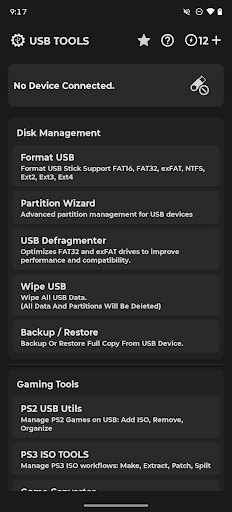
The first impression is of a toolkit with a very wide remit. USB TOOLS combines disk management, diagnostics, backups, and gaming utilities instead of concentrating on just one storage task. That breadth is useful once you know what you came to do, but it can also make the app feel like a toolbox where choosing the right instrument matters. I would approach it with a specific job in mind rather than tap around at random.
For external storage, the basic connection story is straightforward in principle: the app supports USB flash drives, SD adapters, SSDs, and hubs through OTG, without requiring root. Internal SD card slot access does require root. If a drive is not recognized, the app’s guidance suggests checking it on a PC and using FAT32 for better compatibility. Keeping the app in the foreground during operations is another practical instruction to follow.
Everyday Drive Work
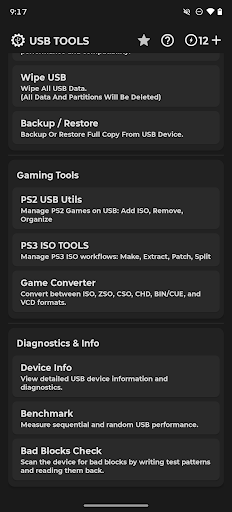
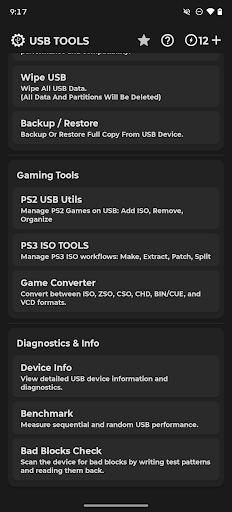
For ordinary maintenance, the most useful cluster is easy to understand: inspect, test, back up, and then decide whether a change is needed. Device Info shows details such as vendor and product IDs, manufacturer, serial, capacity, block size, and partition count. Benchmarking provides sequential and random read/write tests, with read-only and read/write modes. That gives users a way to examine a drive before making a more consequential change.
The app also includes bad-block checking, backup and restore, wiping, and defragmentation for FAT32 and exFAT partitions. These tools do different jobs, so it helps not to blur them together: a benchmark checks speed, a bad-block scan looks for errors, a backup preserves content, and a wipe erases data and partitions. I appreciate having those functions together, but I would still pause to confirm the selected device before starting any operation.
Console Tools Stand Out
The console-oriented features are the most distinctive part of the package. The PS2 utility can import, organize, rename, delete, defragment, and export games, handle formats including BIN/ISO and USBExtreme files, and generate ul.cfg files and OPL playlists. It can also download game cover art and supports PS1 VCD imports for POPStarter. That is a specialized workflow, but the included tools cover several steps rather than just one conversion.
There is a separate set of PS3 ISO tools for creating an ISO from folders, extracting an ISO to folders, splitting or joining large ISO files, and patching for a target CFW version. It can show title and game ID information and make certain name or metadata changes. The Game Converter adds conversions among ISO, BIN/CUE, VCD, ZSO, CSO, and CHD, including compression to ZSO or CSO. These features make the app particularly relevant to users managing console storage.
A Careful Storage Routine
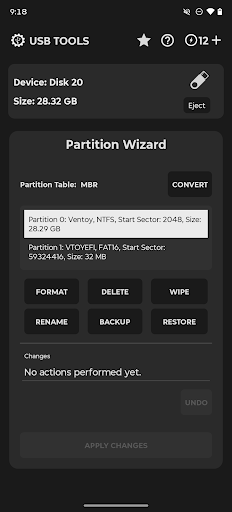
A practical routine might start with connecting a drive, checking its device information, and running a benchmark or bad-block scan if you have a reason to test it. If you are preparing a drive for a particular use, the formatter offers file-system choices including FAT16, FAT32, exFAT, NTFS, and EXT2/3/4. It also lets you select a cluster size, volume label, and MBR or GPT partition table. Those choices are powerful, so it pays to know what the intended device needs.
Before reorganizing partitions or erasing a drive, I would create a backup if the files matter and verify that the backup is available for restoration. The Partition Wizard can create, delete, format, and rename partitions, convert between MBR and GPT, and queue changes so they can be undone before applying. That queue is a useful safeguard, but it does not remove the need to check the plan carefully. Keep the app open throughout the operation.
Limits to Keep in Mind
The main trade-off is the ad- and token-supported model. The app says tokens are used for advanced formatting and partitioning actions; users can earn them through rewarded ads or buy them. USB wiping, backups and restores, bad-block checks, benchmarking, device information, defragmentation, the game converter, and most PS2 and PS3 tools are described as free. Formatting can therefore involve a prompt even when the broader toolkit is available without paying.
The description says internet access is required unless you use Pro, and advises disabling ad blockers unless you upgrade. Pro removes ads, unlocks unlimited access, disables tokens, and permits offline use. Another limitation is that USB operations need the app to remain in the foreground. Finally, the range of file systems and partition controls means this is not an app I would recommend using casually on a drive containing files you have not backed up.
USB TOOLS packs a substantial set of storage checks, maintenance options, backups, and console game utilities into an Android app. Its breadth is a real advantage for people who regularly work with external drives or PS2 and PS3 files. The token system, ads, and need for careful handling are the practical costs of that breadth.
I would try it if you have a clear storage or gaming workflow and are comfortable checking settings before applying changes. If you only need occasional file access, a simpler tool may suit you better. For drive testing and specialized console-file jobs, USB TOOLS is a capable collection worth keeping in mind.
USB TOOLS Frequently Asked Questions
What is USB TOOLS used for?
USB TOOLS is an Android toolkit for managing and checking USB drives and related storage. It can format and partition drives, test speed and bad blocks, back up or wipe content, and show device information. It also includes workflows for PS2 and PS3 game files, plus conversion among several listed game-image formats.
Which devices can run USB TOOLS?
USB TOOLS is an Android app. Its description says it supports USB flash drives, SD adapters, SSDs, and hubs through OTG without root. Access to an internal SD card slot requires root. Check the Google Play store listing for current device compatibility and installation details.
What Android version does USB TOOLS require?
The available app details do not give a minimum Android version. Requirements can vary by device and app release, so check the USB TOOLS page on Google Play before installing it. The description does specify that external OTG storage is supported without root, while internal SD card slot access requires root.
Is USB TOOLS free, and does it have purchases?
USB TOOLS is free to download and contains ads. It offers in-app purchases, with individual products priced from $0.99 to $9.49. Its description says tokens for advanced formatting and partitioning can be earned by watching rewarded ads or bought, while a Pro upgrade removes ads and disables the token system.
Who is USB TOOLS best suited to?
It is best suited to Android users who regularly test or maintain external storage, manage partitions, back up drives, or work with PS2 and PS3 game files. It may be more than a casual file browser user needs. Because formatting, partitioning, and wiping can affect data, it suits people willing to check choices carefully.
Pros
- Combines drive diagnostics, backup, formatting, partition tools, and console game utilities.
- Offers speed benchmarks, bad-block checks, and device information for external storage.
- Supports OTG flash drives, SD adapters, SSDs, and hubs without root.
- Includes specialized PS2 and PS3 game-file workflows and format conversion.
Cons
- Ads and token requirements can interrupt some advanced formatting and partitioning tasks.
- Internal SD card slot access requires root, unlike the supported OTG devices.
- USB operations require the app to remain in the foreground.
- Category
- Tools
- Version
- 12.3.3











