Screenshot touch
- 210.55K
- 4.5
- Installs
- 10.00M
- Price
- Free

Screenshots
Analysis by Reviewed APKs
Screenshot touch is a screen capture and recording tool for Android, with extras for editing images, saving full web pages and organizing captures. I see it suiting people who regularly keep visual notes, make short tutorials or need more than a basic screenshot button. Its broad toolkit makes it useful beyond quick grabs, though the ads and many options give it a busier feel than a simple capture app.
A Capture During the Day
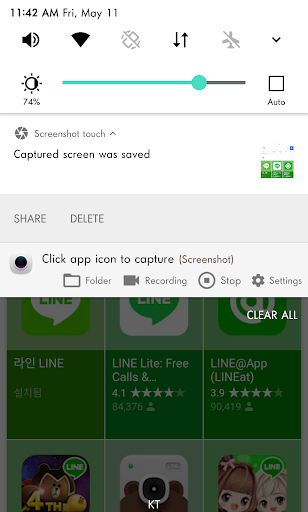
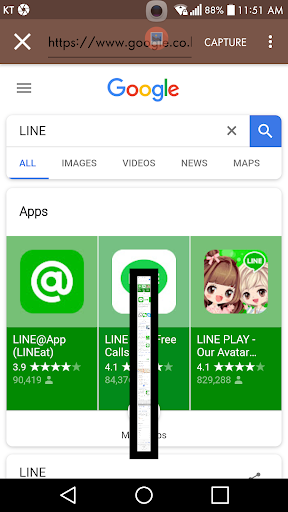
Picture finding a useful recipe while browsing on your phone and wanting to keep the whole page, not just the part currently on screen. Screenshot touch can open a page in its in-app browser and capture it as a full scroll. For a normal screen, I can use the floating icon, the notification area or a shake gesture. That range of triggers is handy when one method is awkward in the moment.
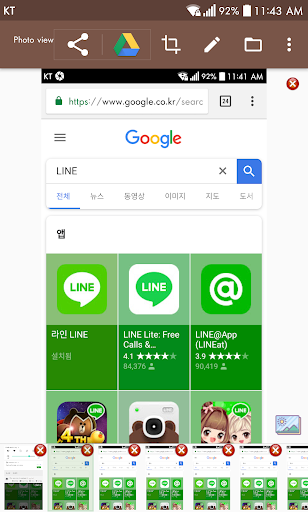
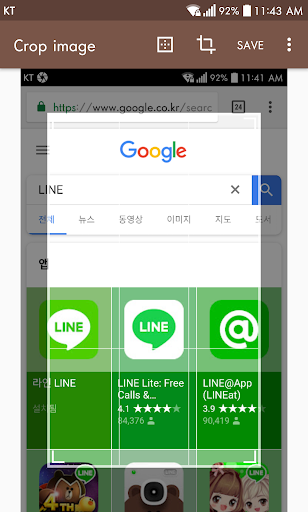
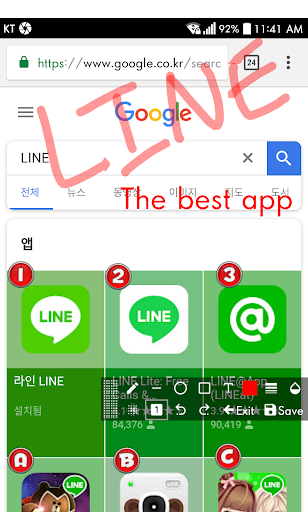
After capturing, I can crop or mark up an image, then share it with another installed app. For a string of related screens, separate saving folders help keep the captures grouped rather than mixed together. The same workflow can also include screen video recording, with settings for resolution, frame rate, bit rate and audio. In ordinary use, it is a practical way to collect and pass along visual information without switching among several tools.
More Than a Screenshot Button
The obvious alternative is the screenshot function already built into a phone. That is usually the better choice when I only need a quick image and do not care about editing, organization or a long webpage. Screenshot touch is for people who want capture controls in several places and a set of follow-up tools in one app. Its image editor, stitching, PDF conversion and screen recording make it a broader utility than a basic screenshot shortcut.
It is not a replacement for a dedicated photo editor or a full desktop video-editing setup. The listed tools are focused on capturing, lightly editing, combining and sharing phone content. There are also limits: certain secure apps, including banking and DRM-protected apps, cannot be captured. I would not choose it expecting every screen to be recordable or an advanced production workflow. It makes most sense when convenience matters more than deep editing.
Small Habits That Help
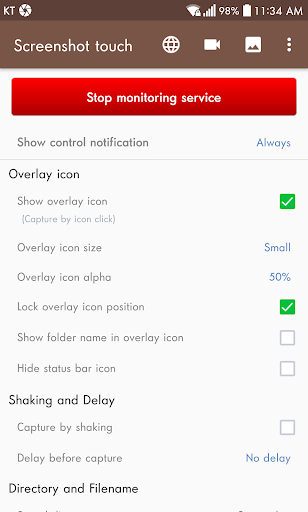
I would start by choosing a save directory and, if I regularly capture different subjects, setting up subfolders. That small bit of housekeeping can save a later sorting session. The app also offers options for file format, JPEG quality and capture delay, so it is worth settling on a sensible default rather than adjusting everything for every grab. A persistent notification is optional and can make the capture service easier to reach.
For longer pages, opening the in-app browser directly or sharing a URL to Screenshot touch gives me a route to full-page capture. For a sequence of related images, stitching or combining captures can make the result easier to browse. I would also check the recording audio option before making a tutorial: microphone recording is off by default, and the app asks for permission when needed. These habits keep the workflow predictable without turning every capture into a setup task.
More From Our News Desk

Zoom Meetings, Google Meet, or Teams: Which Is Easiest to Join?

How I Build a Free Streaming Lineup With Tubi

Why Crunchyroll Is the Default Anime App for So Many Fans

YouTube TV: A Practical Guide to Cutting Cable

Rummikub and the Small Comfort of Phone Games

TeamViewer Remote Control or AnyDesk for Helping Family?
Who May Get the Most From It
I would recommend Screenshot touch to people who save instructions, compare screens, collect reference material or occasionally record a walkthrough on their phone. The floating control and other capture methods help when screenshots are part of a routine, while the browser capture and image tools reduce the need to pass files between separate apps. Someone who likes to sort material as they go may especially appreciate the option to use multiple saving folders.
It may not suit someone who takes only an occasional screenshot and prefers the simplest possible interface. Ads are present, and in-app purchases cover removing them, unlocking full multiple-folder use and enabling WebP or HEIF formats. The app also needs the user's consent for screen capture, and protected screens remain out of reach. I would weigh those tradeoffs against how often its extra tools would actually save time.
Screenshot touch is developed by Daejeong Kim and is available on Google Play. It has over 10 million installs and a 4.5-star rating from about 211,000 ratings. The app is free to download and contains ads. Google Play also offers in-app purchases, with listed items at $3.49 each.
The app is rated Everyone. Its current version is 2.7.8. It was released on May 29, 2016, and was last updated on October 25, 2026. The description says screen capture uses Android's Media Projection API on Android 5 and higher. Screen recording and capture require the user's consent through the operating system.
A Closer Look at the Capture Workflow
Getting Started
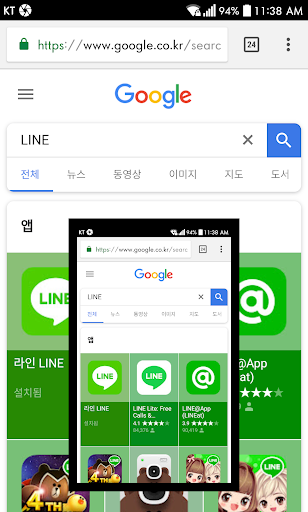
My first impression is that Screenshot touch is designed to keep capture close at hand. Its floating overlay icon can sit above other screens, while the notification area and shake gesture offer alternatives. The app needs permission to display over other apps for the overlay, and screen capture prompts for the user's consent. That permission step is part of the process, rather than a hidden background shortcut.
Before relying on it, I would decide where captures should go and whether I want the persistent notification. The settings include choices such as save directory, optional subfolders, file format, JPEG quality and capture delay. There is more to configure than with a phone's built-in screenshot command, but the payoff is being able to make the app fit a repeatable routine.
Everyday Capture
For a quick grab, the floating icon is the most direct option. If I am already using notifications, the notification-area control is another route; shaking the device is available too. Once the image is saved, I can open it in the app's photo viewer, make an edit and share it with another installed app. Those steps cover the common pattern of noticing something, saving it and sending it on.
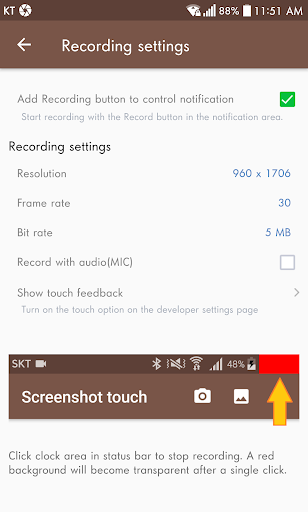
Screen recording adds a different kind of capture for demonstrating what happens across several taps. The app can save a screen cast as an MP4 and offers controls for resolution, frame rate, bit rate and audio. Microphone permission is optional, and voice recording is off by default. For a short phone tutorial, those choices are useful; for a quick still image, they are simply extras I can ignore.
Tools Beyond Capture
The web page capture is one of the more distinctive tools. Screenshot touch includes an in-app browser for capturing a whole scrolling page, and a URL can also be shared from a browser to the app. That gives me a way to save a long article or reference page in one capture workflow instead of collecting several overlapping screen images.
The image tools are varied without being presented as a professional editing suite. I can crop, rotate and use text recognition, or add pen marks, text, shapes, stickers and emoji with opacity options. The app can stitch images, combine them, turn images into PDFs and scan documents. Its photo viewer also supports memos, hashtags, slideshows and sharing images as a ZIP file.
A Repeatable Routine
For a work or study session, I would keep one folder for reference captures and another for tutorial or app-related images. Screenshot touch supports multiple saving folders, which can reduce the time spent sorting screenshots later. After saving a group, I could use the viewer to add a memo or hashtag, then share selected images or bundle them in a ZIP file when that fits the task.
For a webpage I want to keep, I would send its URL to Screenshot touch or open it in the app's browser, capture the full page, and crop or annotate the result if needed. For a process that is easier to show in motion, I would switch to video recording and review the audio settings beforehand. The best routine is to choose the right capture type first, rather than treating every task as a standard screenshot.
Limits to Keep in Mind
Some screens are off limits: the app's description specifically calls out secure apps such as banking and DRM-protected apps. That restriction matters if I expect to capture every app on a device. Screen capture also relies on Android's Media Projection service and requires consent. On Android 11 and higher, the app can use the Accessibility Services API for easier capture, but it says it uses only the capture function and does not collect or share data through that service.
The extra controls come with a little complexity, and ads are part of the free app. In-app purchases are offered to remove ads, unlock full multiple-folder support and use WebP or HEIF formats. File and media access is needed to save and manage captures; microphone access is optional for recording a user's voice. The app says images and videos are not automatically shared outside it, while internet permission is used for ads and error-log transfer.
Screenshot touch is a capable choice when screenshots are part of more than an occasional moment. It brings several capture triggers together with scrolling webpage capture, screen recording, editing and ways to organize or combine images. I like that it can handle both a quick still and a more involved save-and-share task without making those separate jobs.
I would try it if I regularly collect visual references or make phone walkthroughs, and I would take time to set up folders and capture preferences first. If all I need is the occasional basic screenshot, the built-in phone control is likely enough. For everyone else, the extra tools are useful, provided the ads, permissions and protected-screen limits are acceptable.
Screenshot touch Frequently Asked Questions
What is Screenshot touch used for?
Screenshot touch is an Android tool for capturing screen images and recording screen video. It also supports full-page website captures through its in-app browser, along with image editing, stitching, combining images, PDF creation and sharing. It can be useful for keeping visual references, editing a capture or showing a process on a phone.
Which devices can run Screenshot touch?
Screenshot touch is an Android app available through Google Play. Its description says screen capture uses Android's Media Projection API on Android 5 and higher. Android 11 and higher also supports a capture option using the Accessibility Services API. Check the Google Play details for current device compatibility and requirements.
Is Screenshot touch free to use?
The app is free to download and contains ads. It also offers in-app purchases, with items listed at $3.49 each. Purchases can remove ads, unlock full multiple-saving-folder support and enable WebP or HEIF image formats. Store pricing or purchase details may vary, so check Google Play for the current information.
Can Screenshot touch record any screen?
No. The app says certain secure apps, including banking and DRM-protected apps, cannot be captured. Screen capture also uses an Android system service and requires the user's consent. Screenshot touch can record screen video to MP4, with options for resolution, frame rate, bit rate and audio.
Who should use Screenshot touch?
It may suit people who often save screen references, capture long webpages, edit screenshots or record phone walkthroughs. Its folders and sharing tools can help with recurring capture tasks. Someone who only needs a basic screenshot now and then may find the built-in phone control simpler. The app includes ads and has limits on protected screens.
Pros
- Offers floating, notification-area and shake-based ways to capture the screen.
- Captures full scrolling webpages using its in-app browser workflow.
- Includes editing, image stitching, PDF creation and screen recording.
- Supports configurable saving folders to help organize groups of captures.
Cons
- Contains ads, with purchases offered for ad removal and extra options.
- Secure banking and DRM-protected screens cannot be captured.
- Its many settings may feel like extra work for occasional screenshots.
- Category
- Tools
- Version
- 2.7.8











