Screenshot
- 219.65K
- 4.5
- Installs
- 10.00M
- Price
- Free
Screenshots
Analysis by Reviewed APKs
Screenshot is an Android tool for capturing, viewing, editing, and sharing images of your phone or tablet screen. It suits anyone who takes screenshots often and wants a few capture options beyond the usual button combination. After looking through its feature set, my overall impression is practical: it focuses on getting a screen image saved and handled, rather than turning screenshots into a complicated project.
A Capture for Later
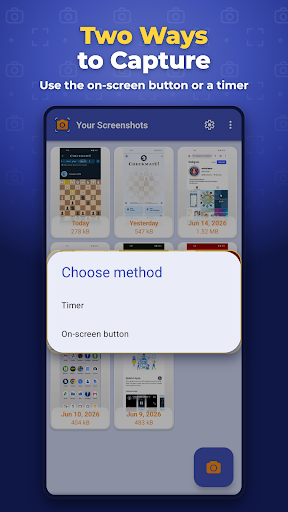
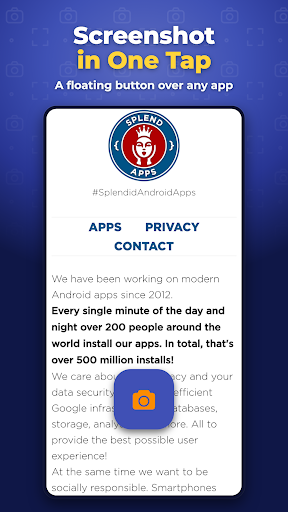
When I want to save something on my phone for later, the usual button shortcut is not always the easiest option. Screenshot supports standard Android screenshot triggers, but it also offers an on-screen shutter button and a capture option in the notification area. That gives me alternatives when reaching for physical buttons is awkward or when I want a visible control ready on the screen.
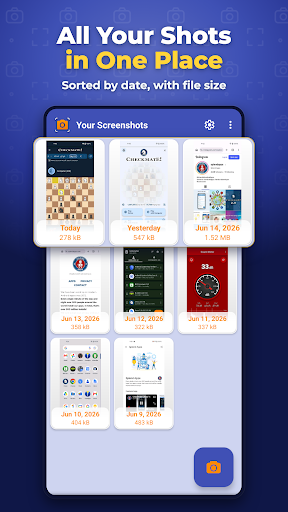
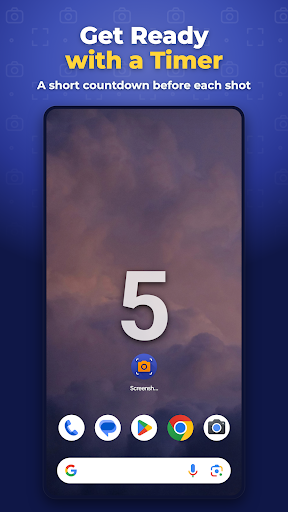
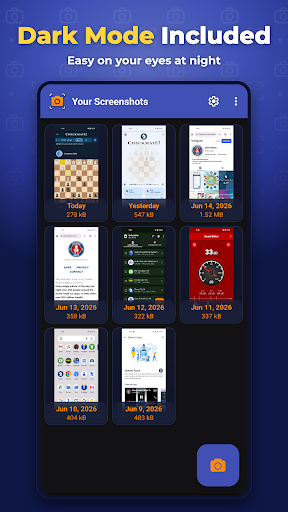
A timer is useful when I need a moment to get the display into the right state before capturing it. I can set a delay in seconds, then let the screenshot happen after the countdown. Once captured, images can be viewed individually or in a gallery, selected in multiples, cropped, edited, deleted, or shared. That makes the app useful for the whole small task, not just the instant of capture.
A Focused Screenshot Tool
For an occasional capture, Android’s built-in button shortcut may be enough. Screenshot is more compelling when I want several ways to trigger a capture and a dedicated place to review and manage the results. The overlay shutter and notification-area option give it a different feel from relying only on buttons, while the gallery and editing tools keep basic follow-up work in the same app.
I would not treat Screenshot as a general photo editor or a complete image-organizing system. Its stated job is specifically screenshots: capture them, browse them, make edits such as cropping, and pass them along. If I only take a screenshot once in a while, the extra controls may be unnecessary. If capturing is part of a regular routine, having those options together can be more convenient.
Make the Controls Yours
A useful first habit is to choose the capture method that feels natural for the situation. The physical button combinations are there for familiar, quick captures; the on-screen shutter can help when I want to tap a control directly; and the notification-area option provides another route. I would try each one during ordinary use rather than assuming one method will suit every screen.
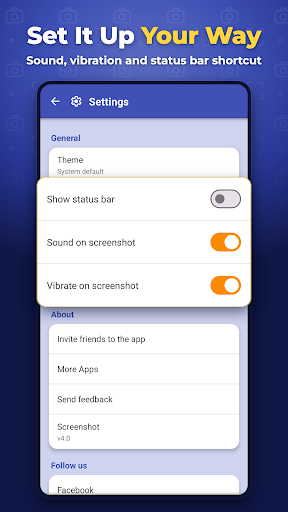
For captures that need timing, I would set the countdown before opening the screen I want to save. Afterward, reviewing images in the gallery and using multiple selection can help with a small batch of screenshots. I can also decide whether the status bar should appear and whether the app should play a shutter sound or vibrate. Those choices make the process easier to fit around my preferences.
More From Our News Desk

Zoom Meetings, Google Meet, or Teams: Which Is Easiest to Join?

How I Build a Free Streaming Lineup With Tubi

Why Crunchyroll Is the Default Anime App for So Many Fans

YouTube TV: A Practical Guide to Cutting Cable

Rummikub and the Small Comfort of Phone Games

TeamViewer Remote Control or AnyDesk for Helping Family?
Who may find it useful
I’d recommend Screenshot to people who regularly save screen content and want more than one way to start a capture. Students keeping a reference, someone saving a useful screen to share, or anyone who often crops and sends screenshots may appreciate the combination of capture controls and simple management tools. The gallery, multiple selection, and sharing options make more sense when screenshots are a recurring part of the day.
It may be more than you need if the standard Android shortcut already handles your occasional screenshots comfortably. I’d also keep device compatibility in mind: the app says some functions may not be available on unrooted devices, even though root is not required for use overall. People looking for advanced image editing or a broader photo library should look elsewhere for those specific jobs.
Screenshot is made by Splend Apps and is listed in Google Play as a free Android app. It has over 10 million installs and a 4.5-star rating from around 220,000 ratings. The content rating is Everyone. The app first appeared on September 1, 2014, and the supplied store information gives version 4.4, last updated October 19, 2026.
The app contains ads and offers in-app purchases, with listed items priced at $0.99 each. Its minimum Android version is not included in the supplied facts, so check Google Play for the requirement shown for your device. Screenshot does not require root, though its description notes that some functions may not be available on unrooted devices.
A Closer Look at Capturing Screens
Getting Started
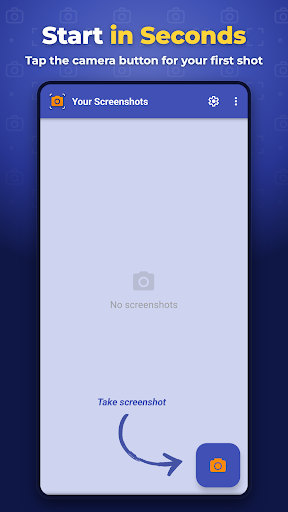
My first impression is that Screenshot is built around a clear, narrow task: save what is on the device screen, then make the image manageable. It supports phones and tablets, and its feature set offers several ways to trigger a capture. I would start by trying the familiar Android button combination, then look at the alternative controls if that does not suit how I use the device.
There are a few preferences worth noticing early. The app can show or hide the status bar in captured images, and it can play a shutter sound or vibrate. Those settings affect the feel and appearance of a capture, so they are worth adjusting before building a habit around the app. The description also says root is not required, with some functions potentially unavailable on unrooted devices.
Everyday Captures
In day-to-day use, the key decision is how to start the screenshot. I can use the standard Volume Down and Power combination or Home and Power, depending on the device’s supported trigger, or use the app’s on-screen shutter and notification-area capture option. The alternatives are practical rather than flashy: they give me another route when one method is inconvenient.
The countdown timer adds a little flexibility when I do not want the capture to happen immediately. Once an image is saved, I can open it in a single-image view or browse through the gallery. Multiple selection is helpful when I have several related captures to handle together, rather than treating each one as a separate trip through the app.
Useful Little Extras
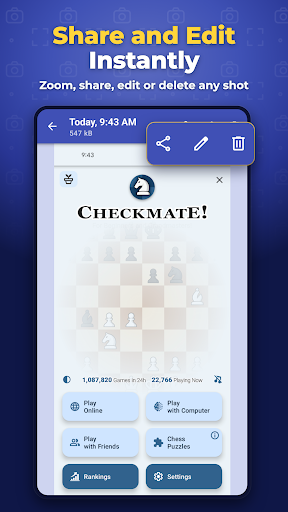
The most useful extras are the ones that shorten the path from capture to sharing. Screenshot can save and share images through other apps and services, with examples including email, WhatsApp, Instagram, Dropbox, Facebook, and Twitter. The practical point is that a capture can move on to a sharing destination instead of staying only inside the screenshot workflow.
Basic editing is included too, with crop and edit options for captured screens. I would use cropping to remove surrounding content when a tighter image is easier to understand, rather than expecting a deep editing suite. The app can also delete screenshots that are no longer needed and supports the Android system screenshot directory, which helps it fit into an existing device routine.
A Simple Daily Routine
A sensible routine could be to capture a useful screen with whichever trigger is easiest, then review the result in the gallery before sharing it. If I am saving several related screens, I can use multiple selection to work through them together. For a single image that needs a cleaner frame, I can crop it before sending it on. This keeps the process focused without adding unnecessary steps.
I would also set preferences once and revisit them only when my needs change. For instance, I can decide whether the status bar belongs in my captures and whether sound or vibration is welcome. If a screen needs a little preparation, the delay timer gives me that pause. These small choices matter most when I use the app repeatedly, not when I take one screenshot every few weeks.
Limits to Keep in Mind
Screenshot is still a tool for screen captures, not a broad image editor or an all-purpose photo manager. Its editing mention is limited to crop and edit, so I would not choose it expecting advanced annotation or design features. Likewise, the description says some functions may not work on unrooted devices. That caveat is worth remembering if a particular capture method behaves differently on a given device.
The app is free to use, but it contains ads and offers in-app purchases. Those are practical considerations for anyone who prefers an uninterrupted interface or wants to know what optional purchases involve. Android requirements can also vary by device and app version, so checking the current Google Play information is the best way to confirm compatibility before installing.
Screenshot earns its place by bringing several capture triggers together with a gallery, multiple selection, cropping, deletion, and sharing. I like that the feature set stays close to the job instead of promising a full creative toolkit. The timer and overlay are especially useful alternatives when the usual button shortcut is not the most comfortable choice.
I’d recommend it to Android users who take screenshots often and want a little more control over capturing and handling them. If built-in screenshots already meet your needs, there may be little reason to add another tool. Keep the ads, optional purchases, and device-specific feature limits in mind, but for regular screenshot workflows this is a focused option.
Screenshot Frequently Asked Questions
What is Screenshot used for?
Screenshot is an Android app for capturing and managing screenshots on a phone or tablet. It supports standard Android screenshot button combinations, an on-screen shutter, a notification-area capture option, and a timer. Captures can be viewed, selected in a gallery, cropped, edited, deleted, and shared through other apps and services.
Which devices and platforms support Screenshot?
Screenshot is described as an Android app for phones and tablets. Its features depend in part on the device, and the app notes that some functions may not be available on unrooted devices. For current device compatibility and store availability, check the Google Play information for your device.
What Android version does Screenshot require?
The minimum Android version can vary with the app version and device. Check the current Google Play information to see the requirement that applies to your device before installing. The app description says root is not required overall, although it also cautions that some functions may be unavailable on unrooted devices.
Is Screenshot free, and does it have purchases?
Screenshot is free to download and use. It contains ads and offers in-app purchases; the supplied store facts list items at $0.99 each. Purchase options and prices can vary, so check the current Google Play information for the details shown in your region.
Who is Screenshot best suited for?
It is a good fit for Android users who capture screens regularly and want alternative capture controls plus basic screenshot management. People who only take an occasional screenshot may find the built-in button shortcut sufficient. It is focused on screenshots rather than advanced image editing or general photo organization.
Pros
- Several capture methods, including button shortcuts, an overlay shutter, and notification-area access.
- Gallery view supports multiple selection for handling groups of screenshots.
- Includes a countdown timer, crop and edit options, deletion, and sharing.
- Can show or hide the status bar and adjust shutter sound or vibration.
Cons
- Contains ads and offers optional in-app purchases.
- Some functions may not be available on unrooted devices.
- Its editing tools are focused on screenshots rather than advanced image work.
- Category
- Tools
- Version
- 4.4











