Screen Mirroring - TV Miracast
- 691.84K
- 4.6
- Installs
- 10.00M
- Price
- Free
Screenshots
Analysis by Reviewed APKs
Screen Mirroring - TV Miracast is an Android app for putting your phone's screen on a compatible TV over Wi-Fi. It suits people who want to show photos, play mobile games, or watch phone-based video on a larger display without passing the device around. After reviewing its feature set, I see a practical all-purpose casting tool, though it depends on compatible devices and a shared network.
A Living Room Screen Share
Picture a family gathered around the sofa after dinner, with vacation photos scattered across one person's phone. Instead of having everyone lean over a small screen, you can open Screen Mirroring - TV Miracast, choose a compatible TV on the same Wi-Fi network, and show the phone display on the larger screen. That simple handoff is the app's core job: making whatever is on your phone easier for a group to see.
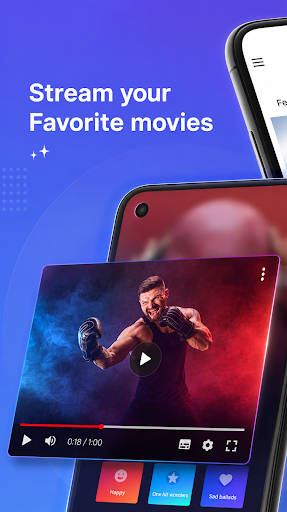
The same idea works for a video someone has saved, a mobile game you want to demonstrate, or a document you need to discuss together. The app also offers shortcuts to photos, videos, audio files, YouTube, a web browser, and Google Drive. I like that these use cases feel grounded in ordinary phone habits, rather than requiring a special presentation or media library to get started.
Casting, Not a Media Library
Compared with opening a dedicated streaming service directly on a TV, mirroring is useful when the thing you want to show is already on your phone or in one of the app's built-in shortcuts. It can also make casual sharing more direct: select a display and put the phone's screen in view. The description names smart TVs from several manufacturers, along with Chromecast, Amazon Fire TV, and Roku.
This is not a replacement for every TV app, nor does it turn a phone into a new collection of movies or shows. Its purpose is screen sharing, including photos, videos, web content, games, music, and presentations. Compatibility matters, and the app advises checking whether a device works with it. For a TV that is not reachable on the same Wi-Fi network, this workflow may not fit.
Small Habits That Help
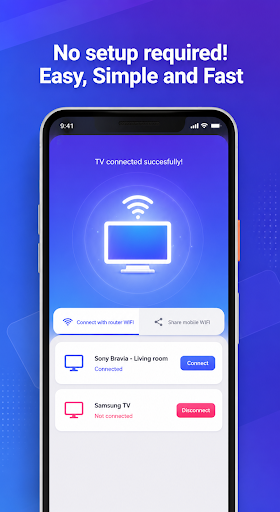
Before starting, I would check that the phone and TV are connected to the same Wi-Fi network. That is an easy detail to overlook when one device has rejoined a guest network or a different router. The app's connection steps are straightforward: open it, select an available TV, and begin mirroring. Its description also recommends turning off a VPN before connecting.
A little preparation can make a group viewing session smoother. I would open the photo album, document, or web page I plan to share before selecting the TV, then keep the phone handy for the remote-control feature. Built-in shortcuts can save a few taps when I want to jump to common content sources, while remembering to stop sharing when the group is done keeps the session tidy.
More From Our News Desk

Zoom Meetings, Google Meet, or Teams: Which Is Easiest to Join?

How I Build a Free Streaming Lineup With Tubi

Why Crunchyroll Is the Default Anime App for So Many Fans

YouTube TV: A Practical Guide to Cutting Cable

Rummikub and the Small Comfort of Phone Games

TeamViewer Remote Control or AnyDesk for Helping Family?
Who may enjoy it
I would recommend Screen Mirroring - TV Miracast to Android users who regularly want to show phone content to family, friends, or coworkers on a bigger screen. It makes particular sense for casual photo sharing, videos, web browsing, and mobile-game demonstrations. Someone who already has a compatible TV or streaming device and is comfortable connecting both devices to the same Wi-Fi network has the clearest reason to try it.
It may be less appealing if you only watch content through apps already installed on your TV, or if your main need is a more elaborate presentation setup. The mirroring approach also relies on device compatibility and a working shared network, so I would not treat it as a universal fix for every screen. If you prefer a completely phone-free viewing session, a dedicated TV app may feel more convenient.
Screen Mirroring - TV Miracast is a free Android app from Sooltr LLC in the Tools category. On Google Play it has over 10 million installs and a 4.6-star rating from around 692,000 ratings. Its content rating is Everyone. The listed version is 4.0.0.315, and the release date is February 2, 2020.
The app contains ads and offers in-app purchases, with listed items ranging from $3.99 to $49.99 each. Google Play shows November 4, 2026 as its last update date. The Android version requirement is worth checking on the Google Play page for the device you plan to use.
A Closer Look at Everyday Mirroring
Getting Connected
When I first opened the idea of using this app, the appeal was its directness: choose a screen, start sharing, and use the phone as the source. There is no need to prepare a separate presentation just to show a few pictures or a clip. The app describes its setup as a few taps, with the same-Wi-Fi requirement as the main thing to sort out beforehand.
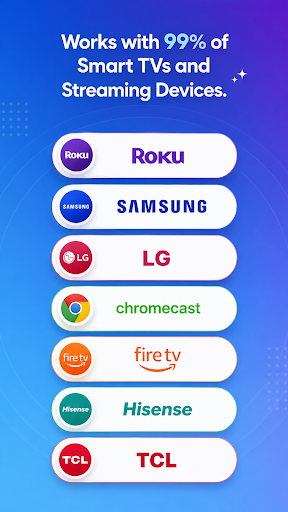
The first practical check is whether the TV appears among available devices. The supported range named in the description includes smart TVs such as LG, Samsung, Sony, TCL, Xiaomi, and Hisense, plus Chromecast, Fire TV, and Roku. That is a broad set of examples, but it still makes sense to check compatibility for a particular setup before relying on it for a planned gathering.
The Everyday Experience
For everyday sharing, the useful part of mirroring is that the TV can show what is already on the phone. A photo album, a video, a web page, or a game can become a shared viewing experience instead of a one-person activity. I can see this being handy when someone asks to see a clip and the sofa is full of people trying to get a look.
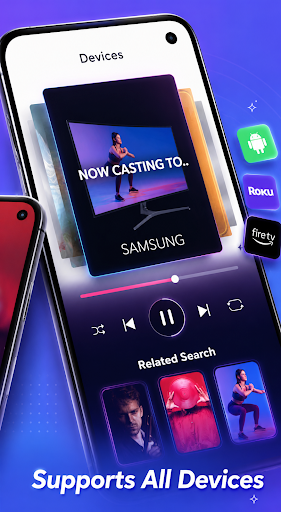
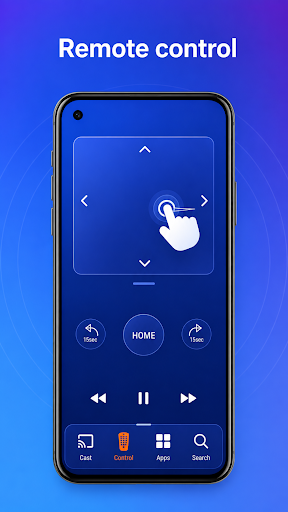
The app also describes a remote-control feature for managing mirrored content from the phone. That keeps the handset involved as the point of control while the TV does the showing. The quality of the experience will depend on the connection and compatible devices, so I would think of it as a convenient route for casual use rather than assume every stream will behave identically.
Useful Built-In Shortcuts
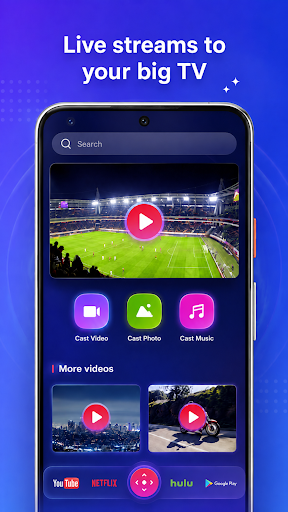
The shortcuts are one of the more practical details. The app says it can open YouTube, photos, videos, a web browser, audio files, and Google Drive from within its interface. That collection covers a mix of personal media and common online content, which can reduce the number of steps between deciding what to share and getting it onto the TV.
The integrated browser is another notable option: the description says it can be used to browse the web on the TV without needing additional apps. For a quick search or a page someone wants to read together, that could be easier than passing around the phone. These features complement mirroring; they do not change the basic need for a compatible display and a shared Wi-Fi connection.
A Simple Sharing Routine
For a relaxed evening, I would start by checking the phone and TV are on the same Wi-Fi network, then open the app and select the TV. Once the screen is mirrored, I could use the phone to bring up a few family photos, play a video, or show a web page. That sequence keeps the phone as the starting point and avoids making everyone gather around its smaller display.
For a work or school moment, the same pattern could help share a presentation or document wirelessly, as the app's description suggests. I would prepare the material first and confirm the display is available before the room is ready to watch. If connection trouble crops up, the app's advice to turn off a VPN is worth keeping in mind, along with checking the network.
Limits to Keep in Mind
The main limitation is that the experience depends on a compatible TV or streaming device and both devices being on the same Wi-Fi network. The app's description also says to check device compatibility, so support should not be assumed just because a screen is a smart TV. A VPN can interfere with connecting, according to the app's guidance, which adds one more troubleshooting detail.
Mirroring is also different from watching through a dedicated TV app: it keeps the phone central to the experience. That is useful when sharing phone content, but may be less appealing if you want to browse and watch directly on the television. The app contains ads and offers paid in-app items, so those are practical considerations alongside the free download.
Screen Mirroring - TV Miracast focuses on a familiar problem and gives it a straightforward solution: show phone content on a larger compatible screen. Its shortcuts and remote-control feature add convenience, while the same-network setup is easy to understand. The biggest caveats are compatibility and relying on the phone as the source.
I would try it if I often share photos, videos, web pages, or games with people nearby and already have a compatible TV or streaming device. If I mainly use TV-native services or need a screen-sharing setup independent of Wi-Fi, I would look for a different fit. For casual household sharing, its purpose is clear and useful.
Screen Mirroring Frequently Asked Questions
What is Screen Mirroring - TV Miracast used for?
Screen Mirroring - TV Miracast is used to show an Android phone's screen on a compatible TV or streaming device. The app describes sharing photos, videos, music, mobile games, live streams, presentations, and documents. It also includes shortcuts to YouTube, a web browser, Google Drive, and other content sources. Both devices should be on the same Wi-Fi network.
Which devices work with Screen Mirroring - TV Miracast?
The app is for Android and describes support for a range of smart TVs, including LG, Samsung, Sony, TCL, Xiaomi, and Hisense, as well as Chromecast, Amazon Fire TV, and Roku. Compatibility can depend on the particular device, so check the Google Play page and your TV or streaming-device details before planning to use it.
What Android version does Screen Mirroring - TV Miracast require?
The Android version requirement can vary by release and device. Check the Google Play page for Screen Mirroring - TV Miracast to see whether the current version supports your phone or tablet. The app's described mirroring setup also requires the phone and TV to be connected to the same Wi-Fi network.
Is Screen Mirroring - TV Miracast free?
The app is free to download and contains ads. It also offers in-app purchases, with listed items priced from $3.99 to $49.99 each. Available purchase options may change, so check the Google Play page for current details before buying anything.
Who should use Screen Mirroring - TV Miracast?
It may suit Android users who want to share phone-based photos, videos, games, web pages, or documents on a compatible larger screen. It is less suited to people who prefer watching directly through TV apps or need a setup that does not rely on Wi-Fi. Check device compatibility first, especially if you plan to use it for a particular event.
Pros
- Shares a range of phone content on compatible smart TVs and streaming devices.
- Includes shortcuts for photos, videos, YouTube, audio, web browsing, and Google Drive.
- A remote-control feature lets users manage mirrored content from the phone.
- Free to download and supports casual sharing, gaming, and presentations.
Cons
- Requires a compatible display and both devices on the same Wi-Fi network.
- Contains ads and offers in-app purchases alongside the free download.
- Some setups may need troubleshooting, including turning off a VPN.
- Category
- Tools
- Version
- 4.0.0.315











