Smart View for Samsung TV Cast
- 38.44K
- 3.1
- Installs
- 5.00M
- Price
- Free
Screenshots
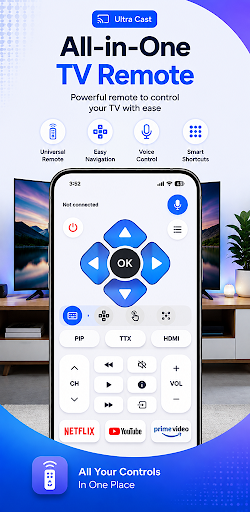
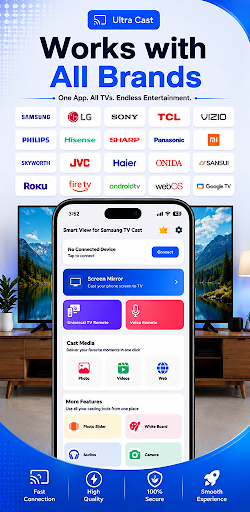
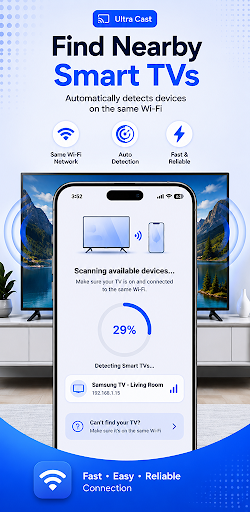
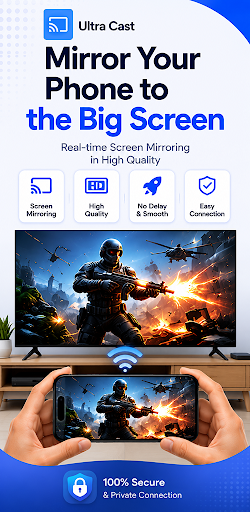
Analysis by Reviewed APKs
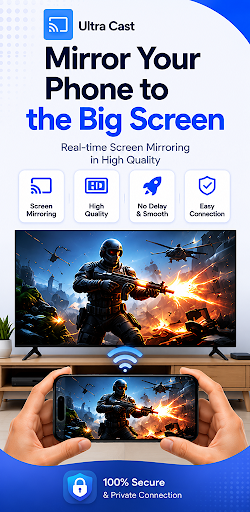
Smart View for Samsung TV Cast is a screen-sharing app for sending a phone’s screen, photos, videos, games, and music to a compatible smart TV. It suits people who want to show something from their phone on a larger display without making the phone the center of the room. I like the straightforward purpose, though its third-party status and broad device claims make compatibility worth checking before relying on it.
A Phone Screen for Everyone
Picture a quiet evening when a friend asks to see the photos from your weekend trip. Instead of passing your phone around the couch, you can connect it and show the pictures on a larger TV. The app’s intended routine is simple: put the phone and TV on the same Wi-Fi network, enable wireless display on the phone and Miracast or Chromecast on the TV, then choose the TV in the app.
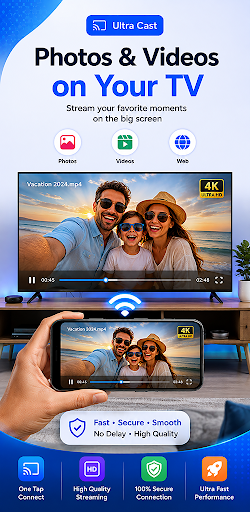
That same setup can suit a family movie night or a quick show-and-tell of a mobile game. The app describes support for screen mirroring and media casting, including photos, videos, games, and music. I’d treat the TV’s connection method as the deciding factor, rather than assume every television will appear. The appeal is easy to understand: use the phone as the source and let the big screen do the viewing.
Casting, Not a TV Service
The obvious alternative is using a TV’s own apps or built-in casting tools. Those make more sense when I want to browse a streaming service directly on the television. This app has a different job: it is described as a way to mirror a phone screen or cast phone media to a compatible TV. That can be handy for personal photos or content already on the phone, rather than a replacement for every TV feature.
It is also not the same thing as an official Samsung product. The app’s description says it is a third-party app and is not associated with Samsung or the other brands it names. That distinction matters if you are looking for a manufacturer’s own support tool or expect a remote-control app. The stated core is screen sharing and casting, so I would judge it on that narrower use instead of expecting a full TV-management suite.
Make Setup a Small Habit
The easiest way to make a casting session less fiddly is to check the basics before opening the app. I’d first make sure the phone and TV are on the same Wi-Fi network, then confirm that wireless display, Miracast, or Chromecast is enabled as appropriate. Those are the connection steps the app itself gives, and having them in mind can save a few repeated trips between phone settings and the TV.
It also helps to decide what you want to show before connecting. For a photo-sharing session, have the pictures ready on the phone; for a game, open it after the screen is mirrored. The app describes sharing a phone screen as well as individual media types, so choosing the simpler route for the moment can keep the process focused. If a TV does not appear, I’d revisit the network and display settings first.
More From Our News Desk

Zoom Meetings, Google Meet, or Teams: Which Is Easiest to Join?

How I Build a Free Streaming Lineup With Tubi

Why Crunchyroll Is the Default Anime App for So Many Fans

YouTube TV: A Practical Guide to Cutting Cable

Rummikub and the Small Comfort of Phone Games

TeamViewer Remote Control or AnyDesk for Helping Family?
Who Might Find It Useful
I’d recommend giving it a look if you often want to show phone photos, videos, games, or other screen content to people in the same room. It is most appealing when the phone is already where the content lives and the TV supports one of the connection methods described. A casual household use is easy to picture: connect once, put the phone down, and let everyone look at the larger display.
It may not suit someone who needs a dependable connection across a particular mix of phone and television models, or who wants an official Samsung utility. The app’s title can make it sound manufacturer-made, but its own description identifies it as third-party. I’d also look elsewhere if the main goal is finding shows inside a streaming service or controlling every TV setting. This is a casting tool, not an all-purpose entertainment hub.
Smart View for Samsung TV Cast is published by Smart Remote Apps and is categorized as a Tools app on Google Play. It has more than 5 million installs and a 3.1-star rating from about 38,000 ratings. The app is free to download, contains ads, and offers in-app purchases. The listed price range for those items is $5.99 to $49.99 each.
Google Play gives the app an Everyone content rating. Its current listed version is 129. It was released on January 25, 2022, and its last update is dated November 2, 2026. No minimum Android version is included in the supplied app facts, so check the Google Play details on your device before installing if compatibility is a concern.
How Phone-to-TV Casting Fits Real Life
The First Connection
When I first looked at the setup, the useful part was that the app lays out the connection sequence rather than leaving the whole task to guesswork. Phone and TV need to share a Wi-Fi network; wireless display on the phone and Miracast or Chromecast on the TV also need to be enabled. From there, the app’s instructions say to use its connect option and select the television.
That is a short checklist, but it depends on settings beyond the app itself. A TV needs to expose a supported casting or display option, and the phone needs wireless display enabled. I would check those first if a device is missing. The description names Samsung, Roku, LG, Hisense, TCL, Vizio, and other television options, but those names are not a promise that every model or setup will behave alike.
The Everyday Casting Flow
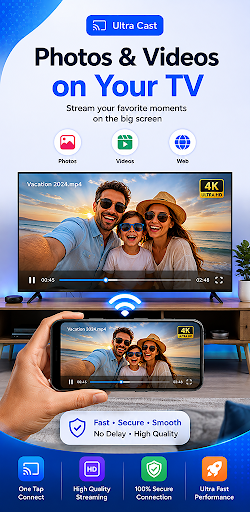
The core experience is about moving something already on a phone to a larger screen. The description covers mirroring the mobile display and sharing media such as photos, videos, games, and music. That gives the app a flexible role: I can imagine using screen mirroring when I want to show an app, and a media-casting option when the goal is a particular file.
In daily use, the appeal is less about adding new content and more about changing where existing content is viewed. A phone is convenient for finding a picture, but a TV is easier for a roomful of people to see. The workflow makes sense for a short, shared moment, such as showing a clip after dinner. The connection still depends on the phone, TV, and network working together.
Mirroring and Media Sharing
The main distinction worth noticing is between screen mirroring and casting media files. Mirroring puts the phone’s display on the television, while the app also describes sending media such as photos, videos, and music. The first can help when the thing you want to show is an app or game; the second fits a straightforward picture or video session.
The app says it works with Miracast and Chromecast and refers to Android TVs and other smart TVs. It also names TV and streaming-device brands in its description. I would use that as a guide to the kinds of setups it aims to support, not as a reason to skip checking the specific television’s available display options. Compatibility is the practical hinge for the whole experience.
A Simple Sharing Routine
For a relaxed photo session, I’d start by checking that both devices use the same Wi-Fi network, then turn on the relevant display option on the phone and TV. Once the TV is selected in the app, I’d bring up the pictures I want to share. This keeps the phone available as the source while the group watches together, rather than having everyone crowd around a small screen.
For a game or a short video, the same preparation helps. Decide whether mirroring the whole phone display or casting a media file is the better fit, then connect before handing the phone around. If the TV is not available as a choice, go back to the network and display settings described in the setup steps. That small troubleshooting loop is more practical than repeatedly tapping connect without checking the basics.
Keep Expectations Grounded
The biggest limitation is that the app’s usefulness depends on compatibility among the phone, television, and connection method. Its description calls for a shared Wi-Fi network and enabled wireless display or Miracast or Chromecast support. If one part of that chain is missing, the app cannot turn an unsupported television into a compatible one. I would check the device’s own settings before planning an important viewing session.
There are also practical reasons to keep expectations modest. The app is third-party, despite its Samsung-focused name, and it contains ads with optional in-app purchases. Its Google Play score is 3.1 stars, which is worth weighing alongside the app’s basic purpose. I’d approach it as a tool to try for phone-to-TV sharing, not as a replacement for a TV maker’s own software or a complete entertainment system.
Smart View for Samsung TV Cast has a clear, useful job: share a phone display or media on a compatible television. The setup steps are easy to follow, and the range of described uses covers ordinary moments like showing photos, watching a video, or putting a mobile game on a bigger screen.
I’d consider it for casual casting if my phone and TV meet the stated connection requirements. I would not choose it simply because I own a Samsung TV, or expect it to replace built-in TV apps and official support tools. Check compatibility and the current Google Play details, then decide whether this focused sharing option fits your routine.
Smart View for Samsung TV Cast Frequently Asked Questions
What is Smart View for Samsung TV Cast used for?
Smart View for Samsung TV Cast is described as a screen-sharing and casting app. It can mirror a phone display or share media such as photos, videos, games, and music with a compatible television. Its instructions call for the phone and TV to use the same Wi-Fi network, with the relevant wireless display or casting option enabled.
Which devices and TVs work with Smart View for Samsung TV Cast?
The app is an Android app on Google Play. Its description refers to Samsung, Roku, LG, Hisense, TCL, Vizio, and other smart TVs, as well as Miracast and Chromecast. A specific setup can vary by phone and television model, so check the TV’s available display options and the Google Play details for your device.
What Android version does Smart View for Samsung TV Cast require?
The supplied app details do not state a minimum Android version. Requirements can vary as the app and devices change, so check the Google Play page from the Android device you plan to use before installing. The app’s described casting steps also require the phone and television to share a Wi-Fi network.
Does Smart View for Samsung TV Cast cost money?
The app is free to download and contains ads. Google Play also lists in-app purchases priced from $5.99 to $49.99 per item. Current purchase options and prices can vary, so check the Google Play page for the latest details before buying anything.
Is Smart View for Samsung TV Cast right for my household?
It may suit people who want to show phone photos, videos, games, or other screen content on a compatible TV. It is a third-party app, not an official Samsung product, and it is focused on casting rather than serving as a complete TV-control or streaming hub. Whether it fits depends on your devices and the connection options they support.
Pros
- Covers both phone-screen mirroring and sharing common media types.
- Setup instructions explain the shared Wi-Fi and display settings needed.
- Useful for showing phone content to a group on a larger screen.
- Describes support for Miracast, Chromecast, and several smart-TV brands.
Cons
- Compatibility depends on the phone, TV, network, and available display options.
- The Samsung-focused name may be mistaken for an official Samsung app.
- Contains ads and offers in-app purchases alongside its free download.
- Category
- Tools
- Version
- 129











