Safari
- 183.52K
- 4.4
- Installs
- —
- Price
- Free
Screenshots

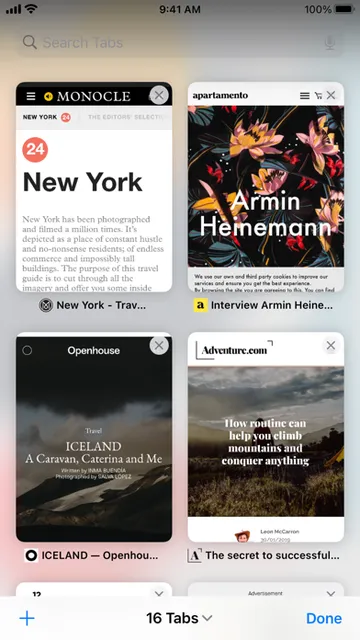

Analysis by Reviewed APKs
Safari is Apple’s web browser for looking up information, reading articles, and keeping everyday browsing organized across Apple devices. I’d recommend it to people who want a familiar browser with useful reading and privacy tools built in, rather than a separate app for every task. My overall take is that Safari’s appeal is its range: it can stay simple for quick searches, but it also offers plenty to explore when your browsing gets more involved.
A Browser for Everyday Errands
When I first opened Safari, I thought about the ordinary web tasks that fill small gaps in a day: checking a restaurant’s hours, comparing a few product pages, or opening a link someone sent me. Safari handles that familiar browsing job, while features such as bookmarks and Reading List give useful destinations a place to go when I’m not ready to read them right away.
The difference becomes clearer during a longer stretch of browsing. I can keep related pages together in Tab Groups, use Reader to make an article easier to focus on, and return to a saved page later. If I’m researching something across several sites, that combination makes Safari feel more like an everyday workspace than a bare address bar.
More Than a Quick Search
Compared with a browser used only to punch in a search and leave, Safari has more ways to manage what happens between opening a page and finishing with it. Profiles can separate browsing by topic, while Tab Groups can hold a set of related pages. Reader and Reading List are also handy when the main goal is to get through an article rather than simply glance at a result.
Safari is still a web browser, not a dedicated reading service or a tool for managing every kind of information. Its strongest features help me browse, organize pages, and move between Apple devices. If I only need an occasional quick search, many of its organizing options may be more than I need; if I want a browser that can support longer research sessions, they make more sense.
Small Habits That Help
I get more value from Safari when I save pages deliberately instead of leaving every useful link open. Reading List is a natural home for articles I mean to revisit, while bookmarks suit pages I expect to need again. For a short-term project, I can group relevant tabs together rather than letting them mingle with unrelated browsing.
It also helps to choose an organizing approach that matches the task. Profiles can keep work and personal browsing separate, while Tab Groups can collect pages for a particular topic. When an article feels cluttered, Reader offers a cleaner presentation. These are small choices, but together they make it easier to pick up where I left off.
More From Our News Desk

Zoom Meetings, Google Meet, or Teams: Which Is Easiest to Join?

How I Build a Free Streaming Lineup With Tubi

Why Crunchyroll Is the Default Anime App for So Many Fans

YouTube TV: A Practical Guide to Cutting Cable

Rummikub and the Small Comfort of Phone Games

TeamViewer Remote Control or AnyDesk for Helping Family?
Who Safari Suits Best
I’d recommend Safari to people who use an iPhone, iPad, or Mac and want a browser with more to offer than basic page loading. Its synced tabs, bookmarks, history, and passwords can make browsing feel continuous across Apple devices. Reader, translation, and Reading List are especially appealing if a typical session involves finding and coming back to useful articles.
It may be less compelling for someone who wants only the simplest possible way to open a webpage and has no interest in saved pages, tab organization, or privacy tools. Safari’s cross-device features are most relevant within Apple’s ecosystem, and options like Profiles and Tab Groups take a little attention to use well. I see it as a good fit for people who value convenience and organization, not as a browser everyone needs to customize.
Safari is developed by Apple Inc. and is available for Apple platforms, including iOS, iPadOS, and macOS. The supplied App Store information gives it a 4.4-star rating from 183,522 ratings. It is free to download, and the stated minimum operating system requirement for this version is iOS 10.0.
The supplied version is 6.11, with a release date of October 25, 2021, and a last update date of October 19, 2026. The App Store content rating is 17+. Store details such as current availability and any purchase options can change, so it is worth checking the App Store before installing.
How Safari Fits Into Daily Browsing
A Familiar First Step
My first impression of Safari is that its core purpose is easy to understand: open a webpage, browse, and move on. That straightforward starting point matters because the app’s deeper options are only useful if they don’t get in the way of a quick everyday visit. I can begin with a simple search and learn the organizing tools as a need comes up.
Safari’s broader setup is designed to connect browsing across iOS, iPadOS, and macOS. Passwords, bookmarks, history, and tabs can sync among iPhone, iPad, and Mac. That makes the browser more useful when I switch devices during the day, although those benefits naturally matter most to someone who uses more than one Apple device.
The Everyday Browse
In day-to-day use, the most helpful idea is that Safari gives different kinds of pages different destinations. I can keep a familiar site in bookmarks, save an article to Reading List, or leave a set of active pages together in a Tab Group. That flexibility is useful when a quick search unexpectedly turns into a longer comparison or research session.
Privacy tools are also part of the regular browsing picture. Private Browsing doesn’t save browsing history, and Intelligent Tracking Prevention is designed to prevent trackers from following users across websites. Safari’s Privacy Report shows known trackers that have been blocked. I appreciate that these features are presented as part of browsing, rather than as a separate task I need to remember to do.
Tools Beyond the Address Bar
Reader is one of the easiest features to appreciate when a page is busy. It formats articles for reading without ads, navigation, or other distractions, which can make a long piece feel less crowded. Reading List complements it: one helps with the page in front of me, and the other helps me save something for later.
Tab Groups and Profiles address different kinds of organization. Groups collect tabs around a subject, while Profiles can keep browsing history and website data separate between topics such as work and personal use. Shared Tab Groups let people share tabs and collaborate with family or friends. These options give Safari room to handle more than one browsing context without treating every open page as interchangeable.
There are useful extras for particular moments, too. Safari can translate webpages, accept voice searches, and use extensions to add functionality. Handoff passes browsing activity between devices, and Add to Home Screen offers a quick way to launch a website or web app. Notify Me can periodically check a webpage for updates and alert the user to a change.
A Practical Reading Routine
For a realistic evening routine, I might start by collecting pages about a topic in a Tab Group. I can skim each page, save the articles worth reading later, and use Reader when I settle down with a longer piece. If the research is for work, a separate Profile can keep that browsing context apart from personal browsing.
The next time I return to the topic, the saved pages and group make it easier to resume instead of rebuilding the same search from scratch. If I move from an iPhone to an iPad or Mac, Safari’s syncing and Handoff can help carry browsing across devices. The routine is simple: save deliberately, group temporary research, and use the reading tools when it’s time to focus.
Limits to Keep in Mind
Safari’s most distinctive conveniences are tied to Apple devices. Its description covers access across iOS, iPadOS, and macOS, so people who browse across other kinds of platforms should consider whether that ecosystem fits their routine. The browser can still handle ordinary web visits, but its cross-device strengths are most relevant when the devices involved are Apple products.
The number of options can also be more than a casual browser needs. Profiles, Tab Groups, extensions, Reading List, and shared tabs all solve different problems, but they do not need to become part of every person’s routine. I’d start with the basics and add an organizing feature only when it makes browsing easier; otherwise, setup can feel like work without much payoff.
Privacy features are useful to have, but they don’t make every browsing decision automatic. Safari describes specific protections and a report about known blocked trackers; that’s a more precise promise than assuming every privacy concern disappears. I’d treat those tools as helpful parts of the browser, while choosing settings and browsing habits that suit my own needs.
Safari earns its place as an everyday browser by pairing familiar web access with practical ways to save, organize, and read pages. I especially like the mix of Reader, Reading List, Tab Groups, and cross-device continuity. None of those tools is mandatory, which lets the browser stay useful for quick errands as well as longer browsing sessions.
I’d recommend Safari to Apple-device users who want those options close at hand and appreciate privacy features built into their browser. People who only need an occasional search may not use its deeper organization tools, but they can still keep things simple. For anyone who regularly returns to pages or switches among Apple devices, Safari is a capable choice.
Safari Frequently Asked Questions
What is Safari used for?
Safari is a web browser for visiting websites, searching the web, and keeping track of useful pages. It also supports features such as Reader, Reading List, Tab Groups, webpage translation, and Private Browsing. Its tools suit both quick searches and longer browsing or reading sessions.
Which devices can I use Safari on?
Safari is available across iOS, iPadOS, and macOS, with tabs and other browsing information able to sync among iPhone, iPad, and Mac. The supplied version information is for iOS. Check the App Store for current device compatibility and availability, as store details may vary.
What iOS version does Safari require?
The supplied information gives iOS 10.0 as the minimum operating system requirement. Requirements and compatibility can vary by device and store availability, so check Safari’s App Store page for the current details before installing.
Does Safari cost anything?
Safari is listed as free to download. Purchase options and other store details can change or vary by region, so check the App Store page for the latest information about the version available to you.
Is Safari a good fit for everyday browsing?
I think Safari is a good fit for people who browse regularly on Apple devices and want tools for reading, saving, organizing, and syncing pages. It may feel like more than necessary if you only want a basic browser for occasional searches. Its deeper features are optional, so you can use only the ones that help.
Pros
- Reader and Reading List make it easier to focus on articles and return to them later.
- Tab Groups and Profiles offer useful ways to separate topics and browsing contexts.
- Tabs, bookmarks, history, and passwords can sync across iPhone, iPad, and Mac.
- Includes Private Browsing, Intelligent Tracking Prevention, and a Privacy Report.
Cons
- Cross-device conveniences are most relevant to people who use Apple devices.
- The many organization features may be unnecessary for occasional, simple browsing.
- Privacy tools address specific tracking concerns rather than every privacy question.
- Category
- Tools
- Version
- 6.11