Naver Papago - AI Translator
- 178.94K
- 4.5
- Installs
- 10.00M
- Price
- Free
Screenshots
Analysis by Reviewed APKs
Naver Papago - AI Translator is a translation app for travel, conversations, reading, and language study. I like that it handles more than typed phrases: you can also translate speech, photos, handwriting, websites, and documents. It suits people who move between languages often and want several tools in one place. It is less of a substitute for careful human translation than a handy companion for everyday communication.
A day of getting around
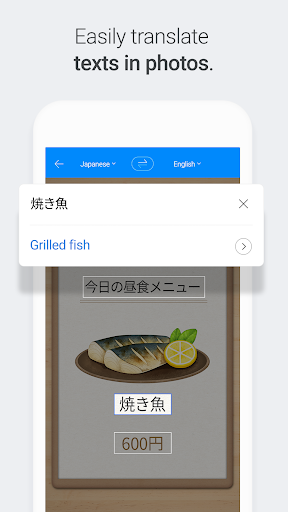
When I picture using Papago on a trip, I start with the small moments: checking a sign, figuring out a menu, or asking a quick question. For text, I can enter a phrase and get a translation; for something printed, I can take a picture and have the text recognized and translated. Those options make it useful when copying a sentence into a translator would be awkward or slow.
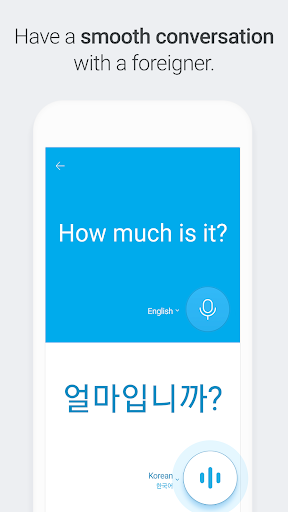
For a conversation, the voice and conversation translation tools give the exchange a more practical shape. Papago can turn speech into text and audio, and its conversation feature is designed for two people speaking different languages. I would still keep sentences short and check that both people understand the result, but having text and spoken output available can help a simple exchange feel less like a guessing game.
Translator, not interpreter
Papago makes sense alongside a phrasebook or dictionary, but it is broader than either one. A phrasebook offers set expressions, while Papago can translate text you supply, words in a photo, and speech. Its dictionary can also provide additional meanings beyond the initial translation. I find that range useful when a quick lookup turns into a longer attempt to understand a word or passage.
It is not the same as a professional interpreter or a careful human translation. The app is built for practical translation across 14 supported languages, not for resolving every nuance in an important conversation. For high-stakes writing or complicated discussions, I would treat its output as a starting point and seek a more suitable review. Its value is in making routine communication easier, not replacing judgment.
Small habits that help
I get more from a translator when I give it clean, short input. A complete sentence is often easier to work with than a string of fragments, and checking the dictionary can help when a result has more than one possible meaning. For signs or printed material, I would frame the text clearly before taking a picture. These small steps make the app feel more useful without adding much effort.
It is also worth thinking ahead about which tools you may need. Papago supports offline translation, so I would prepare for a trip by considering offline use before losing a connection. For study, the Edu feature can turn a photo of a passage into a My Note for studying passages and words. Papago Mini can translate copied text in other applications, which may save a few steps during reading.
More From Our News Desk

Zoom Meetings, Google Meet, or Teams: Which Is Easiest to Join?

How I Build a Free Streaming Lineup With Tubi

Why Crunchyroll Is the Default Anime App for So Many Fans

YouTube TV: A Practical Guide to Cutting Cable

Rummikub and the Small Comfort of Phone Games

TeamViewer Remote Control or AnyDesk for Helping Family?
Who may enjoy Papago
I would recommend Papago to travelers, people who regularly talk with speakers of another language, and learners who want translation tools close at hand. Text, voice, image, handwriting, and document translation cover different everyday situations, while offline translation can be useful when connectivity is limited. The 14 supported languages include Korean, English, Japanese, Chinese, Spanish, French, Vietnamese, Thai, Indonesian, Russian, German, Italian, and Arabic.
It may be less appealing to someone who only needs a single occasional word lookup and prefers a very minimal tool. People who need polished, context-sensitive translations for important material should also keep a human review in the picture. Papago can help you understand and communicate, but a translation result still needs judgment. For casual use and language practice, the mix of input methods is the main reason I would keep it installed.
Naver Papago - AI Translator is made by NAVER Corp. On Google Play, it has more than 10 million installs and a 4.5-star rating from about 179,000 ratings. The app is free, with no in-app purchases or ads. Its content rating is Everyone, and the app description says it is available for Android 9.0 and up.
The current version varies with the device. The release date is August 7, 2016, and the most recent update date provided is October 22, 2026. Papago is also available on PC and mobile through its web service. The mobile app supports dark mode, which can be useful when translating in low light.
A Closer Look at Papago
A practical first impression
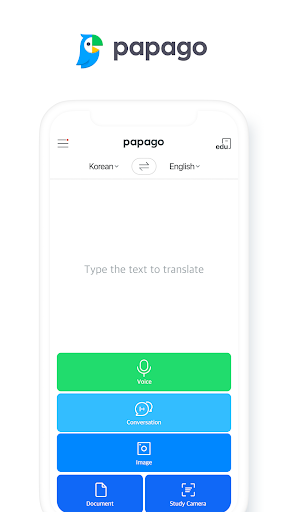
When I first opened Papago, what stood out was the breadth of its translation options. It is not limited to typing a phrase: the app describes separate tools for images, speech, handwriting, websites, and documents. That range gives it a clear everyday purpose. Instead of deciding which kind of translator to install, I could turn to one app for several common ways of encountering another language.
The setup questions are tied to the feature being used. The description identifies microphone access for voice and conversation translation, camera access for image translation, and file access for saving photos on some older devices. Location is used to check information about nearby places from images. Those permissions make sense in context, though I would expect to consider them when trying the matching tools.
Using it day to day
For a quick phrase, text translation is the obvious starting point: enter words or a sentence and get a translation. When the source is spoken instead, voice translation can provide both text and audio. I like having those options because the right input method changes with the situation. Typing is comfortable at a desk, while speaking or photographing text may be easier when I am out and about.
Papago’s conversation translation is aimed at a one-on-one exchange, with each person speaking in their own language. That is a more focused use than simply translating a sentence for later. I would use it for straightforward questions and short back-and-forths, keeping an eye on the text as well as the audio. For complicated topics, I would slow down and check meaning rather than assuming the first result captures every nuance.
Useful ways to translate
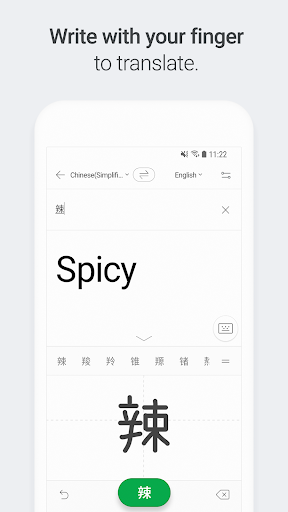
Image translation is one of Papago’s most practical features. The app can recognize text in a picture and translate it after you take the photo. That can help with a printed passage or a sign when typing the source text is inconvenient. Handwriting translation takes a different route: write with a finger, and Papago looks for the intended word and its translation.
There are also tools for material that sits beyond a single phrase. Website translation works from a foreign website URL, while document translation lets you upload a document and aims to preserve its original formatting. Papago Mini is described as an in-screen translation option for text copied in other applications. Together, these features extend the app from quick travel queries to reading and document tasks.
For language study, the Edu feature turns a photo of a passage into a My Note that can be used to study passages and words. The dictionary supplies additional meanings beyond the initial translation result. I would use those as ways to explore a phrase further, rather than treating a single translated line as the whole story.
A simple study routine
A routine I can imagine is taking a picture of a short passage I want to study, then using Edu to create a My Note. After looking over the translation, I could check a word in the dictionary when its meaning seems unclear. This keeps the process anchored to material I actually want to read, rather than turning study into a string of disconnected vocabulary searches.
For a trip, I would take a similarly practical approach: translate text when I can type it, use the camera for printed material, and try voice translation when speaking is more natural. If I expect to be offline, the app’s offline translation is worth considering in advance. Papago’s different modes are most useful when I choose the one that fits the task instead of forcing every situation through text entry.
Limits to keep in mind
Papago supports 14 languages, which is a substantial set for common travel and learning scenarios, but it will not cover every language a user might need. I would check that the language pair I care about is included before relying on the app for a particular trip or conversation. The supported set includes several widely used languages across Asia and Europe, along with Arabic.
A translation app can help bridge a language gap, but the result still depends on the source text and context. A photo that is hard to read or a spoken phrase that is unclear can make translation less useful. I would keep important conversations measured and verify what matters. Papago’s tools are convenient, but convenience does not remove the need to think about whether a translation makes sense.
There is also a small learning curve in choosing among the app’s many modes. Someone who only wants a basic text box may not need image, handwriting, document, or study tools. On the other hand, those options are the point for people who meet language in several forms. The best fit depends on whether that breadth matches how often you translate.
After spending time with Papago’s feature set, I see it as a capable everyday translator rather than a one-purpose phrase tool. Text, voice, camera, handwriting, offline, website, and document options give it room to help with travel, conversation, and study. The combination is more useful than any one feature alone, especially when the source material changes from a typed phrase to a spoken question or printed passage.
I would recommend Naver Papago to anyone who regularly crosses language boundaries and wants several translation methods in one app. It is less compelling if you rarely translate or need a human-level review for sensitive material. For routine communication and learning, though, it is a sensible tool to try, with a useful range of supported languages and a free, ad-free app.
Naver Papago Frequently Asked Questions
What is Naver Papago used for?
Naver Papago translates text, speech, images, handwriting, websites, and documents. It also includes conversation translation for two people speaking different languages, offline translation, a dictionary, and an Edu feature for studying passages and words. It is designed for practical uses such as travel, business trips, communication, and language learning.
Which devices can run Naver Papago?
The mobile app is available for Android 9.0 and up, and Papago is also available on PC and mobile through its web service. The app version varies with the device. If you are checking compatibility for a particular phone or computer, details may vary, so it is worth checking the relevant store or service.
Does Naver Papago cost money?
The Android app is free and has no in-app purchases or ads. Store details can change over time, so it is still worth checking Google Play for current information before installing. Papago also has a web service for PC and mobile.
What Android version does Naver Papago require?
The app description says Papago is available for Android 9.0 and up. Its current version varies with the device. If you are unsure whether a particular device meets the requirement, check the app’s Google Play page for the latest compatibility information.
Is Naver Papago a good fit for language learners?
It may suit learners who want to translate passages and words, use the dictionary for additional meanings, or create a My Note from a photo of study material. Papago supports 14 languages. It is a translation aid rather than a substitute for studying context or getting a careful human review when one is needed.
Pros
- Handles text, speech, images, handwriting, websites, and documents in one app.
- Offline translation and conversation tools suit practical travel situations.
- Edu notes and dictionary meanings add useful options for language study.
- Free to use, with no ads or in-app purchases.
Cons
- Supports 14 languages, so some users may not find the language they need.
- The number of translation modes may feel like more than a casual user needs.
- Important or nuanced translations still deserve careful review.
- Category
- Tools