Link to Windows
- 1.32M
- 3.9
- Installs
- 1.00B
- Price
- Free
Screenshots
Analysis by Reviewed APKs
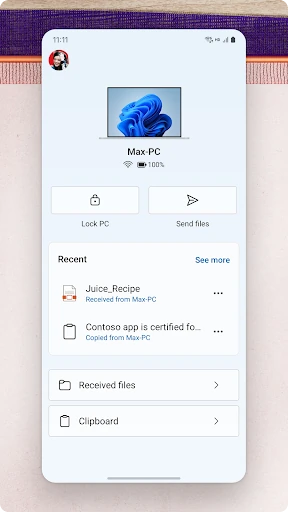
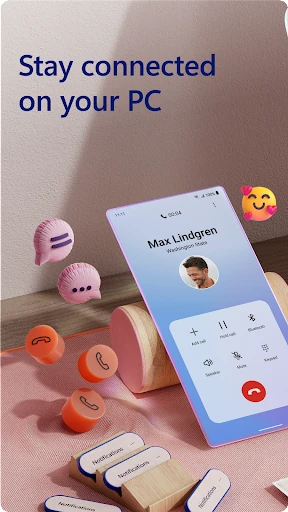
Link to Windows connects an Android phone with Phone Link on a Windows PC, bringing texts, notifications, calls and photos into a desktop workflow. I can see it helping anyone who spends long stretches at a computer and would rather not keep picking up their phone. Its appeal is practical rather than flashy: it can cut down on small interruptions, though some of its more advanced tools depend on having a compatible phone and PC.
A phone within reach
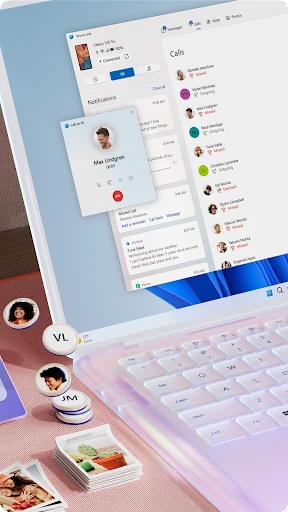
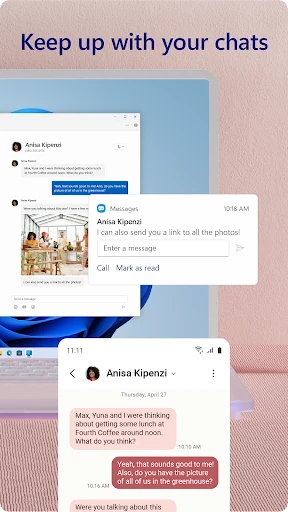
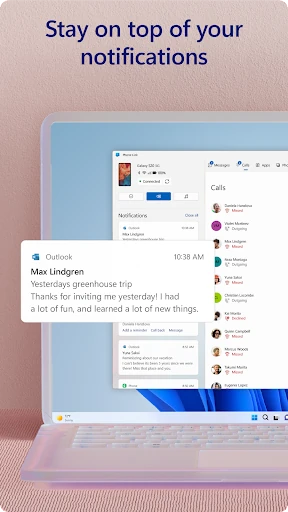
When I first opened Link to Windows, the main idea was easy to picture: keep working on my PC while checking the things that would otherwise pull me toward my phone. Once connected to Phone Link, a new text can be read and answered from the computer, and notifications can be viewed there too. That is especially handy during a work session when I am writing, browsing or in a video call and want to avoid switching devices.
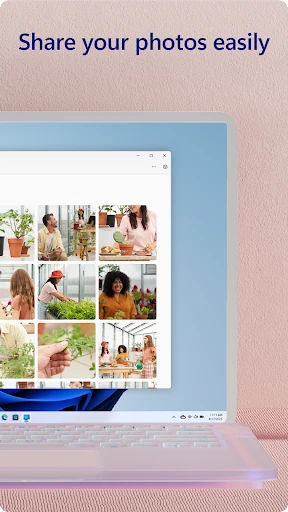
Photos are another everyday reason to use it. Instead of sending an image to myself just to get it onto the computer, I can access phone photos from the PC and move them into a document or message. The app also supports copying and pasting between devices, and, on compatible setups, file drag-and-drop. Those are small conveniences, but they fit naturally into the moments when I am already using both screens.
A desktop companion, not a replacement
Compared with reaching for the phone every time a message arrives, Link to Windows is a useful bridge between devices. It puts selected phone activity alongside the Windows work I am already doing, and the PC's keyboard, mouse and larger screen can make replying or handling photos more comfortable. It is not a separate messaging service or a replacement for the phone itself; the point is to access parts of the phone through the connected PC.
That distinction matters when weighing it against simply using a phone or a web-based service. Link to Windows is built around connecting an Android phone to Phone Link on Windows, rather than offering the same experience across every computer platform. Some capabilities, including phone apps, phone screen and drag-and-drop, are limited to compatible Microsoft Duo, Samsung or HONOR devices. I would not choose it expecting every feature to work on every Android phone.
Make the connection useful
A sensible way to get more from Link to Windows is to connect the devices before settling into a work block, then use the PC as the place to glance at messages and notifications. That keeps the app's role simple: it is a convenient handoff point, not something that needs constant attention. If I need to share a photo, I can access it from the computer rather than creating an extra email or message just to move it.
The workflow can be even more direct when the phone and PC support the relevant features. Copying and pasting across devices can help with short bits of text, while file drag-and-drop can avoid a separate transfer step. Calls from the PC are another option when the computer has Bluetooth and meets the stated Windows requirement. I would check which features apply to my devices, then build a routine around the ones I actually use.
More From Our News Desk

Zoom Meetings, Google Meet, or Teams: Which Is Easiest to Join?

How I Build a Free Streaming Lineup With Tubi

Why Crunchyroll Is the Default Anime App for So Many Fans

YouTube TV: A Practical Guide to Cutting Cable

Rummikub and the Small Comfort of Phone Games

TeamViewer Remote Control or AnyDesk for Helping Family?
Who will get the most from it
I would recommend Link to Windows to people who use an Android phone and a Windows PC side by side, especially anyone who spends much of the day typing at a computer. Text replies, notifications and phone photos are the practical draw. It can also be useful for people who want to keep their phone out of hand during focused work but still need to see selected activity on a larger screen.
It may be less appealing if you rarely use a PC, want a phone-to-computer tool for a different desktop platform, or expect every advanced feature to work with any Android device. The deeper experience depends on compatible hardware and Windows requirements. I would treat it as a companion for a particular two-device routine, not as an essential app for someone who is already happy handling everything on the phone.
Link to Windows is a free productivity app from Microsoft Corporation. On Google Play, it has over a billion installs and a 3.9-star rating from about 1.3 million ratings. It is rated Everyone. The app is free, with no in-app purchases and no ads, according to the supplied store details.
The supplied version is 1.26101.103.0, with a release date of December 16, 2015, and a last update date of October 26, 2026. A minimum Android version is not provided in the supplied details. Some Phone Link capabilities have their own requirements, including Android 11 for the multiple-apps experience.
The Everyday Value of a Phone Link
Getting connected
My first impression is that Link to Windows is best understood as one half of a connection rather than a standalone phone hub. The Android app pairs with Phone Link on a Windows PC, so the experience depends on having both devices in the picture. That framing helps set expectations: the useful result is seeing phone activity from the computer, not browsing a collection of features in isolation.
Microsoft's instructions describe installing Link to Windows on the Android phone and connecting it with Phone Link on the PC. For select Microsoft Duo, Samsung and HONOR phones, the app may already be integrated, so a separate Play Store download is not needed. I would start by checking that both devices are supported and then focus on the functions I want, rather than assuming every option is available.
The daily handoff
The day-to-day appeal is less about one dramatic task and more about avoiding repeated little interruptions. I can read and reply to texts from the PC, check notifications and see phone photos without switching attention back and forth as often. When I am already using a keyboard, answering a short message there feels like a natural extension of the work at hand.
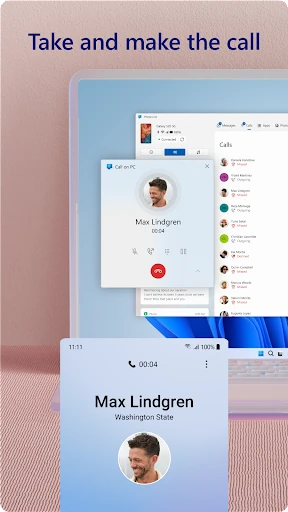
Calls can also be made and received from the computer, but this feature has a stated condition: the Windows 10 PC needs Bluetooth capability. That is worth keeping in mind before building a routine around desktop calling. In general, Link to Windows is most useful when the phone and PC are both nearby and I have a clear reason to handle phone activity from the larger device.
Useful cross-device tools
The strongest features are the ones that remove a needless transfer step. Phone photos can be accessed on the PC, and the description says they can be copied, edited and dragged and dropped without touching the phone. The app also supports copying and pasting content between phone and PC. Together, these tools make the connection feel relevant to ordinary tasks such as moving an image into a document or carrying text between screens.
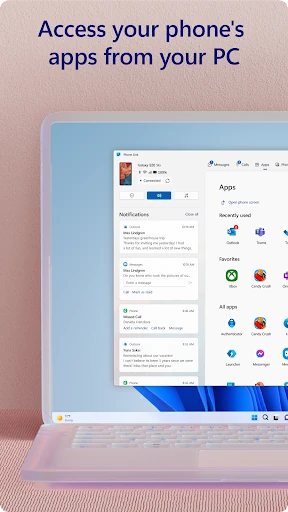
On compatible phones, Phone Link can provide access to mobile apps and a phone screen on the PC, along with file drag-and-drop and cross-device copy and paste. These are not universal features: Microsoft names select Duo, Samsung and HONOR devices for the enhanced experience. I would regard them as a bonus when supported, rather than the baseline reason to install Link to Windows.
A practical work routine
Picture a typical stretch of desk work: I am drafting an email on the PC, a text arrives, and I can read and answer it without picking up the phone. Later, I need a photo from the phone for the same task, so I access it from the computer instead of emailing it to myself. The app's value comes from those small handoffs fitting into one working session.
For a more focused routine, I would decide which notifications I need to see and use the PC connection when it is convenient, rather than treating the phone feed as another inbox to monitor constantly. If cross-device copying or file movement is supported by my devices, those can become part of the same flow. The best habit is to use the connection to reduce friction, not add another reason to watch a screen.
Compatibility has limits
The main limitation is that the experience is tied to Android and Windows, with some functions tied to specific phone models and PC conditions. The description reserves features such as phone screen, apps and drag-and-drop for compatible Microsoft Duo, Samsung or HONOR devices. The multiple-apps experience also calls for Android 11 and a Windows 10 PC with the May 2020 Update or later and at least 8GB of RAM.
That means I would avoid judging the app only by the full list of possible Phone Link features. A basic connection can still cover messages, notifications and photos, while the more ambitious interaction depends on the particular setup. Calls have a separate Bluetooth requirement on Windows 10. Checking the relevant device and PC support before relying on a feature can prevent disappointment.
Link to Windows makes the most sense as a practical bridge for people who already work with an Android phone and a Windows PC. Messages, notifications and photos are straightforward reasons to keep the connection around, and cross-device copying can save a few repetitive steps. I like its focus on everyday convenience, even if the experience is not identical across devices.
I would try it if my routine regularly shifts between phone and PC, while keeping expectations modest about advanced features until checking compatibility. If I mostly use one device at a time, it may not change much. For a two-screen workday, though, Link to Windows is a useful way to bring selected phone tasks closer to the keyboard.
Link to Windows Frequently Asked Questions
What is Link to Windows used for?
Link to Windows connects an Android phone with Phone Link on a Windows PC. It lets you view and reply to texts, manage phone notifications, access photos and, in supported setups, make calls, use phone apps, move files or copy and paste between devices. Which features are available depends on the connected phone and PC.
Which devices can use Link to Windows?
The app is for Android phones used with Phone Link on a Windows PC. Some advanced features are described for compatible Microsoft Duo, Samsung and HONOR devices, while desktop calling requires a Windows 10 PC with Bluetooth. Feature support varies by setup, so check the Google Play details and device compatibility information before relying on a particular function.
What Android version does Link to Windows require?
A minimum Android version for the app as a whole is not provided in the supplied details. One specific feature, the multiple-apps experience, requires Android 11, along with a Windows 10 PC running the May 2020 Update or later and at least 8GB of RAM. Check the Google Play store for requirements that apply to your device.
Does Link to Windows cost money?
Link to Windows is free on Google Play, and the supplied store details say it has no in-app purchases and no ads. The app works alongside Phone Link on a Windows PC. Store details and availability can vary, so it is worth checking Google Play for the current information before installing.
Is Link to Windows a good fit for me?
It is a good fit if you use an Android phone and Windows PC together and want to handle texts, notifications or photos from the computer. People who seldom use a PC may get less from it, and not every advanced feature works with every phone. I would check compatibility if a particular feature is important to your routine.
Pros
- Brings texts, notifications and phone photos into a Windows PC workflow.
- Cross-device copy and paste can reduce repetitive transfer steps.
- Free to use, with no ads or in-app purchases in the supplied store details.
- Can support calls and mobile apps on compatible device combinations.
Cons
- Some advanced features are limited to compatible Microsoft Duo, Samsung or HONOR phones.
- Desktop calling requires a Windows 10 PC with Bluetooth capability.
- The multiple-apps experience has specific Windows, memory and Android requirements.
- Category
- Productivity
- Version
- 1.26101.103.0