Microphone
- 72.30K
- 3.6
- Installs
- 10.00M
- Price
- Free

Screenshots
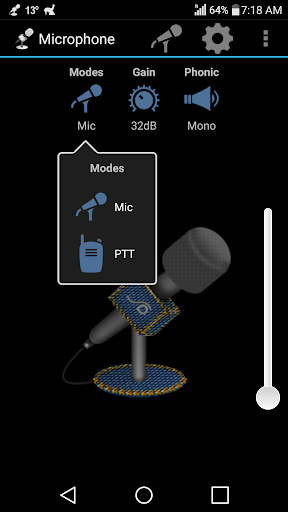
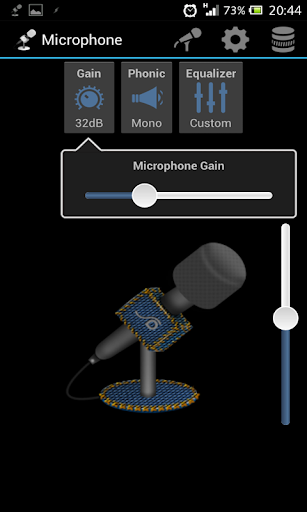
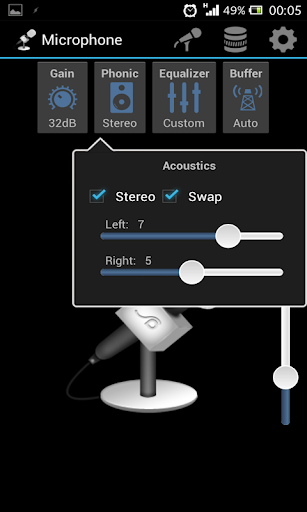
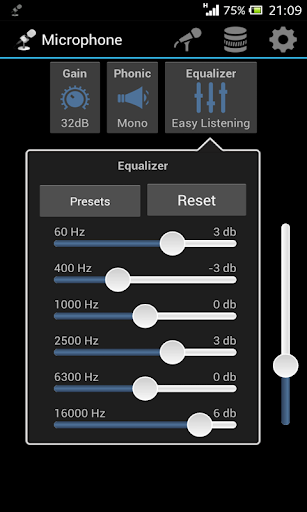
Analysis by Reviewed APKs
Microphone is an Android tools app for routing a phone’s microphone input to a speaker, with controls for amplification, channel balance, equalization, and audio input and output choices. I see it as a focused utility for people who want to experiment with live mic-to-speaker sound rather than record or edit audio. Its useful adjustments give it more depth than a bare switch, though the modest Google Play rating suggests it may not suit everyone.
A Quick Mic-to-Speaker Setup
When I first considered how I’d use Microphone, the most natural scenario was an ordinary room where I wanted a phone’s mic audio routed to a speaker. The app’s central job is straightforward: connect microphone input with speaker output, then adjust the sound if needed. Instead of treating the phone as a recording studio, I’d treat it as a small audio-routing tool for a simple live listening setup.
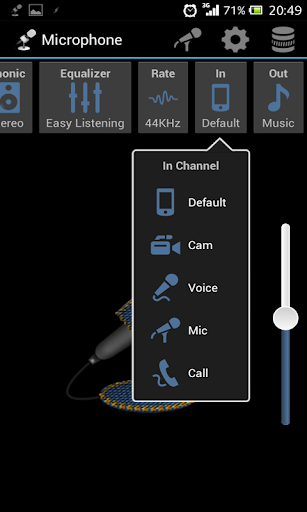
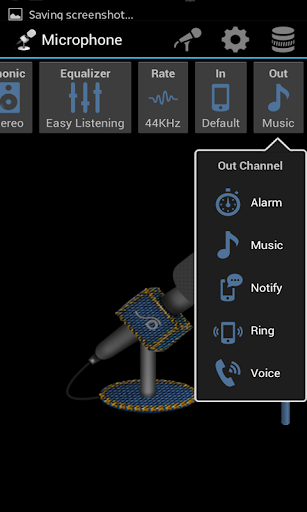
I’d start by choosing the relevant line-in and line-out options, then check whether mono or stereo output and the balance controls suit the setup. If the sound needed adjustment, the amplifier and equalizer are there to try. That sequence is practical because it begins with getting audio from input to output, then moves to refinement. It also makes clear that the result depends on the connected audio setup, not just the app.
A Utility, Not a Recorder
Compared with a general-purpose audio recorder, Microphone is aimed at routing and playback rather than capturing, organizing, or editing recordings. Its feature set centers on sending mic audio to a speaker and adjusting how that output behaves. I’d reach for a dedicated recording app when I wanted to save takes or work on recorded files; this app is the more relevant choice when the immediate goal is hearing microphone input through an output.
It also isn’t a complete sound system or a promise of studio-quality audio. The available controls—amplification, equalization, channel balance, sampling rate, and line selection—offer some ways to shape a setup, but they don’t replace suitable hardware or a purpose-built production workflow. I’d view it as a practical tool for a narrow job, not a podcast suite, noise-removal tool, or all-in-one music workstation.
Small Setup Habits
A useful habit is to check the input and output selections before changing sound settings. If the routing is wrong, adjusting the equalizer or amplifier is unlikely to solve the real problem. Once the line-in and line-out choices make sense for the setup, I’d listen and make one change at a time. That keeps the process understandable, especially when several controls could affect what comes through the speaker.
The widget support can make repeat use more convenient: the app supports a lock-screen widget and a resizable widget. Locale and Tasker plugin support may also fit into a more automated routine for people who already use those tools. I’d keep the workflow simple at first, then decide whether a widget or plugin is actually useful. There’s little value in adding steps to a small utility unless they save time.
More From Our News Desk

Zoom Meetings, Google Meet, or Teams: Which Is Easiest to Join?

How I Build a Free Streaming Lineup With Tubi

Why Crunchyroll Is the Default Anime App for So Many Fans

YouTube TV: A Practical Guide to Cutting Cable

Rummikub and the Small Comfort of Phone Games

TeamViewer Remote Control or AnyDesk for Helping Family?
Who Might Find It Useful
I’d recommend Microphone to Android users who want a compact way to route mic input to a speaker and appreciate having a few audio controls to try. The amplifier, equalizer, mono/stereo balance, and sampling-rate options give curious users room to adjust a setup without making the app’s main purpose hard to understand. Widget support and Locale/Tasker plugin compatibility are additional reasons it may fit into an existing routine.
It may be a poor match for anyone looking for recording, editing, noise reduction, or a polished professional audio workflow; those aren’t the stated functions. It may also frustrate someone who expects every speaker and phone combination to behave identically, since the app’s value depends on the connected setup. With a 3.6-star Google Play rating, I’d approach it as a specific utility worth testing, rather than an automatic recommendation for every user.
Microphone is a free Android tools app from Wonder Grace. Google Play shows over 10 million installs and a 3.6-star rating from about 72,300 ratings. It is rated Everyone. Those figures offer a useful snapshot of the app’s reach and reception, but they don’t tell me whether it will work equally well with every phone, speaker, or audio connection.
The supplied app details identify version 1.12, released March 20, 2013, with its latest update dated July 26, 2025. The app is free, has no in-app purchases, and contains no ads. No minimum Android version is specified in the supplied facts, so users should check the Google Play store for device compatibility before installing.
A Closer Look at the Audio Controls
First Setup Impressions
The first thing I’d want to establish with Microphone is the basic route: microphone input to speaker output. That gives the app a clear starting point, without requiring me to think of it as a recorder or a library of audio files. Its listed controls suggest that setup comes first and sound adjustments follow, which is a sensible order for a tool built around live routing.
I’d pay particular attention to the line-in and line-out selections before judging the sound. Those choices are more fundamental than an equalizer tweak, because they define how audio moves through the setup. Sampling-rate selection adds another option for users who want to adjust the configuration. I’d keep the initial test modest: confirm the route, listen, and only then try the extra controls.
Everyday Routing
In day-to-day use, the appeal is that the app stays focused on a single task. When I want mic input sent to a speaker, I don’t need a broader recording workflow just to reach that goal. The amplifier provides a way to adjust the signal, while mono/stereo and individual channel balance offer a little more control over how output is distributed.
That focus also defines the app’s limits. Microphone is not described as saving recordings or applying noise reduction, so I wouldn’t rely on it for those jobs. Instead, I’d use it for a live routing setup and treat the audio controls as adjustments to that setup. It makes most sense when the immediate need is sound through a speaker, rather than a finished audio file.
Controls With a Purpose
The amplifier and equalizer are the most immediately understandable extras. One gives users a way to adjust amplification, while the other lets them make equalizer adjustments. I’d approach both carefully, changing settings in small steps so it’s easier to tell what improved or worsened the output. The point is not to chase an ideal sound on paper, but to make the connected setup more usable.
Mono/stereo modes and individual channel balance make the app more than a simple routing toggle. They give users options for handling output channels, while line-in and line-out selection and sampling-rate selection address the setup itself. These features are particularly relevant to someone who enjoys troubleshooting audio connections. They are less important to a user who simply wants a one-tap recording app.
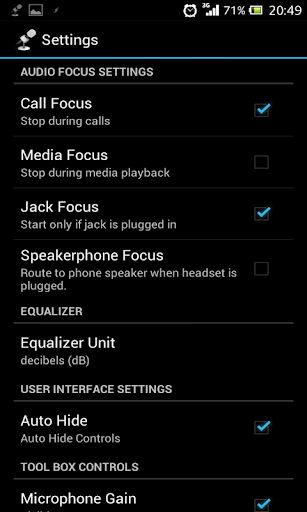
Widget support is a practical convenience rather than a sound feature. Microphone supports lock-screen and resizable widgets, which could help users who return to the same routing task often. Locale and Tasker plugin support may suit users who already build workflows with those tools. I’d count these as useful extras, not requirements for getting the app’s main job done.
A Repeatable Routine
For a recurring setup, I’d make a short routine of checking the route, confirming the output, and listening before touching the equalizer. If the sound needs a change, I’d adjust one control at a time and then listen again. That approach makes it easier to spot which setting mattered, rather than changing amplification, balance, and equalization all at once.
Once the setup behaves the way I want, a widget may make returning to the app more convenient. A lock-screen or resizable widget could suit a routine where I use the same routing function regularly. Locale or Tasker support may be worth exploring for users who already rely on those tools, but I wouldn’t add automation just for its own sake. A simple manual routine may be all that’s needed.
Keep Expectations Grounded
The biggest limitation is the narrow purpose. Microphone routes mic audio to a speaker, but the listed features don’t include recording, editing, or noise reduction. Anyone looking for a full audio-production app should look elsewhere. Even the sound-shaping options are adjustments, not a replacement for a broader studio workflow or appropriate external audio equipment.
The second consideration is that a routing app has to fit the user’s device and connected audio setup. The supplied facts don’t state a minimum Android version, so I’d check compatibility in Google Play before relying on it. The 3.6-star rating also makes me cautious about recommending it universally. I’d try it for the specific routing task and judge whether it works well with my own setup.
Microphone has a clear, useful idea: route microphone input to a speaker and offer a handful of controls for shaping that setup. Amplification, equalization, channel balance, sampling rate, widgets, and plugin support give it more flexibility than a bare routing switch, without changing its focused nature.
I’d recommend it to Android users who want that particular mic-to-speaker function and are comfortable checking their own audio setup. I wouldn’t choose it for recording or editing, and I’d keep expectations measured given its 3.6-star rating. For the right narrow use, it’s worth a try.
Microphone Frequently Asked Questions
What is Microphone used for?
Microphone is used to route microphone audio to a speaker. It includes an amplifier, mono/stereo options with individual channel balance, equalizer adjustments, line-in and line-out selection, sampling-rate selection, and widget support. It is a focused routing utility, not an app described as recording or editing audio.
Which devices can run Microphone?
Microphone is an Android app. The supplied details don’t specify a minimum Android version, and compatibility can vary by device. Check the Google Play store page for the current requirements for your phone or tablet before installing, especially if you plan to use it with a particular audio setup.
Does Microphone cost money?
Microphone is free on Google Play, with no in-app purchases and no ads according to the supplied app facts. Store details can change over time, so it’s sensible to check the Google Play page before downloading if you want the latest information about availability or costs.
Does Microphone record audio?
The described purpose of Microphone is routing mic input to a speaker, with controls such as amplification and equalization. Recording is not among the features provided in the app description. If your main goal is to save or edit audio, look for an app that specifically offers those functions.
Who is Microphone best suited to?
It may suit Android users who want to send microphone audio to a speaker and make adjustments to channels, amplification, or equalization. Widget and Locale/Tasker plugin support may also appeal to people who use those options. It is less suited to users seeking a recording studio, editing tools, or noise reduction.
Pros
- Focused mic-to-speaker routing with amplifier and equalizer adjustments.
- Offers mono/stereo options and individual channel balance controls.
- Supports lock-screen and resizable widgets, plus Locale/Tasker plugins.
- Free to use, with no ads or in-app purchases.
Cons
- Does not list recording, editing, or noise-reduction features.
- A 3.6-star Google Play rating suggests a mixed user reception.
- The minimum Android version is not specified in the supplied facts.
- Category
- Tools
- Version
- 1.12











