Insignia TV Remote
- 3.19K
- 4
- Installs
- 500.00K
- Price
- Free
Screenshots
Analysis by Reviewed APKs
Insignia TV Remote turns an Android phone with an IR blaster into a backup remote for an Insignia TV. It covers familiar controls, including power, volume, channels, input, and menu navigation. I like the idea most for those moments when the physical remote has vanished into the couch. It is a practical little tool, provided your phone has the hardware it needs.
When the couch keeps the remote
Picture settling down to watch TV and realizing the remote is somewhere under a blanket. That is the situation where I would reach for Insignia TV Remote. The phone is already nearby, and the app puts power, volume, mute, and channel controls in one place. Rather than turning the room upside down, I can try a button and get back to what I meant to watch.
The input control matters in that same small crisis. If the TV is on the wrong source, changing channels will not help, but Input might. I also appreciate having Home and Menu available for the times when a quick volume adjustment turns into a little navigation. This is not an elaborate TV companion; its appeal is that the ordinary remote jobs are close at hand.
A backup, not a new TV
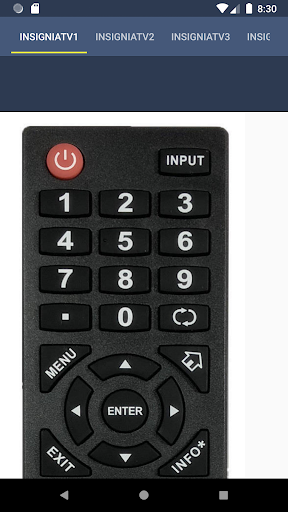
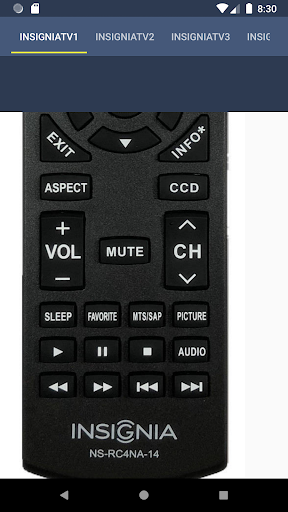
A physical remote still has one big advantage: anyone in the room can pick it up without borrowing my phone. Insignia TV Remote makes more sense to me as a spare that is already in my pocket. It has a broader set of familiar buttons than a bare power-and-volume substitute, including a keypad, previous-channel control, and multimedia buttons.
I would not choose it expecting a streaming catalog, voice search, or smart-home control. Its described job is to send remote commands to an Insignia TV from a phone with an IR blaster. That distinction matters if you are comparing it with TV apps built around browsing shows or controlling connected devices. Here, the useful question is simpler: does your phone have IR, and do the controls work with your TV?
A few buttons worth learning
My first habit with a replacement remote is to test the essential buttons before I need them. With this app, I would start with Power, as its instructions suggest, then check volume, mute, and input while the TV is in front of me. That gives me a better sense of which remote option to use than discovering a mismatch halfway through a movie.
After that, I would learn the buttons I tend to overlook. Pre Channel is handy when switching between two channels, while the keypad can be more direct than repeated channel presses. I would also check Home, Menu, and Settings during a quiet moment. A phone remote is more useful when I already know where to go for a routine adjustment.
More From Our News Desk

Zoom Meetings, Google Meet, or Teams: Which Is Easiest to Join?

How I Build a Free Streaming Lineup With Tubi

Why Crunchyroll Is the Default Anime App for So Many Fans

YouTube TV: A Practical Guide to Cutting Cable

Rummikub and the Small Comfort of Phone Games

TeamViewer Remote Control or AnyDesk for Helping Family?
Who will get the most use
I would recommend Insignia TV Remote to an Insignia TV owner who has an Android phone with an IR blaster and wants a backup for basic viewing controls. It is especially appealing if the physical remote has a habit of disappearing or if you like having a spare without keeping another object on the coffee table. The range of buttons makes it worth a look beyond emergencies.
It is a poor fit if your phone does not have an IR blaster; that hardware requirement is central to how the app is described. I would also steer clear if what you really want is a way to browse streaming services or control other smart-home gear from your phone. For those needs, a remote-style button panel is not the same thing.
Insignia TV Remote is a Tools app from Remote Planet. On Google Play, it has more than 500,000 installs and a 4.0-star rating from around 3,200 ratings. Those figures suggest plenty of people have tried it, though they do not tell me whether a particular phone and TV will work well together. The app carries an Everyone content rating.
The app is free to download and contains ads, with no in-app purchases. Its current version is 1.1.19. It was released on October 28, 2019, and last updated on September 15, 2025. For me, the more immediate setup detail is the one in its instructions: the phone needs an IR blaster, and you may need to check a remote option by pressing a button.
Living with a remote in my phone
Starting with the power button
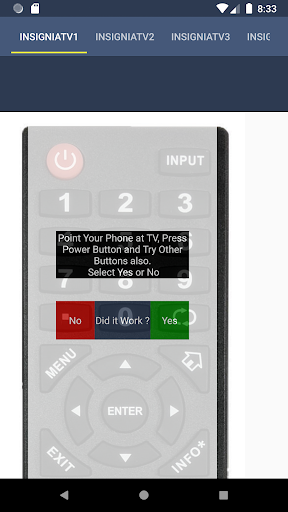
When I first approached the app, I kept my expectations narrow: could I use it like the remote I already know? Its setup guidance is refreshingly direct. Install it, try a remote option, and press Power or another button to check it. I would do that while standing near the TV rather than waiting until I was settled in for the night.
That initial check is important because the app depends on a feature of the phone, not just an installation. An IR blaster is the requirement to sort out first. I would then try a few different commands before relying on the app as my only nearby remote. Power working is a good start, but volume and input are the buttons I reach for most often.
The everyday button test
In day-to-day use, a remote earns its place through small, frequent actions. I turn the volume down when someone starts talking, mute the TV for a moment, or move up a channel without thinking much about it. Insignia TV Remote includes controls for each of those jobs, so its button set matches the sort of interruptions that happen during an ordinary evening.
The navigation controls widen its usefulness. Home, Menu, and Settings are there when I need to get beyond what is playing, and Input helps when I want to change what the TV is showing. I would still keep the physical remote around if it is available. A phone makes a convenient fallback, but finding and opening an app takes a different kind of effort.
More than power and volume
What surprised me about the described controls was how many less-obvious remote buttons made the cut. Pre Channel gives me a quicker way back to what I was watching, and the keypad offers direct number entry. Those are easy to dismiss until I am flipping between programs and realize how tedious repeated channel presses can feel.
The multimedia buttons are another useful inclusion for a remote-style app. I would check them with whatever I normally watch rather than assume every button will behave the same way in every situation. The main point is that this is meant to cover the familiar spread of controls on a TV remote, not merely act as an emergency on-off switch.
A simple evening routine
I can see myself using this most when I sit down with my phone and the TV is already on. I would tap Input if the wrong source is showing, adjust the volume, then leave the app until I need it again. Later, Mute is the button I would want when a conversation starts. None of that requires building a new viewing routine.
I would take a few minutes beforehand to test the buttons that routine depends on. The app's guidance to try a remote by pressing Power or another control makes sense, but I would not stop after one successful press. Checking Input, Home, and volume early is a small chore that could save fumbling through options when I just want to relax.
Limits before you settle in
The clearest limitation is the IR blaster requirement. If a phone lacks that hardware, this app is not a software-only workaround. I would check the phone before downloading, especially if I was hoping to replace a lost remote that same evening. The app's controls may be familiar, but the phone still needs a way to send them to the TV.
Ads are the other practical trade-off. I do not mind them as much in a backup tool I open occasionally, but they matter more if I plan to use my phone as my everyday remote. I would also avoid expecting features beyond the stated TV controls. Its strength is a recognizable set of buttons, not an all-purpose entertainment hub.
Insignia TV Remote makes the most sense as a spare remote that happens to live on a compatible phone. I like that it includes the ordinary controls I would miss if the physical remote went missing, plus useful extras such as input, previous channel, and a keypad. The straightforward button-checking approach is sensible for getting started.
My recommendation is to try it if you own an Insignia TV and an Android phone with an IR blaster, then test your most-used buttons before depending on it. Keep your expectations focused on remote control rather than streaming or smart-home features. If that is all you need, it could save a search through the couch cushions.
Insignia TV Remote Frequently Asked Questions
What is Insignia TV Remote used for?
Insignia TV Remote is for controlling an Insignia TV from a compatible phone. Its described buttons include power, volume, channels, mute, input, Home, Menu, a keypad, and multimedia controls. I would treat it as a backup or alternative to a physical remote, especially for quick adjustments when the usual remote is out of reach.
Which devices can use Insignia TV Remote?
Insignia TV Remote is available on Google Play for Android phones. Its description says phones need an IR blaster to support the remote function. I would check my phone's hardware before installing it; simply having a smartphone is not enough. The app is intended for controlling an Insignia TV, not for serving as a general device controller.
What Android version does Insignia TV Remote require?
Android compatibility details can vary, so check the current requirements on Google Play for your device. The requirement stated in the app description is an IR blaster on the phone. I would verify both points before counting on the app as a replacement remote, then test a button with the TV once it is installed.
Is Insignia TV Remote free, and does it have purchases?
Insignia TV Remote is free to download. It contains ads and does not offer in-app purchases. That makes it easy to try on a phone with an IR blaster, though the ads are worth considering if you plan to open it frequently. I would test the controls you use most before making it part of your regular TV routine.
Is Insignia TV Remote right for my household?
It may suit a household with an Insignia TV and an Android phone equipped with an IR blaster, particularly if a spare remote would be useful. Its buttons cover common viewing tasks as well as some navigation. If you want streaming discovery, voice features, or smart-home control, I would look for a different kind of app.
Pros
- Covers familiar controls, including input, keypad, Home, and previous channel.
- Offers a convenient backup when the physical Insignia remote goes missing.
- Free to download, with no in-app purchases.
Cons
- Requires a phone with an IR blaster to control the TV.
- Contains ads, which may bother frequent users.
- Focused on remote buttons rather than streaming or smart-home features.
- Category
- Tools
- Version
- 1.1.19











