Google Slides
- 710.20K
- 4.4
- Installs
- 1.00B
- Price
- Free
Screenshots
Analysis by Reviewed APKs
Google Slides is a mobile presentation editor for making, revising, sharing, and presenting slide decks from an Android phone or tablet. I found it most useful for quick edits, shared projects, and the moments when a laptop is out of reach. It is not the easiest place to build a highly polished deck from scratch, but its automatic saving, offline work, and collaboration make it a dependable companion to desktop presentations.
A Deck Between Stops
When I first opened Google Slides, I pictured the familiar last-minute routine: a teammate asks for a wording change while I am away from my desk, and the presentation is needed later that day. On a phone, I can open an existing deck, adjust text, move a slide, or add a comment without waiting to get back to a computer. Changes save as I work, which makes a quick edit feel less like a risky workaround.
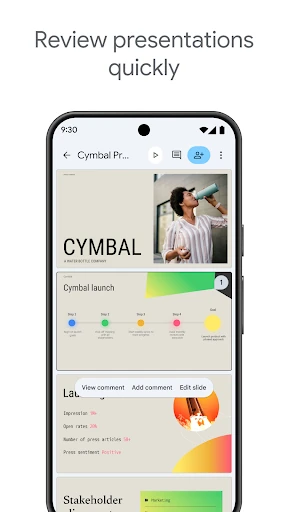
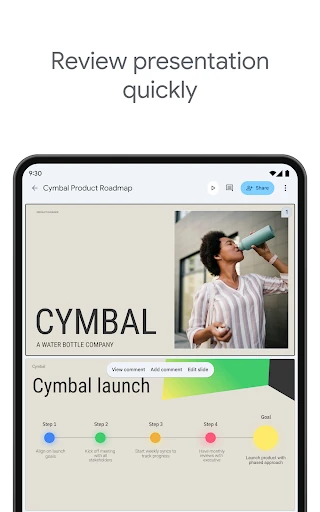
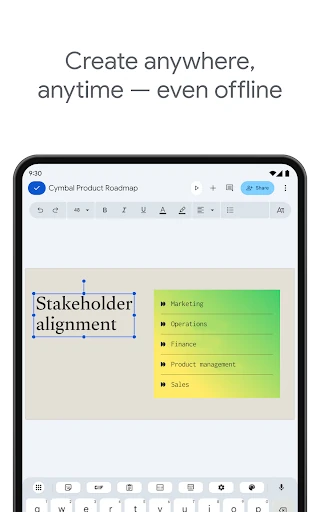
The app also makes sense for a short review before a meeting. I can scroll through slides on a tablet, check the order, and make a small formatting adjustment before presenting from the mobile device. If I have no connection, I can still work offline. That combination suits the stop-and-start nature of real work: a few minutes on a commute, a pause between appointments, or a final check in the room before people arrive.
Mobile Editor, Not Studio
Compared with opening a presentation on a laptop, the phone app is about access and momentum. It covers practical editing—text and shape formatting, adding or rearranging slides, comments, and shared editing—without asking me to wait until I am at a desk. It can also open, edit, and save PowerPoint files, which is useful when someone sends a deck in that format rather than starting a new collaboration.
I would not treat a small screen as the ideal setting for intricate slide design or a long stretch of detailed layout work. The app is a companion for editing, reviewing, collaborating, and presenting, rather than a reason to abandon a larger display for every task. It also is not a general-purpose document editor: its job is presentations. For broader team communication, Google describes Slides as part of Google Workspace, not as a replacement for every tool a team uses.
Small Habits That Help
I get more from a mobile editor when I give each visit a narrow purpose. I might use one pass to check the story and slide order, then another to correct wording or leave comments for a collaborator. That keeps me from trying to perfect every visual detail with my thumbs. Automatic saving is reassuring, but a quick review of the finished deck still helps catch a change that looked different on a small screen.
For shared work, I would settle permissions before sending a presentation around. Google Slides supports sharing with edit, view, or comment access, so choosing the right level can keep feedback useful without handing everyone the same control. Offline access is another habit worth planning around: open the presentation and do the work while disconnected, then allow time for connectivity to return before relying on the latest changes in a meeting.
More From Our News Desk

Zoom Meetings, Google Meet, or Teams: Which Is Easiest to Join?

How I Build a Free Streaming Lineup With Tubi

Why Crunchyroll Is the Default Anime App for So Many Fans

YouTube TV: A Practical Guide to Cutting Cable

Rummikub and the Small Comfort of Phone Games

TeamViewer Remote Control or AnyDesk for Helping Family?
Who Will Get the Most From It
I would recommend Google Slides to students, coworkers, and anyone who regularly needs to review or adjust presentations away from a computer. It is especially practical when several people need to work on the same deck, when feedback belongs in comments, or when a PowerPoint file needs a quick edit. Being able to present directly from a mobile device also gives it a useful role on the day of a talk.
It may not suit someone who mainly wants to build elaborate presentations on a phone, or who expects a mobile app to feel as spacious as desktop software. Small-screen editing calls for patience, particularly when a slide needs lots of careful visual adjustments. If your presentation work is occasional and solo, the collaboration features may matter less; if you already work in shared decks, they are a more compelling reason to keep the app handy.
Google Slides is a productivity app from Google LLC. On Google Play it has over one billion installs and a 4.4-star rating from around 710,000 ratings. The app is free, with no in-app purchases or ads. Its content rating is Everyone, and its version varies with the device.
The Android app was released on June 25, 2014, and the store information gives November 2, 2026 as its latest update date. A minimum Android version is not provided in the available app facts, so check Google Play for the requirement that applies to your device. Google describes Slides as part of Google Workspace, with additional features available to Workspace subscribers.
How Slides Holds Up on a Phone
A Familiar Start
My first impression is that Google Slides is built around getting into a presentation and doing useful work, rather than turning the phone into a miniature design desk. The basic promise is clear: create or edit decks, share them, and present from an Android phone or tablet. For someone who already handles presentations, that makes the app feel straightforward in purpose, even when the screen puts limits on how much I want to adjust at once.
Getting started can mean creating a new presentation or opening an existing one. The description also says Workspace subscribers can start from scratch or choose a template, and can add videos, images, drawings, and transitions. That range is appealing, but I would still plan the more involved design work on a larger screen. On mobile, I find it more natural to begin with a specific task than to explore every possible formatting choice.
The Everyday Editing
Day to day, the useful part is being able to make a focused change wherever I happen to be. I can add or rearrange slides, format text and shapes, and leave or respond to comments. Those are the kinds of edits that keep a project moving while a group is still shaping its message. Automatic saving as I type removes the extra step of remembering to save after every small adjustment.
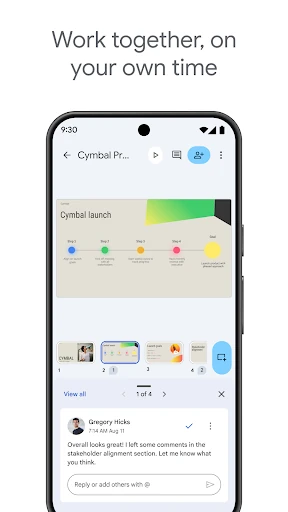
Collaboration is one of the app's strongest practical reasons to exist. More than one person can work in the same presentation at the same time, and access can be set for editing, viewing, or commenting. I like that this lets a deck serve as a shared working space rather than an attachment passed back and forth. Comments give feedback a place to live beside the presentation, instead of leaving me to reconstruct it from a separate conversation.
Useful Extras
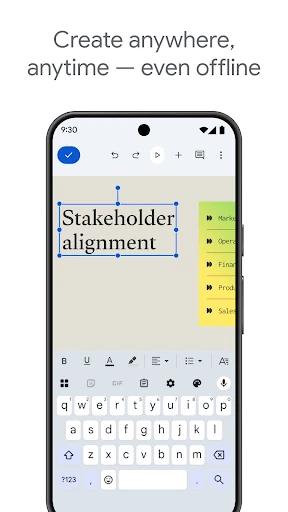
Offline work is a standout feature for a mobile app because a weak connection does not have to end an editing session. I can keep working when disconnected, which is handy in transit or in a room with unreliable service. I would still make sure I have time to reconnect before I depend on a newly edited version elsewhere, but the option makes the app more than a viewer for moments with a strong signal.
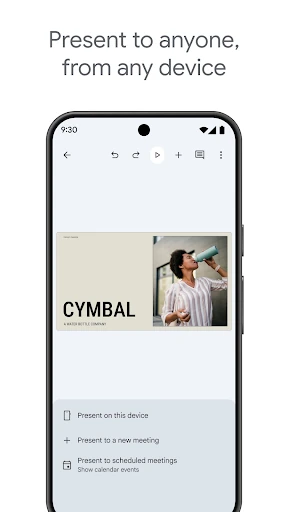
Presenting from the mobile device is another useful part of the package. The description also says scheduled meetings automatically appear for presenting slides to video calls. That can shorten the jump from reviewing a deck to using it in a call. I would check the presentation on the device beforehand, though; a deck that looks comfortable on a laptop may feel different when I am navigating it from a phone.
I also appreciate that Slides can open, edit, and save PowerPoint files. That helps when colleagues or classmates share a deck in Microsoft's format, rather than expecting every project to begin in the same app. Smart suggestions are described as a way to make slides quickly, while Workspace subscribers get additional features. The exact value of those extras depends on how often I create decks and what my team already uses.
A Practical Review Loop
A routine that works well for me starts with a quick pass through the deck, looking at the sequence rather than polishing every slide. I can move a slide if the order feels wrong, fix a line of text, and leave a comment where a teammate needs to make a decision. That is enough to turn a spare few minutes into forward progress without pretending that a phone is the best tool for every design choice.
Later, I can revisit the presentation to respond to comments or make the agreed changes. If the deck needs to be shown in a meeting, I can use the mobile device to present it, including in a video call. For a disconnected stretch, offline work gives me another window to review and edit. This staged approach feels more comfortable than trying to build and finish an entire presentation during one phone session.
Limits to Keep in Mind
The main trade-off is screen space. Formatting text and shapes is supported, but small controls and a compact view are not as forgiving as a larger display when I need to fine-tune a complicated slide. I see mobile editing as a way to keep a presentation moving, not as a promise that every task will be faster on a phone. A tablet gives the content more room, though it still does not change the app's focus on mobile use.
Some features depend on the account context. Google says Workspace subscribers have access to additional Slides features, including collaboration and options such as templates and media additions. That makes it sensible to check what is available for the account being used instead of assuming every user sees the same package. The core app remains useful for opening, editing, sharing, and presenting, but a team should consider its Workspace setup when planning a shared workflow.
Finally, offline editing is useful but does not remove the need to think about when changes will be available to other people. If I am preparing for a presentation, I would make time to reconnect and check the deck before relying on it in a meeting. That is a modest planning step, not a major flaw, but it matters when the whole point of the last-minute edit is that everyone else needs to see it.
Google Slides earns its place on my phone by making presentation work portable. Editing, comments, shared access, offline work, automatic saving, PowerPoint support, and mobile presenting cover a convincing set of everyday needs. I still prefer a larger screen for detailed design, but I do not need one just to fix a slide or keep a group project moving.
I recommend it to anyone who works with shared presentations or wants to review and present a deck away from a desk. It is less compelling as a phone-first design studio, and occasional users may not need its collaboration tools. For quick revisions and practical access to existing decks, though, it is a capable, low-friction option.
Google Slides Frequently Asked Questions
What is Google Slides used for?
Google Slides is used to create, edit, share, and present slide presentations from an Android phone or tablet. It supports comments, simultaneous collaboration, adding and rearranging slides, formatting text and shapes, and offline work. It can also open, edit, and save PowerPoint files, making it useful for both new decks and presentation files shared by others.
Which devices can run Google Slides?
The app is described for Android phones and tablets. Google also describes Workspace use across PCs, Macs, mobiles, and tablets, but the app reviewed here is the Android version. Check Google Play for the minimum Android version that applies to your device, since that requirement can vary with the current app release and device.
Does Google Slides cost anything?
Google Slides is free on Google Play, and the app facts show no in-app purchases or ads. Google says Workspace subscribers can access additional Slides features, so the features available to an account may depend on its Workspace subscription. Check the Google Play store and Workspace details for current terms that apply to you.
What Android version does Google Slides require?
The minimum Android version is not provided in the app facts available here. Requirements can change with updates and may vary by device, so check the Google Slides page on Google Play before installing or updating. The version is described as varying with the device.
Is Google Slides good for beginners or teams?
It can suit beginners who need to make straightforward presentation edits, and teams that want to share a deck, collaborate at the same time, and exchange comments. Permission options include editing, viewing, or commenting. People doing detailed visual design on a phone may prefer a larger screen, while Workspace subscribers may have access to additional features.
Pros
- Automatic saving and offline editing make quick mobile revisions practical.
- Shared editing and comments help keep feedback attached to the presentation.
- Can present from a mobile device and work with PowerPoint files.
- Free to use, with no ads or in-app purchases.
Cons
- A phone screen can make detailed slide formatting feel cramped.
- Some additional features are available to Workspace subscribers.
- The minimum Android version should be checked on Google Play.
- Category
- Productivity