Format Factory-Video Converter
- 12
- 4.4
- Installs
- —
- Price
- Free
Screenshots
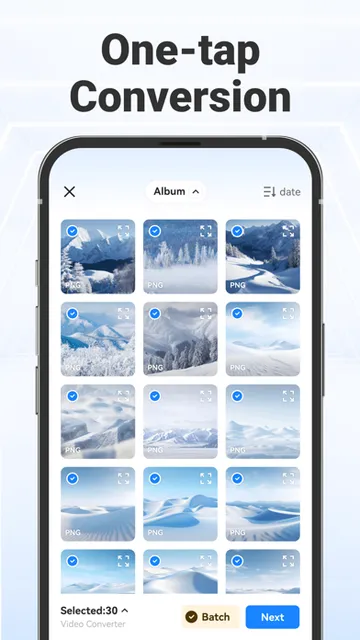
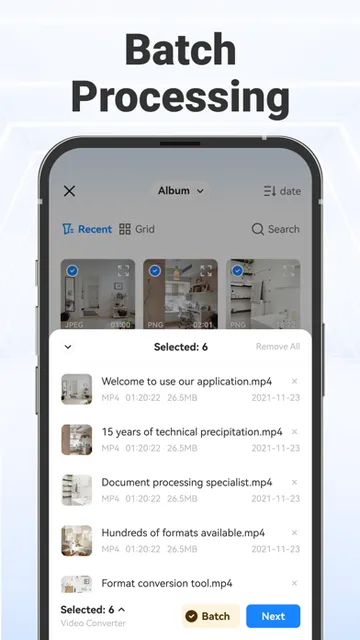
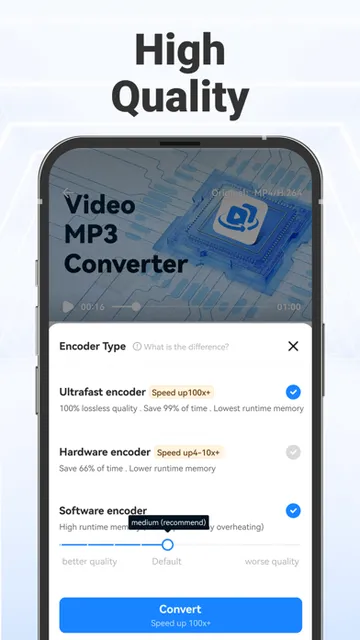
Analysis by Reviewed APKs
Format Factory-Video Converter is an iOS utility for changing video, audio, and image files into other formats, with extra tools for trimming, compression, and audio extraction. I see it as a practical fit for people who regularly move media between devices or need to make a file smaller or more compatible. Its broad toolset is appealing, though subscription options are worth checking before settling into a routine.
A Fix for Awkward Files
Picture trying to share a video that is too large to send, or finding that a clip will not play where you need it. Format Factory-Video Converter is built for that sort of friction. I would open it when a file needs a different format, a lower size, or a quick trim before sharing. It also handles audio and image conversion, so the same utility can help with more than just video.
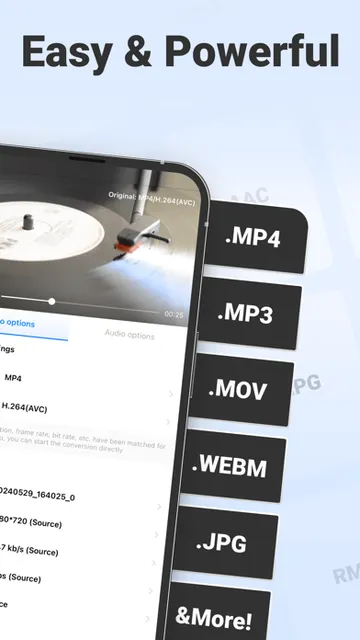
The useful part is the range of adjustments available. For video, the description lists options such as resolution, bitrate, and frame rate, along with a long selection of formats. I can see myself using those controls when a basic format change is not enough, such as preparing a large clip for easier storage. The app also offers video-to-audio extraction, which is handy when I only need the sound from a recording.
A Converter, Not an Editor
Compared with a dedicated video editor, this app is aimed at file handling rather than building a polished story. Its described tools focus on conversion, compression, trimming, and merging audio. That makes it a more relevant choice when I need to change a file’s format or size than when I want a timeline-based project with elaborate effects. The listing describes format and quality controls, not a full production workflow.
It also covers more ground than a single-purpose video converter because it includes audio and image conversion. That breadth could be useful if I occasionally need to turn a video into an MP3, merge audio files, or convert an image between supported formats. Still, I would not choose it as a replacement for a full photo editor or audio workstation. Its appeal is having several straightforward media utilities together.
Make Conversion a Habit
A simple workflow is to check what the destination needs before converting. If a video is meant to be easier to share, I would consider the size and resolution first; if it needs to play in a particular setting, I would pay attention to the format and codec choices. The app describes adjustable video and audio settings, so there is room to tailor the result instead of treating every conversion as identical.
For recurring tasks, I would keep the original file until I have checked the converted version, especially after changing its size or quality settings. That is a sensible media habit, not a special app feature. I would also use trimming before conversion when only a short portion matters, and reserve audio extraction for clips where I specifically want a sound file. Small choices like these help keep the output aligned with the task.
More From Our News Desk

Zoom Meetings, Google Meet, or Teams: Which Is Easiest to Join?

How I Build a Free Streaming Lineup With Tubi

Why Crunchyroll Is the Default Anime App for So Many Fans

YouTube TV: A Practical Guide to Cutting Cable

Rummikub and the Small Comfort of Phone Games

TeamViewer Remote Control or AnyDesk for Helping Family?
Who May Find It Useful
I would recommend Format Factory-Video Converter to iPhone and iPad users who often encounter media files that need a format change, a smaller footprint, or a quick trim. People who want video, audio, and image conversion in one utility may appreciate the variety. It also makes sense for someone who occasionally wants to pull audio from a video or join audio files without turning that job into a larger editing project.
It may be less suitable for people who want a full creative editor, advanced effects, or a highly specialized audio production setup. The listed functions are practical file tools, not a promise of a complete studio workflow. I would also suggest checking the subscription details in the App Store before relying on the app regularly, since the description includes renewable membership options and example prices.
Format Factory-Video Converter is developed by Geshi Inc. and is available for iOS through the Apple App Store. It requires iOS 12.1 or later. The current version shown is 1.0.2; the app was released on June 5, 2024, and its most recent update is dated January 28, 2026. The App Store rating is 4.4 out of 5 from 12 ratings.
The app is free to download. Its description also explains auto-renewing subscription options with weekly, monthly, and yearly billing, and gives example prices of $2.99, $4.99, and $17.99 respectively; it says pricing is subject to the in-app purchase information. The App Store age rating is 4+. I’ve left out install totals and ad details because they are not part of the available facts.
A Closer Look at Everyday Conversion
Getting Started
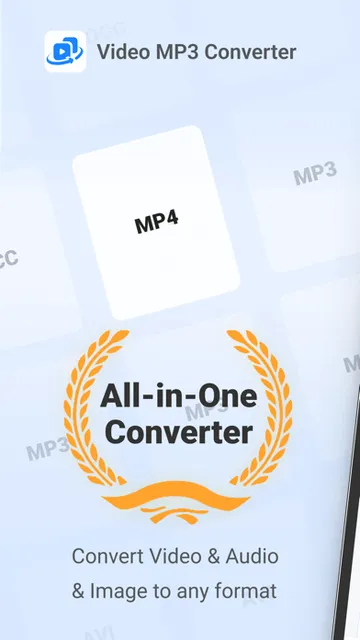
When I first opened a media converter, my main question would be whether it can handle the file I actually have, not just an ideal example. Format Factory-Video Converter describes support for a wide selection of video types, including MP4, MOV, MKV, WMV, and FLV, as well as common audio and image formats. That range gives the app a clear purpose: help make assorted media files more usable.
The description presents the controls as approachable while still allowing adjustments to quality, aspect ratio, codec, and other settings. I like that combination in principle: a quick conversion should not require a technical deep dive, but options matter when the default result is not what I need. Since the app requires iOS 12.1 or later, checking device compatibility is the sensible first step.
The Daily Conversion Loop
The core job is a familiar one: convert a media file, then use it in the format or size that suits the next step. For video, the listed controls include resolution, bitrate, and frame rate, which can matter when preparing a clip for a particular purpose. I would treat those settings as practical choices rather than automatically changing everything; the right balance depends on where the file is going.
Audio conversion covers formats such as MP3, M4A, AAC, WAV, FLAC, and OGG. Image conversion includes JPG, PNG, and HEIC, among others. That mix makes the app relevant beyond a single video problem. What matters in day-to-day use is choosing the right output for the task, then checking the result before deleting or replacing the source.
Tools Beyond Format Changes
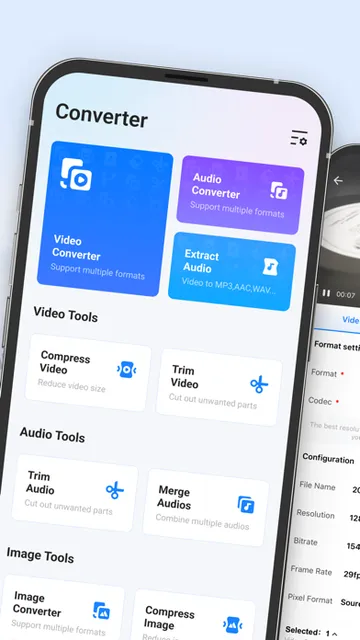
A few extras broaden the usefulness of the converter. It can extract audio from video into formats such as MP3 or WAV, compress video to reduce its size, and trim unwanted portions from video or audio. Those functions address small, common chores that otherwise might send me looking for separate utilities. The description also includes audio merging, for joining audio files into one.
I especially like the practical logic of pairing trimming with conversion. If I only need one section of a long recording, removing the rest first is a straightforward way to focus the output. Compression is another focused tool: it is intended to reduce file size, while the settings let users adjust aspects of the media. The exact balance between size and quality is a choice to make carefully.
A Useful Media Routine
For a routine share, I would start by deciding what needs to change: format, length, or file size. If it is only the length, trimming is the relevant tool. If I need a smaller video, compression and the available video settings are the more direct route. If the destination expects a different type of file, I would pick a suitable output format and avoid adjusting unrelated settings just for the sake of it.
I would keep conversion jobs organized around their purpose. A clip intended for sharing may call for a different balance than one I want to keep at higher quality, and a spoken recording may be more useful as an audio file than as video. Afterward, checking the converted file before moving on helps catch a mismatch early. The app’s multiple media tools make that kind of simple workflow possible.
Keep the Tradeoffs in View
A long format list is useful, but it does not mean every output setting will suit every situation. Resolution, bitrate, frame rate, codec, and aspect ratio each affect the result in different ways. I would make changes with a particular need in mind and preserve the source file until I know the converted copy works as intended.
The other practical consideration is the membership. The app is free to download, but its description includes auto-renewing weekly, monthly, and yearly subscription options, with example prices and a note that actual pricing is shown in the in-app purchase information. I would check those details in the App Store before subscribing. And while the app offers useful editing-adjacent tools, its described focus remains conversion and basic media tasks.
Format Factory-Video Converter brings together video, audio, and image conversion with useful extras such as trimming, compression, audio extraction, and merging. I like the practical focus: it is built to solve everyday file problems, not to dress them up as a full creative suite. The adjustable settings add flexibility, though they also make it worth thinking about the desired result before converting.
I would try it if I regularly need to prepare media for different formats or reduce the hassle of handling assorted file types on iOS. If I wanted a feature-rich editor, I would look elsewhere. The free download is an easy starting point, but I would review the current subscription terms in the App Store before making it part of a frequent workflow.
Format Factory-Video Converter Frequently Asked Questions
What is Format Factory-Video Converter used for?
Format Factory-Video Converter is a media utility for converting video, audio, and image files. Its listed tools also include video compression and trimming, audio trimming and merging, and extracting audio from video. It is intended for practical file changes rather than serving as a complete video or audio production suite.
Which devices can run Format Factory-Video Converter?
The app is listed for iOS on the Apple App Store and requires iOS 12.1 or later. The available facts do not specify a particular device model, so I would check the App Store page on the device you plan to use for current compatibility information.
Does Format Factory-Video Converter cost money?
It is free to download, and its description also provides for auto-renewing weekly, monthly, and yearly subscriptions. Example prices are given as $2.99 weekly, $4.99 monthly, and $17.99 yearly, with a note that pricing is subject to the in-app purchase information. Check the App Store for current terms.
What iOS version does Format Factory-Video Converter need?
Format Factory-Video Converter requires iOS 12.1 or later. If you are unsure whether your device or its installed software is compatible, the app’s Apple App Store page is the best place to check current requirements before downloading.
Who is Format Factory-Video Converter best suited for?
It may suit iOS users who need to convert media formats, make videos smaller, trim clips, or extract audio from video. People seeking a full creative editor or advanced production tools may find its described focus too limited. Subscription details are worth reviewing if you expect to use it often.
Pros
- Handles video, audio, and image conversion within one iOS utility.
- Offers video settings such as resolution, bitrate, and frame rate.
- Includes practical extras for trimming, compression, audio extraction, and merging.
Cons
- Its described tools focus on conversion and basic edits, not full creative production.
- Auto-renewing subscription options are available alongside the free download.
- The many adjustable settings may take care to match to each file’s purpose.
- Category
- Tools
- Version
- 1.0.2











