control screen rotation
- 33.76K
- 4.2
- Installs
- 10.00M
- Price
- Free
Screenshots
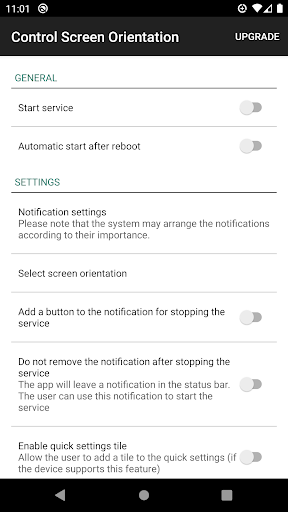
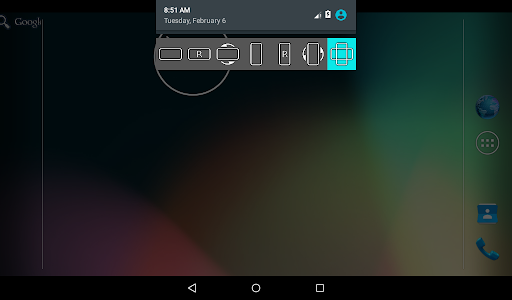
Analysis by Reviewed APKs
Control screen rotation gives me a quick way to choose how my Android screen is oriented, using controls available from the notification bar. It suits people who read, watch videos, or use apps that feel better in portrait or landscape, and who get tired of the display turning at the wrong moment. After spending time with its straightforward approach, I see it as a practical utility rather than a feature-packed customization app.
A quick fix for flipping
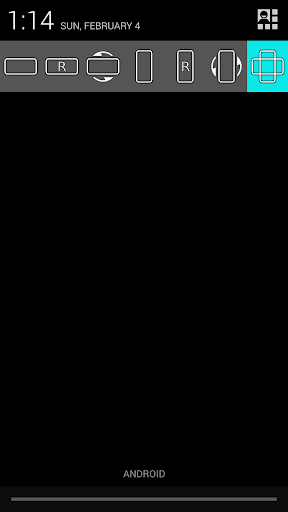
When I first opened Control screen rotation, I thought about the small moments when auto-rotation gets in the way: turning onto my side to watch a clip, then having the display flip back when I shift in my seat. The app’s central job is simple. It lets me choose an orientation from the notification bar instead of relying entirely on the phone’s usual automatic behavior.
For a reading session, I can keep the screen in portrait even if I tilt the phone while settling into a chair. Later, when I want a wider view, I can switch to landscape or reverse landscape. That direct choice is the useful part. Rather than asking me to change how I hold the device, the app gives me a way to make the screen match the moment.
A utility, not a full setup
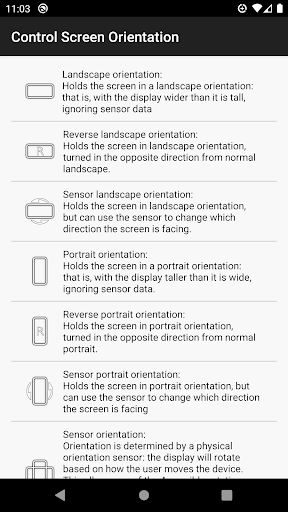
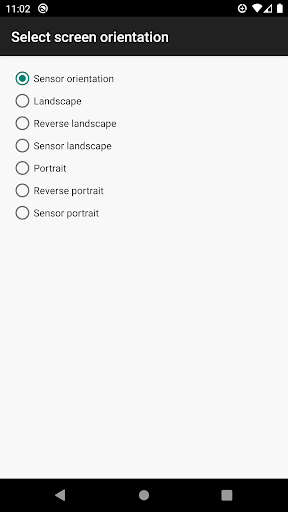
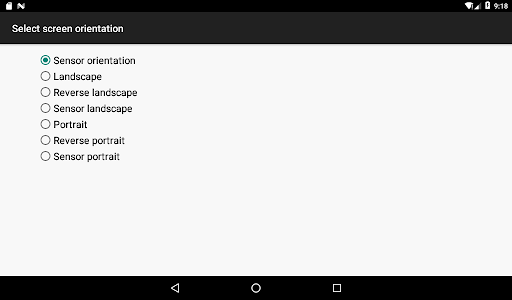
The obvious alternative is the phone’s built-in auto-rotate control. That is enough for many people, but this app is aimed at those who want more orientation choices close at hand. Its listed options include portrait, reverse portrait, landscape, reverse landscape, sensor-based portrait or landscape, and sensor orientation for automatic rotation. I find that range useful when the standard on-and-off switch feels too blunt.
This is not an app-by-app automation system, a display customization suite, or a way to change how an app itself is designed. I would not expect it to make every app work well in every orientation. The description also notes that some orientations may not be available on some devices. Its appeal is narrower: choose a screen orientation conveniently, then get back to what I was doing.
Make switching a small habit
I get the most out of an orientation tool when I decide what I want before a task begins. Before reading, I choose portrait; before settling in to watch something, I can try landscape. Keeping the controls within the notification bar makes that change feel like a quick adjustment rather than a detour through a long settings session.
It also helps to remember the sensor-based options when I want the phone to respond to movement again. I can use a fixed orientation for a particular stretch of reading or viewing, then switch back to automatic rotation when I am moving between activities. That simple rhythm keeps the app useful without turning screen orientation into another setting I have to manage constantly.
More From Our News Desk

Zoom Meetings, Google Meet, or Teams: Which Is Easiest to Join?

How I Build a Free Streaming Lineup With Tubi

Why Crunchyroll Is the Default Anime App for So Many Fans

YouTube TV: A Practical Guide to Cutting Cable

Rummikub and the Small Comfort of Phone Games

TeamViewer Remote Control or AnyDesk for Helping Family?
Who will find it useful
I would recommend Control screen rotation to Android users who regularly switch between reading, video, browsing, or other tasks that feel more comfortable in different screen positions. It is especially relevant if automatic rotation changes at inconvenient times, or if the phone’s ordinary rotation control does not offer the orientation choices you want. The notification-bar approach keeps the main job close to the rest of the phone’s everyday controls.
It may not suit someone who is happy with the built-in auto-rotate switch, or who expects detailed per-app rules and extensive customization. The available orientations can depend on the device, so I would keep expectations practical rather than assume every option works everywhere. If you only change orientation once in a while, the app’s extra choices may not matter enough to justify adding another tool.
Control screen rotation is an Android tools app from ah_apps. Google Play shows over 10 million installs and a 4.2-star rating from around 34,000 ratings. It is free to install, contains ads, and offers in-app purchases; listed in-app products are $4.99 per item. Its content rating is Everyone.
The app’s current version is 4.4. It was released on October 28, 2015, and its most recent update is dated April 22, 2026. The supplied store facts do not give a minimum Android version, so check the Google Play listing on your device for compatibility details.
Taking Control of Screen Orientation
A straightforward first look
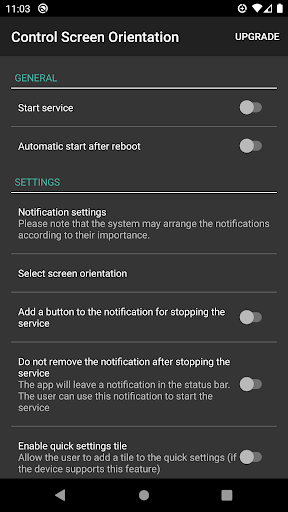
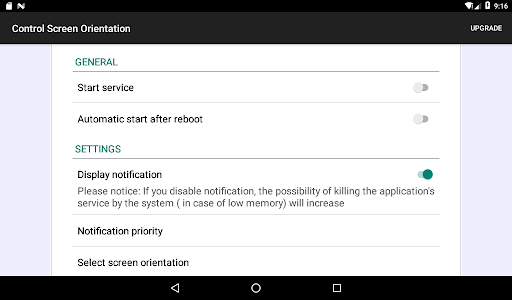
The first impression is that Control screen rotation has a focused purpose: orientation choices from the notification bar. I did not approach it expecting a broad dashboard or a collection of unrelated phone tools. That narrow scope makes the idea easy to understand. If I want to stop the screen from rotating on its own or pick another orientation, I know why I opened it.
Getting started is best thought of as choosing the orientation that suits the task at hand. The listed choices cover fixed portrait and landscape positions, their reverse versions, sensor-guided portrait and landscape, and a sensor orientation that allows auto-rotation. The description does not promise that every device supports every choice, so I would treat the available options as device-dependent.
The everyday experience
Day to day, the main benefit is avoiding the small interruption of an unwanted screen flip. If I am reading in bed or holding my phone at an angle on the sofa, locking a suitable orientation can keep the display steady. When the task changes, I can choose another mode from the notification bar rather than leaving the app I am using to hunt through settings.
That convenience matters most when orientation changes are frequent enough to be annoying but not important enough to plan around. The app does not replace the content on my screen; it gives me a way to set the display direction around that content. I see it as a small control that works best in the background of ordinary phone use.
More than portrait or auto
The range of orientation modes is the feature that stands out. Alongside portrait and landscape, the app lists reverse portrait and reverse landscape, which can help when I want the phone held the other way around. Sensor portrait and sensor landscape offer sensor-guided choices, while sensor orientation corresponds to automatic rotation.
That variety gives me more nuance than a simple locked-or-unlocked decision. I can choose a fixed view for a particular activity, or return to a sensor-based mode when I want the phone to respond to how I hold it. I would not mistake a longer options list for universal compatibility, though: the app itself cautions that some modes may not be available on some devices.
A practical rotation routine
A useful routine is to tie orientation to the activity rather than constantly fiddling with it. I might choose portrait when I sit down to read, switch to landscape when I want a wider view, and restore sensor orientation when I am done. Keeping those choices accessible from the notification bar makes the routine feel quick enough to use instead of putting up with an awkward screen.
I would also avoid leaving a fixed setting in place without noticing. If I move from a reading session to a task where I expect the phone to rotate naturally, switching back to a sensor-based option is the obvious next step. That is not a complicated workflow, but remembering the last choice helps keep the app from feeling like the cause of a new orientation surprise.
Keep expectations practical
The main limitation is that orientation support can vary by device. A mode shown among the app’s choices may not be available on every phone, so I would not assume the same set of results across different hardware. The app is also focused on screen orientation, not on managing individual apps or changing how a particular app behaves internally.
There is a trade-off in installing a dedicated utility for something many phones already control. If the standard auto-rotate setting handles your routine, this may be more choice than you need. Ads and in-app purchases are also part of the store facts, so the free install is not the whole picture for anyone considering paid options.
Control screen rotation does one useful thing: it puts a broader set of screen-orientation choices within easy reach. I like the practical idea, especially for reading and viewing sessions where an unexpected flip is distracting. Its value depends on whether the phone’s built-in control already meets your needs and which modes your device supports.
I would try it if I often want a fixed portrait or landscape view and prefer to adjust orientation from the notification bar. I would skip it if the default auto-rotate switch is already convenient or if I want extensive per-app automation. It is a focused utility with a clear everyday purpose, best judged by how often rotation actually interrupts you.
control screen rotation Frequently Asked Questions
What is Control screen rotation used for?
Control screen rotation is used to choose or lock the screen’s orientation from the notification bar. Its listed modes include portrait, reverse portrait, landscape, reverse landscape, sensor-based portrait or landscape, and sensor orientation for automatic rotation. Some modes may not be available on every device.
Which devices can run Control screen rotation?
Control screen rotation is an Android app available through Google Play. The supplied facts do not specify a minimum Android version, and device support for individual orientation modes can vary. Check the Google Play listing for current compatibility with your phone or tablet.
Does Control screen rotation cost money?
The app is free to install and contains ads. It also offers in-app purchases, with listed items priced at $4.99 each. Store details can change, so check the Google Play listing for the current purchase information before deciding whether to buy anything.
Can Control screen rotation force every orientation?
The app offers several orientation choices, including reverse and sensor-based modes, but it does not guarantee that all of them will work on every device. Its description notes that some orientations may not be available on some devices. The options you can use may vary with your hardware.
Who should use Control screen rotation?
It is suited to Android users who want more direct control over portrait and landscape orientation, especially when automatic rotation is inconvenient. It may be unnecessary if your phone’s built-in controls already work well for you. Check the store listing for current device compatibility and app details.
Pros
- Offers several orientation choices beyond a basic auto-rotate toggle.
- Puts orientation controls within reach from the notification bar.
- Useful for keeping reading or viewing sessions in a chosen orientation.
- Free to install on Android.
Cons
- Some orientation modes may not be available on every device.
- Contains ads and offers in-app purchases.
- May feel unnecessary if built-in rotation controls already meet your needs.
- Category
- Tools
- Version
- 4.4











