Cast to TV, Chromecast & Roku
- 491.32K
- 4.5
- Installs
- 50.00M
- Price
- Free
Screenshots
Analysis by Reviewed APKs
Cast to TV, Chromecast & Roku is for getting videos, music, photos, and even your phone screen onto a larger display. It suits people who already have a compatible TV or streaming device and want one Android app for several kinds of casting. After spending time with its range of options, I see it as a useful everyday bridge between phone and TV, with the usual dependence on a cooperative Wi-Fi setup.
A casual movie night
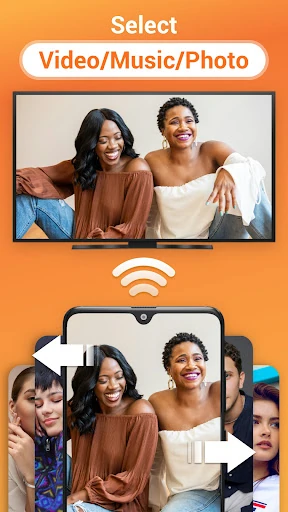
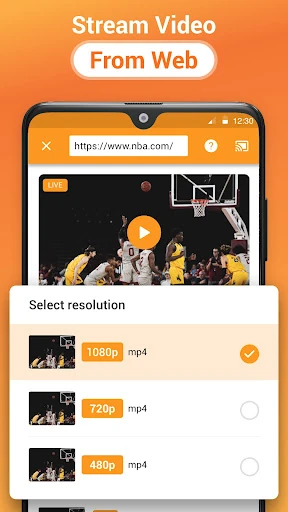
When I want to watch a clip or a locally stored video with other people, the phone screen can feel cramped fast. This app is built for that moment: it can send local videos, music, and photo slideshows to a TV, and its built-in browser can cast web video. With a compatible receiver available, the phone becomes a convenient way to put something on the shared screen.
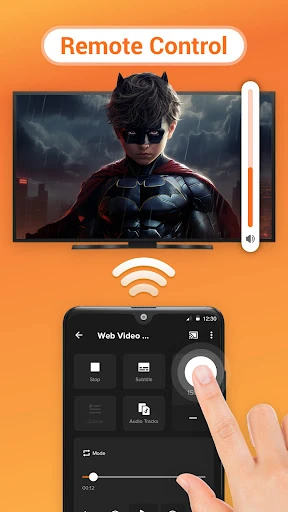
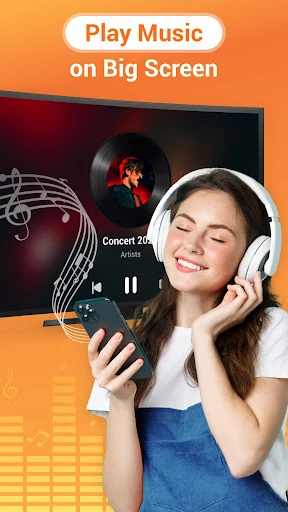
The same idea works for a family photo catch-up or a little background music while people are visiting. I can see myself selecting a few files from the phone or SD card, adding local video or audio to a play queue, then letting the TV do the showing. The app also offers playback controls from the phone, including pause, volume, seeking, and next or previous.
Casting, not a TV service
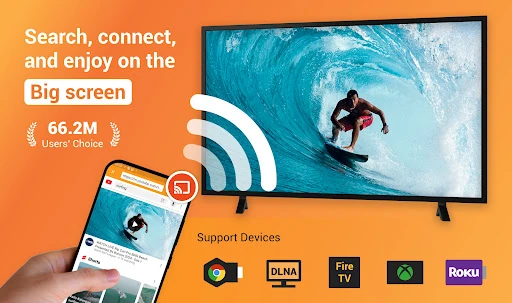
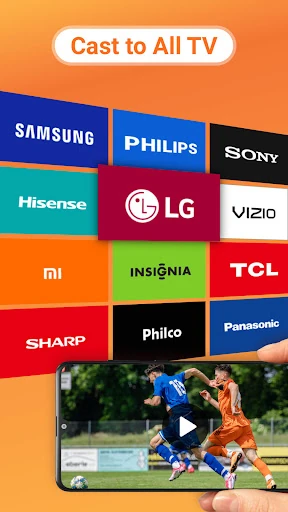
Compared with opening a streaming service directly on a smart TV, Cast to TV is more of a connector for media on your phone and web videos. It brings casting and screen mirroring together, with support described for Chromecast, Roku, Fire TV, Apple TV, Xbox, smart TVs, and DLNA receivers. That breadth can be handy in a home with more than one kind of screen, though your actual receiver and media format still matter.
It is not a library of movies or a replacement for the apps and subscriptions that provide streaming content. Nor is it a general-purpose remote for every TV function; its controls focus on media playback. I would choose it when I want to share my own files, a web video, or my phone display, rather than expecting it to supply entertainment or fix an incompatible network or receiver.
A smoother casting routine
A small bit of preparation makes this sort of app less fiddly. I would check that the phone and TV-side receiver are connected to the same Wi-Fi network before I start, then let the app search for available devices. It can identify video, audio, and photo files on the phone and SD card, so browsing for something to share does not have to start from scratch each time.
For a longer watch, the play queue and shuffle, loop, and repeat modes can help keep playback moving without returning to the phone after every item. When casting a web video, I would use the built-in browser; for a quick show-and-tell, I would choose screen mirroring instead. Those are different jobs, and deciding which one I need first can save a few unnecessary taps.
More From Our News Desk

Zoom Meetings, Google Meet, or Teams: Which Is Easiest to Join?

How I Build a Free Streaming Lineup With Tubi

Why Crunchyroll Is the Default Anime App for So Many Fans

YouTube TV: A Practical Guide to Cutting Cable

Rummikub and the Small Comfort of Phone Games

TeamViewer Remote Control or AnyDesk for Helping Family?
Who may get the most from it
I would recommend Cast to TV to Android users who regularly share local clips, music, or photos on a television, and to people who want a phone-based way to cast web video or mirror the screen. It is especially appealing if the household uses a mix of supported receivers. On Google Play, it has over 50 million installs and a 4.5-star rating from around 491,000 ratings, suggesting a sizable audience for this kind of utility.
It may be less appealing if you only watch content through apps already installed on your TV, or if you expect a casting tool to work independently of Wi-Fi and receiver compatibility. People who want a full TV remote or a video catalog should look elsewhere. I would also keep in mind that screen mirroring and media casting serve different needs, and neither can sidestep the requirements of the connected device.
Cast to TV, Chromecast & Roku is made by InShot Inc. and is listed in the Video Players & Editors category. Google Play shows more than 50 million installs and a 4.5-star rating from 491,317 ratings. The app is free to install, contains ads, and offers in-app purchases priced from $2.49 to $13.99 per item.
Its content rating is Everyone. The listed version is 2.5.5.2. It was released on December 1, 2017, and the listed last update date is October 27, 2026. The minimum Android version is not included in the supplied app facts, so check the Google Play entry for current device requirements.
A practical bridge from phone to TV
Getting started
My first impression is that the app has a broad job description: it covers local media, web video, live streams, and mirroring rather than focusing on just one type of cast. The device search is meant to find available receivers automatically. Before trying it, I would make sure the phone and TV device are on the same Wi-Fi network, since the app's own guidance points to that as an important part of streaming.
Once a receiver appears, the choice is whether to cast a file or mirror the whole phone display. That distinction is useful to understand early. Casting a video or a slideshow is suited to letting a specific piece of media play on the TV; mirroring is for showing the phone screen in real time. A supported media format and compatible receiver also remain part of the setup.
The everyday experience
For ordinary use, the phone acts as both the source and a playback controller. I can imagine browsing for a video, starting it on the larger screen, and keeping the phone nearby for pause, volume, forward or rewind, and track changes. That is a more natural routine than passing the phone around when several people want to watch the same thing.
Local content gets a few practical touches. The app can find media stored on the device or SD card, and local video and audio can go into a play queue. Shuffle, loop, and repeat modes help when the goal is to let a collection run for a while. These tools are straightforward rather than elaborate, which is appropriate for a utility meant to get media onto a screen.
Several ways to share
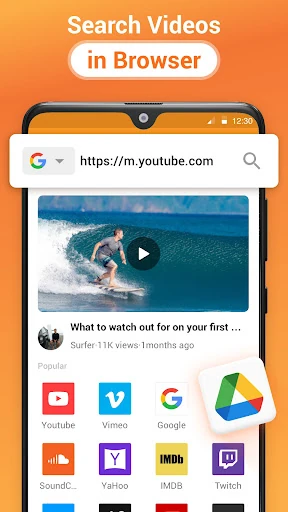
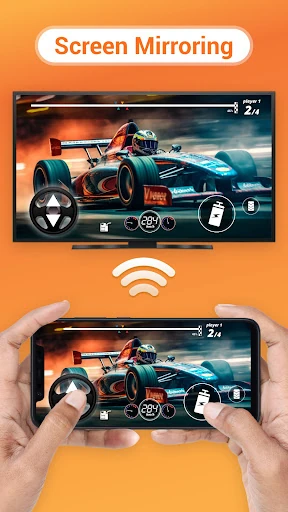
The standout is the combination of media casting and screen mirroring in one place. For a photo slideshow or a local song, I would use media casting; for an app or game that does not have a separate cast option, mirroring the phone screen is the more relevant route. The description also includes web video through a built-in browser, plus live streams, sports streams, gaming streams, and IPTV channels.
Device support is another central part of the pitch. The app describes casting to Chromecast, Roku, Amazon Fire TV and Fire Stick, Apple TV, Xbox, smart TVs, and other DLNA receivers. Having these options together may be convenient in a mixed-device household. It is still sensible to treat compatibility as a pairing between the app, the receiver, the network, and the particular media format.
A low-fuss evening routine
For a relaxed evening, I would first decide whether I am sharing a saved file or finding a web video. I would check the Wi-Fi connection, open the relevant source in the app, and let the device search locate the TV-side receiver. For a few saved clips or songs, building a queue before settling in should reduce the number of times I need to handle the phone.
If I am showing photos, a slideshow gives the group a more comfortable view than gathering around a handset. If I am following a live stream, I would keep the phone close enough to adjust playback when needed. This is a modest workflow, but it makes good use of the app's main strengths: file discovery, phone controls, and multiple ways to send content to the TV.
Things to keep in mind
Casting depends on the network and the receiving device, so a useful feature list cannot promise the same result in every living room. The app's guidance says the phone and streaming device should share a Wi-Fi network and notes that the receiver must support the media format. If a connection acts up, it suggests restarting the router and streaming device as basic troubleshooting steps.
The range of supported device types may sound broad, but I would not assume every model behaves identically. Screen mirroring is also different from sending a single video, and may not be the best fit for every task. Finally, this is a casting utility, not a source of shows or a substitute for a TV's own streaming services. Keeping those boundaries clear makes its role easier to judge.
Cast to TV, Chromecast & Roku brings local media casting, web video, playback controls, and screen mirroring into one Android app. I like that it can cover both a quick photo share and a more deliberate video session, while its device range gives it potential value in homes with different receivers.
I would try it if I often move phone content to a TV and already have a compatible setup. If I mainly use built-in TV apps or need a full remote, it is probably more than I need. The key is to treat it as a practical casting helper, with Wi-Fi and receiver compatibility in the picture.
Cast to TV Frequently Asked Questions
What is Cast to TV, Chromecast & Roku used for?
Cast to TV, Chromecast & Roku sends local videos, music, and photo slideshows to compatible televisions and streaming devices. It can also cast web video through its built-in browser, handle live streams, and mirror the phone screen in real time. Phone controls include playback options such as pause, volume, seeking, and track changes.
Which devices can I use Cast to TV, Chromecast & Roku with?
The app is described for Android and supports casting to Chromecast, Roku, Amazon Fire TV and Fire Stick, Apple TV, Xbox, smart TVs, and other DLNA receivers. The receiver and phone need to be connected to the same Wi-Fi network, and media format support depends on the receiving device. Check the Google Play entry for current compatibility details.
What Android version does Cast to TV, Chromecast & Roku require?
The minimum Android version can vary with app updates and device requirements. Check the Google Play entry for the current requirement before installing. The app's description also notes that casting depends on the phone and streaming device sharing a Wi-Fi network and on the receiver supporting the media format.
Is Cast to TV, Chromecast & Roku free?
The app is free to install on Google Play, contains ads, and offers in-app purchases. The listed in-app items range from $2.49 to $13.99 each. Prices and available purchase options may change, so check the current Google Play entry for the details shown in your region.
Who should use Cast to TV, Chromecast & Roku?
It may suit Android users who want to show phone videos, music, or photos on a TV, cast web video, or mirror the phone display. It may be less useful if you rely only on streaming apps already on the TV or want a complete TV remote. A compatible receiver and shared Wi-Fi are important parts of the experience.
Pros
- Combines local media casting, web video, and screen mirroring in one app.
- Phone playback controls include pause, volume, seeking, and track navigation.
- Can find media stored on the phone and SD card for casting.
- Supports a broad range of named TV and streaming receiver types.
Cons
- Casting depends on shared Wi-Fi and receiver compatibility with the media format.
- It is a casting utility, not a source of shows or a complete TV remote.
- Ads and optional in-app purchases are part of the free app experience.
- Category
- Video Players & Editors
- Version
- 2.5.5.2