VLC for Android
- 2.01M
- 4
- Installs
- 500.00M
- Price
- Free
Screenshots
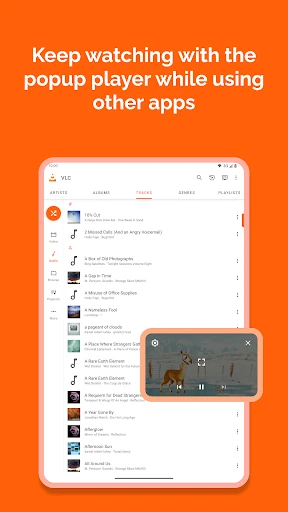
Analysis by Reviewed APKs
VLC for Android is a flexible player for watching videos and listening to music stored on a device, on network shares, or in streams. It suits people who have media in different formats and want one app for both audio and video. After spending time with its broad format support and practical playback controls, I see it as a capable everyday player, especially for people who value control over a polished, narrowly focused interface.
A player for mixed media
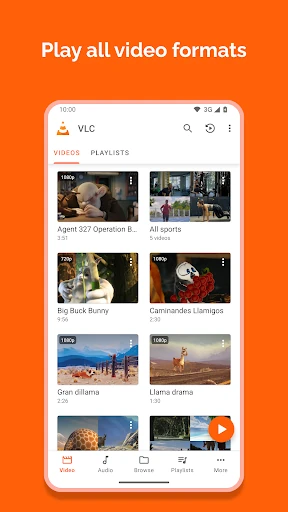
When I first opened VLC, I thought about the familiar little inconveniences of a media collection: a video saved in an unusual format, a separate subtitle track, and music files that do not belong in a streaming service’s library. VLC is built for that kind of varied collection. It can play most local audio and video files, and its media library gives me a way to browse what is available on the device.
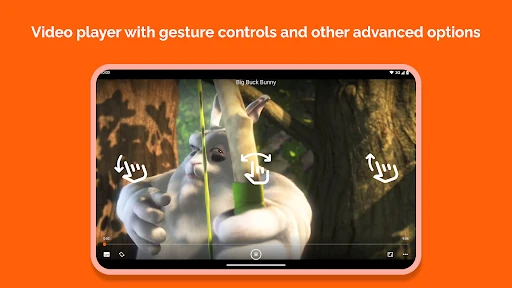
In a practical evening routine, I might open a folder to find a video, adjust the aspect ratio to suit the screen, and use a gesture to change brightness or seek through a scene. For music, I can move to the audio library and use its player controls instead of opening a separate app. Multi-track audio and subtitle support are useful when a file offers more than one option.
Beyond a basic video app
Compared with a player limited to a few common file types, VLC aims to handle a much wider mix without separate codec downloads. It also reaches beyond files stored directly on a phone: the app supports network streams, network shares, drives, and disk shares. That makes it a useful option for people who already keep media in different places and want a single player to cover both local and network playback.
VLC is not a video-on-demand service, and its appeal is not a curated catalogue of films or shows. It is a player for media you can access, rather than a source of entertainment in its own right. People who mainly want recommendations or a simple subscription-based viewing experience may find its library-and-folder approach less relevant than a streaming app.
Small habits that help
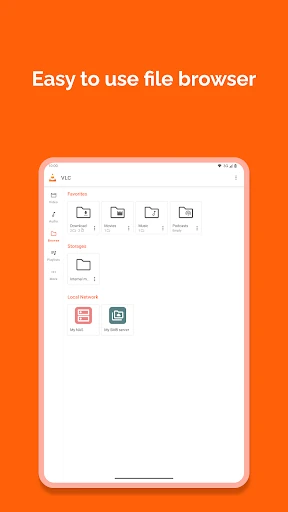
I get more from VLC when I treat its media library and folder browsing as two different ways to find something. The library is convenient when I want to scan audio or video files as a collection. Browsing folders makes more sense when I know where a particular file lives, or when my own organization matters more than a combined library view.
For video, it is worth trying the playback gestures and aspect-ratio controls rather than settling for the initial view. If a file includes multiple audio tracks or subtitles, those options can also make playback more comfortable. For music, the equalizer, filters, cover art, headset controls, and audio widget offer useful ways to shape a listening routine without turning VLC into a full music service.
Reads About VLC
More From Our News Desk

Zoom Meetings, Google Meet, or Teams: Which Is Easiest to Join?

How I Build a Free Streaming Lineup With Tubi

Why Crunchyroll Is the Default Anime App for So Many Fans

YouTube TV: A Practical Guide to Cutting Cable

Rummikub and the Small Comfort of Phone Games

TeamViewer Remote Control or AnyDesk for Helping Family?
Who will appreciate VLC
I would recommend VLC to anyone who regularly plays personal video and music files, especially if those files come in different formats or live in more than one place. It is also a sensible choice for people who want subtitle and multi-track support, folder browsing, or network playback alongside everyday local media. Having one app for both music and video can keep a varied collection easier to manage.
It may be less appealing to someone who expects a streaming catalogue, curated recommendations, or a highly guided viewing experience. VLC gives attention to playback flexibility and access to media, not to discovering new films or building a social listening routine. The many controls are helpful once familiar, but users who only need a very simple player may not care about all the options.
VLC for Android is developed by Videolabs and is listed in Google Play in the Video Players & Editors category. It has over 500 million installs and a 4.0-star rating from around 2 million ratings. The app is free, with no in-app purchases and no ads. Its content rating is Everyone.
The app was released on February 4, 2015, and its listed last update is October 14, 2026. Google Play describes the version as varying with the device. The Android version requirement can vary by device and is worth checking on the Google Play page before installing.
The Details That Make Playback Flexible
A straightforward start
My first impression was that VLC is meant to get out of the way and play media, rather than funnel me through a setup process built around a particular service. The central job is clear: use the audio and video library, or browse folders directly to find a file. That straightforward purpose makes the app easy to understand even before exploring its less obvious playback options.
The permissions are tied to the app’s role. VLC needs access to media storage to read files, including media on SD cards, and network access to open streams. It can also need other permissions for functions such as keeping a phone awake during video playback or drawing its picture-in-picture widget. I appreciate that these needs connect to specific playback tasks, though I would still review permission prompts as they appear.
Everyday playback
For day-to-day use, VLC’s appeal is that it covers common playback needs without requiring a separate codec download for each format. The supported formats named in the description include MP4, MKV, AVI, MOV, Ogg, FLAC, and AAC, among others. That breadth is especially useful when a collection has built up over time and not every file follows the same pattern.
Playback controls also cover small adjustments that matter in ordinary use. I can change volume, brightness, and seeking with gestures, adjust the aspect ratio, and use auto-rotation. These are not dramatic features, but they make a difference when I am watching in different settings or trying to get a video to fit the screen comfortably.
More than one track
Subtitles and multi-track audio are among the features that make VLC feel more capable than a bare-bones player. A video may include several audio tracks or subtitle choices, and VLC supports working with those options. It also supports Teletext and closed captions. For someone who watches a range of files, having those playback details available can matter more than an elaborate home screen.
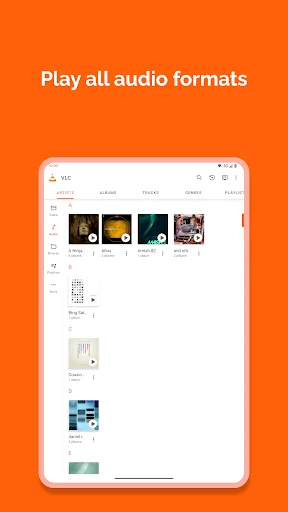
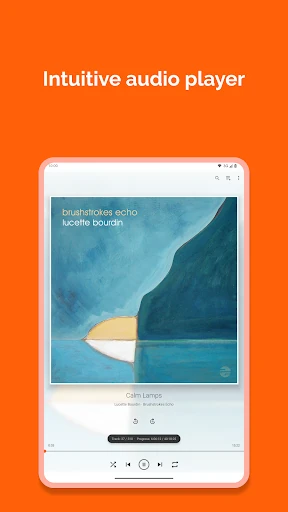
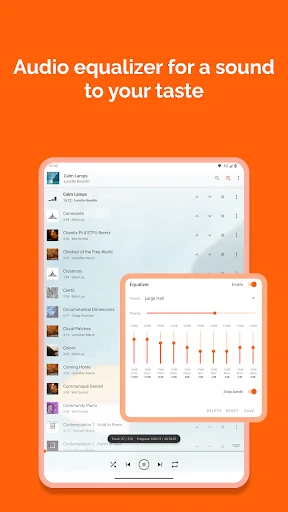
The audio side has its own set of useful tools. VLC includes an audio library, an equalizer and filters, cover art, headset controls, and a widget for audio control. I like that music is treated as a real part of the app rather than an afterthought. The result is a player that can handle an evening playlist as readily as a video file.
A simple media routine
A practical routine could start with browsing a folder when I have a particular video in mind, then switching to the media library when I want to choose music or explore what is on the device. If I am watching, I can use the aspect-ratio setting or gesture controls as needed rather than interrupting playback to look for a separate tool. For a file with subtitles or multiple audio tracks, I can make use of VLC’s track support.
When listening, I would keep the audio library and headset controls close to my normal routine, then use the equalizer or filters when I want to adjust the sound. The widget offers another way to control audio. These options are most useful when they solve a recurring small problem, not when I try to configure everything at once.
A few trade-offs
VLC’s flexibility comes with a practical trade-off: it is a player for media you already have access to, not a service that supplies a catalogue. Someone arriving with no local files, network shares, or streams in mind may find less to do. The app’s broad capabilities matter most when there is a collection to play or a specific playback need to solve.
The other consideration is that a capable player has more controls than a minimal one. Gestures, track choices, folders, and audio tools give room to adapt playback, but they may be unnecessary for someone who only taps a single video now and then. VLC’s library and folder approach is functional; it is not trying to replace a dedicated streaming or discovery experience.
VLC for Android earns its place as a versatile player by bringing local files, network playback, music tools, subtitles, and playback adjustments together. I especially value the format support and the fact that audio gets a proper library and useful controls. Its strengths show up in ordinary moments: finding a file, getting the picture to fit, or choosing a track.
I recommend it to people with varied media collections who want a free, ad-free app for both music and video. If your main goal is a curated streaming catalogue or the simplest possible player, another kind of app may suit you better. For flexible playback, VLC is an easy one to keep around.
VLC Frequently Asked Questions
What is VLC for Android used for?
VLC for Android plays most local video and audio files, along with network streams and media from network shares and drives. It includes an audio library, folder browsing, subtitle and multi-track support, and playback adjustments such as aspect-ratio controls and gestures. It is a media player, not a catalogue of films or music.
Which devices can run VLC for Android?
VLC for Android is an Android app available through Google Play. Its description also mentions Android TV-related functions, including a startup recommendation feature and voice search on Android TV devices. Device compatibility and the required Android version can vary, so check the Google Play page for the requirements shown for your device.
Does VLC for Android cost money?
VLC for Android is free to install. It has no in-app purchases and contains no ads. The app’s description also presents it as open source. Store details can change over time, so it is worth checking Google Play for the current information before installing.
What Android version does VLC for Android need?
The minimum Android version can vary by device. Google Play provides compatibility information for the device you are using, so check the app’s store page before installing if you need to confirm a particular Android requirement.
Is VLC for Android a good fit for casual viewers?
It can suit casual viewers who want to play personal video or music files, especially when they need broad format support or useful controls. It may be less suitable if you are looking for a streaming catalogue, recommendations, or a very stripped-down experience. VLC focuses on playing media you can access.
Pros
- Plays a broad range of audio and video formats without separate codec downloads.
- Combines local files, folder browsing, network streams, and network shares.
- Includes subtitles, multi-track support, gesture controls, and aspect-ratio adjustments.
- Free to use, with no ads or in-app purchases.
Cons
- It plays media you can access rather than supplying a streaming catalogue.
- Its range of controls may be more than occasional viewers need.
- The folder-and-library approach may feel less guided than a discovery-focused app.
- Category
- Video Players & Editors