Camo Camera
- 6.49K
- 4.2
- Installs
- 1.00M
- Price
- Free
Screenshots
Analysis by Reviewed APKs
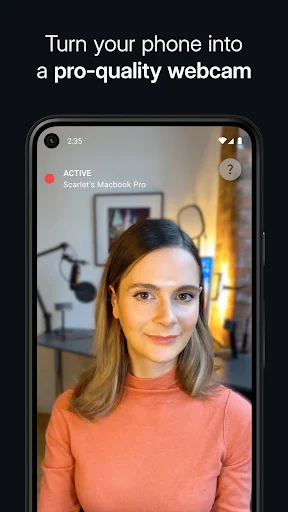
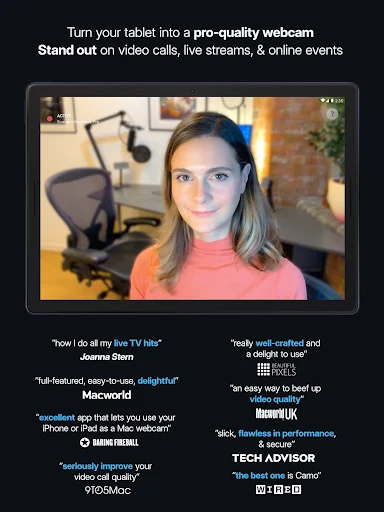
Camo Camera turns an Android phone into a webcam for a Mac or Windows PC, using the phone’s camera for video calls, streams, and recordings. I’d consider it if my laptop webcam looked soft or poorly lit and I already had a phone I could position near my screen. Its adjustable camera controls and wired or Wi-Fi connection make it more flexible than a basic phone-as-webcam setup, though it does require a computer too.
A Better View for Calls
When I have a video call coming up, I want the camera to show a clear, steady view without turning the preparation into a project. Camo’s central idea is straightforward: connect an Android phone to a Mac or PC, then use its camera as the computer’s webcam. I can place the phone near the screen, choose a front or rear camera, and use the computer-side Camo Studio preview to check the framing before joining.
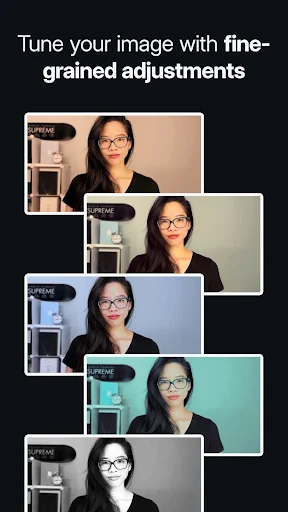
The difference is most useful in an ordinary home-office situation: a laptop camera is fixed in place, while a phone can be positioned where the view makes more sense. Camo also offers controls for focus, exposure, zoom, and lighting, so I can make adjustments when the room is dim or the framing feels off. It is a practical way to get more control over a call, rather than a promise that every room will suddenly look like a studio.
A Webcam, Not a Studio
Compared with relying on a built-in laptop webcam, Camo gives me the option of using another camera on a device I may already own. It can also connect over Wi-Fi, which is handy when a cable is inconvenient, or USB, which offers a familiar wired alternative. The computer app is part of the experience: Camo Studio provides controls and a preview, while compatible call, recording, and streaming software uses the camera feed.
That makes Camo a better fit for calls, online classes, live streams, and recording than for taking ordinary phone photos or videos. It is not a replacement for the meeting or streaming service itself, and the Android app alone does not turn a phone into a standalone computer webcam. I also would not treat its portrait effect or image adjustments as a substitute for arranging a sensible background and decent light.
Make Setup Repeatable
A small routine helps keep the process from becoming a scramble. I would position the phone, connect it by USB or Wi-Fi, open Camo Studio on the computer, and check the preview before opening the call. That order gives me a chance to select the camera and adjust the framing before other people are waiting. Keeping the phone in a stable spot near the display also makes the camera angle easier to repeat.
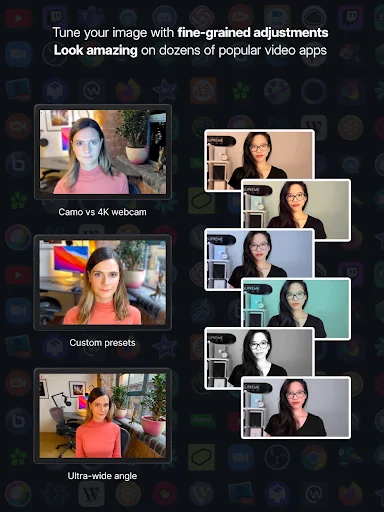
Camo includes presets for saving and recalling adjustments, which can help if I switch between a desk setup and another room. I can also experiment with lens choice, rotation, and the available 16:9 or 4:3 framing before settling on a look that works for the software I use. These are modest habits, but they make the useful controls feel less like settings to fiddle with and more like a ready-to-use setup.
More From Our News Desk

Zoom Meetings, Google Meet, or Teams: Which Is Easiest to Join?

How I Build a Free Streaming Lineup With Tubi

Why Crunchyroll Is the Default Anime App for So Many Fans

YouTube TV: A Practical Guide to Cutting Cable

Rummikub and the Small Comfort of Phone Games

TeamViewer Remote Control or AnyDesk for Helping Family?
Who Might Find It Useful
I’d recommend Camo to someone who regularly joins calls or streams from a computer and would rather use a phone camera than settle for the built-in webcam. It is especially appealing if camera position, focus, or lighting adjustments matter to you, or if you want both wireless and USB connection options. People who teach or present online may also appreciate being able to choose a phone lens and check the output in Camo Studio.
It may be more than a casual caller needs, particularly if their existing webcam already gives them a satisfactory view. Camo also relies on a computer running Camo Studio, so it is not a mobile-only calling app. Anyone expecting a one-tap background replacement, a fully automatic setup, or a computer-free webcam solution should look closely at what the app actually does before deciding. Its strengths are camera choice and control, not eliminating every part of setup.
Camo Camera is developed by Reincubate and is categorized as a Tools app on Google Play. It has over one million installs and a 4.2-star rating from 6,485 ratings. The app is rated Everyone. Its listed version is 2.1.22.22860, and its release date is September 19, 2023.
Google Play lists Camo Camera as free, with no in-app purchases and no ads. The listed last update was May 20, 2026. Camo Studio, the companion computer app described by the developer, supports macOS 10.13 or later and Windows 10 or later. The Android version requirement is worth checking on Google Play, since it can vary with app updates and device compatibility.
Putting a Phone Camera to Work
The First Setup
My first impression is that Camo is built around a clear division of labor: the phone supplies the camera, and the computer runs Camo Studio. That is useful to understand before opening a meeting app. The phone is not simply acting as a remote camera display; it sends its video to the computer, where Studio offers the preview and controls. There is no extra camera hardware required, but a computer is part of the arrangement.
The choice between USB and Wi-Fi makes the setup adaptable to the desk I am using. A cable can be the straightforward option when the phone is already nearby, while wireless connection avoids reaching for a spare lead or computer port. I would still take a moment to position the phone and inspect the preview. The flexibility is welcome, but a camera with a movable viewpoint still needs a little attention.
Using It Day to Day
In everyday use, the value is less about a long list of effects and more about having control over the image before a call begins. Camo Studio keeps a preview available even when the meeting software does not, so I can check what the other people on the call are likely to see. I can adjust the view without having to rely on controls buried inside each separate video app.
Camo is described as compatible with many video call, streaming, and recording products, including Zoom, Google Meet, Microsoft Teams, OBS Studio, and Skype. That breadth matters if I move between work meetings and a personal stream. I would still expect to select the Camo camera within the software I am using, rather than assume every app behaves identically. The appeal is having one camera setup that can serve several kinds of computer-based video.
Controls Worth Exploring
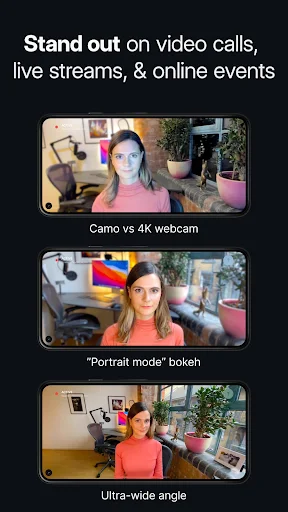
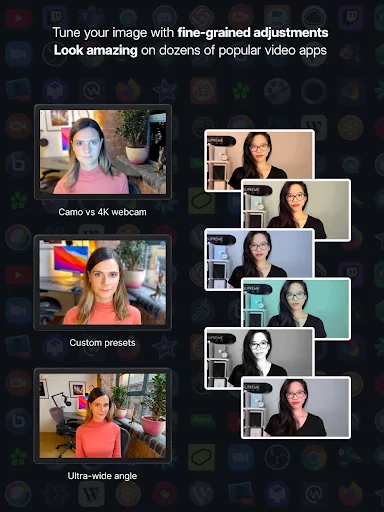
The camera options are a real part of Camo’s appeal. It supports switching among a phone’s front and back cameras, with lens choices such as wide, ultra-wide, and telephoto where the device provides them. Zoom, pan, rotation, focus, and exposure controls give me ways to refine a shot instead of accepting the phone’s default framing. Available choices will depend on the phone’s own cameras.
For a call in mixed or imperfect lighting, Camo offers light adjustments and lets the phone’s flash act as a torch. It also includes a portrait effect that blurs the background and a privacy effect that diffuses the surroundings. I like that these are distinct options: one is intended to separate the subject, while the other obscures the setting more generally. Presets can save adjustments I may want to reuse.
Camo supports landscape and portrait orientation, rotation controls, and 16:9 or 4:3 aspect ratios. The description also gives 1080p HD, 720p, and 360p as supported resolutions. That range offers room to choose a format for a particular setup, without implying that every resolution will look the same on every phone or connection.
A Useful Call Routine
For a weekly meeting, I would keep the workflow simple: place the phone close to the computer, connect it in the way that suits the desk, then open Camo Studio and inspect the image. I can choose a lens, check whether the framing is landscape or portrait, and make a small exposure or focus adjustment if needed. Once the preview looks right, I can open the meeting software and use Camo as its camera.
For teaching or streaming, I might use the same routine but save a preset after getting the framing and light where I want them. If I move the phone or change rooms, I would check the preview again rather than assume the saved settings fit the new scene. Camo’s ability to switch between multiple Android devices in real time may also help someone who has more than one phone available for a setup.
What to Keep in Mind
Camo depends on both a phone and a computer, so it adds a connection step that a built-in webcam does not have. Wi-Fi reduces cable clutter, but USB remains available for people who prefer a wired connection. Either way, this is a setup to prepare before a call rather than something I would expect to configure for the first time while joining one.
The camera improvements also depend on the phone and the environment. Camo offers control over focus, exposure, lighting, and framing, but those controls cannot guarantee flattering light or a steady view if the phone is poorly placed. Portrait and privacy effects can change how the background appears, but they are not the same as arranging the room. A quick preview check remains worthwhile.
Finally, the Android version requirement should be checked against the current Google Play details for a particular device. Camo Studio has its own stated computer requirements, and the computer side is necessary to use the phone as a webcam. For someone who only needs occasional video calls and is content with an existing camera, Camo’s extra control may not justify adding another piece to the routine.
Camo Camera is a focused tool for turning an Android phone into a more adjustable computer webcam. I like the combination of a live computer preview, camera and lighting controls, and wired or wireless connection choices. It asks for a little setup, but in return it can make a phone camera useful across calls, streams, and recordings.
I’d try it if I often use a computer for video and want more say over camera position and image settings. If I rarely join calls, or want a standalone mobile video app, I would stick with simpler options. Camo makes the most sense when the phone-and-computer workflow fits an existing routine.
Camo Camera Frequently Asked Questions
What is Camo Camera used for?
Camo Camera lets you use an Android phone’s camera as a webcam for a Mac or PC. The computer-side Camo Studio app provides a video preview and controls, while compatible meeting, streaming, or recording software can use the camera feed. It is intended for computer-based video, not as a standalone replacement for a calling service.
Which devices and platforms work with Camo Camera?
The Android app connects a phone to a Mac or Windows PC, using USB or Wi-Fi. Camo Studio supports macOS 10.13 or later and Windows 10 or later. The developer describes compatibility with products including Zoom, Google Meet, Microsoft Teams, OBS Studio, and Skype. Check the current Google Play details and your computer software for compatibility.
What Android version does Camo Camera require?
The Android version requirement can vary with app updates and device compatibility, so check Camo Camera’s current Google Play details before installing. The computer component has separate requirements: Camo Studio supports macOS 10.13 or later and Windows 10 or later. The phone and computer both need to be part of the setup.
Is Camo Camera free, and does it have in-app purchases?
Google Play lists Camo Camera as free, with no in-app purchases and no ads. Store details can change over time, so it is sensible to check the current Google Play information before installing. Camo’s described webcam setup also uses Camo Studio on a Mac or PC.
Who is Camo Camera best suited to?
It may suit people who regularly make computer video calls, teach online, stream, or record and want more control than a built-in webcam provides. Its camera choices, image adjustments, preview, and connection options are useful for a deliberate setup. It may be unnecessary for occasional callers who are happy with their current camera, and it requires a computer as well as a phone.
Pros
- Uses an Android phone camera as a webcam for Mac and Windows computers.
- Offers USB and Wi-Fi connections, plus a computer-side video preview.
- Includes camera, focus, exposure, lighting, rotation, and framing controls.
- Free on Google Play, with no in-app purchases or ads.
Cons
- Requires a computer running Camo Studio as well as an Android phone.
- Needs setup and a preview check before calls for reliable framing.
- Its usefulness depends on the phone’s cameras and the surrounding light.
- Category
- Tools
- Version
- 2.1.22.22860











