LogMeIn Rescue Lens
- 522
- 3.6
- Installs
- 500.00K
- Price
- Free

Screenshots
Analysis by Reviewed APKs
LogMeIn Rescue Lens is a live visual support tool for Android users who need to show a technical problem to a support agent. Instead of trying to describe a confusing cable, screen, or device setup over the phone, you can share what your camera sees during a support session. I see it as a focused helper for moments when an agent directs you to use it, not an app most people need to keep opening casually.
Show the Problem Live
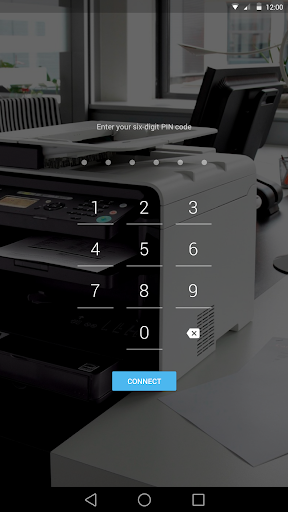
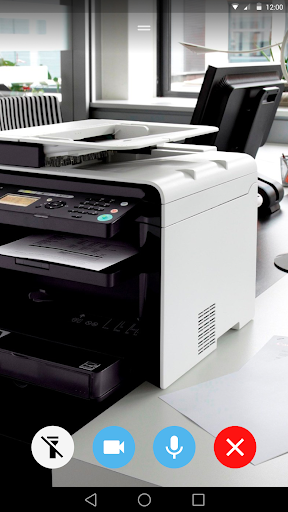
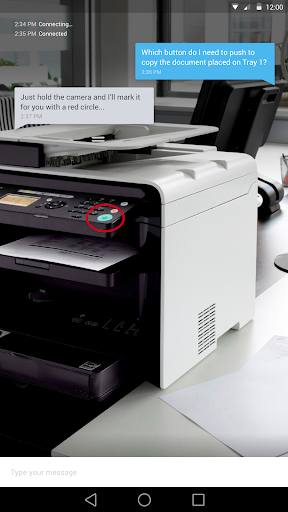
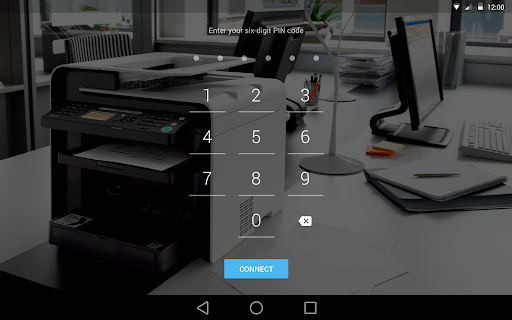
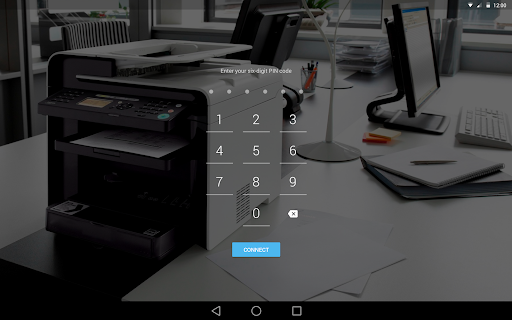
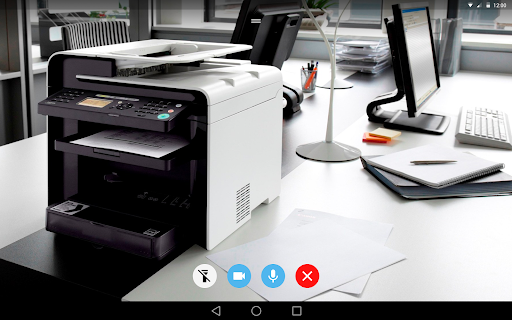
Picture a support call about a device that will not connect. Explaining which light is blinking or where a cable is plugged in can turn into a slow round of questions. With Rescue Lens, the agent can give you a six-digit PIN, and you enter it after opening the app. Then you point your phone camera at the issue so the agent can see the same details you are looking at.
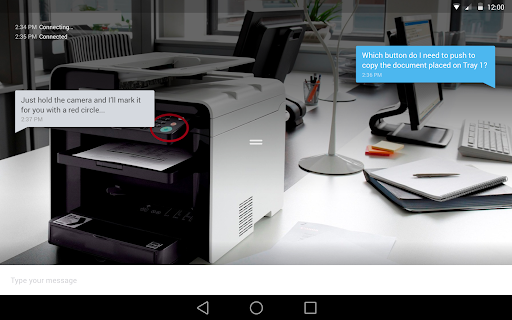
That shared view changes the conversation from “the small port on the left” to a more direct, visual exchange. I like the idea most for problems that are awkward to describe but easy to point a camera at. The app is meant to be used in a live support session with an agent who is also using LogMeIn Rescue Lens, so it has a specific job rather than a broad set of independent tools.
A Support Tool, Not a Fix-It App
Rescue Lens sits between a phone call and an in-person visit. It gives a support agent a camera view of what you choose to show, which can help make a troubleshooting conversation more concrete. It is not a general video-chat app or a self-guided repair manual. You need to be receiving support from an agent using the service, and the agent supplies the PIN that starts the session.
That narrow purpose is both its strength and its limitation. If you already know what is wrong and want instructions to follow on your own, this app does not provide those instructions by itself. If the issue is visible and an agent is available to guide you, the live view may make explaining it easier. I would install it when a trusted support agent asks, rather than treating it as a tool for unsolicited calls.
Make the Session Easier
A little preparation can make a camera-based support session less fussy. Before entering the PIN, I would bring the device or area in question within reach and think about what the agent needs to see. That way, once the session begins, you can point the camera at the relevant detail instead of spending the first few minutes searching for it while on the call.
It also helps to follow the agent’s direction about what to show. The app gives the agent a view of what you choose to put in front of the camera, so keeping the phone aimed at the problem makes the exchange more useful. The steps are straightforward: install, launch, enter the six-digit code, and point the camera at the issue. There is no need to turn that into a daily routine; it is a tool for a particular support moment.
More From Our News Desk

Zoom Meetings, Google Meet, or Teams: Which Is Easiest to Join?

How I Build a Free Streaming Lineup With Tubi

Why Crunchyroll Is the Default Anime App for So Many Fans

YouTube TV: A Practical Guide to Cutting Cable

Rummikub and the Small Comfort of Phone Games

TeamViewer Remote Control or AnyDesk for Helping Family?
Who Should Give It a Try
I would recommend Rescue Lens to Android users who are already working with a support agent and have been asked to share a live camera view. It makes sense when the problem is visual, when describing it by voice is getting nowhere, or when an agent needs to see the setup before walking you through next steps. The app is focused enough that its value is clearest in that specific situation.
It may not suit someone looking for general remote support, a camera app with extra editing tools, or a way to troubleshoot without an agent. The support session depends on the agent using LogMeIn Rescue Lens and providing a PIN, so downloading it alone does not do much. I would also be cautious about starting a session unless you trust the person directing you to use the app.
LogMeIn Rescue Lens is a free Android app from GoTo Group, Inc. Google Play shows over 500,000 installs and a 3.6-star rating from 522 ratings. It is rated Everyone. The app’s version is described as varying with the device, so the exact version can differ between phones or tablets.
The app has no in-app purchases and contains no ads. Its listed release date is April 13, 2015. The Android version requirement can vary by device, so check the Google Play store details for compatibility with your particular phone or tablet before installing.
A Closer Look at Live Support
A Purposeful First Open
When I first opened the app, its purpose was easy to understand: it is a way to let a support agent see a problem through your phone’s camera. The setup described is short, with the agent’s six-digit PIN acting as the starting point. That keeps the experience tied to an actual support interaction instead of presenting a collection of features you have to learn before you can get help.
The important detail is that the app is intended for people receiving support from an agent who is using Rescue Lens. I would not install it simply because someone mentions it in an unexpected message or call. The app’s instructions explicitly say to download it only when directed by a support agent you trust, which is sensible guidance for a tool that shares a live camera view.
The Everyday Session
In day-to-day use, Rescue Lens is less about browsing screens and more about the moment an agent needs to see what you see. You launch the app, enter the code the agent gives you, and aim the camera at the issue. The exchange is built around showing a real object or setup while the agent talks you through the support process.
That can be useful when a description keeps getting tangled in left-versus-right directions or unfamiliar names for parts. What surprised me about the approach is how little the customer has to explain once the relevant detail is in view. The app does not resolve the issue on its own; it makes the visual part of the conversation possible, while the support agent remains central to the session.
Live Camera and Audio
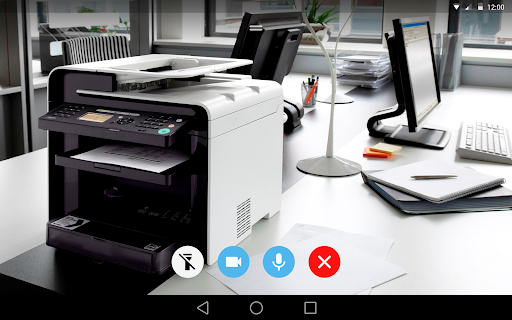
The standout feature is the live camera view: you can show the agent what is happening instead of relying only on verbal descriptions. That is a practical distinction for troubleshooting physical equipment, visible error states, or a setup where the location of a connection matters. The point is not to film everything around you, but to show the detail that is relevant to the support conversation.
The app description also mentions audio as part of the experience, alongside the live video support session. Together, those elements are intended to let the agent see what you choose to show and guide you through the next steps. I would keep the camera aimed at the problem and follow the agent’s instructions, rather than assuming the app is a broad-purpose calling or conferencing service.
A Practical Support Routine
A useful routine starts before the session: confirm that you are speaking with a support agent you trust, have the issue nearby, and listen for the six-digit PIN. Once you open Rescue Lens and enter it, frame the problem as clearly as you can. If the agent asks to see a different angle or detail, adjust the camera so the view stays relevant to the question at hand.
I would treat the session as a focused conversation, not an opportunity to show unrelated parts of a room or device. The app is designed around permission for the agent to see what you choose to show through the camera. Being deliberate about that view keeps the interaction centered on the issue and makes the camera-sharing step easier to understand.
Keep Its Limits in View
Rescue Lens depends on a support agent using the same service and giving you a PIN. Without that support context, its main job cannot get underway. That makes it less useful as a standalone troubleshooting app, and there is no reason to expect it to replace other kinds of support or explain a technical problem without an agent’s guidance.
The app also involves showing a live camera view, so it is worth being thoughtful about what enters the frame. Follow the app’s direction to use it only when prompted by a support agent you trust. The Google Play rating is 3.6 stars from 522 ratings, which gives prospective users some context, but the best fit still depends on whether an agent has asked you to use this particular support workflow.
LogMeIn Rescue Lens is a narrowly focused way to make a support conversation more visual. Its PIN-based start and live camera session are easy to understand, and the app can help when words alone are not enough to show what is wrong. The trade-off is that it depends on a trusted agent and does not offer much purpose outside that guided session.
I would install it when a support agent you trust asks you to use it, especially if the issue is easier to show than describe. If you are looking for an independent repair guide or a general video app, this is not the right fit. As a companion to a live support interaction, though, its simple role is clear.
LogMeIn Rescue Lens Frequently Asked Questions
What is LogMeIn Rescue Lens used for?
LogMeIn Rescue Lens lets a support agent using the service see what you choose to show through your Android device’s camera during a live support session. You enter a six-digit PIN from the agent, then point the camera at the issue. It is intended for people already receiving support, rather than as a self-guided troubleshooting app.
Which devices can use LogMeIn Rescue Lens?
LogMeIn Rescue Lens is an Android app. The Android version requirement can vary with the device, so check the Google Play store details for compatibility with your phone or tablet. The app’s own version is also listed as varying by device, meaning the precise version may differ across devices.
Does LogMeIn Rescue Lens cost anything?
The app is free to download and has no in-app purchases. It also contains no ads. The support session itself depends on an agent using LogMeIn Rescue Lens and giving you a PIN, so installing the app by itself does not start a support interaction.
Do I need a PIN to use LogMeIn Rescue Lens?
Yes. The stated setup is to launch the app and enter the six-digit PIN supplied by the support agent, then point your camera at the problem. Use it when directed by a support agent you trust. If you do not have an agent using the service, the app’s main support workflow is not available to you.
Is LogMeIn Rescue Lens right for everyday use?
It is best suited to an occasional support session where showing a problem is easier than explaining it. The app is not presented as a general camera, video-chat, or independent repair tool. I would recommend it when a trusted agent asks you to share a live view, and not as an app you need to use routinely.
Pros
- A live camera view can make hard-to-describe support problems easier to show.
- The basic session steps are simple: launch, enter a PIN, and point the camera.
- Free to download, with no in-app purchases or ads.
- Audio is included in the described live support experience.
Cons
- Requires a support agent using Rescue Lens and a six-digit PIN.
- Has little purpose as a standalone troubleshooting or general video app.
- Sharing a live camera view calls for care about what you choose to show.
- Category
- Business