Web Video Cast | Browser to TV
- 2.41M
- 4.6
- Installs
- 50.00M
- Price
- Free

Screenshots
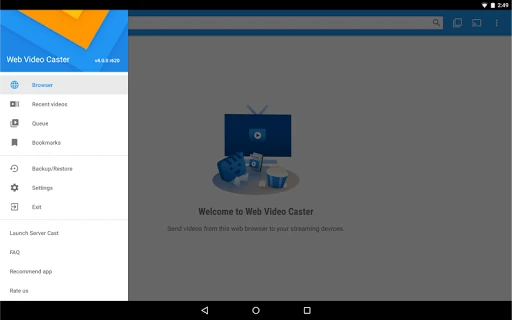
Analysis by Reviewed APKs
Web Video Cast | Browser to TV is for getting videos, live streams, photos, and audio from websites or your phone onto a television. I see it as a useful bridge for people who already have a Chromecast, Roku, Fire TV, DLNA receiver, or compatible smart TV and want to browse on a phone instead of hunting through TV apps. Its broad device support is appealing, though playback still depends on the source and receiving device.
A relaxed evening on the TV
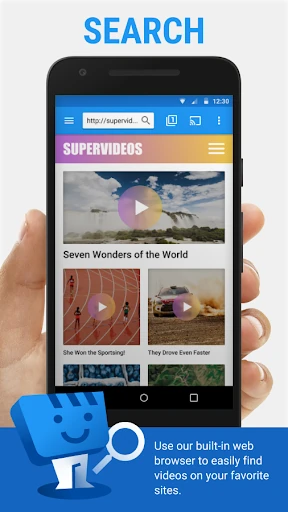
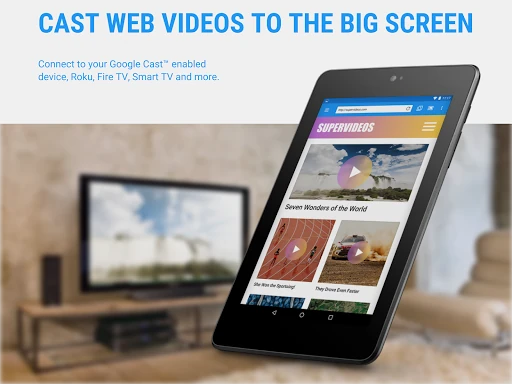
When I want to put a web video on a bigger screen, the basic idea here is refreshingly direct: browse to the page, try to play the video, then connect to a streaming device and cast it. That suits a familiar evening routine, like finding a news stream on my phone while dinner is underway and then moving it to the living-room TV. The phone acts as the starting point, rather than the screen I have to keep watching.
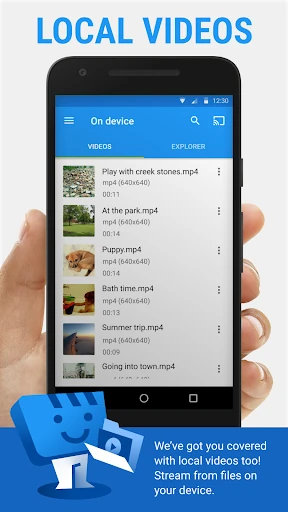
The app also covers local videos, photos, and audio, so the same process can help with a clip saved on the phone or a photo I want to show across the room. I like that range because it makes the app more than a one-purpose web-video shortcut. Still, the content has to be playable by the receiving device. The app does not decode or convert media for a TV that cannot handle it.
A bridge, not a TV service
Compared with opening a dedicated streaming service on a smart TV, Web Video Cast starts with web pages and content already on a phone. That makes it handy when a video is available in a browser but not easy to find in a TV app. Its compatibility list includes Chromecast, Roku, DLNA receivers, Amazon Fire TV, several smart-TV families, and other options, giving it a wider role than an app built around one receiver.
I would not treat it as a replacement for every TV app, a universal fix for troublesome websites, or a way to mirror a computer browser tab. The app explicitly does not support tab casting, and it cannot fix a website server that is buffering or failing. If a video is restricted or simply incompatible with the TV, having a cast button does not make it playable. It is a practical connector, not a content provider.
Small habits that help
A little patience at the start can make casting feel less fiddly. I would first make sure the phone and receiving setup are ready, browse to the page, and try playing the actual video before starting the connection. That order follows the app’s recommended flow and helps distinguish a page that has not started its media from a casting problem. For a photo, the app describes long-pressing it as a way to cast.
For an evening with several clips, it is worth knowing that premium features include a queue and video history, along with bookmarks and a home-page setting. Those extras can make repeat use more organized, while the basic browse-and-cast workflow remains the central job. Premium functionality does not apply universally to every streaming device, so I would check whether a particular feature works with my setup before building a routine around it.
More From Our News Desk

Zoom Meetings, Google Meet, or Teams: Which Is Easiest to Join?

How I Build a Free Streaming Lineup With Tubi

Why Crunchyroll Is the Default Anime App for So Many Fans

YouTube TV: A Practical Guide to Cutting Cable

Rummikub and the Small Comfort of Phone Games

TeamViewer Remote Control or AnyDesk for Helping Family?
Who will get the most from it
I would recommend Web Video Cast to someone who regularly finds videos in a phone browser and already owns a compatible TV or streaming receiver. It is especially appealing if that person also has local clips, music, or photos they would like to send to the television. Support for several receiver types means it may fit a mixed household better than a tool tied to just one brand, though compatibility still depends on the specific device and media.
It may be a poor fit for someone who expects every website to play reliably, wants to mirror a browser tab, or prefers to find all viewing options inside a television’s own apps. Video providers control their own servers and content, and the app cannot repair buffering or playback failures on their end. I would also keep expectations modest about formats: the TV or receiver must be able to decode the media itself.
Web Video Cast | Browser to TV is a Video Players & Editors app from InstantBits Inc. On Google Play it has over 50 million installs and a 4.6-star rating from about 2.4 million ratings. It is free to download, contains ads, and offers in-app purchases. The listed in-app purchase range is $1.49 to $6.99 per item. Its content rating is Everyone.
The current version shown is 6.1.0. The app was released on March 7, 2014, and its most recent update is dated November 1, 2026. The minimum Android version is not included in the available app details, so check Google Play for the requirement shown for your device. The app supports casting to several types of receivers, but individual features and playback compatibility can depend on the receiving device.
Turning Phone Finds Into TV Viewing
A clear starting point
My first impression is that the app has one job it wants me to understand: find media, then send it to a screen that can play it. The getting-started sequence is simple enough to follow without learning a complicated workflow. I browse the web or local files, start the media where needed, and connect to a receiver. That clarity matters when I am trying to get a video on the TV rather than spend the evening configuring an elaborate setup.
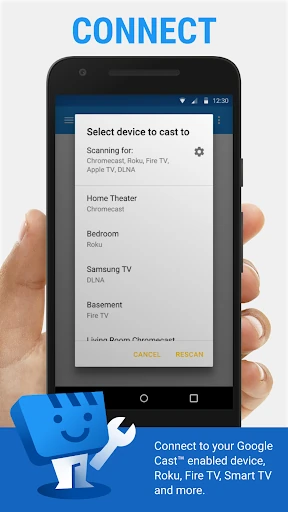
The range of supported receivers is a practical strength. Chromecast, Roku, DLNA receivers, Fire TV devices, and several smart-TV families are named, and the description also mentions using a web browser on some other screens. This breadth makes it worth considering in households with different hardware. It is not a promise that every model or every stream will work, so I would treat the first test with my own devices as part of setup.
The everyday casting flow
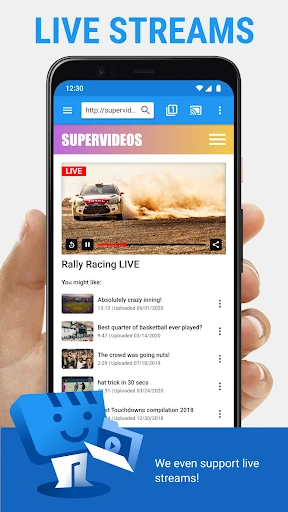
The usual flow follows how I already discover things: open a web page, try to start its video, and then connect to the television. That means I do not have to begin by searching a TV interface for a particular clip. For live news or sports, or a web-hosted show, the phone can be a convenient place to locate the stream before handing playback over to a larger screen.
There is an important distinction between sending media and mirroring the phone. Web Video Cast is built around casting supported media, not duplicating a browser tab. Playback also relies on the receiving device being able to decode the video. In practical terms, I would judge it by whether the particular page and receiver cooperate, not by expecting every item on the web to behave like a standard TV app.
More than web video
The supported media list gives the app a useful spread: movies and shows, MP4 video, HTML5 video, HLS live streams in M3U8 format where the receiver supports them, news and sports, photos, and audio files. That makes it possible to use the same tool for different kinds of casual viewing rather than keeping separate casting apps for every media type. Support is conditional, though, especially for live streams and formats.
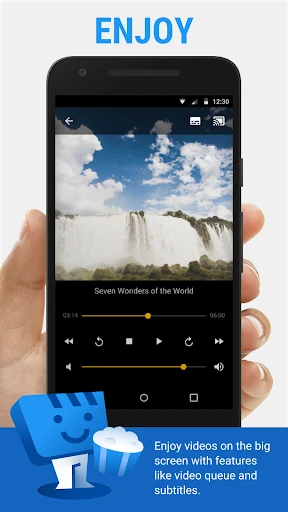
Subtitles are another thoughtful inclusion. The app can detect subtitles on a web page, accept subtitles supplied by the user, and search OpenSubtitles.org through an integrated search. I appreciate that this addresses a small but common annoyance when watching a video from a browser. The presence of subtitle options does not guarantee that every source has matching subtitles or that every receiver handles them the same way.
Premium features include an ad-free experience, bookmarks, a home-page setting, video history, a queue, a home-screen shortcut, and a most-visited-site option. These additions are aimed at making repeated browsing and casting more convenient. They are not equally applicable to all streaming devices, so I would consider them useful extras rather than assume that every one changes playback on every setup.
A simple home routine
For a low-effort routine, I would use the app when I come across something in the browser that is better watched from the couch. I can find the page on my phone, start the media, and connect to the TV. If it is a photo or a local clip instead, I can start from the phone’s stored media. That keeps discovery and playback in one general workflow, without suggesting the app supplies the content itself.
When I return to the same sites, premium bookmarks or the home-page setting may help reduce repeated browsing. A queue and history can also be useful for a longer viewing session, where I do not want to keep rebuilding the next step from scratch. I would first test the features with my receiver, since the app notes that premium functions are not universal across devices.
If something fails, I would check whether the media plays on its source page and whether the receiver supports its format before blaming the casting connection. This is a sensible troubleshooting habit because the app cannot fix provider-side buffering or outages and does not transcode media. A short check helps set expectations: sometimes the source or TV, not the casting workflow, is the limiting part.
Limits behind the convenience
The main limitation is that compatibility is a chain: the webpage must expose playable media, the receiver must support it, and the provider’s server must be delivering it properly. If a stream buffers during a busy period or fails at the source, the app cannot fix that. This is worth keeping in mind if I am choosing it for an important live event, where a dedicated TV service may be a more predictable option.
The app also does not provide tab casting like the Chromecast extension for a computer browser. It is aimed at sending supported media, rather than displaying everything visible on another screen. That distinction may disappoint someone expecting a universal mirror button, but it is straightforward once understood. I would choose it for browser video and local media, not as a general-purpose screen-sharing tool.
Finally, local playback and web casting still depend on the relevant file, format, and device working together. The app says it does not decode or transcode audio or video, so it cannot bridge every format mismatch. Ads are present in the free app, with ad-free use included among premium features. Those are reasonable trade-offs to weigh against how often I actually cast from a phone.
Web Video Cast | Browser to TV makes sense when I want a practical path from a phone browser or local media to a compatible television. I like its broad receiver support, useful subtitle options, and ability to handle more than video alone. Its strongest moments are simple: find something, start it, and watch it on the bigger screen.
I would try it if web-based viewing is already part of my routine and I have a supported receiver at home. I would not choose it expecting universal playback, tab mirroring, or a cure for unreliable sources. Those limits are real, but for the right setup, it is a handy casting companion.
Web Video Cast Frequently Asked Questions
What is Web Video Cast | Browser to TV used for?
Web Video Cast | Browser to TV sends supported videos from websites and local videos from a phone to compatible televisions and streaming devices. It also supports photos and audio files, and offers subtitle options for web video. It is a casting tool rather than a source of shows or a general browser-tab mirroring app.
Which devices can use Web Video Cast | Browser to TV?
The app is listed for Android, and its description names Chromecast, Roku, DLNA receivers, Amazon Fire TV, and several smart-TV families among supported receiving devices. Playback and some features can depend on the specific receiver and media format. Check Google Play for current phone requirements and confirm compatibility with your television or streaming device.
What Android version does Web Video Cast | Browser to TV require?
The minimum Android version can vary by app release and device, so check the Google Play page for the requirement currently shown for your phone. The app’s basic workflow is to browse to media or select local files, then connect to a compatible receiver. Device compatibility can also affect whether a particular stream plays.
Is Web Video Cast | Browser to TV free?
Web Video Cast | Browser to TV is free to download and contains ads. It offers in-app purchases, with listed items ranging from $1.49 to $6.99. Premium features include an ad-free experience and conveniences such as bookmarks, history, and a queue, though premium functionality does not apply universally to all streaming devices.
Who should try Web Video Cast | Browser to TV?
It is a sensible option for people who find videos in a phone browser or keep media on their phone and want to watch it on a compatible TV. It may not suit someone looking for computer tab casting, universal playback, or a fix for buffering caused by a content provider. The receiving device must support the media being cast.
Pros
- Supports a broad mix of streaming receivers, smart TVs, and browser-based playback options.
- Casts local videos, photos, and audio as well as supported web media.
- Includes subtitle detection, user-supplied subtitles, and an integrated subtitle search.
- Premium options add browsing conveniences such as bookmarks, history, and a queue.
Cons
- Playback depends on the source website and the receiving device’s format support.
- Does not mirror browser tabs or transcode incompatible media.
- The free version contains ads, and premium features do not work universally across receivers.
- Category
- Video Players & Editors
- Version
- 6.1.0