WavePad Audio Editor
- 41.04K
- 4.1
- Installs
- 10.00M
- Price
- Free
Screenshots
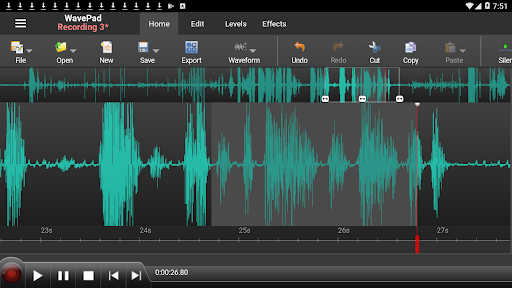
Analysis by Reviewed APKs
WavePad Audio Editor is a mobile sound editor for recording and shaping music, voice clips, and other audio. I’d consider it for people who want to trim a recording, reduce some noise, or add an effect without moving to a desktop program. After spending time with its broad set of editing tools, my take is that it offers plenty to explore, though its range may feel like more than a casual listener needs.
A Quick Recording Cleanup
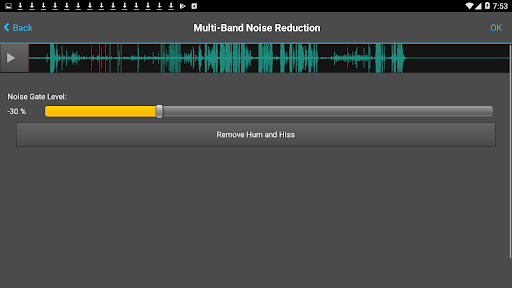
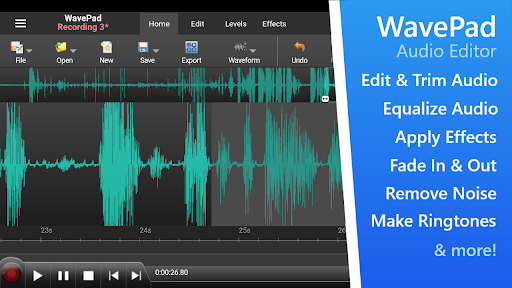
Imagine recording a short voice note and noticing a pause at the start, a little unwanted noise, or a section that needs to be quieter. WavePad is built for that kind of practical cleanup: it can record audio, let you edit a waveform, and apply tools such as cut, silence, amplification, and noise reduction. I like that the same app can handle both the initial recording and the edits that make it easier to share.
The editing options go beyond simply trimming the ends. You can copy or paste sections, insert audio from another file, or try effects such as equalization, echo, and reverb. For a music clip, pitch shifting or normalization may be more useful than they would be for a spoken note. The main appeal is having different kinds of adjustments available in one place, rather than needing a separate app for every small change.
A Middle Ground, Not a Studio
WavePad sits between a basic recorder and a more involved audio-editing setup. A recorder is enough when I only need to capture a thought, while WavePad makes sense when I want to reshape that recording afterward. It also supports several audio formats, including MP3, WAV, and AIFF, which gives it a wider editing role than a single-purpose voice memo tool.
That breadth does not make it a complete replacement for every desktop audio workflow. Its stated strengths are recording, direct waveform editing, effects, and restoration tools, not a promise of a full music-production environment. I’d choose it for edits on the go and straightforward sound adjustments. If all I want is to listen to music, or if I need a specific advanced studio workflow, this is not the reason I’d install it.
Small Habits, Better Edits
A helpful habit is to decide what a clip needs before reaching for effects. For a voice recording, I’d first remove unwanted sections, then listen for whether noise reduction or a level adjustment is actually needed. For music, I might start with a trim and only then test an effect such as equalization or normalization. That simple order keeps an edit focused instead of turning every available control into an experiment.
WavePad also supports inserting sound from other files and making new recordings while working with waveforms. That opens up modest, useful routines, such as adding a clip to an existing recording or keeping a short effect ready for later use. The included library has sound effects and royalty-free music clips. I’d still keep edits purposeful: a few considered changes are usually easier to judge than a stack of effects.
More From Our News Desk

Zoom Meetings, Google Meet, or Teams: Which Is Easiest to Join?

How I Build a Free Streaming Lineup With Tubi

Why Crunchyroll Is the Default Anime App for So Many Fans

YouTube TV: A Practical Guide to Cutting Cable

Rummikub and the Small Comfort of Phone Games

TeamViewer Remote Control or AnyDesk for Helping Family?
Who Might Enjoy WavePad
I’d recommend WavePad to someone who regularly records voice or music on a phone and wants editing tools close at hand. It should also suit curious beginners who want to try trimming, effects, or noise cleanup without starting with a desktop application. The range of supported formats and the combination of recording and editing make it useful for people who work with different kinds of audio rather than only one occasional voice memo.
It may not suit someone who only needs a simple recorder or player, since the editing choices can be unnecessary for those jobs. Nor would I treat it as a shortcut to every professional studio task: the description focuses on mobile recording and sound editing. The free version is for non-commercial use, so anyone planning commercial work should pay attention to that limitation and the separate commercial version mentioned by the developer.
WavePad Audio Editor is made by NCH Software and is in the Music & Audio category on Google Play. The app has over 10 million installs and a 4.1-star rating from about 41,000 ratings. Its content rating is Everyone. The current version shown in the provided app details is 20.24, and the release date is May 23, 2013.
WavePad is free to install and contains ads and in-app purchases. The listed in-app purchase range is $0.99 to $99.99 per item. The app was last updated on June 2, 2025. The free version is licensed for non-commercial use; the developer describes a separate version for commercial use. An Android minimum version was not included in the provided details, so check Google Play for the requirement that applies to your device.
A Closer Look at Editing on the Go
First Look and Setup
When I first opened WavePad, the range of its job was clear: this is not just a button for recording and saving a voice note. The app is meant to record and edit audio, with waveform editing and a substantial list of tools for changing a clip. That gives it an ambitious first impression, especially if you are arriving with a small task such as trimming a recording.
I’d begin by opening or recording a file I already know I want to change, rather than browsing effects at random. WavePad supports formats including MP3, WAV variants, and AIFF, and its description calls out direct waveform editing. That combination makes the app’s purpose easy to understand: bring audio in, make focused changes, and save or share the result.
The Everyday Editing
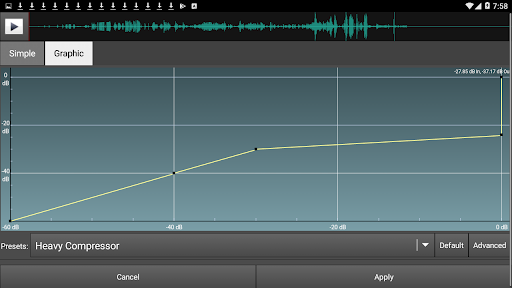
The day-to-day experience is centered on familiar editing actions: cutting, copying, pasting, deleting, inserting, and adding silence. Those tools cover many small jobs without requiring an elaborate plan. I can imagine using them to remove a false start from a voice recording or shorten a clip before sending it. Auto-trim and compression add more options when a basic cut is not quite enough.
For me, the important distinction is that WavePad treats a recording as something to work on, not just something to capture. The description also identifies the editing as non-destructive, which is a reassuring approach when experimenting with changes. I’d still listen back after each meaningful adjustment. Audio can be easy to alter and harder to judge if I make several changes without checking the result.
Effects and Restoration
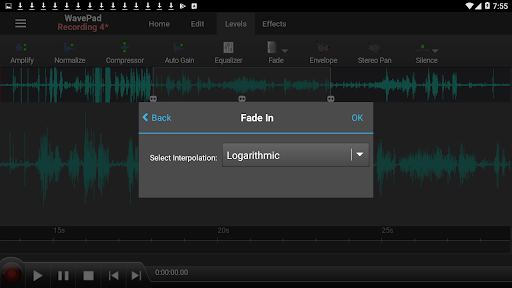
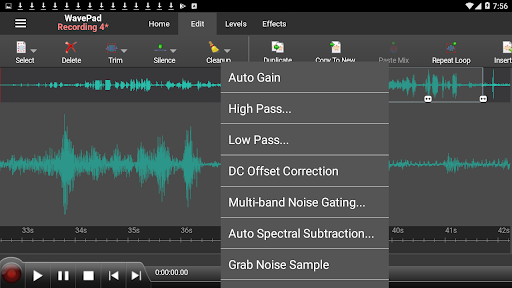
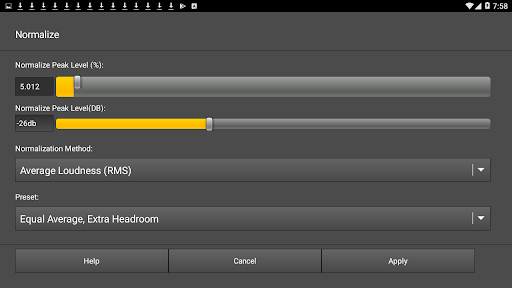
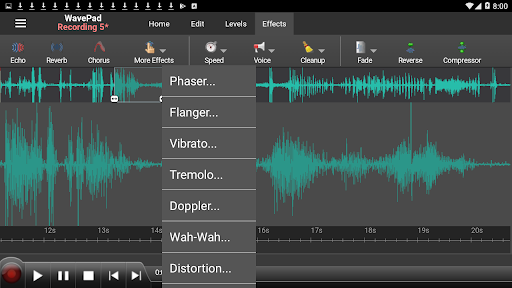
The effects list is one of WavePad’s most notable strengths. It includes amplification, normalization, equalization, envelope, reverb, echo, reverse, and more. There are also restoration tools for noise reduction and click or pop removal. That variety means a user can approach a clip from different angles, whether the goal is a level change, a tonal adjustment, or a cleaner recording.
WavePad supports sample rates from 6 to 192 kHz, with mono or stereo audio and several bit depths. Those specifications suggest it can accommodate a range of audio material, but most casual edits will not require thinking about every setting. I’d treat them as useful flexibility rather than a reason to complicate a simple trim. The best result is still the one that suits the clip and sounds right.
A Practical Clip Routine
For a quick voice clip, I’d start by recording or opening the audio, then remove pauses or mistakes with the basic editing tools. Next, I’d listen for an obvious issue that a listed effect can address, such as an uneven level or unwanted noise. Only after that would I consider effects like equalization or reverb. This keeps the process tied to what I can actually hear instead of chasing settings.
For a music excerpt, I’d use a similar routine but focus on the section boundaries first. WavePad can cut and paste parts, insert audio from other files, and apply effects directly to waveforms. The sound-effect library and royalty-free music clips may also be useful when a project needs one of those included sounds. I’d save or share the finished recording once I’m satisfied with the edit.
Limits to Keep in Mind
WavePad’s feature list can be a lot to take in if your needs are very simple. A person who only wants to record a reminder may not need pitch shifting, compression, restoration, and a library of sound clips. The broad toolkit is a benefit when it matches the task, but it also asks the user to make choices about how much editing is worthwhile.
There are practical boundaries, too. The free version is licensed for non-commercial use, and the app contains ads and offers in-app purchases. I’d keep the licensing distinction in mind before using it for commercial work, and check the store for current purchase details. WavePad is best understood as a capable mobile editor for recordings and clips, not an all-purpose answer to every audio need.
WavePad Audio Editor brings recording, waveform editing, effects, and restoration tools together in a single mobile app. I appreciate that it can handle small cleanups as well as more involved experiments, and that it supports several common audio formats. The trade-off is a broad feature set that may be unnecessary if all you want is a basic recorder.
I’d recommend giving WavePad a try if you often edit voice or music clips on the go and are comfortable exploring a range of tools. It is less compelling for people who only need playback or occasional recording. Before using the free version commercially, take its non-commercial license seriously and check the developer’s commercial option.
WavePad Audio Editor Frequently Asked Questions
What is WavePad Audio Editor used for?
WavePad Audio Editor is used to record and edit music, voice, and other audio. It supports actions such as cutting, copying, pasting, inserting, and applying effects, along with tools including noise reduction and click or pop removal. You can also work with several audio formats, including MP3, WAV, and AIFF.
Which devices can run WavePad Audio Editor?
The details provided describe WavePad Audio Editor as an Android app available through Google Play. A minimum Android version was not included in those details, and compatibility can depend on the device and current release. Check the Google Play store entry for the Android requirement and device compatibility that apply to you.
What Android version does WavePad Audio Editor require?
The minimum Android version is not stated in the app details provided here. Requirements can vary as an app is updated and across devices, so check the WavePad Audio Editor page on Google Play before installing. The store information for your device is the best place to confirm whether it is compatible.
Does WavePad Audio Editor cost money?
WavePad Audio Editor is free to install, but it contains ads and offers in-app purchases. The listed purchase range is $0.99 to $99.99 per item, and individual options may vary. The free version is licensed for non-commercial use; check Google Play and the developer’s information for current purchase details and commercial-use options.
Is WavePad Audio Editor suitable for beginners?
It can suit beginners who want to learn basic audio edits such as trimming a clip, removing a section, or trying an effect. Its range of tools may feel like too much for someone who only wants a simple recorder. I’d recommend starting with one clear editing goal and exploring other options as needed.
Pros
- Combines audio recording and waveform editing in one mobile app.
- Offers a broad set of editing, effects, and restoration tools.
- Supports several audio formats, including MP3, WAV, and AIFF.
- Includes a library of sound effects and royalty-free music clips.
Cons
- The wide range of tools may overwhelm users with simple recording needs.
- The free version is licensed for non-commercial use only.
- Contains ads and offers in-app purchases.
- Category
- Music & Audio
- Version
- 20.24