Video Converter and Compressor
- 2.33K
- 4.7
- Installs
- —
- Price
- Free
Screenshots
Analysis by Reviewed APKs
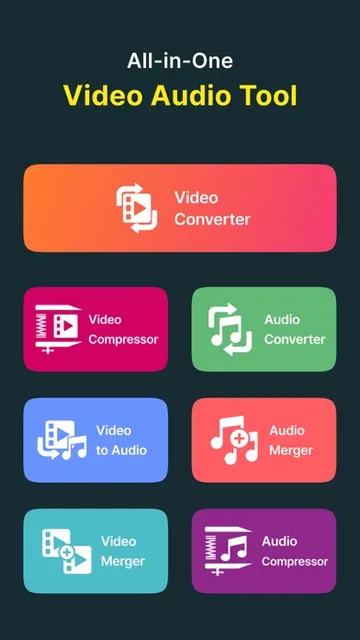
Video Converter and Compressor is a practical file-conversion and editing app for people who need to change video or audio formats, reduce file size, trim clips, or join recordings on an iPhone or iPad. I like that it brings several utility jobs together instead of focusing on just one conversion. Its many adjustable settings will suit hands-on users, though anyone after a simple one-tap editor may find the choices more detailed than necessary.
A Clip That Needs Sharing
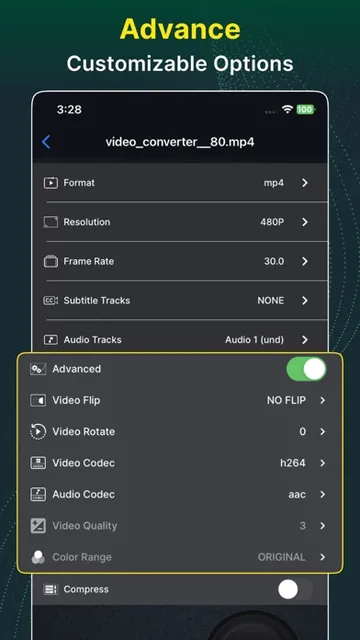
I can imagine the app earning its place after a familiar snag: a video is too large to share comfortably, or a device or service needs it in a different format. Rather than moving the clip to a computer, I can use the converter to select a target format and adjust resolution, frame rate, or bitrate. Those controls make the app useful for practical file preparation, not just for changing a filename or container.
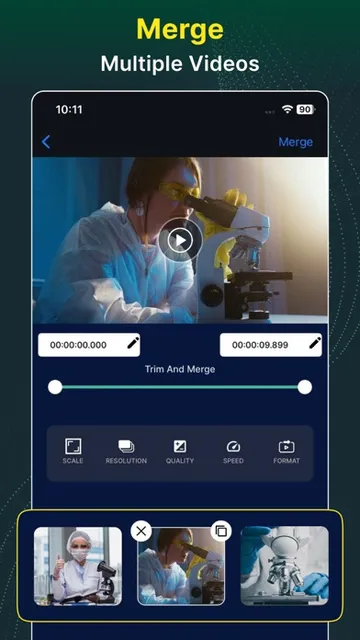
For a longer recording, the trim tool offers a way to keep only the useful passage before exporting. The description says start and end times can be entered precisely, down to milliseconds, which is handy when I want to remove a pause without guessing at a rough slider position. If the source has subtitle or audio tracks, I can choose which existing tracks to retain or discard during conversion.
A Utility, Not a Full Editor
The closest alternatives are a desktop converter for more involved file-management work, or a general-purpose mobile video editor for arranging footage and adding creative touches. This app is more focused on transforming and compressing existing files. It also covers audio conversion and merging, so it can replace a handful of small utility tasks when I am working from my phone or tablet.
I would not treat it as a complete filmmaking or social-video editor. The described tools center on formats, codecs, file size, tracks, trimming, rotation, flipping, and joining files. There is no mention of adding titles, transitions, or visual effects, so I would choose another kind of app if those are the main jobs. The benefit here is control over media output, rather than a broad creative timeline.
Small Habits, Better Exports
I would start by deciding what the output needs to do before changing settings. If the goal is simply a smaller file, compression and bitrate controls are more relevant than changing every parameter at once. If a particular device or service needs a specific format, I would choose that first, then check resolution and frame rate. Keeping the task narrow makes the app's many options feel more manageable.
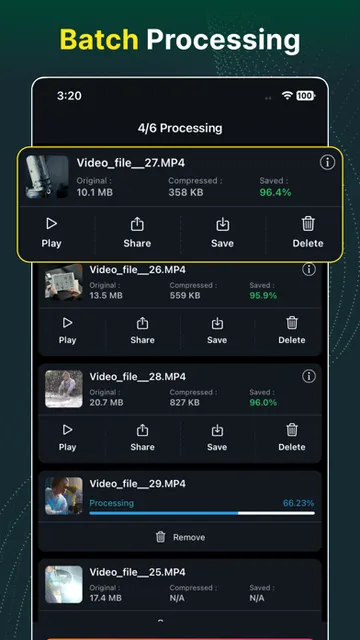
For a batch of clips, the batch-processing support can reduce repetitive setup. I would group files that need similar treatment, then check each source before exporting, especially when it contains multiple audio or subtitle tracks. For audio work, choosing mono or stereo and a suitable sample rate gives a little more control than a basic format switch. These are useful small checks when consistency matters.
More From Our News Desk

Zoom Meetings, Google Meet, or Teams: Which Is Easiest to Join?

How I Build a Free Streaming Lineup With Tubi

Why Crunchyroll Is the Default Anime App for So Many Fans

YouTube TV: A Practical Guide to Cutting Cable

Rummikub and the Small Comfort of Phone Games

TeamViewer Remote Control or AnyDesk for Helping Family?
Who Will Find It Useful
I would recommend Video Converter and Compressor to people who regularly move media between devices, need smaller copies of large videos, or want to pull audio from video into a separate format. It also makes sense for anyone who trims and joins recordings and would rather handle those straightforward jobs on an iPhone or iPad than transfer files to a computer. The combination of video and audio tools gives it a broad utility role.
It may be less appealing if you want an editor that guides you through a quick, polished social post, or if you rarely need to change media files at all. The format, codec, bitrate, and quality controls are useful when you have a reason to use them, but they can be more than a casual user needs. I would also check the App Store details for device compatibility before installing.
Video Converter and Compressor is an iOS app from Inverse.AI, in the Photography category. It was released on August 17, 2019, and the listed current version is 14.2. Its App Store rating is 4.7 out of 5 from 2,325 ratings. The app is rated 4+ and requires iOS 16.0 or later.
The app is free to download on the Apple App Store. Its latest recorded update is October 28, 2026. The available store information gives a rating and rating count, but no install figure to include here. Pricing and availability can change, so I would check the App Store page for the current details before downloading.
A Closer Look at Media Conversion
First Look and Setup
When I first open a converter like this, I want to know whether it can work with files I already have, not just a narrow set of camera recordings. The app supports importing from local directories, the Photos app, and cloud services. It also describes transferring files from a computer or another mobile device on the same Wi-Fi or LAN network, which gives users several ways to bring a source into the workflow.
The breadth is appealing, but it also means I would approach setup with a specific job in mind. There are many formats and encoding options, so starting with a target outcome—such as a smaller video or an audio copy—helps keep the first session clear. I would check that the device meets the iOS 16.0 requirement and then begin with a short, familiar file before handling a larger batch.
Conversion in Daily Use
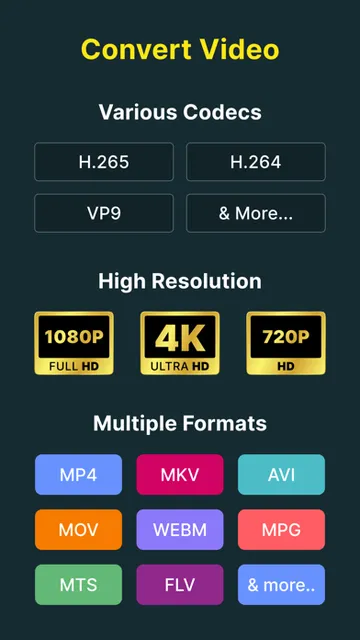
The core experience is about choosing how a file should come out. Video conversion can include format, resolution, frame rate, and bitrate changes, while audio conversion offers its own format and channel choices. I appreciate that these controls address common reasons a file needs conversion, rather than treating every job as a simple extension change. The supported video formats include MP4, MKV, AVI, MOV, and several others.
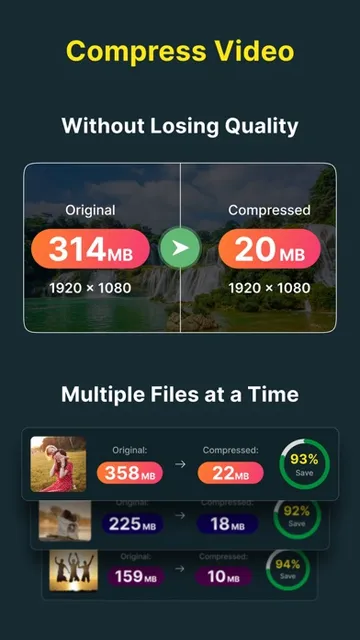
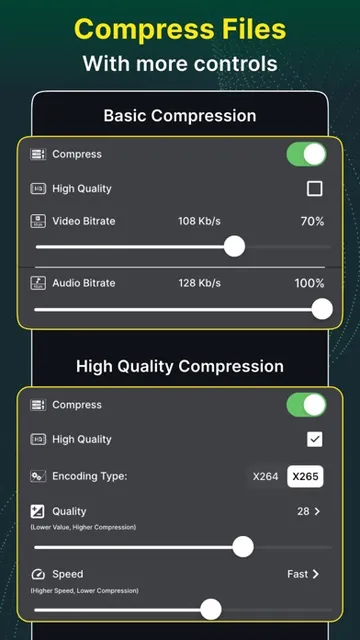
Compression is more than a single generic setting. The description includes a high-quality option using X264 and X265, along with bitrate controls and CRF and speed adjustments. That gives people who understand these terms room to balance size and quality. For everyday use, I would make modest changes and review the result rather than assuming that the smallest possible file will still look or sound right.
Beyond Format Changes
The app stands out by putting several related tasks in one place. Video tools include trimming, rotating, flipping, and merging multiple clips, with options to change resolution and aspect ratio for a merged output. The exact trim-time entry is a welcome practical detail for cutting around a moment. These functions make it useful for basic cleanup before sharing or storing a recording.
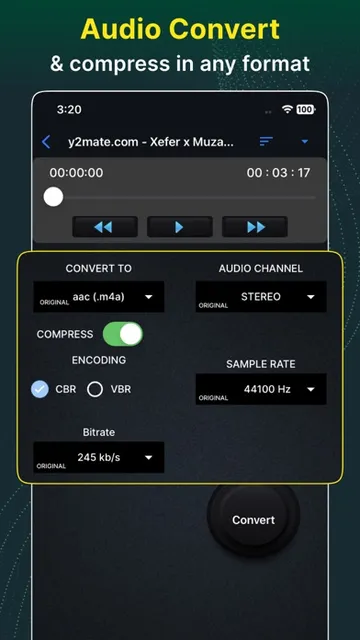
Audio gets its own set of tools rather than being an afterthought. Users can convert and compress audio, choose mono or stereo, select a sample rate from 8K to 48K, and merge supported audio files. Video can also be converted into audio formats such as MP3, AAC, AC3, OGG, M4A, or WAV. Batch processing is supported across the features, which can help when several files need similar work.
Track selection is another useful control for video conversion. When a source includes existing subtitle or audio tracks, the app allows users to keep or discard them. That is a more specific option than many casual converters provide, and it can matter when preparing a file for a different player or use. I would still check the exported file, especially when preserving a particular track is important.
A Repeatable File Routine
For a routine sharing task, I would import the source, decide whether the priority is compatibility or file size, and then set the format and resolution accordingly. If a clip only needs a shorter beginning or ending, I would trim it before conversion so I am not processing footage I do not plan to keep. That simple order keeps the job focused and avoids changing settings without a clear reason.
If several clips need the same output treatment, batch processing is the natural next step. I would still review the files individually for orientation and tracks, since one clip may have different source properties from another. For a set of voice or music files, I would use the audio converter or merger and choose the intended channel and sample rate. A quick check of the exported results closes the loop.
Limits to Keep in Mind
The main trade-off is complexity. Options such as codecs, CRF, bitrate, and frame rate are valuable to people who want control, but they can make a simple conversion feel technical. I would not change settings just because they are available. If I only need a quick, standard export, a simpler tool may be easier to approach; this app makes more sense when its range of choices solves a real problem.
The description emphasizes conversion and basic editing tasks, not creative production. It is a poor fit for someone expecting a full timeline-based editor or tools for embellishing a video with titles and effects. Also, output quality and processing needs depend on the source and the chosen settings, so I would check the result instead of relying on a preset name alone.
Compatibility is worth checking before installing: the app requires iOS 16.0 or later. The store details are the best place to confirm current availability and pricing for a particular device. That is a small but important practical check for an app whose main purpose is handling media files that may be moved between different devices and formats.
Video Converter and Compressor is a capable media utility with a notably wide mix of video and audio conversion, compression, trimming, and merging tools. I like its emphasis on practical control, including track choices and detailed output settings. The trade-off is that this is a toolbox, not a guided creative editor, and its options will suit some users much more than others.
I would try it if I often need to prepare media files on an iPhone or iPad, especially when batch work or audio conversion would save a trip to a computer. If I only make occasional casual edits, I would look for something simpler. For the right routine, this app brings a lot of useful file work together.
Video Converter and Compressor Frequently Asked Questions
What is Video Converter and Compressor used for?
Video Converter and Compressor is used to convert or compress video and audio files, adjust video resolution, frame rate, or bitrate, and trim or merge media. It can also rotate or flip video and convert video into audio formats. Its tools are aimed at preparing existing files rather than making a fully styled creative video.
Which devices support Video Converter and Compressor?
Video Converter and Compressor is an iOS app available through the Apple App Store. It requires iOS 16.0 or later. Check the App Store page for current compatibility details for your particular iPhone or iPad, since availability and requirements can vary over time.
What iOS version does Video Converter and Compressor require?
The listed minimum requirement for Video Converter and Compressor is iOS 16.0. If your device is on an older version, check the app's current App Store details for compatibility before trying to install it. Requirements can vary as the app is updated.
Is Video Converter and Compressor free?
Video Converter and Compressor is listed as free to download on the Apple App Store. For current pricing or any purchase details, check its store page, since those details can change. The listed information does not establish additional costs for every region or at every point in time.
Who should use Video Converter and Compressor?
It is a good fit for people who regularly convert, compress, trim, or merge media on an iPhone or iPad, and for users who want audio tools alongside video ones. It may not suit someone looking for a simple creative editor with styling features, or someone who rarely needs to change media files.
Pros
- Handles video and audio conversion, compression, trimming, and merging in one app.
- Offers detailed control over resolution, frame rate, bitrate, and audio settings.
- Supports batch processing and several ways to import media files.
- Can select existing subtitle and audio tracks during video conversion.
Cons
- The many technical controls may feel overwhelming for occasional users.
- Its focus is file handling, not a full creative video-editing workflow.
- Requires iOS 16.0 or later.
- Category
- Photography
- Version
- 14.2