Camo Studio – Stream & Record
- 2.64K
- 4.5
- Installs
- —
- Price
- Free
Screenshots
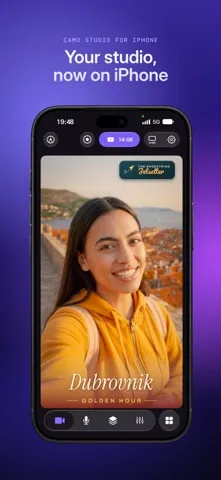
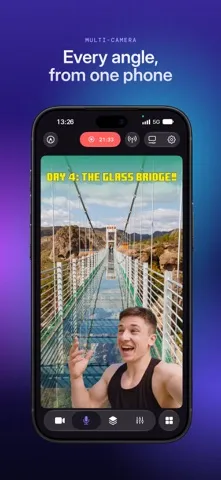
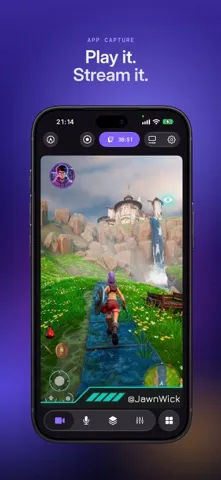
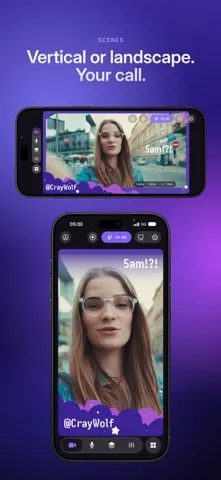
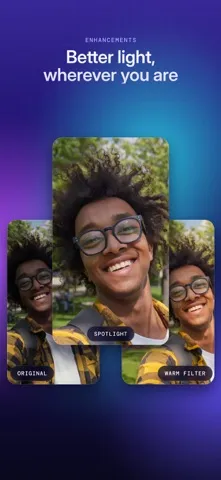
Analysis by Reviewed APKs
Camo Studio – Stream & Record turns an iPhone or iPad into a compact setup for livestreaming and video recording. It suits creators who want to combine cameras, microphones, overlays, and scene changes without moving the whole job to a computer. My overall take is that it offers a surprisingly deep set of production controls for a mobile app, though that depth will be more useful to regular streamers than casual video makers.
A Mobile Stream in Practice
When I first opened Camo Studio, I pictured a familiar weekend setup: an iPad beside a console, a capture card bringing in gameplay, and a microphone ready for commentary. The app is built to bring those pieces into a stream, with scene controls for arranging video and audio sources. Rather than treating the iPad as just a camera, it can serve as the place where I shape the broadcast and manage its moving parts.
For a simpler recording session, I can imagine using an iPhone’s camera and a connected microphone to capture a short video, then saving it locally for editing or uploading later. Camo Studio supports recording to built-in or connected storage, and offers portrait, landscape, and square orientations. That makes it relevant to both a planned creator session and a quick vertical clip, without pretending that the recording itself is a complete editing workflow.
A Studio, Not an Editor
Compared with opening a camera app and pressing record, Camo Studio is aimed at people who want more control over a live or recorded production. Scenes can combine different sources and layers, while overlays and stream panels bring broadcast details into the same control space. The iPad version is especially suited to a multi-piece setup, with support for peripherals and external devices; the iPhone version offers a more portable route for streaming or recording.
That focus also defines what I would not use it for. This is not a general-purpose video editor for trimming a finished clip, assembling a polished timeline, or adding a soundtrack afterward. Its strengths sit before and during capture: arranging a scene, selecting inputs, and sending a stream to a service. If I only need a quick unadorned camera recording, its production tools may be more than I need.
Small Setup Habits
A little preparation should make the first proper session smoother. I would decide whether the job is a stream or a local recording, choose an orientation, and check which camera and audio sources belong in each scene. Since scenes can have their own sources and output profiles, setting up a few useful options in advance can make switching during a broadcast feel less like rummaging through controls.
For repeat sessions, I would keep the layout modest and add only the layers I expect to use. A web overlay, a text label, or a picture-in-picture view can add context, but every extra element is another thing to check before going live. On iPad, I would also connect the capture device and microphone before settling into the session; on iPhone, I would frame the shot and test the chosen mic first.
More From Our News Desk

Zoom Meetings, Google Meet, or Teams: Which Is Easiest to Join?

How I Build a Free Streaming Lineup With Tubi

Why Crunchyroll Is the Default Anime App for So Many Fans

YouTube TV: A Practical Guide to Cutting Cable

Rummikub and the Small Comfort of Phone Games

TeamViewer Remote Control or AnyDesk for Helping Family?
Who Will Get the Most From It
I would recommend Camo Studio to iPhone and iPad owners who already stream, record regularly, or want to build a more deliberate mobile setup. Console players using an iPad and capture card, creators who want to add a second camera angle, and people who value scene switching have clear reasons to explore it. The range of input, layout, and overlay options gives those users room to shape a broadcast around their own routine.
It may be a poor fit for someone who wants only a point-and-shoot camera or expects a full editing suite after recording. The app’s streaming controls and configurable scenes have a learning curve, and a useful setup can involve extra hardware such as microphones or capture devices. I would also check the iOS requirement before getting attached to the idea: Camo Studio requires iOS 18.0 or later.
Camo Studio – Stream & Record is made by Reincubate Ltd and is available for iPhone and iPad through the Apple App Store. It is free to download. The App Store shows a 4.5-star rating from 2,640 ratings, and gives the app a 4+ age rating. Its minimum requirement is iOS 18.0.
The version number provided is 2.6.1. The app’s release date is September 18, 2023, and its last update is dated October 27, 2026. I would check the App Store entry for current purchase details and compatibility before installing, since store information can change over time.
Building a Flexible Mobile Studio
A Control-Rich First Look
When I first opened Camo Studio, the most useful thing to understand was its role: it is a production space, not simply a camera shutter. The app presents streaming and recording as jobs built around scenes, sources, and controls. That framing makes sense for someone with a planned setup, though newcomers may want to start with one camera and one microphone before exploring the more elaborate options.
The setup can be as simple or involved as the device allows. On iPhone, the app can use the front and rear cameras together, and a microphone can be connected. On iPad, the description emphasizes a broader range of peripherals, external devices, and cameras. I would begin by connecting the essential input for the session, then build outward only if I had a clear use for another source.
The Everyday Flow
The core workflow revolves around preparing a scene and then streaming or recording from it. Scenes can be switched with a tap, and each can use different cameras, video and audio sources, and output profiles. In day-to-day use, that means a creator can set up a talking view and a gameplay view separately, rather than rebuilding the whole arrangement whenever the content changes.
For a recording rather than a live broadcast, Camo Studio can save video to the device, connected storage, or a selected storage service, ready for later editing and uploading. The app supports a range of resolutions, including 4K UHD, 1080p HD, and 720p. I would choose a format with the destination in mind, instead of assuming the highest resolution is always the most practical choice.
Scenes and Stream Tools
Scene customization is one of the features that gives Camo Studio its studio feel. A scene can include layers such as text, images, shapes, video, and web pages, and the built-in galleries provide backgrounds and filters to try. For a stream with distinct segments, a few saved scenes could make it easier to shift the picture without interrupting the flow to rearrange every element.
Web overlays extend that approach with live content, alerts, embedded control panels, and other widgets. The app supports overlays from StreamElements, Streamlabs, Uno Overlays, and more. Stream panels also bring service-specific controls into the app, including ways to stay in touch with chat and trigger in-stream events. These tools are aimed at streamers who want active broadcast controls, not just a clean camera feed.
The video adjustments are practical, too. Camo Studio offers framing and orientation controls for input feeds, including auto-framing modes, and can apply a background blur, replacement, or removal effect. Those options can help a creator make a shot feel more intentional. I would still treat them as ways to shape the image, not as a substitute for choosing a suitable camera position and background.
A Repeatable Session
For a weekly stream, I would create a small set of scenes around the actual routine: an opening view, the main content, and perhaps a closer camera shot for conversation. I would make sure each scene has the intended audio and video sources, then test the overlays before starting. That kind of preparation uses the app’s scene switching for a real purpose instead of adding layers simply because they are available.
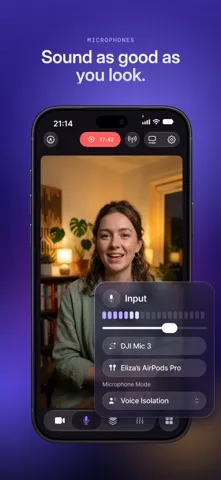
A mobile gaming session could use a spare phone or tablet running Camo Camera as another angle over Wi-Fi, while an iPad setup can take console video through a capture card. For audio, the app supports USB microphones and Bluetooth microphones such as AirPods. Before going live, I would check that the chosen angle and microphone are represented in the current scene, especially after changing between setups.
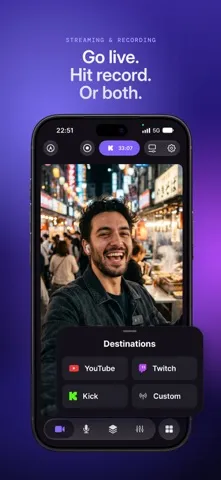
For a recording intended for later editing, I would keep the session simpler: select an orientation, pick a resolution, connect the microphone, and record to the storage destination I plan to use. The point is to capture clean material, not to spend the whole session adjusting a live layout. That distinction helps make the app useful for both streaming and recording without treating the two workflows as identical.
Keep the Setup in View
The biggest practical limitation is that the most ambitious use cases depend on having the right gear and a compatible device. An iPad stream with console gameplay, for example, calls for a capture card, while multiple angles or improved audio can involve additional cameras or microphones. Camo Studio supplies the control environment, but it does not remove the work of connecting and arranging the physical setup.
There is also a real difference between a quick recording and a layered broadcast. Scenes, overlays, and service-specific panels give experienced users useful control, but can add preparation for someone who just wants to make a short clip. I would start with a basic scene and add one feature at a time, rather than trying to configure every option before making the first recording.
Finally, device fit matters. Camo Studio requires iOS 18.0 or later, and some described iPad capabilities are tied to M1 or later models. The app also notes that an iPhone can ease its frame rate if the phone warms up, rather than dropping the stream. That is a sensible response, but it is a reminder that mobile streaming still depends on the device and session conditions.
Camo Studio – Stream & Record is a capable mobile production tool for creators who want their iPhone or iPad to do more than capture a single camera feed. Scene switching, overlays, input controls, and local recording give it genuine flexibility, particularly for recurring streams and carefully planned sessions.
I would try it if I already have a streaming routine or want to build one around an iPad or iPhone. Casual users who only need a basic camera are better served by something simpler. The app’s depth is its appeal, but it pays off most when I have a clear setup and a reason to use those controls.
Camo Studio Frequently Asked Questions
What is Camo Studio – Stream & Record used for?
Camo Studio is for streaming and recording video from an iPhone or iPad. It can bring together camera and audio sources, arrange them into scenes, add layers and web overlays, and provide stream panels. Recordings can be saved for later editing or uploading, so it can suit both live broadcasts and planned video capture.
Which devices can run Camo Studio – Stream & Record?
Camo Studio is available for iPhone and iPad through the Apple App Store. It requires iOS 18.0 or later. Some capabilities described for iPad depend on the model, so check the App Store information and your device details before installing if you plan to use external devices or background streaming.
Is Camo Studio – Stream & Record free?
Camo Studio is free to download from the App Store. Purchase details can change, so check the current store entry for any in-app purchase information before installing. The provided app description also says there are no ads in the app.
Does Camo Studio – Stream & Record work on Android?
The app is offered for iPhone and iPad through the Apple App Store. The provided platform information does not describe an Android version, so this review covers the iOS app. Check the relevant store for current device availability if you are looking for an app on another platform.
Who should use Camo Studio – Stream & Record?
It is best suited to creators who want to stream or record with more control over camera, audio, scenes, and overlays. Console streamers using an iPad capture card and creators who switch between planned views may find its tools particularly useful. Someone who only wants a simple camera recording may not need its extra setup.
Pros
- Scenes can use different cameras, audio sources, layouts, and output profiles.
- Supports streaming and local recording on iPhone and iPad.
- Web overlays, stream panels, and video adjustments add production control.
- Offers portrait, landscape, and square orientations for varied content.
Cons
- The iOS 18.0 minimum requirement rules out older software versions.
- More involved streaming setups may require extra cameras, microphones, or capture hardware.
- Its scene and overlay tools may be excessive for casual video recording.
- Category
- Photography
- Version
- 2.6.1