WinZip – Zip UnZip Tool
- 102.51K
- 2.7
- Installs
- 10.00M
- Price
- Free
Screenshots
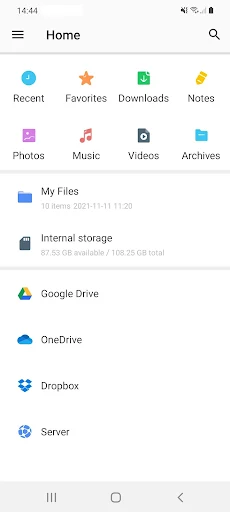
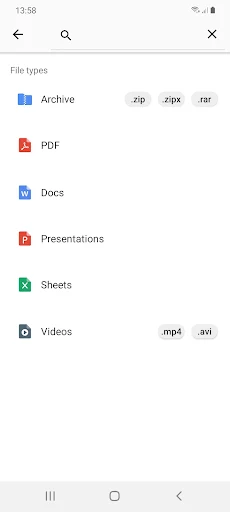
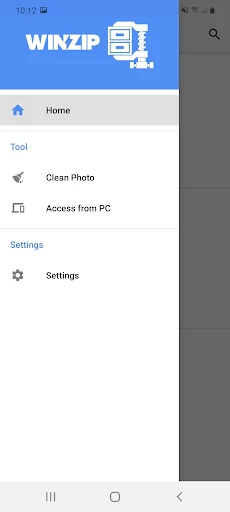
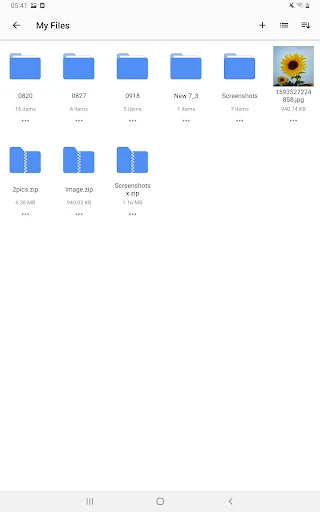
Analysis by Reviewed APKs
WinZip – Zip UnZip Tool is a mobile utility for opening, creating and managing compressed files on an Android phone or tablet. It suits people who regularly receive ZIP attachments, need to bundle photos, or move files between a device and cloud storage. After looking through its feature set, my take is that it covers a useful range of archive jobs, though its premium features and ads make it less appealing for occasional use.
When an Attachment Needs Opening
When a ZIP attachment lands in my inbox, I want to see what is inside without turning the task into a computer project. WinZip is built for that moment: open a ZIP from another app, browse its contents, and extract files to view or use them. It can also display images inside an archive, which is handy when someone sends a bundle of photos rather than a neat gallery link.
The same idea works in reverse when I need to send several pictures together. I can select photos from the device, make an archive, and share it rather than attaching each image separately. For larger files, the app offers ZIP and ZIPX options, while cloud integration can help when the files already live in an online account. It is a practical bridge between receiving a file and getting on with the reason I opened it.
A File Tool, Not a Storage Hub
Compared with opening an archive through a web service or moving it to a desktop first, WinZip puts extraction and basic archive creation on the phone. That is the main appeal: the file can be handled where it arrives. It also reaches beyond simple ZIP browsing with support for ZIPX, selected file previews, encryption features, and connections to cloud storage accounts.
I would not treat it as a general cloud drive, document editor, or replacement for every app that opens office files. The description says Word, Excel, PowerPoint, and PDF files can be opened in third-party apps, rather than edited inside WinZip. It is most useful when compression or extraction is the job. If I only open an archive once in a while, a dedicated paid feature may not be worth it.
Small Habits That Help
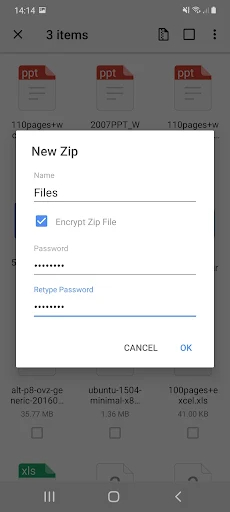
A little thought before creating an archive can save time later. I would give the ZIP a clear name and check which items are selected before sharing, especially when collecting photos from a larger album. If a recipient needs to open the files on a phone, keeping related items together makes the handoff easier than sending a string of separate attachments.
For regular cloud work, it helps to decide where the finished archive should live before starting. WinZip’s description includes creating, extracting, and saving archives to connected accounts, as well as copying cloud files onto the device. I would also remember that encryption does not hide filenames, according to the app’s guidance, so sensitive details should not go in names even when file contents are protected.
More From Our News Desk

Zoom Meetings, Google Meet, or Teams: Which Is Easiest to Join?

How I Build a Free Streaming Lineup With Tubi

Why Crunchyroll Is the Default Anime App for So Many Fans

YouTube TV: A Practical Guide to Cutting Cable

Rummikub and the Small Comfort of Phone Games

TeamViewer Remote Control or AnyDesk for Helping Family?
Who Might Find It Useful
I would recommend WinZip to Android users who receive compressed attachments, occasionally bundle photos or videos, or need to transfer archives between a device and cloud storage. Its ability to preview images and a range of other file types makes it more than a bare unzip button. People who deal with archives as part of ordinary email or file-sharing routines are likely to get the most value from having these tools in one app.
It may be less suitable for someone who only opens a ZIP every few months and wants a completely frictionless, no-cost experience. Some capabilities, including encryption and direct connections to multiple cloud services, are described as premium, and the app contains ads. I would also look elsewhere if the main goal is editing documents or managing cloud files generally; WinZip focuses on archive tasks, not those broader jobs.
WinZip – Zip UnZip Tool is an Android productivity app from WinZip Computing, LLC. Google Play shows over 10 million installs and a 2.7-star rating from about 103,000 ratings. It is free to install, contains ads, and offers in-app purchases. The listed in-app item prices range from $0.99 to $9.99.
The app has an Everyone content rating. Its listed version is 7.1.1, with a last update date of January 10, 2024; it was first released on June 15, 2012. The supplied app information does not give a minimum Android version. Its description refers to compatibility through Android 11, so current device compatibility is worth checking in Google Play.
How WinZip Fits Into Everyday File Handling
Opening and Getting Started
My first impression is that WinZip is aimed at a recognizable phone problem: a compressed file arrives, and I need to inspect it without finding a laptop. The description emphasizes opening an archive from another app, including an email attachment or a file from the web. That makes the basic purpose easy to understand before getting into cloud connections or the more advanced options.
The app’s broader file support is useful once an archive is open. It can display common image formats and text or web files, while office documents and PDFs can be opened in third-party apps. I like that distinction because it sets a sensible expectation: WinZip can help me reach a document, but it is not presented as the place where I edit the document itself.
I would start with a file I already recognize, such as a photo archive, and learn how the app handles its contents before using it for an important batch. That is less about a complicated setup and more about knowing where extracted files end up in my own workflow. The provided details describe both on-device and cloud file handling, so the destination matters.
The Daily Archive Routine
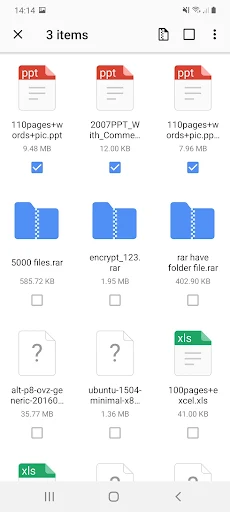
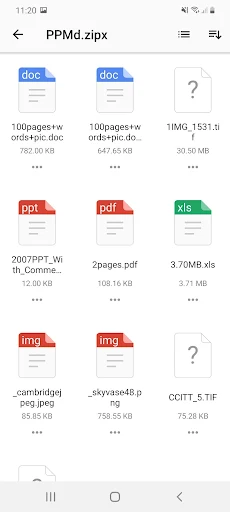
For a simple unzip job, the attraction is speed: open the archive, look through its contents, and extract what I need. WinZip says it can handle major compressed file types with a tap. When an archive contains several pictures, its image viewer can show the images without making me extract and open each one separately first.
Creating an archive is the other half of the routine. I can select a group of photos or videos and package them together for sharing, or choose ZIP or ZIPX when making a compressed file. That is useful when a family member asks for a set of pictures or when I want to keep related files in one attachment. The practical payoff is organization as much as compression.
Cloud storage adds another route through the same process. The app describes connecting cloud accounts, archiving files stored there, extracting into accounts, and saving files back to the device. I would find that especially handy when an archive arrives on my phone but the finished files belong in cloud storage. How often it helps depends on whether cloud transfers are already part of my routine.
More Than Basic Unzipping
The standout feature is the combination of archive creation, extraction, previews, and sharing. Many people only need one of those at a time, but having them together can trim down a sequence of small handoffs. WinZip also says it can access music files on the device and save them to cloud accounts, adding another kind of file to its transfer use cases.
ZIPX gives users a second archive format to choose from, and the description points to it as an option for compression. It specifically recommends the best-method setting for JPEGs when trying to reduce their size without losing image quality. I would not expect dramatic changes for every photo, but it is useful to know that the app offers a format choice rather than treating every archive job identically.
Encryption is another notable option, but it is a premium feature alongside creating and protecting ZIP and ZIPX files with AES encryption. The app’s own guidance says file and folder names remain visible even when contents are encrypted. That is a concrete limitation worth keeping in mind: the feature protects content, but filenames should still be chosen with care.
A Practical Sharing Workflow
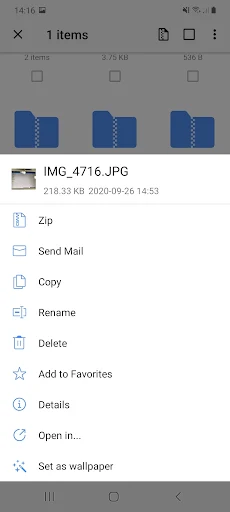
Imagine I have a handful of photos on my phone and want to send them as one package. I can browse the photo album, select multiple images, create an archive, and share it. If the files are already in a connected cloud account, WinZip describes making the archive there or copying files to the device first. Either route keeps the job centered on gathering, compressing, and handing off files.
For a received archive, I would use a similar simple routine: open it from the place it arrived, check the contents, and extract only what I need. If it contains a document, the description says supported office formats and PDFs can be opened in third-party apps. For pictures, the built-in image viewer is a more direct option. That distinction can prevent me from expecting one tool to do every part of the job.
One small habit I would adopt is to give archives and their contents descriptive but non-sensitive names. It makes the files easier to find later, while respecting the app’s note that encrypted archive contents do not conceal filenames. I would also check the selected items before sharing a batch. These are ordinary file-management precautions, but they matter when a ZIP collects several things at once.
Limits to Keep in Mind
The biggest practical trade-off is that some of the more appealing options sit behind premium access. The description marks encryption, immediate access to Zip & email, and direct integration with multiple cloud storage services as premium features. That means the free app may cover a basic archive task, while a user who wants a fuller cloud workflow could encounter a purchase decision.
Ads are another consideration, especially for people who open an archive utility only briefly and expect a quiet, single-purpose tool. Google Play’s 2.7-star rating, based on about 103,000 ratings, is also worth weighing alongside the feature list. A rating cannot tell me whether the app will suit a particular phone or workflow, but it suggests I should approach it with measured expectations rather than assuming every interaction will feel seamless.
Finally, WinZip is focused on compressed files and related sharing. It can preview or pass along certain file types, but it is not described as a document editor or an all-purpose cloud manager. The supplied description refers to Android compatibility through version 11, while the current minimum requirement is not included in the practical facts. I would check Google Play for compatibility with a specific device.
WinZip – Zip UnZip Tool makes sense for people who regularly move compressed files through email, photos, and cloud storage. Its mix of extraction, archive creation, previews, and sharing covers more than the bare minimum, while premium features and ads are real trade-offs. I would try it for frequent archive work, but would compare alternatives if my needs were occasional or strictly basic.
My recommendation is conditional but clear: Android users who handle ZIP files often should consider it, especially if cloud transfers and photo bundles are part of their routine. For someone who only needs to unzip a file now and then, the extra features may not justify the ads or premium options. It does its best work as a focused file utility, not as a general productivity suite.
WinZip Frequently Asked Questions
What is WinZip – Zip UnZip Tool used for?
WinZip – Zip UnZip Tool is used to create and extract compressed archives, including ZIP and ZIPX files, on Android. It can also preview images and other supported content, bundle photos or videos, and work with connected cloud storage accounts. Some described features, such as encryption, are premium options.
Which devices can run WinZip – Zip UnZip Tool?
WinZip – Zip UnZip Tool is an Android app for phones and tablets. Its description refers to compatibility from Android 4.0 through Android 11, but device support can vary. Check the Google Play listing for current compatibility with a particular device before installing.
What Android version does WinZip – Zip UnZip Tool require?
The app description gives an Android compatibility range of 4.0 through 11.0, but a current minimum Android requirement is not included in the supplied app information. Requirements can vary with updates and devices, so check the Google Play listing for the latest details.
Does WinZip – Zip UnZip Tool cost money?
WinZip – Zip UnZip Tool is free to install and contains ads. It offers in-app purchases, with listed item prices ranging from $0.99 to $9.99. The description identifies encryption, immediate access to Zip & email, and direct integration with multiple cloud storages as premium features. Check Google Play for current purchase details.
Is WinZip – Zip UnZip Tool suitable for occasional use?
It can handle an occasional archive, including opening and extracting files, but some advanced features are premium and the app contains ads. If you only open ZIP files rarely, you may not need its broader cloud and sharing options. Its fit depends on your routine and device; the store listing has current details.
Pros
- Creates and extracts ZIP and ZIPX archives directly on an Android device.
- Can preview images inside archives and handle several common file types.
- Supports photo selection, sharing, and cloud-storage file workflows.
- Offers AES encryption as a premium option for protecting archive contents.
Cons
- Contains ads, and several useful cloud and encryption features are premium.
- Encrypted archive filenames remain visible, according to the app’s guidance.
- Its modest store rating may make cautious users want to compare alternatives.
- Category
- Productivity
- Version
- 7.1.1