Mouse Jiggler Undetectable
- 270
- 4.7
- Installs
- —
- Price
- Free

Screenshots
Analysis by Reviewed APKs
Mouse Jiggler Undetectable is an iPhone app designed to help keep a Windows or macOS computer screen from locking by making a compatible mouse move periodically. I see it as a small, specific tool for people who need their computer to stay active while they step away or read without touching the controls. Its appeal is convenience, though the mouse compatibility limits matter.
A quiet desk-side helper
When I first considered how I would use Mouse Jiggler, I pictured a familiar workday pause: I am reading a long document on my computer, taking notes on paper, and do not want the display to lock while my hands are busy. The app uses the phone to prompt movement from a compatible optical mouse at intervals. It is a simple workaround for that narrow situation, rather than another desktop utility to configure.
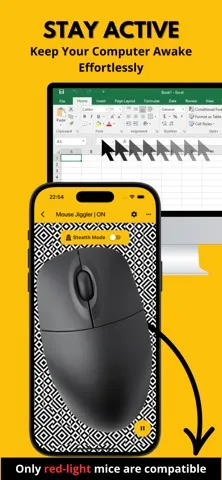
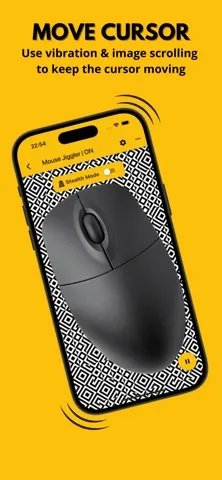
The practical setup depends on the mouse having a visible red optical sensor, and the phone needs to be positioned so its screen or vibration can affect that sensor. I would test it at my desk before relying on it for a longer stretch. Scrolling Mode moves an image and raises screen brightness at regular intervals; Vibration Mode vibrates the phone. The available approach depends on the device and mouse.
A phone-based alternative
The obvious alternatives are a USB mouse-jiggling device, a moving pad, or desktop software. Mouse Jiggler takes a different route: it uses an iPhone and a supported mouse, so there is no extra accessory to buy or desktop program to install. The developer also describes the phone-based approach as leaving no digital trace on the computer. That distinction may suit someone who prefers not to add software to a work machine.
This is not a general screen-time manager, remote-work tracker, or tool for changing computer sleep settings. It also is not a universal mouse solution: mice with invisible infrared or laser sensors are outside the stated compatibility, even if one happens to respond. And it should not be used where it conflicts with an employer's policies. I would treat it as a practical convenience, not a way to bypass workplace rules.
Make the intervals useful
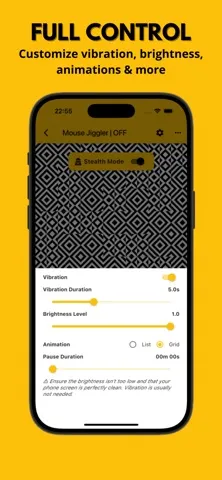
A sensible way to get started is to choose a mode, set a pause duration, and try it with the mouse you actually use. The app offers controls for the time between scrolls or vibrations, vibration duration, and brightness level. I would begin with the default-feeling setup rather than making several changes at once, then adjust only if the mouse does not respond consistently.
For a short reading or planning break, I would keep the phone close to the mouse and check that the screen remains active before walking away. Power-saving Mode is available for intermittent operation, which may be useful when a session runs longer. On iPad, Vibration Mode is unavailable, so the choice of mode is narrower. A quick test is a better habit than assuming every desk arrangement will work.
More From Our News Desk

Zoom Meetings, Google Meet, or Teams: Which Is Easiest to Join?

How I Build a Free Streaming Lineup With Tubi

Why Crunchyroll Is the Default Anime App for So Many Fans

YouTube TV: A Practical Guide to Cutting Cable

Rummikub and the Small Comfort of Phone Games

TeamViewer Remote Control or AnyDesk for Helping Family?
Who may find it useful
I would recommend Mouse Jiggler to iPhone owners who occasionally need a compatible Windows or macOS computer to stay awake while they read, think, or briefly step away. It is especially appealing if adding a USB accessory or installing a desktop utility is inconvenient. The controls are focused on a single task, so people looking for a lightweight workaround may appreciate that it does not try to be a broader productivity suite.
It may not suit people with laser or infrared mice, anyone expecting the app to work independently of a nearby mouse, or iPad users who specifically need Vibration Mode. I would also skip it if keeping the display active would violate workplace policy. Because effectiveness depends on the mouse sensor, phone placement, brightness, and vibration, users who need a dependable solution for every computer setup may prefer a purpose-built option that fits their equipment and rules.
Mouse Jiggler Undetectable is a free Productivity app for iOS by Mathieu Meesters. On the Apple App Store, it has a 4.7-star rating from 270 ratings and a 4+ age rating. The current version listed in the supplied facts is 1.0.93. It was released on January 2, 2025, and its last update was May 28, 2026.
The minimum requirement is iOS 15.6. The app is described as completely free. The supplied facts do not include an install count, and I have left that figure out rather than guessing. Its stated computer compatibility is Windows and macOS, while the app itself is for iOS; Vibration Mode is not available on iPad.
How the Mouse Jiggling Setup Works
A focused first impression
Mouse Jiggler has a very clear purpose from the outset: use an iPhone to help prevent a computer screen from locking by periodically moving a compatible mouse. I like that the central idea is easy to grasp. There is no need to think of it as a computer companion for every task; the question is simply whether the phone and mouse can work together in the spot where I use my computer.
Before starting a longer session, I would check the mouse for the visible red light the app requires, place the phone where the selected mode can affect it, and run a brief test. That is the most useful bit of setup because the app’s stated compatibility is specific. A quick check can also show whether the selected brightness and interval are sensible for the desk.
The everyday experience
The day-to-day job is deliberately narrow. The app periodically prompts mouse movement through scrolling and increased screen brightness, or through phone vibration. Once a mode and interval are chosen, the routine is about keeping the phone in position and letting those repeated prompts do their work. That makes most sense during a defined stretch of reading or desk work, rather than as something I would leave running without a reason.
The small inconvenience is that the method relies on physical conditions, not just a setting inside the app. A mouse with the wrong sensor type may not respond, and reducing brightness too far can affect effectiveness. I would keep the phone near the mouse and check the computer screen after starting. If the screen still locks, I would revisit the placement and settings instead of assuming the app suits that hardware.
Modes with distinct roles
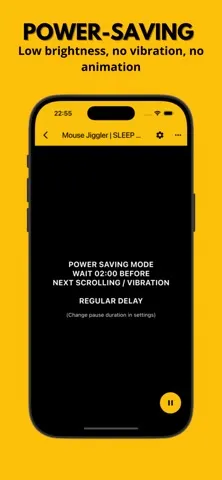
Scrolling Mode combines movement of an image with a regular brightness increase, using those changes to move the mouse cursor. Vibration Mode instead vibrates the phone at intervals. Having both approaches gives the app some flexibility, but they are not interchangeable on every device: Vibration Mode is unavailable on iPad. The app also offers a power-saving mode that operates intermittently to use less energy.
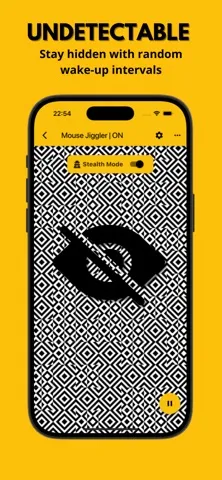
Undetectable Mode uses a random interval between animations, which the developer says is intended to be practically undetectable by most monitoring systems. I would read that as a description of how the timing varies, not as a reason to ignore workplace policies. The app includes advanced controls for vibration, its duration, pause duration, and brightness. These are useful refinements, but the supported optical mouse remains the key limitation.
A practical desk routine
For a normal work session, I would first decide how long I need the computer to remain active, then choose Scrolling or Vibration Mode and set a pause duration. I would keep brightness at a level that still lets the mouse respond, and avoid changing multiple settings during the first test. With the phone and mouse in their working positions, I would confirm that the screen stays awake before turning to a longer task.
If I were reading a lengthy report or sketching ideas away from the keyboard, I would use the app only for that stretch and check it when I return. Power-saving Mode may be a fit for intermittent operation over a longer period. If the mouse does not react, I would check whether it has the required visible red optical sensor. That small troubleshooting step is more useful than repeatedly adjusting settings on an incompatible mouse.
Limits to keep in mind
The largest limitation is compatibility. The app is officially intended for mice with a visible red optical sensor; infrared and laser sensor mice are not supported, even though they may occasionally work. The description connects performance to sensor sensitivity, phone brightness, and vibration strength. In everyday terms, results can depend on the equipment and physical setup, so I would not assume the same arrangement works at every desk.
There are also practical trade-offs in the modes. Scrolling Mode raises screen brightness as part of its operation, while Vibration Mode uses phone vibration and is not available on iPad. Lowering brightness too much may reduce effectiveness. Finally, the app’s stated purpose is keeping a computer screen from locking, not overriding workplace rules or managing a computer’s broader power settings. That boundary is worth keeping clear.
Mouse Jiggler Undetectable is a compact answer to one annoying desk problem: keeping a computer active while I am briefly away from its controls. I like the choice of scrolling or vibration and the adjustable intervals, but the visible-red-sensor requirement means a quick compatibility test is essential.
I would try it if I use an iPhone, a supported optical mouse, and have a policy-compliant reason to keep my Windows or macOS screen awake. If I need broad hardware support or a solution that does not depend on phone placement, this focused app may not be the right fit.
Mouse Jiggler Undetectable Frequently Asked Questions
What is Mouse Jiggler Undetectable used for?
Mouse Jiggler Undetectable is an iOS app intended to help prevent a Windows or macOS computer screen from locking. It periodically prompts movement from a compatible mouse using scrolling and screen brightness changes or phone vibration. It is designed for a specific desk-side task, not as a general computer power-management tool.
Which devices work with Mouse Jiggler Undetectable?
The app runs on iOS and requires iOS 15.6 or later. Its description says it is compatible with Windows and macOS computers when used with a mouse that has a visible red optical sensor. Mice using invisible infrared or laser sensors are not officially supported. Vibration Mode is not available on iPad.
Does Mouse Jiggler Undetectable cost anything?
The app is described as completely free, and the supplied store facts give its price as $0.00. The available facts do not specify whether any in-app purchases or advertising are present, so those details may vary and are worth checking on the Apple App Store before downloading.
What iOS version does Mouse Jiggler Undetectable require?
Mouse Jiggler Undetectable requires iOS 15.6 or later. It is an iOS app, and its computer compatibility is described for Windows and macOS. The app’s own store page is the best place to check current device compatibility and any changes to its requirements.
Is Mouse Jiggler Undetectable right for my setup?
It may suit an iPhone owner who wants a simple way to keep a compatible computer screen active during a short desk break or reading session. It may not suit users with unsupported mouse sensors, or anyone whose workplace rules prohibit this kind of tool. Test the setup first, and check relevant policies before using it.
Pros
- Offers scrolling and vibration approaches for compatible mouse setups.
- Includes adjustable pause, brightness, and vibration controls.
- Power-saving Mode supports intermittent operation.
- A phone-based option that does not require extra hardware.
Cons
- Official compatibility is limited to mice with visible red optical sensors.
- Vibration Mode is unavailable on iPad.
- Effectiveness can depend on phone placement, brightness, and mouse sensitivity.
- Category
- Productivity
- Version
- 1.0.93