Elgato Stream Deck Mobile
- 5.89K
- 4.6
- Installs
- —
- Price
- Free
Screenshots
Analysis by Reviewed APKs
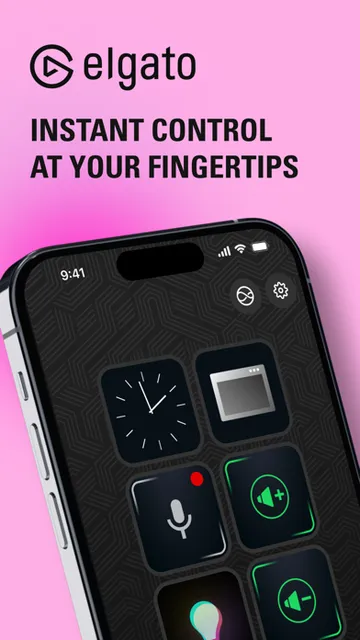
Elgato Stream Deck Mobile turns an iPhone or iPad into a customizable keypad for controlling apps and tools on a computer. It suits people who already use Stream Deck software and want quick actions close at hand, especially during creative work or video calls. I like the flexibility of profiles, folders, and multi-action keys, though it is best understood as a companion to a computer setup, not a standalone control panel.
A keypad for a busy desk
Picture a video call starting while you are also trying to manage audio and keep a presentation moving. Rather than reaching for different controls on your computer, you can put useful actions on a mobile keypad and tap them from your iPhone or iPad. Stream Deck Mobile connects wirelessly to the Stream Deck app on a computer, making the phone a handy extra control surface for a setup you already use.
When I first explored the idea, the appeal was less about adding another screen and more about keeping a few frequent controls together. Profiles can give different tasks their own keypads, while folders and pages help organize a larger collection. For someone who switches between content creation, calls, music, or lighting controls, that structure can make a busy desk feel a little less scattered.
A companion, not a replacement
The obvious comparison is a physical Stream Deck keypad. The mobile app recreates that style of control on an iPhone or iPad, so it can be a flexible alternative when you want to use a device you already own. Its wireless connection also gives you freedom to keep the keypad nearby rather than directly beside your computer. The trade-off is that it still depends on Stream Deck software running on a computer.
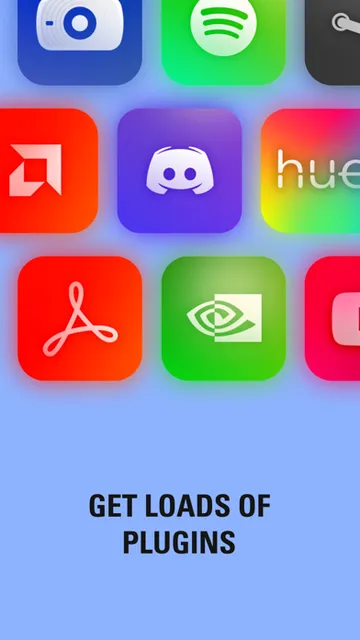
That makes this a poor fit if you want a standalone phone utility or a replacement for a mouse and keyboard in every situation. It is designed to trigger actions in supported apps and tools, with plugins available for services such as OBS Studio, Zoom, Discord, Spotify, and Philips Hue. If you do not have a computer-based setup to control, much of its purpose disappears.
Make the keys earn their space
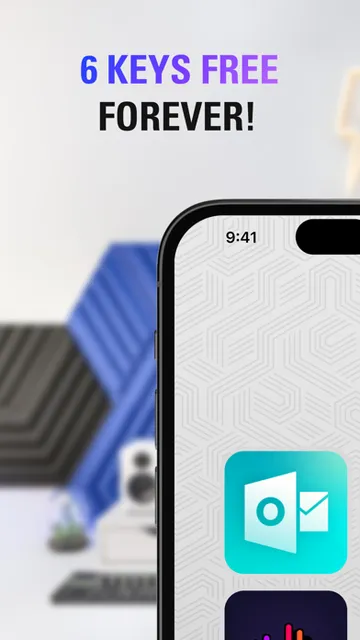
A useful way to approach the keypad is to start with a small set of actions you reach for repeatedly. The free option includes six keys and unlimited actions, so you can test whether a compact layout works for your routine before building out a more elaborate arrangement. Profiles let you separate roles, and folders or pages can keep additional actions from crowding the first screen.
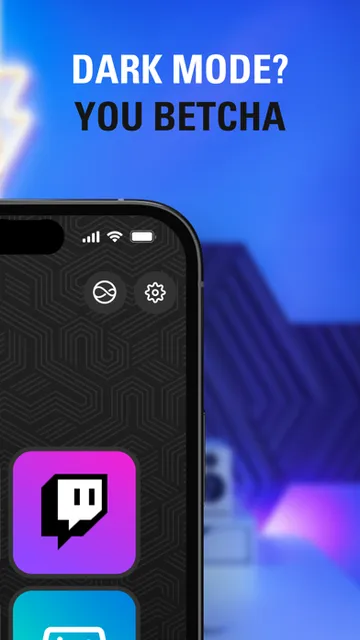
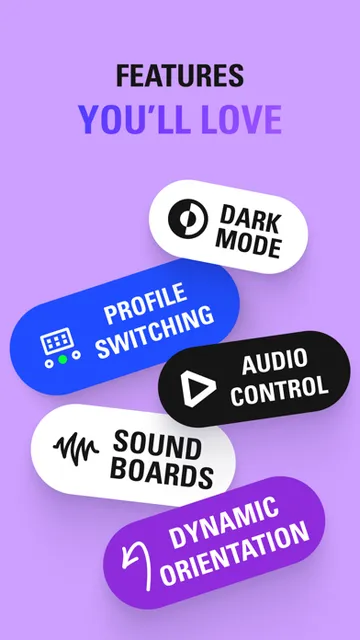
Multi actions are worth considering when a single tap should trigger a sequence rather than one isolated command. Icons, including colorful images and animations, can help make keys recognizable at a glance. On iPhone and iPad, the app also supports custom voice commands and light or dark appearance modes. These options are most useful when they solve a real workflow problem, rather than simply adding more things to configure.
More From Our News Desk

Zoom Meetings, Google Meet, or Teams: Which Is Easiest to Join?

How I Build a Free Streaming Lineup With Tubi

Why Crunchyroll Is the Default Anime App for So Many Fans

YouTube TV: A Practical Guide to Cutting Cable

Rummikub and the Small Comfort of Phone Games

TeamViewer Remote Control or AnyDesk for Helping Family?
Who gets the most from it
I would recommend Stream Deck Mobile to people who already run Stream Deck on a Mac or Windows computer and want portable, customizable controls. It has clear appeal for content creators, presenters, and anyone who regularly manages calls, audio, music, or other supported tools. The free six-key setup is a low-commitment way to see whether a phone-based keypad fits your habits.
It may be less satisfying if you want a control app that works independently of a computer, or if you prefer physical buttons and a dedicated keypad. The Pro option offers more keys and layout customization, but the larger range is not automatically better: a compact set of well-chosen actions may be easier to use. I would start small and expand only if the routine calls for it.
Elgato Stream Deck Mobile is a productivity app from Corsair Memory, Inc. On the Apple App Store, it has a 4.6-star rating from 5,893 ratings. The app is free to download, and its free option includes six keys and unlimited actions. A Pro option is also described, with more keys and additional layout and background customization.
The current version shown is 2.4.2. The app was released on May 17, 2019, and its most recent update date is July 23, 2026. It is rated 4+ and requires iOS 17.0 or later. To get started, the app connects wirelessly to Stream Deck software on a computer; the desktop app is available for macOS and Windows.
How the Mobile Keypad Fits In
Getting connected
The first practical step is to open Stream Deck on a computer, then connect the iPhone or iPad wirelessly. That requirement shapes the whole experience: the mobile app is a companion interface for a computer setup, rather than a keypad that operates on its own. If Stream Deck is already part of your routine, the arrangement makes sense; if not, there is a desktop app to get as well.
I like that the app can use a device many people already keep within reach. The initial setup is still tied to having that computer app ready, so it is worth thinking about where the phone or tablet will sit during use. On iPad, multitasking lets you keep Stream Deck Mobile alongside other apps or websites, which may suit a desk workflow better than switching away from what you are doing.
Daily control, kept close
Day to day, the central idea is straightforward: tap a virtual key to control an app or tool without reaching for the computer's mouse or keyboard. The app is described for uses ranging from content creation and productivity to video calls, audio, music, social media, and lighting. Which actions are available depends on the relevant tools and plugins, so it works best when your routine already includes software it can control.
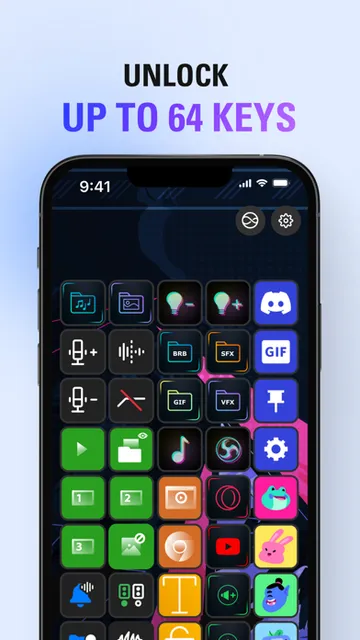
Profiles give the keypad a way to change roles, while folders and pages provide room for additional actions. That matters once the first few keys stop being enough. The free option includes six keys and unlimited actions, while the Pro option can provide up to 64 keys. I would treat the larger layout as extra capacity, not a reason to fill every space.
Customization with a purpose
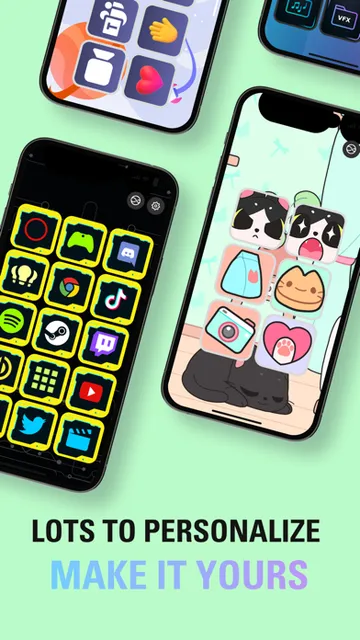
Several features help the keypad adapt to different jobs. Profiles can hold specialized keypads, plugins add actions for compatible apps and tools, and icons let you give keys distinct images or animations. Multi actions can trigger a series of actions from one key, which is useful when a repeated task naturally has several steps. Folders and pages offer another way to keep related controls together.
The Pro option adds up to 64 keys, customizable backgrounds, and layout choices that range from a 5-by-3 or 8-by-8 arrangement to one large button. The app also supports light and dark modes, custom voice commands, and iPad multitasking. Community plugins, profiles, and icons can be installed, with examples of supported services including Twitch, YouTube, Teams, PowerPoint, and VoiceMod.
Build a simple routine
For a practical starting point, I would choose one context, such as a recurring video-call or content-creation session, and identify the actions I reach for most. Put those on the first page, then group less frequent controls in a folder or another page. That keeps the keypad approachable while leaving room for more actions later. Profiles can separate different roles instead of mixing every task together.
After that, look for actions that naturally belong in a sequence. A multi action can put such a series behind one key, while a distinctive icon can make the control easier to spot. On an iPad, keeping the keypad beside another app or website may help it stay in view. The best setup is likely the one that removes repeated reaching and searching without demanding constant rearrangement.
Limits to keep in mind
The biggest limitation is also the app's defining dependency: you need Stream Deck software running on a computer and a wireless connection to use the mobile keypad. This is not a general-purpose remote for every app, and the available controls rely on compatible actions and plugins. Anyone hoping to control a setup without that computer-side software should look for a different kind of tool.
The free layout is limited to six keys, although it allows unlimited actions; Pro expands the keypad and adds customization. More space can help, but a large collection may take thought to organize. The app is for iPhone and iPad running iOS 17.0 or later, so older Apple devices that cannot run that version are not a fit. Physical buttons may also suit some people better.
Elgato Stream Deck Mobile is a thoughtful way to put customizable controls on an iPhone or iPad, particularly if Stream Deck is already part of your computer setup. Profiles, plugins, folders, and multi actions give it room to grow from a small keypad into a broader workflow tool.
I would try the free six-key option if you have a compatible computer routine and want quick controls within reach. If you need a standalone app, or simply prefer dedicated physical buttons, its companion-first design may not suit you. Start with a few useful actions and see whether the convenience sticks.
Elgato Stream Deck Mobile Frequently Asked Questions
What is Elgato Stream Deck Mobile used for?
Elgato Stream Deck Mobile turns an iPhone or iPad into a virtual keypad for controlling apps and tools. It connects wirelessly to Stream Deck software on a computer. Profiles, plugins, folders, pages, and multi actions help organize controls for activities such as content creation, productivity, video calls, audio, and music.
Which devices can run Elgato Stream Deck Mobile?
Elgato Stream Deck Mobile is available for iPhone and iPad and requires iOS 17.0 or later. It connects to Stream Deck software on a computer, which is available for macOS and Windows. The app also supports iPad multitasking, including use alongside other apps or websites.
Does Elgato Stream Deck Mobile need a computer?
Yes. To get started, open Stream Deck on a computer and connect wirelessly from the mobile device. The app is meant to control apps and tools through that computer setup, rather than function as a standalone keypad. Check the App Store and the desktop app information for current compatibility details.
Is Elgato Stream Deck Mobile free?
The app is free to download, and its free option includes six keys and unlimited actions. A Pro option provides up to 64 keys, background choices, and additional layout customization. Pricing and purchase details may vary, so check the Apple App Store for current information.
Who is Elgato Stream Deck Mobile best for?
It is best suited to people who already use Stream Deck on a Mac or Windows computer and want customizable controls on an iPhone or iPad. It can fit content creation, calls, music, and other supported workflows. It may not suit someone looking for a standalone phone utility or a physical-button keypad.
Pros
- Free option includes six keys and unlimited actions.
- Profiles, folders, and pages help organize different workflows.
- Multi actions can trigger a series of actions from one key.
- Supports iPhone and iPad features including multitasking and voice commands.
Cons
- Requires Stream Deck software running on a computer.
- The free keypad is limited to six keys.
- Requires iOS 17.0 or later.
- Category
- Productivity
- Version
- 2.4.2