Duet Display
- 7.63K
- 4.2
- Installs
- 500.00K
- Price
- Free

Screenshots
Analysis by Reviewed APKs
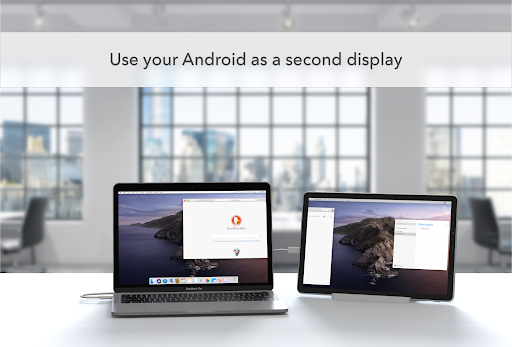
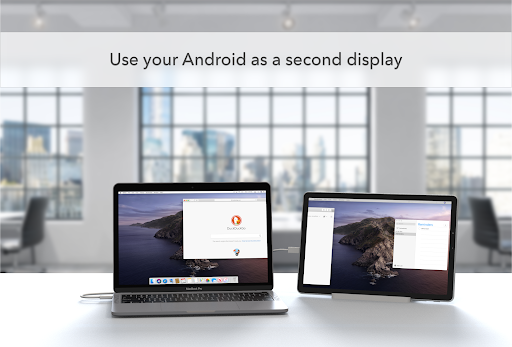
Duet Display turns an Android phone, tablet, or Chromebook into an extra touchscreen display for a Mac or Windows PC. It suits people who want a little more room for documents, chat, or reference material without carrying a separate monitor. I like the practicality of the idea: setup is designed to be straightforward, and the added screen can make a cramped desk or travel workspace more flexible.
A Screen for the Workday
Picture a familiar workday: I have a document open on my computer, a meeting window competing for space, and notes I want to keep in view. With Duet Display, I can use an Android device as another screen rather than continually hiding and reopening windows. The app is especially appealing when I am away from my usual desk and want a more comfortable layout without packing a full-size monitor.
The intended setup is simple. I open Duet on the Android device, use the free Duet desktop app on my computer, and connect after the computer detects the device. From there, the phone, tablet, or Chromebook becomes a touchscreen display for the Mac or PC. That makes the app’s purpose easy to grasp: extend the workspace I already use, rather than move my work into a separate mobile app.
An Extra Display, Not a PC
Duet Display sits between a traditional monitor and working entirely on a phone or tablet. A separate monitor is usually the more natural choice for a permanent desk, while Duet is aimed at people who already own a compatible Android device and want a portable second screen. It can give a laptop more breathing room in a hotel room, shared workspace, or kitchen-table setup.
It is not a standalone productivity suite, a replacement for a computer, or a general-purpose way to mirror any screen. Its job is to show Mac or Windows PC content on an Android device and let you interact with that content by touch. If I only need to read or write on the phone itself, Duet adds an unnecessary computer connection; its value comes from the paired-screen workflow.
Small Habits That Help
I get more from a second display when I decide in advance what belongs there. Keeping a reference document, a conversation, or another supporting window on the Android screen can leave the main computer display free for the task at hand. The app does not choose a layout for me, so a little intention makes the extra space feel useful instead of becoming a place to park whatever window I last moved.
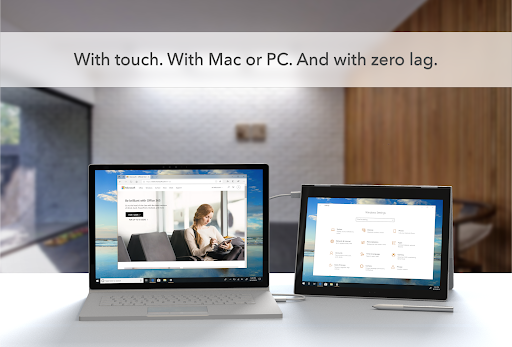
Touch support also invites a practical division of labor. I can leave a computer window on the Android display and use gestures such as two-finger scrolling, panning, or zooming when that feels more convenient than moving back to the computer. The description also mentions adding a touch bar to an Android device with a Mac. These are useful options to try, rather than reasons to expect every workflow to suit touch.
More From Our News Desk

Zoom Meetings, Google Meet, or Teams: Which Is Easiest to Join?

How I Build a Free Streaming Lineup With Tubi

Why Crunchyroll Is the Default Anime App for So Many Fans

YouTube TV: A Practical Guide to Cutting Cable

Rummikub and the Small Comfort of Phone Games

TeamViewer Remote Control or AnyDesk for Helping Family?
Who May Find It Useful
I would recommend Duet Display to people who regularly work on a Mac or Windows PC and have an Android phone, tablet, or Chromebook they can put to use as a second screen. It is a particularly sensible idea for laptop users who move between rooms or travel, and for anyone who wants reference material visible without repeatedly switching windows. The touchscreen interaction is an added draw for people who like direct gestures.
It may not suit someone looking for a screen that works independently of a computer, or someone who already has all the display space they need at a fixed desk. The setup depends on using the Duet app on the Android device alongside its desktop app, so it is not a one-app solution. I would also check the current in-app purchase details before relying on a particular plan or expecting the initial download to cover every use.
Duet Display is a productivity app from Duet, Inc. On Google Play, it has over 500,000 installs and a 4.2-star rating from around 7,600 ratings. It is free to download, contains in-app purchases, and does not contain ads. The listed in-app purchase prices range from $23.99 to $209.30 per item, so the total cost depends on what is offered and selected.
Google Play gives the app an Everyone content rating. The app’s description says it works with Android 7.0 and later, Macs running macOS 10.14 (Mojave) or later, and PCs running Windows 10 or later. The listed version is 0.7.1.2. It was released on October 2, 2019, and its listed last update is August 31, 2026.
Making Room for a Second Screen
The First Setup
When I first opened the app, the appeal was immediately clear: the Android device is meant to act as an extension of a computer, not as a separate place to start work. The initial routine involves opening Duet on the device and having the free desktop app detect it. That is a direct approach for people who want to add screen space without learning a new productivity system.
There are two sides to keep in mind before starting: the Android app and the desktop app on the Mac or Windows PC. The described computer requirements are macOS 10.14 or later, or Windows 10 or later; the Android requirement is version 7.0 or later. Once the device is detected, the computer user can click to connect. That is the setup flow the app presents.
Day-to-Day Screen Space
The everyday benefit is less about dramatic transformation and more about reducing small interruptions. I can keep a supporting window visible on the Android display while focusing on the main task on my computer. That can be handy when a laptop screen feels crowded, especially if I am juggling a document and something I need to consult. The second screen gives those windows somewhere to live.
A phone, tablet, and Chromebook do not offer the same amount of viewing space, so the experience naturally depends on which device I bring to the setup. The app’s purpose remains consistent across them: show computer content on the Android screen and make that screen touch-enabled. I would treat it as a useful workspace extension, not assume that every device will feel like a full-size desktop monitor.
Touch and Gestures
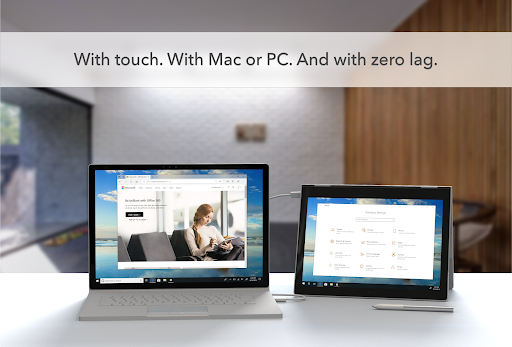
Touch is the feature that makes Duet more than a small display surface. The description supports touchscreen interaction with gestures including two-finger scrolling, panning, and zooming. When a window is on the Android device, those controls offer another way to navigate its content. I find that most compelling for quick interactions, where reaching over to the device can feel more natural than switching back to the computer.
The app also describes an option to add a touch bar to an Android device when it is paired with a Mac. That is a more specific use than simply gaining screen space, and it gives Mac users another reason to explore the touch-oriented side of the product. I would think of it as an extra interaction option rather than a requirement for using Duet’s basic second-display purpose.
A Portable Desk Routine
For a portable routine, I would start by choosing a task that genuinely benefits from two visible windows. I might keep the main work on the computer and place a reference or supporting app on the Android display. Then I would open Duet on both sides, connect when the computer detects the device, and leave the extra screen in a comfortable position. The point is to make the additional space easy to glance at.
This kind of routine is most useful when the computer is already doing the work and the Android device is available to help organize it. Touch gestures can make the supporting screen interactive, instead of merely a place to view content. If I only need one window or am working on a small task, I would skip the second-screen setup; adding another display is helpful when it solves a real clutter problem.
Keep Expectations Grounded
The biggest limitation is built into the concept: Duet needs a compatible computer and an Android device, and the desktop app is part of the setup. It is not a way to add display space to an Android-only workflow. The available screen area also depends on the device I use, so a phone may be less comfortable for sustained viewing than a larger tablet or Chromebook.
Pricing deserves a close look, too. The Android app is free to download, but Google Play lists in-app purchases with a broad per-item price range. I would check the current store information to understand which option applies to the intended use before making plans around a paid feature. The app description explains the core connection and touch features, but it does not make every possible computer-and-device combination equally suited to every task.
Duet Display has a clear, practical purpose: let an Android device serve as a touchscreen second display for a Mac or Windows PC. I like that it focuses on a familiar problem—running out of room for windows—rather than trying to become a full productivity platform. The pairing of a portable screen with touch gestures gives the idea extra flexibility.
I would try it if I already work on a compatible computer and have an Android device that can serve as a spare screen. It is less compelling if I need a standalone app or already have a comfortable monitor setup. Before depending on a specific paid option, I would review the current Google Play purchase details.
Duet Display Frequently Asked Questions
What is Duet Display used for?
Duet Display lets an Android phone, tablet, or Chromebook act as an extra touchscreen display for a Mac or Windows PC. The described setup uses the Android app alongside the free Duet desktop app; the computer detects the device, and you can click to connect. Touch gestures include two-finger scrolling, panning, and zooming.
Which devices and computers work with Duet Display?
The app description says Duet works with Android devices running version 7.0 or later, Macs running macOS 10.14 (Mojave) or later, and PCs running Windows 10 or later. It names Android phones, tablets, and Chromebooks as possible display devices. Check the store and app information for details relevant to your particular device.
Does Duet Display cost money?
Duet Display is free to download on Google Play and contains in-app purchases. The listed purchase prices range from $23.99 to $209.30 per item, so the cost depends on the purchase. Plans and prices can vary; check the current Google Play information to see what is available for your intended use.
Does Duet Display work without a computer?
No standalone Android use is described: Duet Display’s purpose is to show content from a Mac or Windows PC on an Android device. The setup calls for the Android app and the Duet desktop app, with the computer detecting the device before connection. It is best suited to people who already use a compatible computer.
Who should try Duet Display?
It may suit Mac or Windows users who want extra screen space and already own an Android phone, tablet, or Chromebook. The touchscreen gestures can be useful when interacting with a window on the added display. It may be less appealing if you need a standalone Android productivity app or do not need another screen.
Pros
- Turns an Android phone, tablet, or Chromebook into a computer’s extra touchscreen display.
- Supports touch gestures including two-finger scrolling, panning, and zooming.
- Works with Macs running macOS 10.14 or later and PCs running Windows 10 or later.
- Free to download and contains no ads.
Cons
- Requires a compatible Mac or Windows PC and the Duet desktop app.
- In-app purchase prices span a broad range, so check the current options.
- The available screen area depends on the Android device used.
- Category
- Productivity
- Version
- 0.7.1.2