Dashboard Screen Saver
- 72
- 4.5
- Installs
- 1.00K
- Price
- $2.89

Screenshots
Analysis by Reviewed APKs
Dashboard Screen Saver turns an Android TV screen saver into a place to show a web page. That makes it a practical fit for someone who already keeps a Dakboard, Home Assistant page, MagicMirror display, or another dashboard in a browser. I like the straightforward idea: reuse a page you already have instead of building a new display. Its appeal depends on whether your TV supports third-party screen savers.
A Dashboard After Dinner
When I picture using Dashboard Screen Saver, it’s after dinner, when the TV is on but nobody is watching closely. Rather than settling for a generic screen saver, I can point the app at a web page I already use and have that page appear when the TV’s screen saver runs. A household dashboard or a Home Assistant page can turn an otherwise idle screen into something useful at a glance.
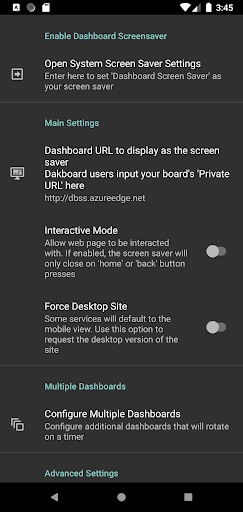
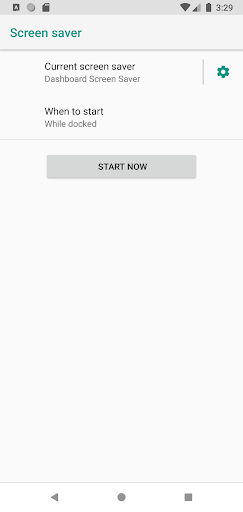
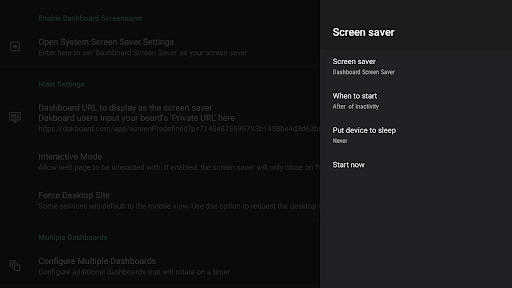
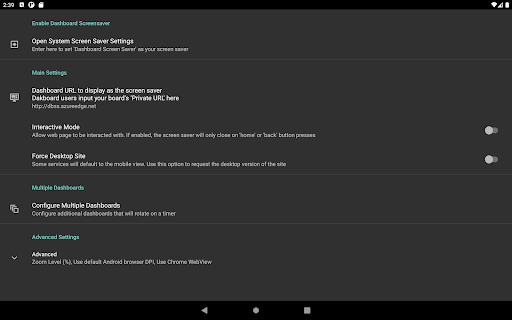
The setup described is deliberately direct: enter the page’s URL, open the system screen saver settings, and select Dashboard Screen Saver. That division makes sense to me. The app provides the page, while Android TV’s settings decide when it is used. It is not a new dashboard builder; the useful content needs to come from the web page you choose.
A Screen Saver, Not a Hub
Compared with opening a browser on the TV whenever I want to check something, a screen saver can make a chosen page part of the room’s background. It also differs from dedicated dashboard software: Dashboard Screen Saver is meant to display a web page, not supply its own collection of data panels. That flexibility is appealing if a page is already set up, but less compelling if I want the app to create the dashboard for me.
I would not treat it as a replacement for a phone app, a full web browser, or a smart-home controller. Its job is narrower: show a selected page as the Android TV screen saver. The experience also depends on whether the TV allows third-party screen savers through its system settings. Google Chromecast devices have a specific limitation described by the developer, so compatibility deserves attention before buying.
Make the Page Screen-Ready
The most useful preparation is choosing a page that reads well from across the room. A compact dashboard with its important information visible is a better match than a page designed for close-up browsing. I would also make sure the URL points to the exact view I want displayed, so the screen saver has a clear purpose rather than becoming a random page left open on the TV.
Once the URL is set, the important habit is to finish the system-setting step rather than assuming the app has become active automatically. The instructions call for selecting Dashboard Screen Saver in Android TV’s screen saver settings. If I change my preferred page later, I can update the URL and keep the same basic workflow. A short trial gives me room to see whether the setup suits the room.
More From Our News Desk

Zoom Meetings, Google Meet, or Teams: Which Is Easiest to Join?

How I Build a Free Streaming Lineup With Tubi

Why Crunchyroll Is the Default Anime App for So Many Fans

YouTube TV: A Practical Guide to Cutting Cable

Rummikub and the Small Comfort of Phone Games

TeamViewer Remote Control or AnyDesk for Helping Family?
Who Will Get the Most From It
I’d recommend Dashboard Screen Saver to Android TV owners who already have a web-based dashboard and want it visible when the television is idle. Dakboard, Home Assistant, and MagicMirror are named examples, but the app’s stated purpose covers any web page. It is especially sensible for someone who enjoys a glanceable household display and is comfortable making a small change in the TV’s system screen saver settings.
It may not suit someone expecting a ready-made dashboard, a set of built-in widgets, or an interactive smart-home interface. The app displays a page; it does not promise to create or manage the content on that page. I’d also be cautious if I use a Google Chromecast device, given the developer’s warning about third-party screen savers. Anyone who rarely leaves a TV idle may find the idea less useful.
Dashboard Screen Saver is a paid Android app from RafC02. On Google Play, it has over 1,000 installs and a 4.5-star rating from 72 ratings. The price provided is $2.89 USD, and the app does not offer in-app purchases. The developer describes the payment as a one-time purchase and says a 24-hour trial is available, giving prospective users a chance to try the setup.
The app contains no ads and has an Everyone content rating. The current version in the supplied details is 2.96. It was released on February 16, 2019, and was last updated on April 20, 2024. The Android minimum version is not included in the available app details, so I would check Google Play for the requirement that applies to a particular device.
Putting a Web Page on the TV
A Focused First Setup
My first impression is that this app has one job and keeps its setup tied to that job. I choose a web address, then use the option to open the system screen saver settings. From there, the instructions say to select Dashboard Screen Saver. That is a short sequence, though it crosses from the app into Android TV’s own settings.
That handoff is worth understanding before starting. Entering a URL is only part of the process; the system must use the app as its screen saver too. I like that the instructions spell out both actions rather than presenting the URL as the whole setup. A 24-hour trial is also described, which can help someone check the experience before committing.
The Everyday Display
In everyday use, the appeal is less about active interaction and more about having a chosen web page on the television when it serves as a screen saver. That makes the app easy to imagine in a shared space: the TV can show a page prepared for quick viewing instead of switching to an unrelated screen saver. The page itself determines what information is available.
This also means the quality of the experience starts outside the app. A thoughtfully arranged web page can make a useful room display; a cluttered or poorly suited page may be hard to read from the sofa. I would choose a page with the information I actually want visible, then judge the result at normal viewing distance rather than only while standing beside the TV.
Bring Your Own Web Page
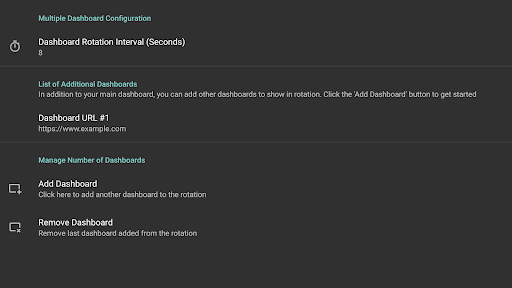
The standout feature is the freedom to use a web page rather than being limited to one named dashboard. The developer specifically mentions Dakboard, Home Assistant, and MagicMirror, while also describing support for any web page. That makes the app a display option for people who have already settled on a dashboard or have a page they want to keep on view.
I find that more interesting than a long menu of built-in themes would be, because it lets the page owner decide what belongs on screen. At the same time, the app is not claiming to provide those dashboards itself. The page has to exist at the URL I enter. The screen saver provides the TV display role, while the chosen page provides the content.
A Simple Household Routine
A practical routine would be to settle on one page for the room, enter its URL, and then complete the Android TV screen saver selection. After that, I would let the TV sit idle during an ordinary evening and see whether the page is useful from the places people actually sit. If it is too busy, the adjustment is likely to be in the page I chose rather than in a set of app themes.
This approach can work well for a home dashboard that already gathers the information its owner wants to see. I would keep the goal modest: make one existing page easier to glance at, not turn the television into a new control center. The app’s narrow role can be a benefit when the URL and screen saver settings are already understood.
Compatibility Comes First
The most important limitation is device support. The developer warns that Google Chromecast devices removed the ability to set third-party screen savers in an August 2022 update. The description says this can only be circumvented through ADB commands, while other devices can be configured through the included user interface. That distinction could make setup substantially different depending on the hardware.
There are also natural limits to a web-page screen saver. The app does not supply the dashboard content, and its usefulness depends on having a suitable page to display. I would check the device’s screen saver options and the Google Play requirements before purchase, especially if the TV is a Chromecast. The idea is simple, but the TV’s support is the deciding factor.
Dashboard Screen Saver is a focused utility rather than a broad productivity suite. I like the idea of putting a page I already use on an idle Android TV, and the URL-plus-system-settings workflow is easy to understand. Its best case is clear: an existing dashboard, a compatible television, and a reason to keep that page visible in the room.
I’d recommend it to Android TV owners who meet those conditions and are happy to bring their own web content. I would check Chromecast compatibility before paying, and I would skip it if I wanted built-in dashboards or a more interactive app. The one-time price and 24-hour trial make it a fairly easy concept to evaluate for the right setup.
Dashboard Screen Saver Frequently Asked Questions
What is Dashboard Screen Saver used for?
Dashboard Screen Saver lets you set a web page as the screen saver on an Android TV device. The developer names Dakboard, Home Assistant, and MagicMirror as possible pages, and says any web page can be used. It displays the page you choose rather than creating the dashboard content for you.
Which devices can run Dashboard Screen Saver?
The app is described for Android TV. The developer warns that Google Chromecast devices removed the ability to set third-party screen savers in an August 2022 update; using ADB commands is described as a workaround. Other devices can be configured through the included interface. Check Google Play and your device settings for details that apply to your hardware.
What Android version does Dashboard Screen Saver require?
The Android minimum version can vary by app release and device, so check the Google Play store page for the requirement that applies to your setup. The app’s stated workflow involves setting a web-page URL and selecting Dashboard Screen Saver in the Android TV system screen saver settings.
Does Dashboard Screen Saver cost money?
The supplied price is $2.89 USD. The app is described as a one-time purchase, with no in-app purchases or ads, and the developer says a 24-hour trial is available. Store pricing or availability can vary, so check Google Play for the current details before purchasing.
Is Dashboard Screen Saver right for my household?
It is a good fit if you have an Android TV device that supports third-party screen savers and a web page you want displayed while the TV is idle. It may not suit you if you want the app to build a dashboard or if your device has the Chromecast limitation. Check compatibility in the store and on your TV before deciding.
Pros
- Displays a web page you choose, including dashboards such as Dakboard and Home Assistant.
- Clear setup instructions connect the URL choice with Android TV screen saver settings.
- One-time purchase with a 24-hour trial, according to the developer.
- No ads or in-app purchases.
Cons
- Requires a suitable web page; the app does not create dashboard content.
- Google Chromecast devices have a documented restriction on third-party screen savers.
- The minimum Android version should be checked in Google Play.
- Category
- Productivity
- Version
- 2.96