Compass
- 2.28K
- 3.3
- Installs
- —
- Price
- Free
Screenshots
Analysis by Reviewed APKs
Compass is a straightforward direction-finding app from Apple, with your current latitude, longitude, and elevation alongside a live compass heading. I found its appeal in the small, practical moments: checking which way I’m facing before setting off, or holding a direction while walking. It suits people who want a simple orientation tool, not a full mapping or trip-planning system. Its focus is useful, though deliberately narrow.
A quick check before setting off
Imagine arriving at a park entrance and wanting to head toward a trail you can see in the distance. I’d open Compass, check the direction I’m facing, and use the displayed heading to get pointed the right way before I start walking. That is the app’s basic job: give me an immediate sense of direction without turning the moment into a bigger navigation session.
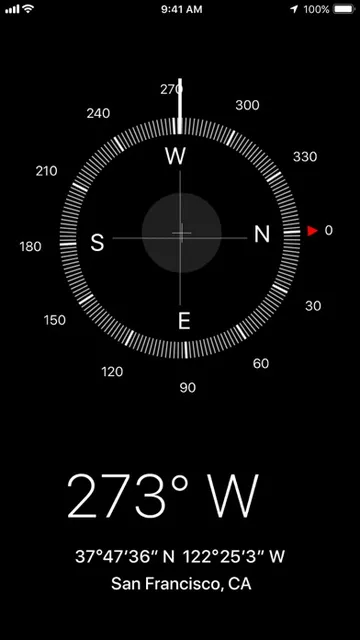
The location details make that quick glance more informative. I can see my latitude and longitude, along with elevation, while checking the compass. Those readings may be useful when I want to note where I am or compare my position with information I already have. The app does not need a long setup routine for this kind of check; its value is in showing a few relevant details together.
A compass, not a trip planner
Compared with opening a map app, Compass is the simpler option when the question is just, “Which way am I facing?” It presents a heading and location coordinates rather than making route planning the center of the experience. I like having that distinction clear: for a quick orientation check, a dedicated compass can feel more direct than searching around a broader navigation tool.
That narrow scope also sets limits. The stated features cover direction, current coordinates, elevation, and locking a heading; they do not describe routes, turn-by-turn guidance, saved destinations, or maps. I would not treat Compass as a replacement for those tools when planning a journey. It is most useful alongside whatever map or local information I’m already using, not as an all-purpose travel companion.
Make a heading easier to follow
The heading lock is the small workflow I’d use most. I can tap the screen to hold the current direction, then watch for the red band that indicates whether I’m staying on course. That gives me a simple reference to check again after a turn or a brief distraction, rather than relying only on memory of where I was pointing.
I’d also make a habit of checking the coordinates and elevation when they are relevant, rather than treating every number as necessary for every outing. For a casual walk, the heading may be enough. If I’m trying to describe or record a location, the latitude and longitude add useful context. Keeping the app’s role modest makes its handful of details easier to use.
More From Our News Desk

Zoom Meetings, Google Meet, or Teams: Which Is Easiest to Join?

How I Build a Free Streaming Lineup With Tubi

Why Crunchyroll Is the Default Anime App for So Many Fans

YouTube TV: A Practical Guide to Cutting Cable

Rummikub and the Small Comfort of Phone Games

TeamViewer Remote Control or AnyDesk for Helping Family?
Who will find it useful
I’d recommend Compass to people who want a no-frills way to check direction and see basic location information on an Apple device. It could suit a walk, a quick orientation check in an unfamiliar area, or a moment when I want to hold a heading while moving. The combination of compass direction, coordinates, elevation, and heading lock gives it a few practical jobs without making it feel like a complicated navigation suite.
It may not suit someone looking for maps, route planning, or detailed guidance from one destination to another. Those needs call for a broader navigation tool. I would also avoid expecting a deep set of customization or trip-management features from what is described here. Compass is appealing when the task is small and immediate; if I want a complete journey plan, I’d reach for something designed around that instead.
Compass is made by Apple Inc. and is categorized under Maps & Navigation. On the App Store, it has a 3.3 out of 5 rating from 2,282 ratings. The app is free, and its listed content rating is 4+. Its release date is May 10, 2016, and the current version shown in the supplied details is 2.5.
The listed minimum operating system is iOS 10.0, and the last update date shown is October 19, 2026. The app is available through the Apple App Store. The supplied details do not give an install count or an in-app purchase price, so I’d check the store page for any current purchase or availability details that matter to me.
A closer look at everyday direction
A focused first impression
When I first open Compass, I’m looking for one thing: a clear sense of direction. The app’s described role is easy to understand, with a heading at its center and location details available alongside it. That focus is reassuring if I only need a quick orientation check, because I’m not approaching it as a large navigation system with a long list of tasks.
The useful setup is simply getting to the point where I can read the heading and location information. Compass is an Apple app, and the listed minimum requirement is iOS 10.0. I’d make sure the device meets that requirement before relying on it. Beyond that, the core idea is straightforward: open it when I need direction, and use the readings that apply to the moment.
The daily compass check
In day-to-day use, a compass is most helpful when I need a fast answer rather than a planned route. I can check the direction I’m facing before walking onward, then keep moving with a clearer sense of orientation. That sort of quick interaction suits a short walk or a brief pause outdoors better than a lengthy planning session.
The app also puts latitude, longitude, and elevation within its feature set. I may not need all three every time, but they add context when direction alone is not enough. I like that the main purpose remains easy to grasp: this is about understanding where I am and which way I’m pointed, rather than following a sequence of route instructions.
The heading lock stands out
The most distinctive described tool is the ability to tap the screen and lock in the current heading. Once that reference is set, a red band helps show whether I’m on course. It is a small feature, but it addresses a real annoyance: after I start walking, it can be easy to lose track of the direction I meant to maintain.
I can picture using it after choosing a direction toward a visible landmark or along a stretch of path. The lock gives me a reference to check as I go, without claiming to replace a route or map. That restraint fits the app well. It adds a little continuity to a compass reading while keeping the interaction centered on direction.
A simple outdoor routine
A practical routine could start with a quick look at the heading before I leave a familiar spot. If I want to keep moving in that direction, I can tap to lock it and glance at the red band as I continue. If I need a more precise description of where I paused, the latitude and longitude are there to consult, with elevation as another location detail.
I’d keep this routine brief. Compass is not described as a place to save a destination or build an itinerary, so I would use it for orientation and pair it with other information when the outing calls for more. That division of labor keeps the app useful without expecting it to do jobs beyond the features it actually offers.
Keep its limits in view
The main limitation is the narrow feature set. Compass provides direction and certain location readings, plus a way to lock a heading. The description does not present maps, navigation routes, or destination planning, so I would not rely on it alone when I need to work out a complete journey. Knowing that boundary helps avoid expecting a simple compass to behave like a full navigation service.
I’d also treat the ratings as one part of the decision rather than a verdict on whether the app will suit me. Its App Store score is 3.3 out of 5 from 2,282 ratings, but my own needs matter more here: if I want a compass check, the concept is direct; if I want richer guidance, this is not the tool I’d choose. Store details can be checked for current availability.
Compass does one small job with useful supporting details. I like the combination of a heading, coordinates, elevation, and a heading lock that gives me a reference to follow. It makes sense as a quick orientation tool, especially when I do not need a route or a full map-based plan.
I’d try it if I wanted a simple compass on an Apple device and understood its limits. I would not choose it as my only navigation tool for a planned trip. For that narrower role, though, Compass keeps the experience focused and practical.
Compass Frequently Asked Questions
What is Apple Compass used for?
Apple Compass is for checking compass directions and viewing the latitude, longitude, and elevation of your current location. You can tap the screen to lock a heading, then use a red band to see whether you are staying on course. It is a focused orientation tool rather than a route planner.
Which devices can I use Compass on?
Compass is an iOS app available through the Apple App Store, with a listed minimum requirement of iOS 10.0. Check the App Store page for current compatibility with a particular device, since supported devices and requirements can vary over time.
What iOS version does Compass require?
The supplied app details give iOS 10.0 as the minimum operating system. For the most useful current compatibility information, I’d check Compass on the App Store before installing, since requirements can vary with later releases and device models.
Is Apple Compass free, and does it have in-app purchases?
Compass is listed as free on the App Store. The supplied details do not provide an in-app purchase price, so check the current store page for any purchase information that may apply. The listed content rating is 4+.
Is Compass a good fit for everyday navigation?
It can suit everyday direction checks and viewing current coordinates or elevation. Its heading lock is useful when you want to keep a direction in view. If you need route planning or map-based guidance, Compass may not be enough on its own; the described features are intentionally narrower.
Pros
- Shows heading alongside latitude, longitude, and elevation.
- Heading lock and red band offer a simple way to check course.
- Focused on quick orientation rather than a complicated navigation workflow.
Cons
- Does not provide the route-planning features described by full navigation tools.
- Its narrow set of functions may not suit users seeking detailed trip guidance.
- App Store rating is 3.3 out of 5 from 2,282 ratings.
- Category
- Maps & Navigation
- Version
- 2.5