Sketchbook
- 706.95K
- 4.1
- Installs
- 100.00M
- Price
- Free

Screenshots
Analysis by Reviewed APKs
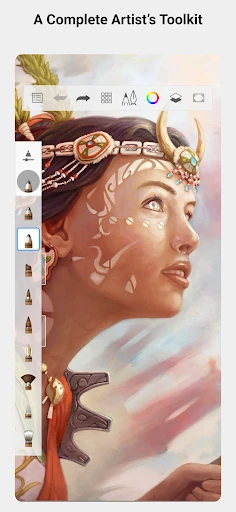
Sketchbook is a drawing and painting app for people who want to make anything from quick pencil studies to more finished illustrations on an Android device. Its customizable brushes, layers, guides, and uncluttered interface give it room to grow with your skills. I like the emphasis on getting the tools out of the way: it feels suited to both casual doodling and focused practice, without pretending to replace every kind of art software.
A sketch in a spare moment
When I first opened Sketchbook, I pictured using it in the small gaps of an ordinary day: a few minutes waiting for someone, a shape that comes to mind during a break, or a quick study before starting a larger piece. The app is built around drawing rather than browsing through unrelated features. Its restrained interface makes that simple purpose clear, while the range of brush types lets a rough idea start as a pencil-like mark or a broader wash.
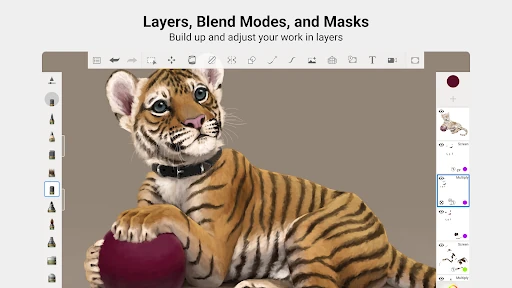
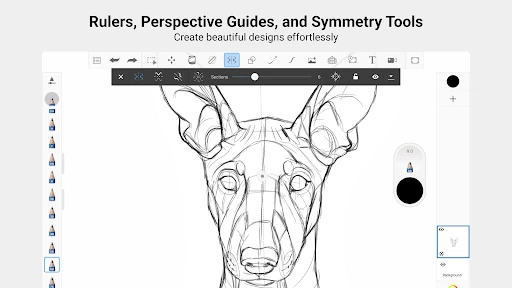
For a more deliberate session, I could build an illustration in layers, test how colors interact using blend modes, and bring in guides or rulers when a line needs to be more precise. That range matters because not every sketch stays a sketch. What starts as a quick outline can become a more considered drawing without leaving the same app or abandoning the natural feel of the tools.
A drawing tool, not a studio
Sketchbook makes the most sense beside a paper sketchpad or a general-purpose drawing program. Like a sketchpad, it is oriented toward making marks directly; unlike paper, it offers adjustable brushes, layers, blend modes, and precision aids. Compared with a broader creative suite, its stated focus is narrower and easier to grasp: sketching, painting, and drawing, with a clean workspace rather than a long list of unrelated creative jobs.
I would not choose it as a photo editor, a layout tool, or an all-purpose design workspace. Those are different tasks, and the features described here are centered on drawing. That focus is a strength if I want to practice, explore a brush, or work through an illustration. It may feel limiting to someone whose main goal is organizing other media or building a project outside the drawing and painting process.
Make tools work for you
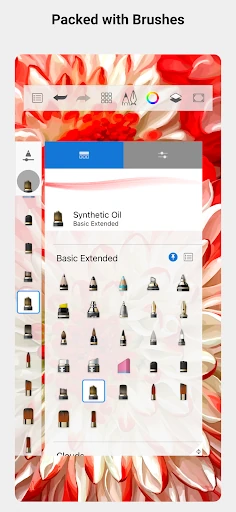
A useful habit is to spend a few minutes trying the brush types before settling into a drawing. Sketchbook includes pencils, markers, airbrushes, smear brushes, and more, and the brushes can be customized. I would treat those options as a small personal toolkit: find a comfortable mark for outlines, another for loose shading, and adjust them until they suit the way I like to draw.
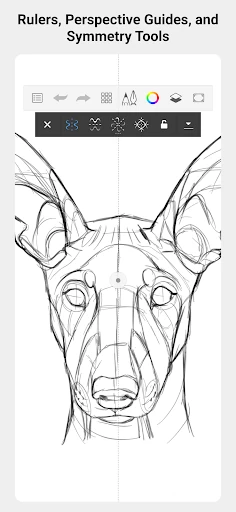
Layers and blend modes reward a little planning, even for a casual piece. I might keep the underlying sketch separate from later color work, then use a guide, ruler, or stroke tool whenever freehand drawing becomes fussy. None of that requires turning a relaxed session into a technical exercise. The point is to use precision features when they help, and let the uncluttered canvas stay uncluttered the rest of the time.
More From Our News Desk

Zoom Meetings, Google Meet, or Teams: Which Is Easiest to Join?

How I Build a Free Streaming Lineup With Tubi

Why Crunchyroll Is the Default Anime App for So Many Fans

YouTube TV: A Practical Guide to Cutting Cable

Rummikub and the Small Comfort of Phone Games

TeamViewer Remote Control or AnyDesk for Helping Family?
Who may enjoy Sketchbook
I would recommend Sketchbook to anyone who likes drawing and wants a dedicated place to sketch or paint on an Android device. Beginners can start with familiar tool types, while more practiced illustrators may appreciate brush customization, layers, blend modes, and precision aids. It also suits people who value a clean workspace and would rather focus on the canvas than navigate a crowded collection of unrelated creative tools.
It may not be the right fit for someone looking primarily for photo editing, page layout, or a broader design suite; the app's described strengths are specifically drawing and painting. People who prefer physical materials may also find that a screen-based workflow is simply not their thing. The app is free to install, with in-app purchases available, so I would check the store details before deciding whether its paid options suit my needs.
Sketchbook is an Art & Design app from developer Sketchbook. On Google Play it has over 100 million installs and a 4.1-star rating from about 707,000 ratings. The app is free to install, contains no ads, and offers in-app purchases. Store information gives the in-app product price as $2.99 per item.
The content rating is Everyone. The current version varies with device, and the release date is October 8, 2014. The most recent update date provided is October 23, 2026. The Android version requirement can vary by device, so check the Google Play details for the version that applies to your phone or tablet.
A closer look at drawing
A quiet first impression
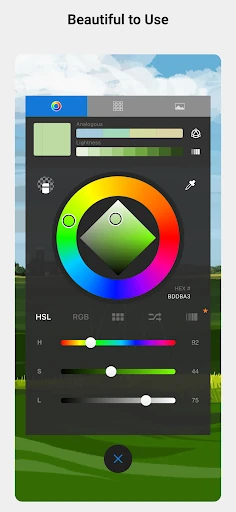
Sketchbook's first impression is shaped by its emphasis on an unobtrusive workspace. The interface is meant to keep attention on the drawing, and that makes sense for an app whose main job is to support a pencil line, a brush stroke, or a quick burst of color. I like that the overall idea is easy to understand: open a drawing app and spend your attention on what you want to make.
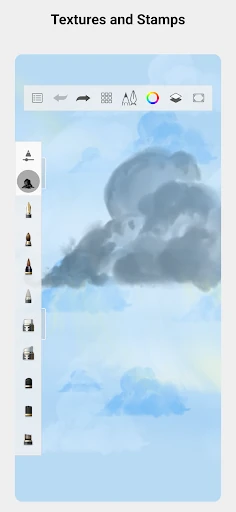
Getting started can be as simple as choosing a familiar tool and making a few marks. The available brush types suggest room to experiment without requiring a particular style. Someone used to pencil and marker may recognize those choices, while airbrushes and smear tools offer different ways to work. The app's appeal is less about a complicated setup and more about having varied tools ready for a drawing session.
The everyday drawing feel
Day to day, the core experience is about choosing a brush, making marks, and adjusting the drawing as it develops. The brushes are designed to resemble their physical counterparts, which gives the range a practical purpose rather than making it a list of abstract effects. I can imagine reaching for a pencil-like tool for a loose outline, then trying a marker or airbrush when the piece calls for a different character.
The clean interface is especially helpful when I want to sketch without first deciding how elaborate the session will be. A quick doodle can stay quick; a more involved drawing can take advantage of layers and blend modes. That flexibility gives the app a natural place in a routine, whether I have a few minutes to explore an idea or a longer stretch to work through color and form.
Brushes and precision tools
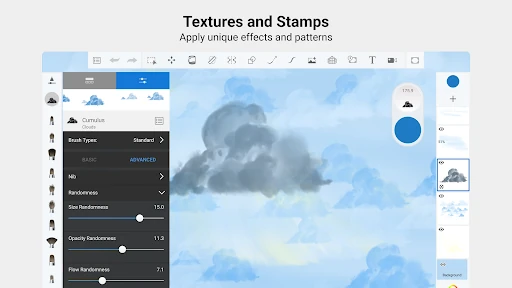
Brush customization is one of the most useful features for developing a comfortable working style. Sketchbook offers a full complement of brush types and lets users adjust brushes to create the look they want. That means the tools are not limited to one fixed interpretation of a pencil or marker. I would start by experimenting with a few favorites rather than trying to customize everything at once.
Guides, rulers, and stroke tools provide a counterbalance to the loose, exploratory side of drawing. They can support more precise work when a freehand line is not quite enough. Layers and blend modes add another kind of flexibility, letting a drawing be built up and explored in stages. Together, these features give the app both a relaxed sketching side and options for more controlled illustration.
A simple practice routine
One routine I would use is a short daily drawing session: begin with a rough sketch, try a couple of brush types, and keep the early marks separate from later color work using layers. If the drawing needs a straight edge or a controlled stroke, bring in a guide or ruler. This keeps the session manageable while still making use of the app's distinctive tools.
For a longer piece, I would treat brush customization as preparation rather than a distraction. Settling on a few useful brushes first can make the actual drawing feel more fluid. Then I could use blend modes to explore how the color and layers work together. The routine does not need to be rigid; the value is having options available when a particular drawing calls for them.
Keep the scope in mind
Sketchbook's focus on drawing is also its main limitation. The described toolkit covers brushes, precision aids, layers, and blend modes, but it is not presented as a general-purpose creative suite. If my everyday work involves tasks beyond sketching, painting, and drawing, I may need other tools alongside it. It is worth choosing the app for the job it is built to do rather than expecting it to cover every creative need.
The number of available brushes and customization choices could also invite more tinkering than a quick sketch requires. I would avoid spending a whole session adjusting tools when the goal is simply to draw. And while the app is free to install, it offers in-app purchases, so anyone weighing the cost should review the current Google Play details. Those are practical considerations, not reasons to overlook its focused drawing experience.
Sketchbook's appeal is straightforward: it brings a broad drawing toolkit together with an interface designed to stay out of the way. Customizable brushes, layers, blend modes, and precision aids give it enough range for both informal practice and more considered artwork. Its focus is clear, and that makes it easier to judge whether it belongs in my routine.
I would recommend giving Sketchbook a try if drawing or painting is the main thing you want to do on an Android device. It is a less obvious fit for people looking for a broader design or editing app. For sketchers and illustrators, though, the combination of approachable basics and more flexible tools makes it a practical place to develop an idea.
Sketchbook Frequently Asked Questions
What is Sketchbook used for?
Sketchbook is used for drawing, sketching, and painting. It includes brush types such as pencils, markers, airbrushes, and smear brushes, as well as customizable brushes, layers, blend modes, guides, rulers, and stroke tools. It is focused on creating artwork rather than serving as a general-purpose editing or design app.
Which devices can run Sketchbook?
Sketchbook is an Android app available through Google Play. The version information can vary with the device, and the Android requirement may depend on the particular phone or tablet. Check the Google Play details for your device to see the current compatibility information before installing.
Does Sketchbook cost money?
Sketchbook is free to install and contains no ads. It offers in-app purchases, with the provided store information showing items at $2.99 each. Available purchases and their details may vary, so check the Google Play page for current information before making a decision.
What Android version does Sketchbook require?
The Android version requirement can vary by device. The app's version information is also described as varying with the device, so there is no single requirement to apply to every phone or tablet. Check Google Play on your device for the current compatibility details.
Is Sketchbook a good fit for beginners?
It may suit beginners who want to draw or paint with familiar tools and a clean workspace. Its customizable brushes, layers, blend modes, and precision features also offer room to explore as skills develop. It is less suitable if your main need is photo editing, layout, or a broader creative suite.
Pros
- A clean, unobtrusive interface keeps attention on drawing.
- Brush types can be customized to suit different styles.
- Layers, blend modes, and precision tools support more involved artwork.
- Free to install and contains no ads.
Cons
- Its focus is drawing and painting, not broader creative tasks.
- In-app purchases mean some options may involve additional cost.
- Brush customization can take time away from a quick sketch.
- Category
- Art & Design