Canva: AI Photo & Video Editor
- 27.58M
- 4.8
- Installs
- 500.00M
- Price
- Free
Screenshots
Analysis by Reviewed APKs
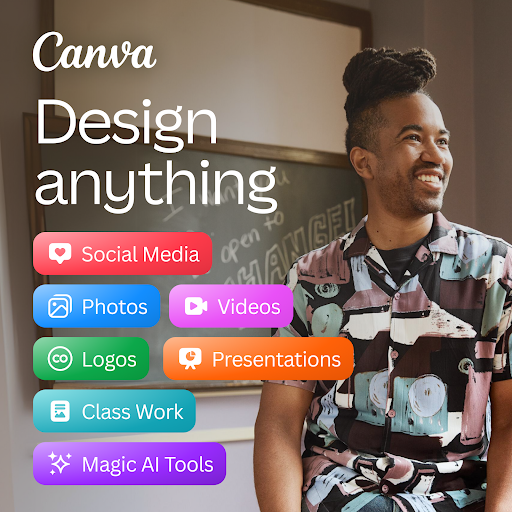
Canva: AI Photo & Video Editor is a mobile design studio for making social posts, presentations, flyers, videos, photo edits, and more. I see it suiting people who want polished visuals without starting from a blank canvas or learning a traditional desktop design program. Its mix of templates, editing tools, and AI features makes it unusually broad; the trade-off is that such a large toolbox can take time to navigate.
A Quick Post Before Dinner
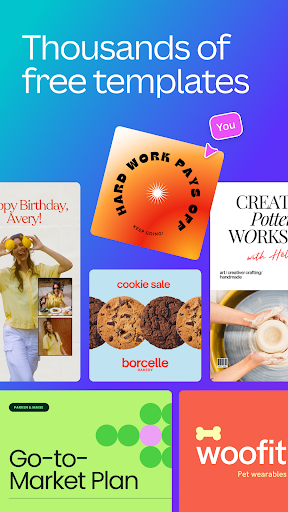
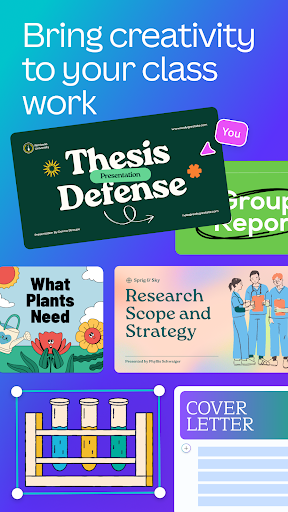
When I first opened Canva, I imagined using it for the sort of small creative job that tends to get postponed: turning a few photos into a post for a club, a side project, or a family event. I could start from a customizable template, choose a layout, and adjust the photos and text rather than build every element myself. That makes the app feel useful when I have an idea but not much time to design.
For a short video, the same general approach applies. I can work with a template, arrange images or clips, and add text, audio, animations, or transitions. The app also offers editing basics such as cropping and resizing. I like that these jobs live alongside photo and graphic design tools; I do not have to switch apps just because my quick post needs to become a short clip.
More Than a Photo Editor
Canva sits somewhere between a template-based design tool and a general photo or video editor. A basic image editor is a more focused choice if all I need is to crop a picture or adjust brightness. Canva can do those things, but it also gives me layouts for invitations, resumes, presentations, collages, and social content. That breadth is its advantage when my creative tasks change from week to week.
It is not the same thing as a full desktop video-editing suite or a dedicated illustration program. The emphasis here is on making finished, shareable designs with templates and accessible controls, not on a highly specialized professional workflow. I would pick it for a quick flyer, a class presentation, or a social graphic. For intricate editing that needs narrowly focused tools, a specialist app may feel more direct.
Small Habits That Help
I get more from Canva when I decide what I am making before opening the template library. A social post, a flyer, and a presentation each call for a different starting point, and choosing the format first helps narrow the options. I also find it useful to gather the photos and wording I want to use beforehand. That keeps a casual design session from turning into a long search for material.
For recurring content, I would keep a simple routine: start with a relevant template, replace its imagery and text, then check the result at the size where it will be seen. Canva includes tools for resizing and for adding text to images, so those finishing steps can happen in the same app. If a project uses video, I would leave time to review its audio, transitions, and captions before calling it done.
Reads About Canva
More From Our News Desk

Zoom Meetings, Google Meet, or Teams: Which Is Easiest to Join?

How I Build a Free Streaming Lineup With Tubi

Why Crunchyroll Is the Default Anime App for So Many Fans

YouTube TV: A Practical Guide to Cutting Cable

Rummikub and the Small Comfort of Phone Games

TeamViewer Remote Control or AnyDesk for Helping Family?
Who Will Get the Most From It
I would recommend Canva to students, teachers, small-business owners, and people who regularly make social content but do not want to start every design from scratch. Its templates cover practical jobs such as presentations, worksheets, resumes, invitations, and flyers, while its photo and video tools make it useful for personal projects too. The combination is especially appealing if your needs vary and you would rather keep them in one creative app.
It may be less appealing if you only need one simple editing function and prefer a small, focused interface. Canva has a lot to explore, and some features, including scheduling posts, are tied to Canva Pro. People who need specialized, fine-grained control over every part of a professional design or video may also prefer a dedicated program. For everyday visual communication, though, the range is a real strength.
Canva: AI Photo & Video Editor is developed by Canva and is listed in Google Play under Art & Design. It has over 500 million installs and a 4.8-star rating from around 27.6 million ratings. The app is free to download, contains no ads, and offers in-app purchases. Google Play gives an in-app product price range of $1.49 to $300 per item.
The content rating is Everyone 10+. The current version shown is 2.384.0. Canva was released on November 27, 2017, and its last update is dated October 27, 2026. The available app details do not specify a minimum Android version, so check Google Play for compatibility with your device.
A Flexible Toolkit for Everyday Design
Getting Started
My first impression is that Canva wants to be a starting point for many kinds of creative work, not just one. The app brings together photo editing, video making, layouts, and templates for things like presentations and social posts. That can feel generous when I am browsing for an idea, but it also means there is a lot to take in before I have settled on a project.
I find the experience easier to approach when I have a specific result in mind. Starting with a format such as a flyer or a collage gives the choices some shape. From there, the templates offer a way into the design, while photo adjustments and text tools help make it personal. I would not expect to master every corner on the first visit; a small project is a better introduction.
The Daily Design Flow
For everyday use, Canva is at its best when the task has a clear end point: a social graphic, a short video, a presentation slide, or an edited photo. I can begin with a template, adjust its contents, and use tools for cropping, resizing, brightness, contrast, or saturation. That progression feels approachable for people who want a finished result more than a lesson in design theory.
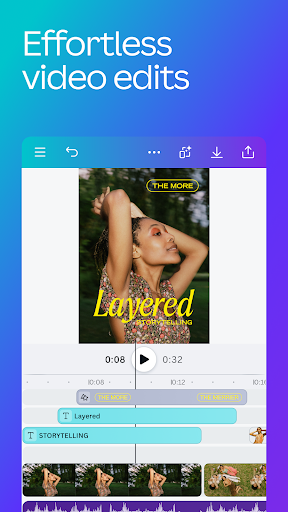
Video work brings more steps into the same routine. Canva supports audio tracks, animations, page transitions, and effects such as slow motion and reverse playback. It also describes tools for syncing edits to music and adding subtitles. Those options give a casual clip more room to feel considered, though I would still review the whole piece before sharing it. A quick automated edit is a starting point, not a substitute for checking the result.
Useful AI and Editing Tools
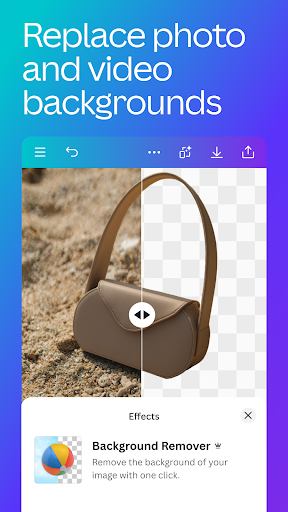
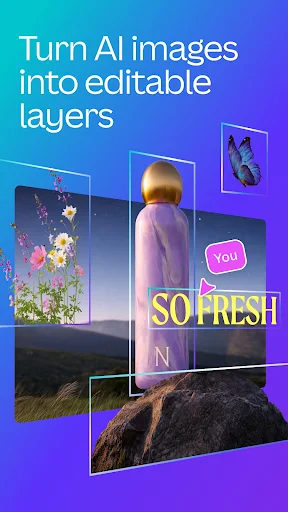
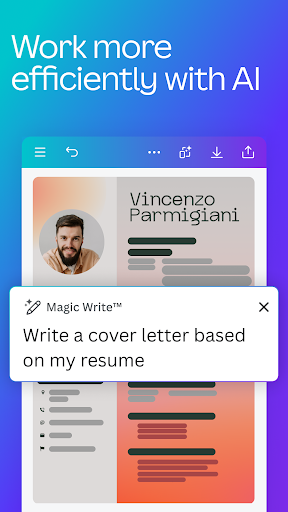
The AI features are among the more distinctive parts of Canva's offer. The app describes text-to-image generation, Magic Design for turning an uploaded image into design suggestions, and Magic Edit for swapping or adding content in an image. Magic Eraser is intended to remove objects, while background removal and blur tools help reshape a photo. These are practical options for changing a visual without rebuilding the whole design.
The broader library matters just as much as the AI. Canva describes more than two million royalty-free images, thousands of videos, over 25,000 pre-licensed audio tracks, and more than 500 fonts and effects. That gives me material to work with when my own photos are not enough. Some features and content are part of Canva Pro, so I would check what is available to my account before planning around a premium tool.
A Repeatable Content Routine
A useful routine might be making a week's worth of simple social graphics in one sitting. I would pick the relevant post format, choose a template, bring in the images, and then adjust the wording and visual details. If the same idea also needs a short video, the video editor offers a path to add movement, transitions, and audio. Keeping the work together can make small content jobs less scattered.
For a school presentation or a community flyer, I would use the same principle: choose the format first, then focus on the information people need to see. Canva includes templates for presentations and flyers as well as tools for text and imagery. The goal is not to fill every available space with effects. A few deliberate choices and a final check for readability make the template feel more like my own work.
Things to Keep in Mind
Canva's range can be a drawback if I only want a single, quick adjustment. There are many kinds of projects, templates, and tools to explore, and that breadth can make the app feel busier than a dedicated crop or filter editor. I find that picking a specific task before browsing helps keep the session focused, especially when I only have a few minutes to finish something.
The free app also sits alongside Canva Pro, and the description places certain features there, including post scheduling and access to premium content. In-app purchases are available. That does not prevent basic creative work, but it is worth considering if a project depends on a particular premium template or feature. Canva is most appealing when its variety is useful; it is less compelling if I need one specialized tool without extras.
Canva: AI Photo & Video Editor earns its place as a flexible everyday creative app. Templates help me get moving, and photo, video, and AI tools cover a wide range of common projects. I would not call it the simplest option for every individual edit, but its breadth is valuable when the job changes from a post to a presentation or clip.
I recommend giving it a try if you make visual content regularly and want an accessible way to assemble it. Go in with a project in mind, and the large set of choices becomes easier to manage. If you prefer a tightly focused editor or need highly specialized controls, a dedicated alternative may suit you better.
Canva Frequently Asked Questions
What is Canva: AI Photo & Video Editor used for?
Canva is used to create and edit visual content, including social posts, presentations, flyers, resumes, invitations, photo collages, and videos. It offers templates, photo adjustments, text tools, and AI features such as text-to-image generation and object removal. The range makes it useful for personal, school, and small-business projects.
Which devices can run Canva: AI Photo & Video Editor?
The app is available on Android through Google Play. The provided details do not give a minimum Android version, and compatibility can depend on the device and current app requirements. Check the Google Play page for the latest information about whether it works with your phone or tablet.
Is Canva: AI Photo & Video Editor free?
Canva is free to download and contains no ads. It offers in-app purchases, with Google Play showing prices from $1.49 to $300 per item. Some features, such as scheduling posts, are described as part of Canva Pro. Check Google Play for current purchase details and the options available to your account.
Does Canva: AI Photo & Video Editor require a particular Android version?
The app details provided do not specify a minimum Android version. Requirements can change as the app is updated and may vary by device, so the most practical step is to check the compatibility information on Google Play before installing or updating.
Who should use Canva: AI Photo & Video Editor?
It is a good fit for people who want to make everyday designs without starting from a blank page, including students, teachers, social content creators, and small-business owners. Its broad set of templates and tools may feel like more than necessary if you only want a focused photo editor or highly specialized design controls.
Pros
- Templates cover practical projects from social posts and flyers to resumes and presentations.
- Photo editing, video creation, and design tools sit together in one app.
- AI tools include text-to-image generation, object removal, and design suggestions.
- The free app contains no ads and offers a large content library.
Cons
- The breadth of templates and tools can make simple tasks feel less focused.
- Some features and content are tied to Canva Pro or in-app purchases.
- Specialized editing workflows may be better served by dedicated apps.
- Category
- Art & Design
- Version
- 2.384.0